Andy Millne
Invision Community Team
-
Joined
-
Last visited
-
-
-
-
-
Yes, we're not going to leave people without options. If our API requires changes we will make them to better support the 3rd party alternatives.
-
Thanks, it's some of my best work 😂 Not really though, I'm happy to take the credit but this one was @Matt Finger and @Matt
-
 You may have noticed many of the Invision Community apps getting updates recently. Over the last several months we have revealed revamped Events, Gallery and Downloads apps and have listened to how you have been using them. As a result, we are including some further app refinements as a direct result of that feedback. Gallery Many of you asked for more customisation options with the new overview page so 🎉 it is now possible to hide and show different sections of the overview using simple toggle settings without the need for theme edits. You can also adjust the number of items that show. Searching for existing Gallery images to include in topics has been a feature of Invision Community for a while but previously search has been limited to the image name. Now, when searching for images via the "Insert other attachment" editor option, searching by album name returns images from that album. Gallerysearch.mp4 Events We added a similar improved overview to Events in the October release but for those of you with multiple Calendars you wanted a quicker way to subscribe to all events. It is now possible to subscribe to all events from a prominent button in the header of the overview page. Members can subscribe to an iCal feed or download an export in just a couple of clicks. Clubs We also decided to use this release to add a couple of updates to clubs. The popular “Mark solved” functionality is now available directly in your clubs with control over who can mark the item solved. You can allow the topic author to mark questions as solved or leave it to moderators only. …and last but not least we added a contextual search tweak so that when members are viewing a club, the search filter defaults to “This Club” We hope these small but useful improvements are popular in your communities and we look forward to hearing more of your feedback and requests. Is there anything we missed? Let us know in the comments. The features discussed in this announcement are available in both Invision Community and Invision Community Classic.
 -
:D
-
Are there any other services supported beyond Zoom for Live Topics?(Jump to the answer in the video)
-
Some of us are following with interest and have seeds of ideas but nothing fixed yet.
-
 Humans are visual beings. Images attract our attention, can communicate ideas faster than the written word and can trigger meaningful discussions. At Invision Community we recognised this very early in the company history and have included a Gallery application for many years. During this time online communities have evolved substantially so we thought it was time to re-assess what it means to offer a community gallery and have some exciting developments to share. Visual Refresh The first thing we wanted to do was to give the look & feel a modern overhaul. @Ehren has done a fantastic job with modern design ideas. We took inspiration from the recent overhaul of the Events app and included a brand new Gallery overview page. This view better highlights featured and new images but also brings recent image comments in to focus to promote discussion. Better Video Support Video support has been included in Invision Community for a while but browser support has varied wildly. This often led to a poor experience where viewers were prompted to download plugins or forced to download the video in its entirety. Browser support for MP4 playback has moved on however and we have been able to update Gallery with some new functionality. Frames from the video can be extracted for the preview thumbnail automatically. We have retained the option to upload a separate preview image however for people that want manual control over the image shown. Skipping ahead in videos is now also supported without the need to download the entire file or use plugins. For communities that are able to leverage our cloud platform non MP4 videos will be automatically converted to support these features. Searchable Image Contents Another benefit for Cloud Communities is images can now be optionally analysed to make their contents searchable. For example, if an image of a tree or woodland scene is uploaded, this would previously only be searchable if the title or description of the image contained specific words or phrases. Now images can be identified solely by their visual contents. NSFW (Not Safe For Work) Invision Community contains tools to automatically moderate sensitive images to prevent them being posted. Some communities with more mature audiences may wish to allow these to be posted however but with some protection. We have therefore added the ability for images to be optionally set as NSFW when uploading. This will cause images to be blurred until the viewer opts in to viewing them. Performance & Usability Images by their nature can be slow to load (particularly on mobile connections) so we took some time and removed lots of redundant javascript and CSS. Where appropriate we have also added support for prefetching the next and previous images in an album or category and lazy loading is handled by the browser natively. We combined this with an improved image navigation experience using an image carousel when viewing individual images and removed the confusing Lightbox overlay. The Lightbox is now used solely for full screen image previews without the visual clutter of comment counts and other meta data. These changes are the start of further Gallery improvements to come and as always we will continue to develop based on your feedback. Let us know what you think in the comments.
 -
 Last month we introduced some powerful updates with a long overdue overhaul of community events. We were very pleased by the excellent feedback received and enjoyed hearing your suggestions. We listened and have been working hard to bring some further updates to Events. Support for more streaming platforms When creating a virtual event in your Events application, you may include a link to your event and the platform will advertise it with the vendor’s logo so your community knows what to expect. When your members are ready to join, choosing the “Open Event” button will set them on their way. With this update, a total of 14 third party streaming platforms are now supported. Zoom YouTube EventBrite On24 Facebook Google Webex Slack Discord Microsoft Teams TikTok NEW! Twitch NEW! Vimeo NEW! SpotMe NEW! Unobtrusive location prompts When viewing the list of events, Invision Community would immediately prompt the user for their location. Your feedback suggested this was too intrusive and as a result members can now opt-in with the “Use my location” link and checkbox. If members do not opt in then their approximate location is used based on an IP address lookup. If neither of these options are available the results center on a default location that you can set in the admin control panel settings. Bug fixes As well as these changes we have also fixed a number of bugs including: A longstanding issue where event times could show incorrectly when members in different timezones edited events. Better localization to make sure all phrases are translatable. Some issues showing events in regions that use commas instead of periods for numbers. Hiding online event links after the event has passed. We still want to make further improvements to Events and are looking forward to more updates in 2023. Let us know in the comments how you are using Events to bring together your community online and offline.
 -

-
The new features of free puppies, unlimited sunshine and good fortune for all will have us jumping in delight.
-
 For a very long time Invision Community has allowed community owners to choose how open or private their communities should be. Communities could optionally allow guests to post without registering, they could allow the use of pseudonyms or they could require the use of real names. This covers a diverse range of communities but feedback from our clients made us realize that some use cases have not been accounted for. For some types of community, where discussion topics are particularly sensitive, community owners want to make sure that members register with their real details but are given the option to post anonymously where appropriate. For example, organisations dealing with abuse or sensitive topics might want the member to feel safe and disinhibited to post info without fear of being identified by the rest of the community. With our next release, we are pleased to introduce Anonymous Posting to make this a reality. When enabled, members will see the option to post anonymously when creating or replying to content. Starting a new anonymous topic Author details for anonymously posted content is hidden throughout the community and instead a default profile picture and name is shown. Total anonymity is not always desirable however and in some cases it may be necessary for trusted staff members to know who posted the content. Where allowed, these staff members will be shown an option to reveal the content author. Author details are hidden but can be revealed by trusted staff members Anonymous posting can be enabled on a per group basis and also limited to specific forums, albums and categories etc. The ability for staff members to reveal who really posted the content is a moderator permission. We hope this new feature is a useful addition and where appropriate makes your members feel safe or comfortable to share info they might not have otherwise. How open or private is your community and what do you find are the benefits or disadvantages of anonymity?
 -
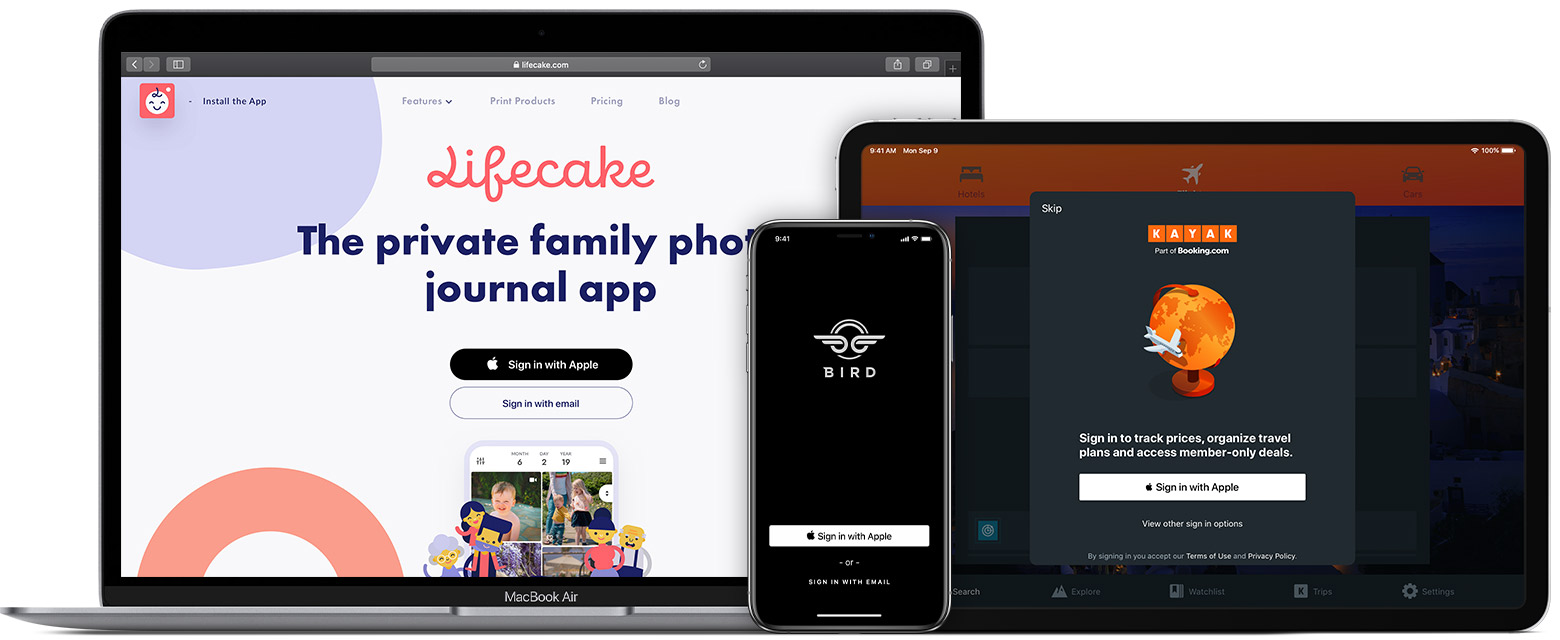 Since the feature was announced at last year’s World Wide Developer Conference (WWDC) we have received lots of requests to implement Sign in with Apple in Invision Community. We’re pleased to announce that as of 4.5 this is now available. You will need a paid Apple developer account to use it but once enabled users will be able to sign in using their Apple ID and all the convenience that brings. Touch ID and Face ID is supported natively where available and works across all your devices. Choose to share or hide your email address Isn’t it just another login button? Sign in with Apple is built on similar technologies as other login buttons such as those already available in Invision Community from Facebook, Google and Microsoft. The difference is Apple’s unique focus on privacy. On certain community types users can be reluctant to sign up when they fear they need to disclose lots of personal details. Every community is different so allowing your users to share as little or as much info as they like could be important to your success. Apple have stated that no user tracking will take place in contrast to other services where this forms a part of their business model. When signing in with their Apple ID the user can choose whether or not to share their real email address with your community. If the user chooses to hide their email address then your community will receive a relay email address that will forward to their real address. The email address used is unique to your community so the user can retain control. Can users link their existing Invision Community accounts? Yes! If a user signs in using the Apple button and shares their real email address, then providing they already have an account on your community they will be prompted to link their account in the same way as other social login buttons. They can also link an existing account from their account settings. If linking from account settings then the email addresses used do not need to match. Sign in with Apple is already enabled here on our community and is available in the 4.5 beta available to download now.
 -
You can allow your members to sign in to your community using their Apple ID with the benefits that brings such as FaceID/Touch ID and Two factor authentication. Using this method, members can also protect their privacy by choosing to hide their real email address. Their account will be created using a relay email address unique to your community. Sign in with Apple requires a paid Apple developer account that can be created at https://developer.apple.com. Creating the Credentials Once you have an Apple developer account you can create the credentials needed. Create an App ID Go to Certificates, Identifiers and Profiles. Click on Identifiers from the side menu and then the + icon to create an identifier. Choose App IDs on the first step and click continue. Enter a description and Bundle ID. The description can be anything you like but your community name is a good one. The recommended bundle ID is the reverse DNS style of your domain name e.g. com.yourdomain. Select "Sign in with Apple" from the list of capabilities and then confirm. Create a Services ID Return to the identifiers page, click the + icon again and this time choose Services IDs followed by Continue. For the description you can enter the same as you did for the App ID above. For the Identifier field enter the same identifier as in the first step followed by .client e.g. com.yourdomain.client. This is your Services ID - make a note of it, since you'll need it later when setting up Invision Community. Click Continue and then Register. You will see your service listed on the Services page. Click the service you just created. From the capabilities list, again select Sign in with Apple and then configure. This is where you will add your community domain name. First select the App ID you created in the first step above and then enter your domain name. If you only have one App ID on your developer account it should already be selected. The return URL should be set as the path to your community followed by /oauth/callback/ e.g. yourdomain.com/oauth/callback Click Next, then Done to close the popup. Click Continue then Save on the page. Create a Private Key After returning to Certificates, Identifiers & Profiles choose "Keys" from the side menu and then the + icon to create a new key. Enter a key name select Sign in with Apple from the list of capabilities and click configure. Select the App ID you created earlier and click Save. On the page you are returned to, click Register. A .p8 key file will now be generated. Be sure to save this key now as it can't be retrieved later. Finally, return to the key details page and make note of your Key ID. Fetch your Team ID The Team ID can be found on the Membership page in your Apple developer account, or at the top of most pages when creating/editing keys and services. Set up Invision Community You should now have a Services ID, Team ID, Key ID and Key file you can use to set up Invision Community. In your Invision Community admin control panel go to System > Settings > Login & Registration and click "Create New" on the Methods tab. Choose Apple from the list of handlers. You can now enter the credentials obtained above and upload the .p8 key file and set the other settings according to your preference. Click Save. A test of your settings will be performed and if everything is correct Sign in with Apple will be enabled on your community.
-
 Ever since Invision Community 4.x was launched you have been asking for the ability to categorize blogs in your community. We heard you loud and clear, but sometimes when a feature sounds straightforward, it requires some re-engineering of the framework. Because users in your community can create both blog entries and their own blogs to hold these entries, this was one of those areas. Starting with Invision Community 4.5 I’m pleased to announce that it is now possible for blog authors to categorize their blog entries and it's now possible for administrators to categorize blogs. Blog Entry Categories When creating a new blog entry, your members will now be able to create a new category for the entry or choose an existing one that had been created previously. Choosing your category when creating a new blog entry When a reader then visits the blog they can choose to display only those categories that interest them. Filtering by category Blog Categories Running a community where users can create their own blogs, you don’t only need to make sure individual pieces of content are categorized correctly, you also need to make sure the blogs themselves have a logical place. Well guess what? Now you can! As an admin you can now set up predefined categories in the control panel and Blog authors can then choose which one to create their new blog in. Managing blog categories We realize some of you have been waiting a long time to see these changes so we hope you enjoy this and everything else to come in Invision Community 4.5!