



Matt
Management
-
Joined
-
Last visited
Everything posted by Matt
-
To recap: To enable push notifications on iOS: Ensure you are using iOS 16.4 or newer Save the site to your iPhone's home screen via the share icon Enable push notifications via the option at the bottom of the notifications options page Ensure you have set some notifications to "+ Push" Make sure you haven't disabled notifications via iOS Settings globally or for the app icon if you scroll down the settings list in iOS.
-
Thanks for everyone that turned up and asked questions today!
-
Same. I've actually re-enabled a lot of notifications and set them to push only.
-
We want to implement 'badges' so you can see the number of notifications in the red bubble, and possibly a hint to let people know they can add the website to their home page for notifications.
-
I've actually re-enabled a lot of notifications and moved them exclusively to my phone now. I find myself coming back more when I'm out and about.
-
Have you tried using 'standalone' as the UI type?
-
No, it's not cloud only. You need to first add the website to your home screen for push notifications to be allowed. It seems to be a webkit bug where the notification will only go to the correct URL if the web app is already open and in memory.
-
It definitely removes the need for a native mobile app now.
-
There is much more to a SaaS platform than just servers and services. There are micro-services that tie these services together. We believe it was a micro service that we have used for over four years that failed. Our investigation is ongoing with AWS. As Lindy mentioned, please get in touch if you want to lodge a formal complaint and we will do our best to resolve it. I want to underline again that we are proud of our platform stability, with 99.99% uptime over several years. Incidents like this are rare but we do not take them lightly and have implemented an audit of alert systems, uptime monitoring, service statuses, etc to ensure we do not have a repeat of this event again.
-
They are, yes. It’s so the service workers can run.
-
Yes, we just had to tweak some our our JS code to allow iPhone to register as supported to the rest of our normal notification system. We'll update our docs, but to get iPhone notifications working you must complete the manifest in the ACP and use the 'add to home screen' feature. It won't work just with mobile safari in a tab, for example.
-
Huge thanks to @Daniel F for risking his iPhone by installing the latest iOS beta to get this feature working for us!
-
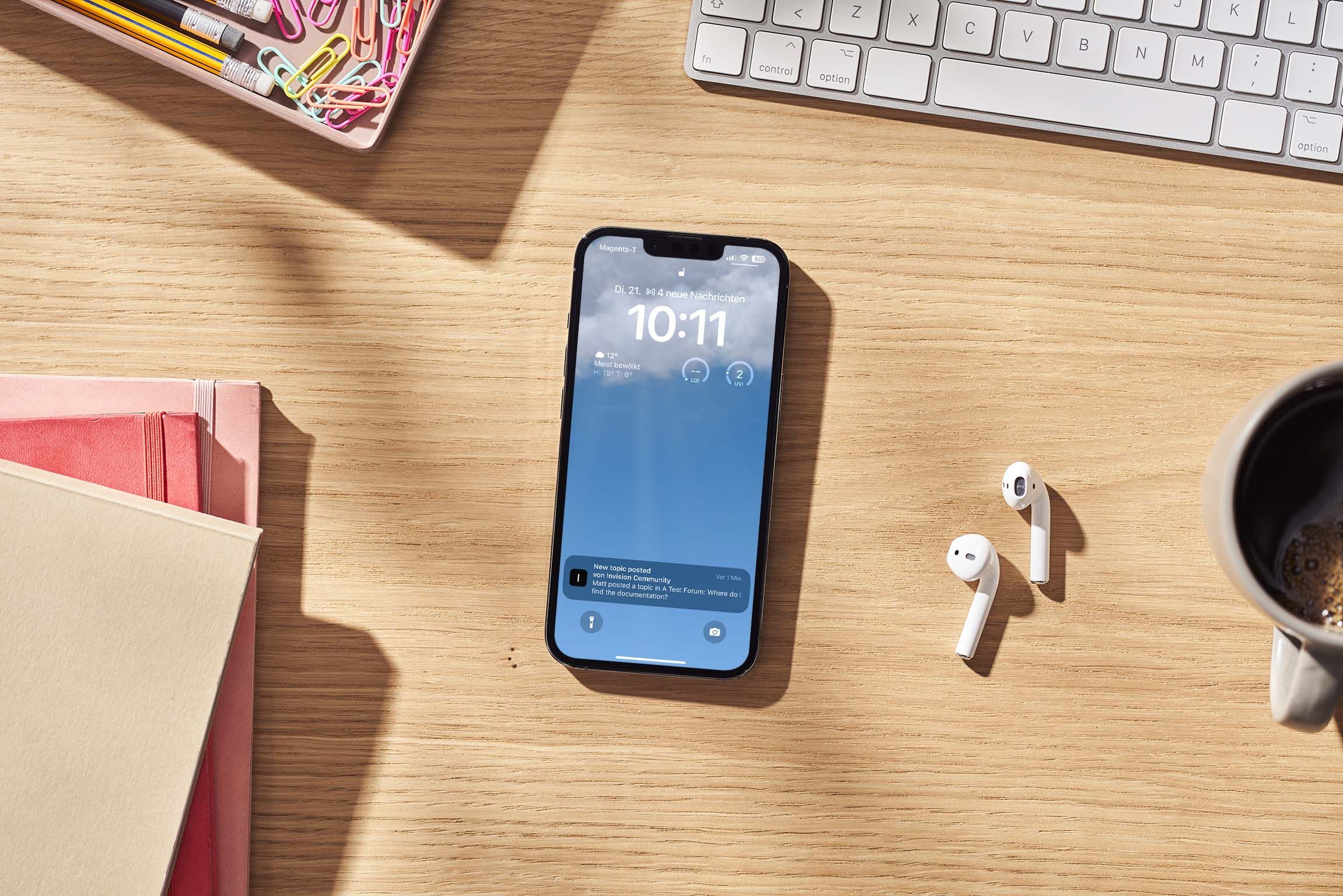 The longest awaited iPhone feature is almost here, native iOS notifications, and we couldn't wait to ensure it is enabled for your Invision Community. Invision Community 4.7.9 is iPhone push notification ready for when Apple release their latest iOS update later this month. This means you'll finally get notifications on your phone, even when you do not have your browser open, to alert you of new content on followed items and more. A feature Android owners have enjoyed for a while. With notifications, you can have an authentic native app experience with built-in Invision Community features such as the manifest editor. The manifest editor allows you to edit your theme icons, colours and URL for when your members add your community to their phone's homepage. This manifest file helps mobile devices understand how to display your community site when launched from the home screen. Your members can add your community to their home screen with the share button. Once it has been added, it looks and feels like a native app downloaded from the App Store. With Apple finally allowing native notifications and Invision Community's mobile-ready UI coupled with the manifest editor, you can have a real app experience without needing a mobile app. iPhone PWA.mp4 We intend to bring more functionality and ease of use to mobile devices over the coming releases. We hope you're looking forward to iOS native push notifications as much as we are! The features discussed in this announcement are available in both Invision Community and Invision Community Classic.
 -
The longest awaited iPhone feature is almost here, native iOS notifications, and we couldn't wait to ensure it is enabled for your Invision Community. Invision Community 4.7.9 is iPhone push notification ready for when Apple release their latest iOS update later this month. This means you'll finally get notifications on your phone, even when you do not have your browser open, to alert you of new content on followed items and more. A feature Android owners have enjoyed for a while. With notifications, you can have an authentic native app experience with built-in Invision Community features such as the manifest editor. The manifest editor allows you to edit your theme icons, colours and URL for when your members add your community to their phone's homepage. This manifest file helps mobile devices understand how to display your community site when launched from the home screen. Your members can add your community to their home screen with the share button. Once it has been added, it looks and feels like a native app downloaded from the App Store. With Apple finally allowing native notifications and Invision Community's mobile-ready UI coupled with the manifest editor, you can have a real app experience without needing a mobile app. iPhone PWA.mp4 We intend to bring more functionality and ease of use to mobile devices over the coming releases. We hope you're looking forward to iOS native push notifications as much as we are! The features discussed in this announcement are available in both Invision Community and Invision Community Classic. View full blog entry
-
Thanks Randy, We're taking this very seriously. More information will follow.
-
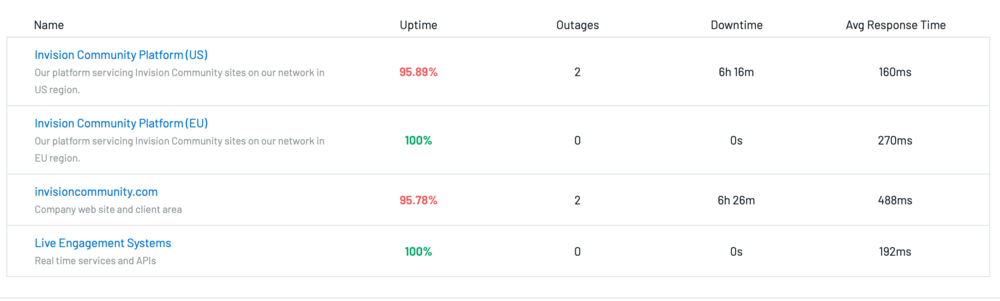
We did experience an outage, however it was 6 hours, not 12 hours. Our status page monitors this forum (which was down for 6 hours) and the US cloud platform (also down for 6 hours). Your screenshot adds them together. This doesn't make it right, any extended outage is not ideal, but I just wanted to fact check the 12 hours claim which is double the downtime that occurred. As Charles said, it is very unusual for us to experience this, so we are incredibly frustrated. Our uptime for 2022 was 100%, and so far this year including this event, it's 99.68% so it really is a very rare occurrence. It doesn't mean we're being complacent, but it illustrates that this isn't the usual experience.
-
@Matt Finger did all the hard work (JS, node, React, etc). I got the easier jobs.
-
We plan on bringing more video platforms to Live Topics, but as of its first release, Zoom is not directly embeddable. You can do an unlisted Youtube Live video too if you wished.
-
-
Yes, I think this is where we will go. We didn't do this for v1 due to time constraints.
-
To recap from the video answer: not so in chat, perhaps in questions - or at least image uploads.
-
But as above, you will (soon) get a notification when it is ready.
-
Ergmont, not at this time. It does take maybe 30 seconds to process.
-
Although this won't occur today because we're not using the latest build in production, future live events will send a notification to all attendees when the live topic is ready to view on the forums.
-
Yes, this will come in a near future version.





