




Matt
Management
-
Joined
-
Last visited
Everything posted by Matt
-
Only when using a smaller screen where it drops into the menu button on mobile view. There's no way to hide it using desktop (unless you choose to use the classic view where there is no sidebar!)
-
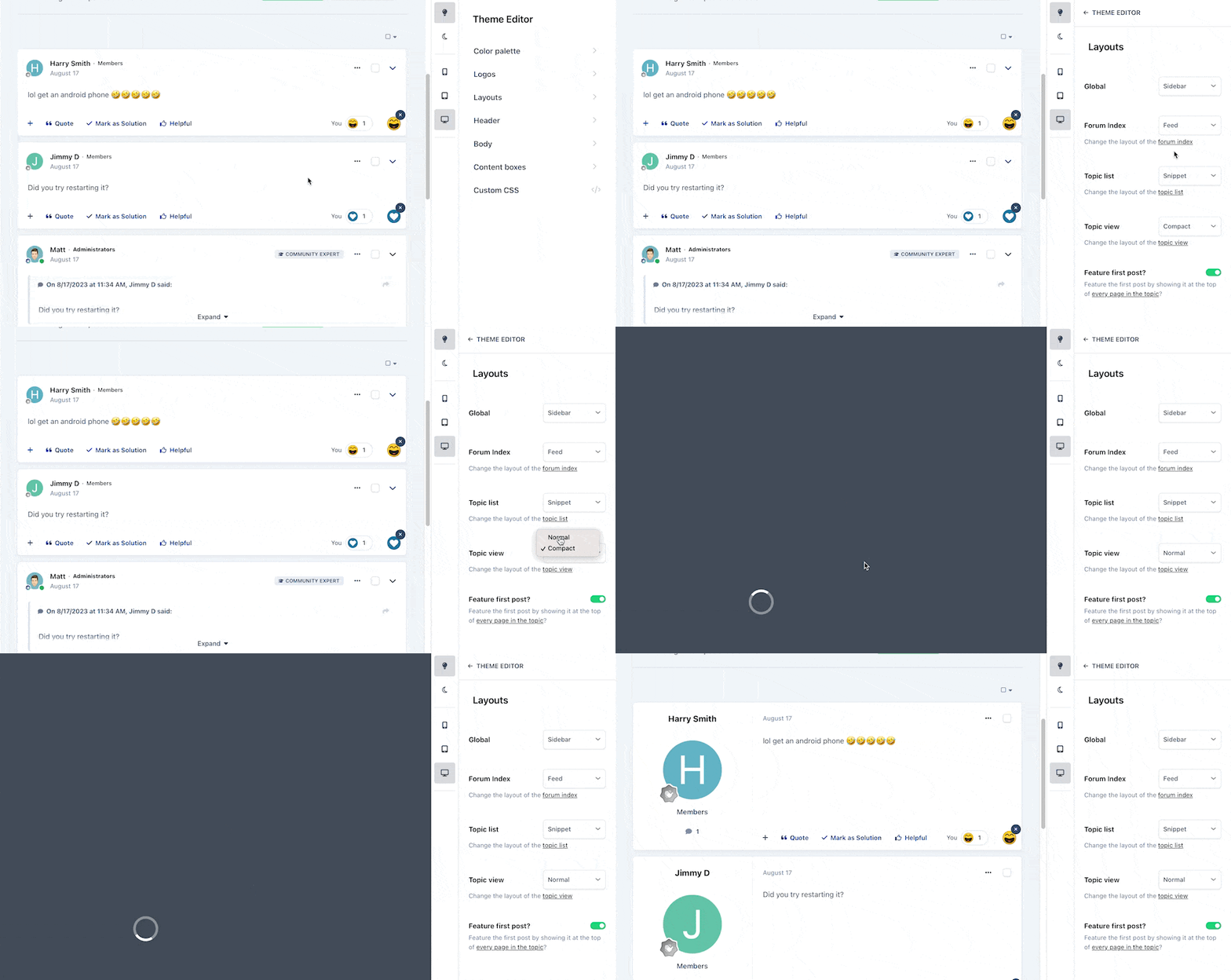
Ehren will be covering the theme editor in more depth very soon. I stole a little of his thunder with that gif but I see a lot of concern about new views and how they fit in with their community, so I wanted to show just how easy it is to toggle between them. It's also worth mentioning that these layout options are per-theme and not global as they used to be, so you can mix and match across your community as you see fit.
-
It is indeed an option.
-
No two sites are the same, which is why we've made it very simple to switch between layout types. More on that very soon.
-
Ehren is a superstar, he's barely scratched the surface on what he's been working on for the past six months. I'm really excited by these new views and the sidebar mode gives a very desktop app like experience, whereas the new mobile view is truly fit for purpose and not just a squished desktop view.
-
Anything significant will be for v5. We have two code bases which have diverged significantly, so it's a fair bit of work to merge v4 code into v5. I currently do this manually with patch files.
-
We've released some news on Invision Community Five, but third party developers won't have enough information to get started on updating their apps. We're at the peak of the mountain now and ready to start showing more in the coming weeks. I am really excited to start showing off the culmination of just under six month's work from our team.
-
No dates, but we're unlikely to release a major new version around a public holiday when our team are enjoying time away with their family. You'll definitely see more of Invision Community 5 this year. In terms of the JS bundling changes, the answer is 'no' but not 'never'. We want Invision Community 5 to be the start of something new, and we'll be converting JS over to native and changing how things are bundled over the early part of its lifecycle. We didn't want to add another 6-9 months onto its development schedule to rewrite all the JS which is a massive undertaking and offers very slim benefits to almost everyone outside of Google speed tests.
-
Hey, the 80s was peak civilisation.
-
Automated using various metrics. Yep.
-
How’s the music on this one @Dll?
-
This is correct. We have a new license for v5 which alters the renewal structure and removes the ability to "mix and match" apps. To download v5, you'd need to first switch licenses via the client centre. To be clear, you won't need to re-purchase a new license, just agree to switch to the v5 license.
-
We do have plans for an opt-in before viewing embeds but it'll likely not be in 5.0. Version 5 is the start of the next chapter and it'll mature quickly over a number of releases. Self-hosting license prices have already been released for v5. You can even switch to the pricing now (Client Area > Manage Purchases > "Change your license to new Invision Community Classic terms"
-
More news on theming coming soon.
-
I have a lot of thoughts on this which I’ll put in a blog at some point but we as a platform service two different community needs; transactional and social. The transactional topics benefit most from helpful/solved. Less useful for social conversational topics where notes and moderator tools come in.
-
Never gonna give him up! At the bottom near the footer currently. There is an 'auto' mode to take the value from your OS.
-
It's a setting, so it's up to you. 🙂
-
it's not something we have on our list at present. Yes, I see 'this is helpful' as being something outside of reactions. I may like/laugh/thanks at various posts but it does not mean that they fix the problem the topic poster had. "Helpful" is a clear signal that the post offered the topic starter a sensible answer. It's a useful tool for transactional type topics (I need an answer to _____ / I need _______ solving) and helps reduce the noise in a topic until the topic starter or moderator marks a specific post as the definitive answer.
-
Ok grandpa.
-
As you may know, Invision Community 5 is currently in development, and progress has been great, with many areas starting to come together. Almost all of the significant code restructuring has been completed, with much progress on the UI and the new theme bearing fruit. A fair few new features are complete, but some aren't quite ready to show, as they need a little love from Ehren. I wanted to share a little teaser of Invision Community 5; how many new things or changes can you spot? The small print Please remember that the features, functionality and UI shown in this little teaser are pre-beta, so they are subject to change. The features and functionality shown here aren't all that has been completed; many new features are 'code-complete' but waiting for some UI polish before we're ready to share more. Essentially, what you're seeing is a work in progress. We don't have a release timeframe in mind yet, but we'll let you know when we do!
-
Ah, I see it. Thanks.
-
Do you have registrations set to disabled or redirect elsewhere?
-
Do you have the Invision Community Geolocation service enabled (and an active license key)? (ACP > Integrations)
-
What do you see under the Spam Defense tab? The Contact Us verification is a setting under ACP > Settings > Contact Us.

-
We did that three years ago in a genuine attempt to increase sales and viability. It helped for a short while but the trend didn’t hold.





