Everything posted by Adriano Faria
-
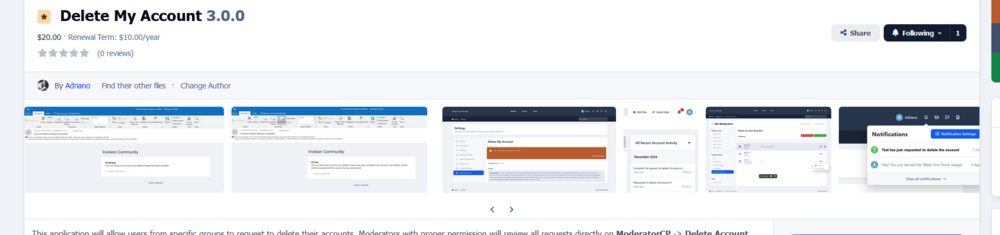
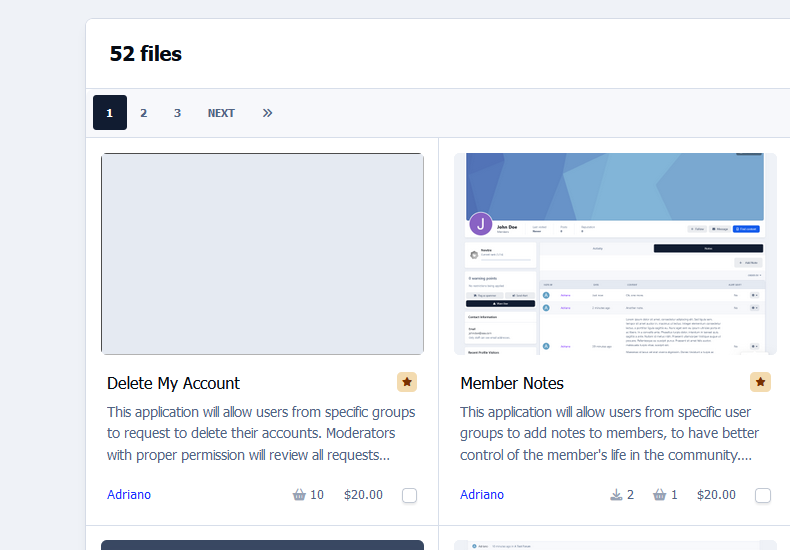
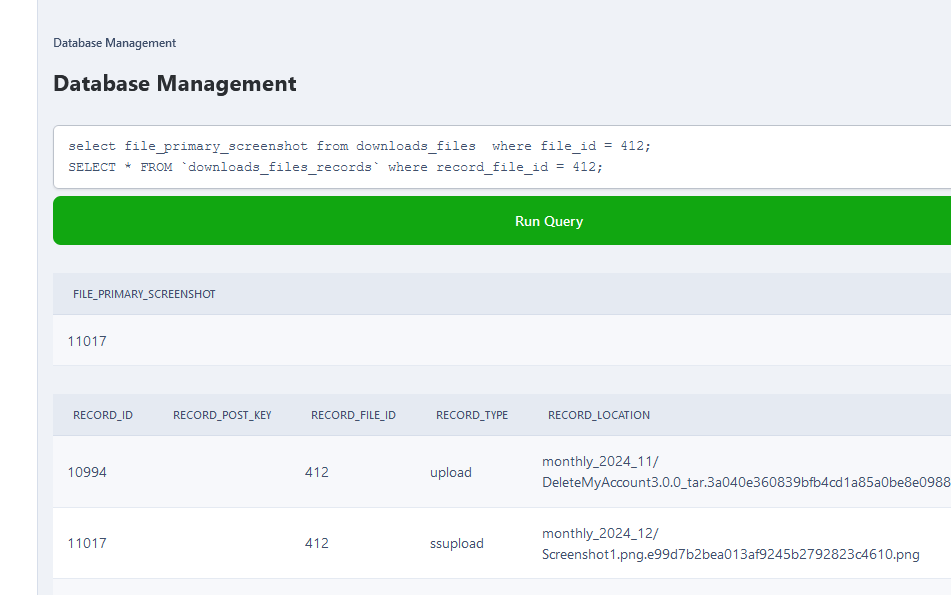
Adriano Faria replied to Adriano Faria's topic in Invision Community 5: Beta Testing's Beta DiscussionLooking closer now, the file is definitively deleted, that's why it doesn't appear on the category view. It isn't on file view: The file appeared in 3rd place. Now it's gone. EDIT: but it appears on the UPLOAD NEW VERSION screen: The file is there: So Esther, maybe it is worth checking by the primary_screenshot, etc.
-
Adriano Faria replied to Adriano Faria's topic in Invision Community 5: Beta Testing's Beta DiscussionAll titles are in English only. I tried only on my upgrade board.
-
Adriano Faria replied to Adriano Faria's topic in Invision Community 5: Beta Testing's Beta Discussion@EliasM, is your board a fresh install or an upgrade from 4.7.1*? @Esther E. Could it be by any chance any file from IPS 4 interfering somehow? Yep, I know it sounds absolutely vague but I’m out of ideas here.
-
Adriano Faria replied to Adriano Faria's topic in Invision Community 5: Beta Testing's Beta DiscussionUnfortunately, the same with PHP 8.1 and 8.2.
-
Adriano Faria replied to Adriano Faria's topic in Invision Community 5: Beta Testing's Beta DiscussionI'll change it later and will reply here.
-
Adriano Faria replied to Adriano Faria's topic in Invision Community 5: Beta Testing's Beta DiscussionNot sure how to help. I disabled all 3rd-party apps I'm using; the same. That's what I'm using:

-
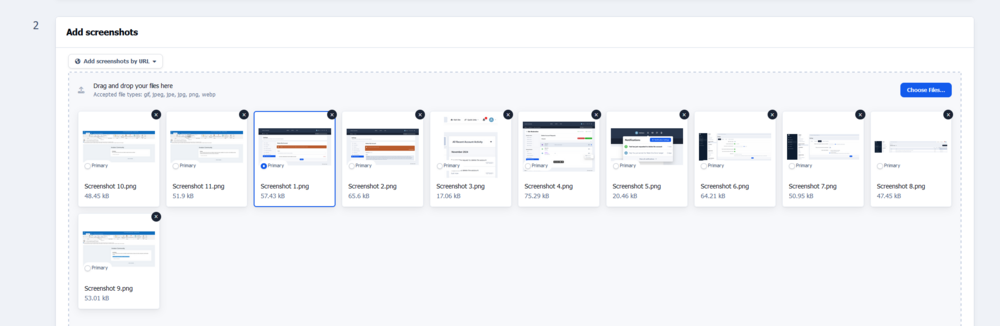
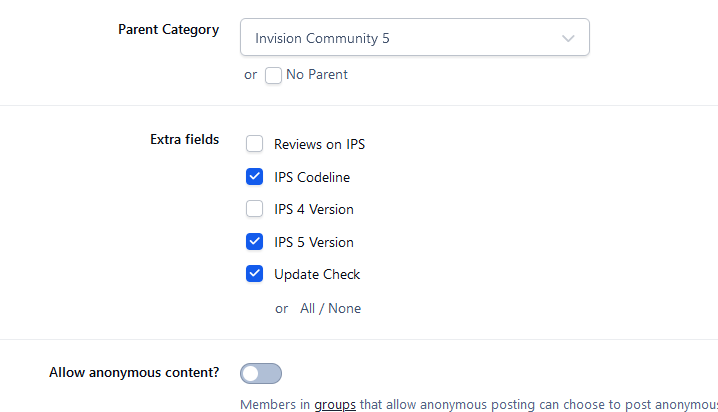
Adriano Faria replied to Adriano Faria's topic in Invision Community 5: Beta Testing's Beta DiscussionThese fields appear only when submitting the file. Anyway, that's my category settings: So for the video below, I don't even use the UPLOAD field in the file category. I uploaded a new version, changed nothing, and hit save. After a hard-refresh, the category image is gone: I disabled the Save Previous Version? option but it doesn't make any difference. The next step is to upload a new version and remove all screenshots. Save. Upload a new version with the screenshots.
-
Adriano Faria replied to Adriano Faria's topic in Invision Community 5: Beta Testing's Beta DiscussionAll required, except the UPLOAD (Reviews on IPS) and the YES/NO (Update Check).
-
That's not really a big thing, Marco. Any 3rd-party developer can replicate this in a custom job for you: https://www.invisioneer.org/forums/forum/17-custom-requests/
-
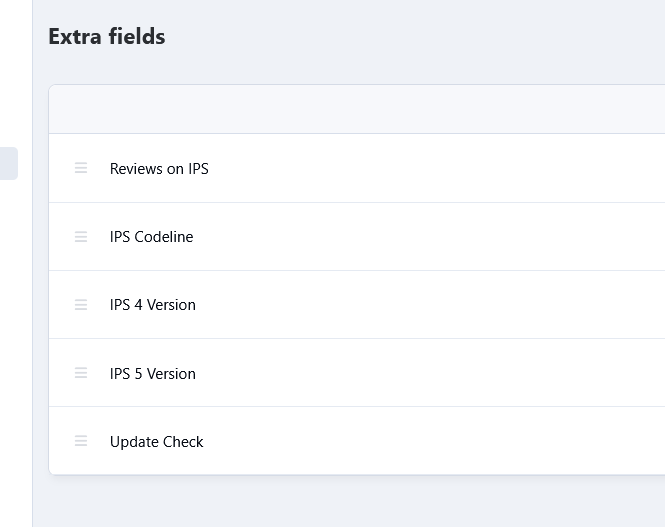
Adriano Faria replied to Adriano Faria's topic in Invision Community 5: Beta Testing's Beta DiscussionI am: The first one is a UPLOAD field. The rest is YES/NO or SELECT.
-
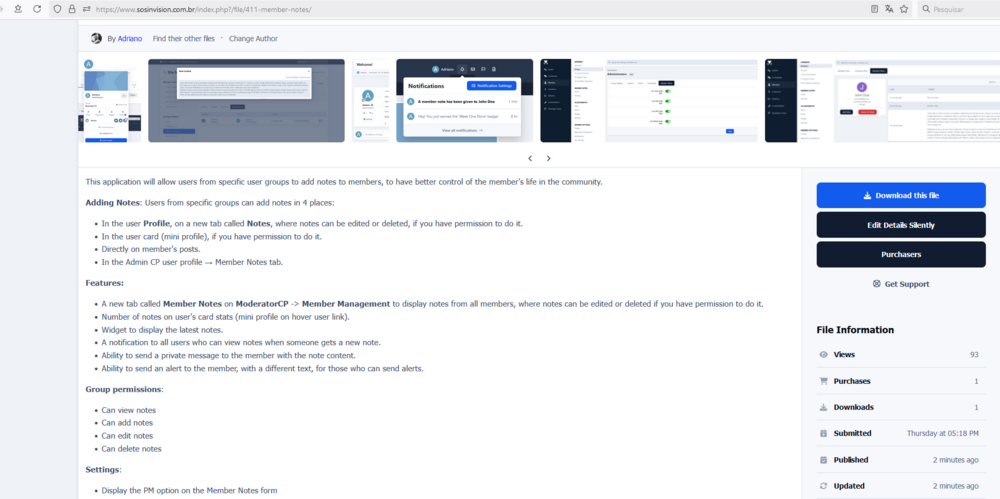
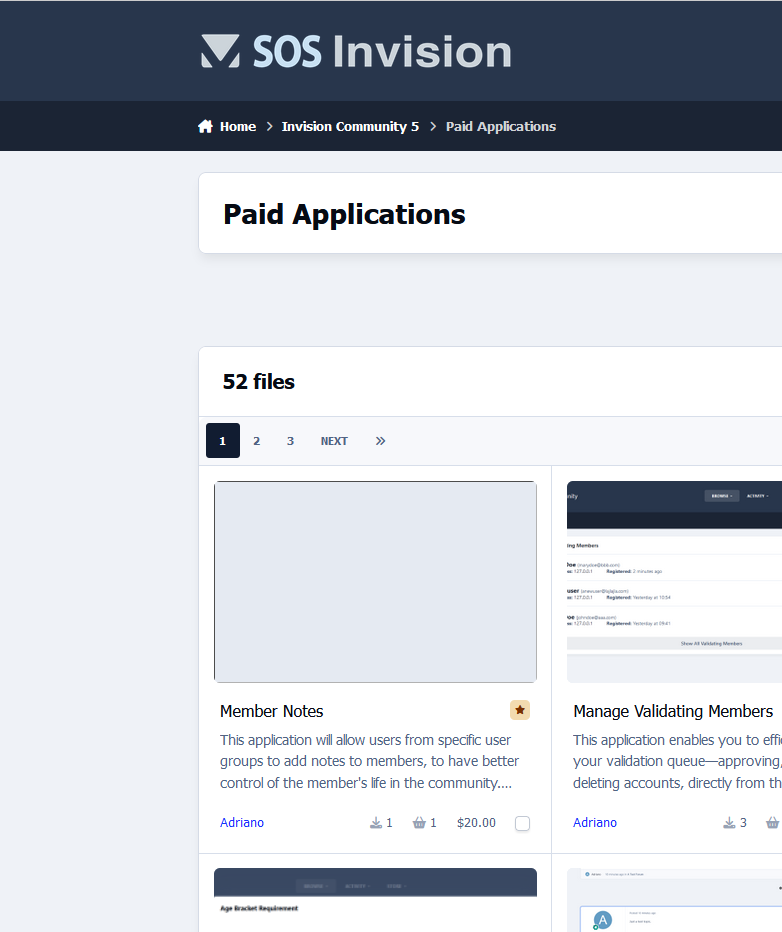
Adriano Faria replied to Adriano Faria's topic in Invision Community 5: Beta Testing's Beta DiscussionUnfortunately, it's enough to upload a new version: The file was updated 2 minutes ago.
-
Adriano Faria replied to Adriano Faria's topic in Invision Community 5: Beta Testing's Beta DiscussionI noticed yesterday that another third-party app is preventing my tasks (cron) from running when this app is enabled. If I disable it, it works fine. Pretty sure it is related. 👍
-
Adriano Faria replied to Adriano Faria's topic in Invision Community 5: Beta Testing's Beta DiscussionIt happens on my site every time I upload a new version. Then I have to remove all screenshots, save, upload a new version to add the same screenshots. It works.
-
I have something similar for profiles: https://www.sosinvision.com.br/index.php?/file/375-profile-backgrounds/ Create a topic on this forum if you’re interested. It can be easily done via a custom application.
-
Interesting POV. Hope you’re right, even not having used it or needed it so far.
-
Not for 5.0.0. Future.
-
I never used an external storage and if it is really what it looks like (local storage only {uploads folder}), I’m curious: will this be discontinued for Cloud users too or only for self-hosted? I don’t see IPS hosting files from so many clients (+85%). That’s a genuine question.
-
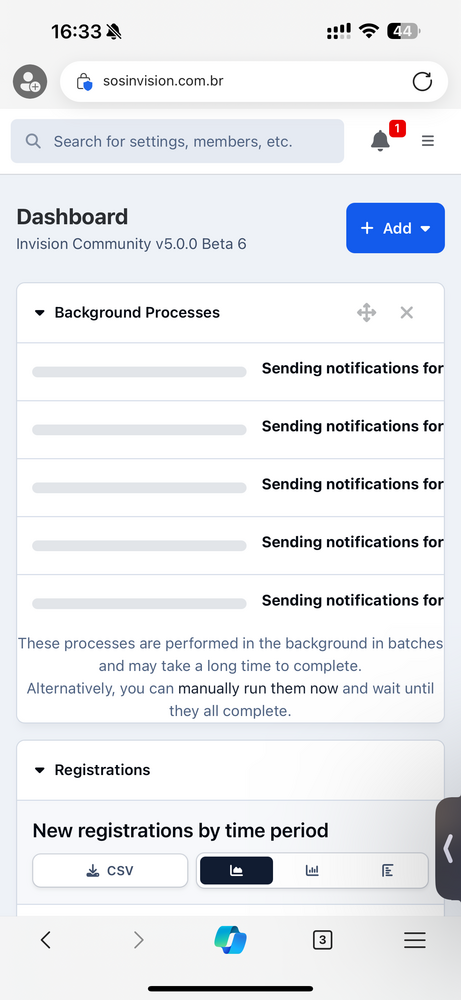
I read it somewhere but I can’t find it now. I got this stuck at every new topic post/DB record comment: I have to manually run them several times during the day. I use cron (PHP 8.3).
-
I only discover yesterday (after a couple of months using IPS5) where the CODE option is. I found it funny. It made no sense to me to hide it there. 👀
-
Adriano Faria replied to Adriano Faria's topic in Invision Community 5: Beta Testing's Beta DiscussionOk, my mistake.
-
Adriano Faria replied to Adriano Faria's topic in Invision Community 5: Beta Testing's Beta DiscussionNope, it wasn’t there. I guess the rating system still exists. It was removed from Forums apparently. Anyway, not a big deal for my apps as I can write my own rating system. Also, not for me; a client has an interesting use of it and we’ll be impacted.
-
Adriano Faria replied to Adriano Faria's topic in Invision Community 5: Beta Testing's Beta DiscussionYes, that’s why there was a way to disable it.
-
Adriano Faria replied to Adriano Faria's topic in Invision Community 5: Beta Testing's Beta DiscussionFor you? I really don’t care but don’t try to speak for others. No, thank you.
-
I am asking because I see a lot of "ratings" in templates and files but no option in the forums to enable it. {{if $topic->container()->allow_rating}} {template="rating" group="global" location="front" app="core" params="'large', $topic->rating_hits ? ( $topic->rating_total / $topic->rating_hits ) : 0"} {{endif}} etc.

-
Adriano Faria replied to Adriano Faria's topic in Invision Community 5: Beta Testing's Beta DiscussionYep: 👍