




Matt
Management
-
Joined
-
Last visited
Everything posted by Matt
-
This is the latest version of Invision Community.
-
It's something we're still discussing. It means opening up permissions on iframes and we want to think about that carefully.
-
The initial process is kicked off by a task, if you search for 'rank' in the task manager then run it, it should start populating. It runs every hour. If you are drunk, or can't find it let me know and I can do it for you.
-
5.0.5 Released The final release is beta 2 with one other fix. Let me know how you get on.
-
Beta 2 is on it's way! We've fixed a bunch of bugs and now Topic Summaries works. It's the first time we'll be testing this in the real world, so we'll likely tweak the algorithm and improve its choices as we learn more about how it feels in use.
-
This is the latest version of Invision Community 5.
-
League one meet up at mine!
-
Derby fans need all the help they can get, am I right?
-
I think I saw S1 about 18 months ago. I think I watched the first episode a long while back and shelved it, but came back to it later and couldn't stop. I loved every episode of S2 and Tramel Tillman is just on another level. "Devour feculence" had me for days.
-
OMG that season finale was insane. I hope it's not another 3 years before the next series. I have questions! Thanks Mike, that's really appreciated.
-
Try now.
-
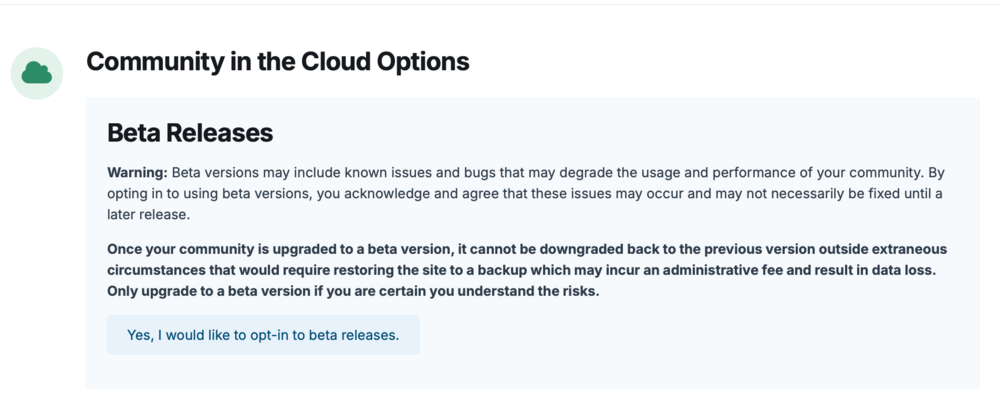
Invision Community 5.0.5 Beta 1 Released Mr Milchick approved We're back with a brand new release! This release fixes a few of the bigger issues reported over the past couple of releases. ElasticsearchFor those using Elasticsearch, please note that the new minimum version for Elasticsearch is now 8.0, with the latest version 8.17 recommended. Those using Elastic search in v5.0.4 and earlier (including all of v4) will need to upgrade their Elasticsearch server, and then rebuild the search index. We chose to update to the latest version of Elasticsearch as v7 is no longer supported and there's been some document level changes in how data is stored. We've tested it thoroughly but let us know if you find anything odd! Using BetasIf you do not see an upgrade, it means that you do not have betas enabled. Invision Community CloudCloud customers can opt-in to betas in the client area. Invision Community ClassicSelf-hosting customers can either download the release from the client area, or add the following line to constants.php define( 'USE_DEVELOPMENT_BUILDS', TRUE );If you do not have this file, create it in a text editor, so the contents looks like: <?php define( 'USE_DEVELOPMENT_BUILDS', TRUE );Let me know how you get on! Coming up soonishThere's some discussion around sluggish javascript in some areas. This looks to be specific to Chrome and occasionally Safari, which honestly has taken a nose dive in quality recently. We think we know why, but it's taking some time to figure it all out. Essentially, we think it's some parts of our older javascript framework struggling with the new CSS framework. We'll get it figured out, but I wanted you to know that we're on it.
-
There's no need, it's already been fixed for 5.0.5 which is out this week 🤞
-
It's been a long week, can you explain what you mean please?
-
I just tried on your site @SoloInter and it's pretty fast for me in Edge, is there a specific browser that it's slow. That said, it is showing literally all the tags. I think it'd be better to show the top 50 or so and then the search box can be used to find others. Was this fine prior to 5.0.4?
-
Regarding tags, can you take some video, or screenshots please? I can't reproduce but I may not be following the same actions as you. @CheersnGears speaks of the ACP management page. What issue are you having @adekk ? @SoloInter If your clientarea details are up to date, I'll log in and see what's happening on your site.
-
This is likely an oversight, I'll take a look.
-
We're fortunate to have a great team. @Ehren @Matt Finger and @Esther E. tear through the bug reports for Invision Community 5. Then we have Stuart, Daniel and Ryan working on other projects alongside v5. @Olivia Clark keeps us all in order. 🤣
-
Green Light (I still have PTSD)

-
Upgrade to beta 3. It's all good. I always upgrade this site first. If anything happens, let me know and we'll sort ASAP.. but it won't. The changes in b2 and b3 are small. The bug you mention was patched quickly. It was to do with building SEO titles.Those older cloud plans have been around for a long time and the pricing based on the v4 framework, but please do contact sales and we'll see what we can do for you.Invision Community 5.0.4 Beta 3 is now out. This fixes a bunch of stuff, including the various issues with URLs that have index.php in them (aka, not using .htaccess rewrite). Full list here: https://invisioncommunity.com/release-notes-v5/504-beta-3-r37/ If all goes well, we'll release the final version on Wednesday.This is the latest version of Invision Community 5.I tracked down the issue. Hopefully fixed in the next release. If you turned on Rewrite URLs via the ACP > Search Engine Optimisation (and added the .htaccess), the issue will go away now. :)






