


Ticaga
Clients
-
Joined
-
Last visited
-
-
 Ticaga reacted to a blog entry:
Introducing Quests: Tailored gamification and bridging in-person events with your community
Ticaga reacted to a blog entry:
Introducing Quests: Tailored gamification and bridging in-person events with your community
-
-
-
-
Any way we can do this on Classic? Even if we have to sign up to something for an API?
-
-
-
Keep up the good work guys
-
14 worked fine for me guys loving it.
-
Upgraded fine :)
-
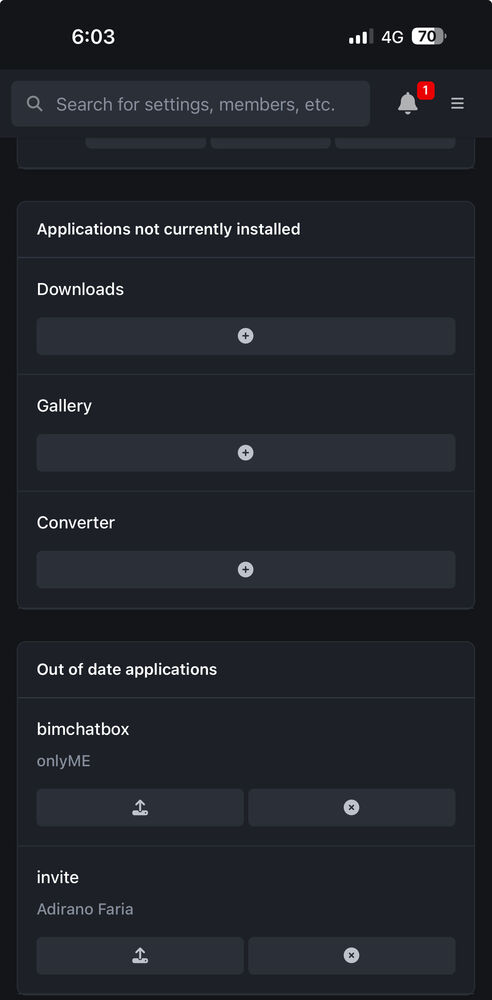
Yeah Matt answered that they stay there just for record use. Unless they are applications been a while since I added them to ipb4
-
Looking good guys, loving the new design, the only issue I have is I can’t remove outdated plugins. I get an error but they can sit there there’s nothing wrong with them being there.
-
When will V5 be out approximately guys?



