


Pescao6
Clients
-
Joined
-
Last visited
Everything posted by Pescao6
-
I think it had previously added /forums to everything when I used the Live Meta Tag Editor because Forums was the default app, but I found out I could edit the URLs and just remove '/forums' and that's working to bring them back. Thanks!
-
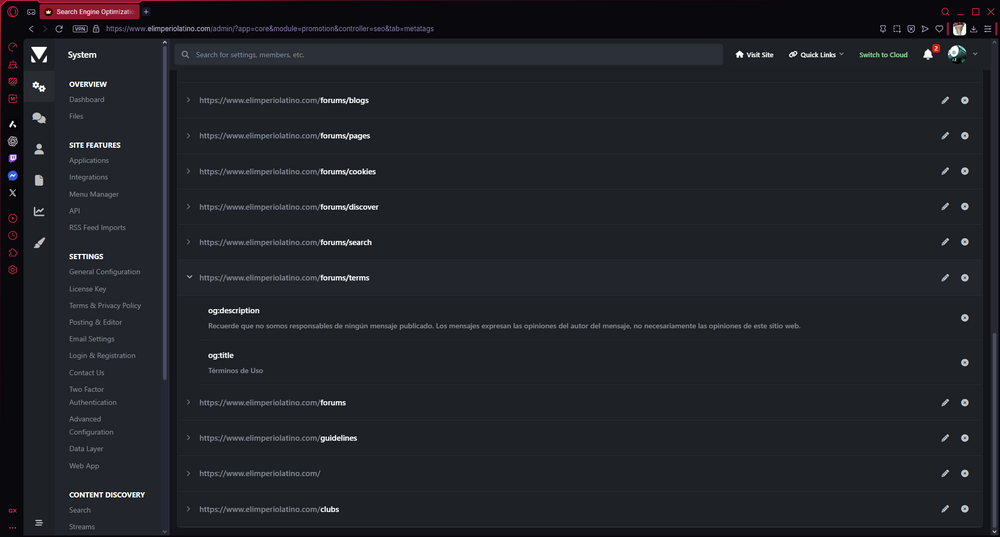
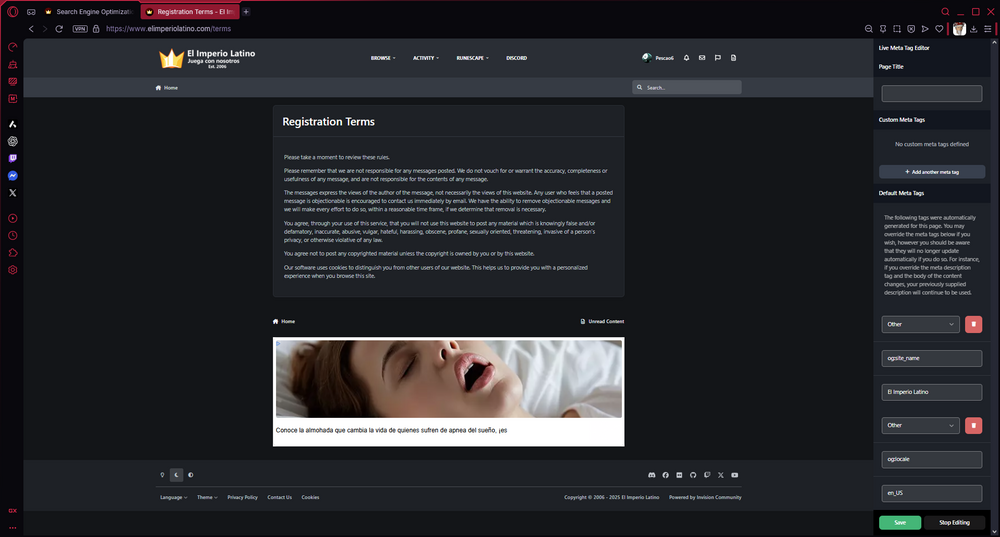
You can see the og:description and og:title are missing from the Live Meta Tag Editor even though they show up in the ACP. Do you think there might be a query I could do to put them back without manually doing adding them 1 by 1?
-
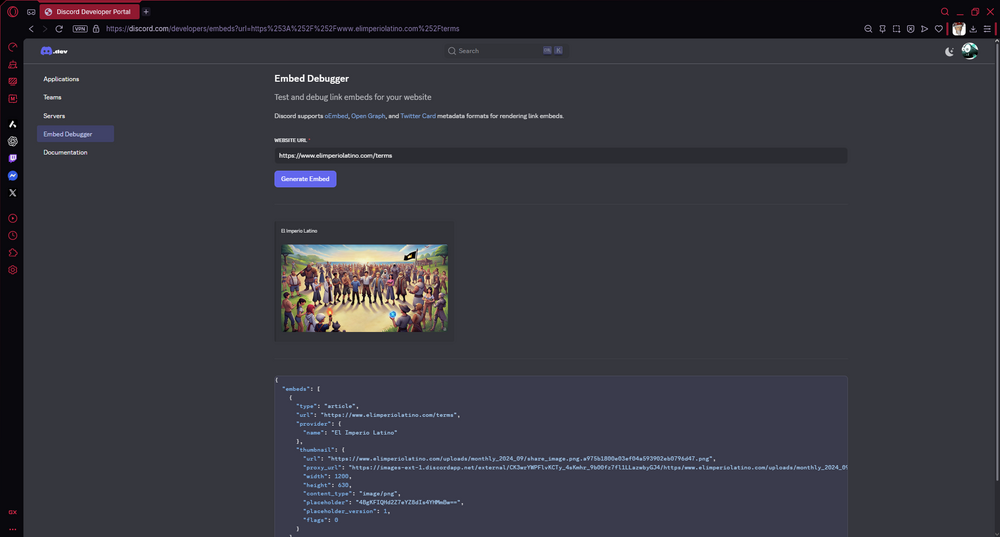
I just upgraded to 5.0.12 and my meta tags are gone. 😭 Homepage was unaffected. I can still see them in the ACP, but they've been removed from the Live Meta Tag Editor. ~ I hope you guys can fix this so it doesn't happen with future versions. 🫡
-
LLMs like ChatGPT don't crawl your entire site, but in theory they can crawl anything guests can view with the right prompt. llms.txt is a new, experimental standard some sites are starting to publish to declare their rules for large language models, but it has not been adopted yet. For now, the best thing you can do is run a test to make sure ChatGPT can crawl your URL and it's not being blocked by something like Cloudflare. Because ChatGPT would probably ignore the replies from forum posts, one work-around might be to use wget to download the pages and then upload the HTML files to ChatGPT allowing you to fully scan them.




