Enhancing the Mobile Experience with New PWA FeaturesAs part of our ongoing mission to ensure Invision Community 5 feels as smooth and modern across all devices, we’re pleased to announce several improvements in 5.0.10 that enhance the Progressive Web App (PWA) experience.What is the PWA and how do I use it?A Progressive Web App (PWA) is a mobile-optimized version of your community that users can add to their device’s home screen, just like any regular app. It launches in full-screen and supports push notifications and badges (when enabled).To install the PWA:iOS/iPadOS: Tap the Share button in Safari (square with an arrow), then tap "Add to Home Screen."Android: Tap the three-dot menu in Chrome, then tap "Add to Home Screen."The goal for this update is to make your community feel closer to a native app and to make the PWA more accessible, so lets take a look at what's new!Pull to Refresh on iOSAdding pull-to-refresh in the iOS PWA has been a popular request in our feedback forum and I'm excited to share that it has now been implemented. Just like in a native app, users can swipe down to refresh the page in iOS, making it easier and more intuitive to see the latest content.This feature replaces the Refresh button previously found in the mobile footer and brings the iOS experience in line with modern mobile app standards.light-pull-to-refresh.MP4 dark-pull-to-refresh.MP4Loading animationNavigating between pages in PWAs could sometimes cause confusion due to the lack of a loading indicator. To alleviate this, a custom loading animation has been added which should reassure your visitors that the next page is actually loading. It’s a subtle addition, but it's one which many visitors would expect to see in modern mobile apps - and now they can!ScreenRecording_06-07-2025 13-25-43_1.MP4Installation prompt bannerSome users may not be aware that they can install your community directly to their device like a native app. To help with that, we’ve introduced a new installation prompt banner to help guide them through the install process.This banner appears when users are browsing your community in a mobile browser. Tapping the banner brings up step-by-step instructions tailored to their device. It’s a gentle nudge that increases PWA adoption while also respecting your visitors choice with a dismiss button.ScreenRecording_06-07-2025 13-56-44_1.MP4App icon badgesReceiving a notification on the community now adds a notification badge to the PWA icon on your home screen, even if the PWA isn’t open. It’s a great (and familiar) way to inform your members that there’s fresh content waiting for them, and it's just a single tap away.Badges.mp4Redesigned enable push promptsEnabling push notifications has never been easier. You are now prompted not only in the main notifications menu, but also when tapping follow on any item.EnableFromMenu.mp4More improvements coming soonThis is part of our ongoing commitment to make Invision Community 5 the best possible experience on mobile. We’re already working on additional improvements to make the mobile experience even more polished and I look forward to sharing them with you in a future update!
Over the past year, Gatorade Performance Partner has built something special for athletic trainers, coaches and other sports performance practitioners: the Gatorade Fieldhouse. Gatorade Fieldhouse is a member‑only hub where professionals can ask questions, share best practices, and stay in touch long after an event ends. The online community was prominently featured at this summer’s National Athletic Trainers’ Association (NATA) conference in June 2025, where Gatorade’s booth invited attendees to “join the conversation.”A digital home for sports health professionalsGatorade Fieldhouse.mp4Gatorade Fieldhouse is the first cross‑discipline digital forum for sports health and performance professionals. Inside the community you’ll find:Ask + Answer forums – members can pose questions, share experience and crowd‑source real‑world advice.Events and webinars – the team hosts regular science spotlights and mentorship talks, such as “The Value of Mentorship for Athletic Trainers” and “How cross‑discipline collaboration can improve athlete performance.”Curated resources – information from Gatorade Sports Science Institute (GSSI) and partners gives members credible, science‑backed answers.Hot topics – Gatorade Fieldhouse surfaces trending discussions and encourages members to dive into conversations.These features make Gatorade Fieldhouse more than a message board. It feels like walking into a professional development hub where athletic trainers, sports dietitians, strength coaches, and other sports performance professionals learn from each other. That atmosphere was recreated in Orlando at the NATA conference, where the booth hosted panel discussions and Q&A sessions. Seeing a crowd gather around the stage for a talk on mentorship underlines how thirsty practitioners are for this kind of connection.Bridging in‑person and online experiencesOne of the biggest challenges at any trade show is turning a one‑off conversation into a lasting relationship. Gatorade addressed that by introducing Quests, a new gamification system created in collaboration with Invision Community. Quests lets you design challenges that reward real‑world actions. Attendees scan a QR code to join the community and start their first quest. Once completed, the achievement automatically syncs to the member’s online profile.At the NATA booth, attendees were encouraged to get to know the Gatorade Fieldhouse by participating in a digital scorecard hosted on the platform. They completed a few quick tasks around the Gatorade Fieldhouse, which were checked off automatically. Once all tasks were completed, attendees received a special gift.Why Gatorade Fieldhouse mattersGatorade Fieldhouse shows how a brand can move beyond transactional marketing and build a genuine community, and our Quests feature is just one piece of a broader strategy:Lowering barriers to entry – a simple QR code in the booth lets anyone join within seconds.Encouraging participation – small challenges and scorecards nudge visitors to engage, both on‑site and online.Rewarding expertise – sharing answers or attending webinars earns recognition, giving practitioners a reason to return.Mobile friendly – Gatorade Fieldhouse works great on phones, and it's easy to install the community like a native app.The result is a platform that continues conversations all year rather than for one weekend. By rewarding actions at conferences and synchronizing them with online profiles, Gatorade keeps members invested in each other’s success.A model for other communitiesNot every brand can set up a giant orange roof in the middle of a trade show, but every community can learn something from Gatorade Fieldhouse’s approach. Quests lower the friction between in-person and online engagement, while mentorship talks, science spotlights, and discussion forums keep members coming back.It’s a space that brings practitioners together through genuine connections, shared knowledge, and experiences that carry well beyond the event floor.
Our September release of Invision Community is packed with improvements and new features, including editor enhancements and a brand-new integration with a popular service.Our commitment to enhancing Invision Community, which is shaped by feedback from many of our customers and partners, continues with this release.In addition to the usual fixes, we have some exciting updates to share.Editor improvementsThe editor is one of the most important components of Invision Community, as it serves as the interface for contributing to the community. We have upgraded the editor by transitioning to the latest version of Tiptap for Invision Community 5.This update introduces several improvements, including support for touch events on mobile devices and enhanced overall efficiency.The editor's toolbar is designed to be compact, making it suitable for all devices, whether large or small. However, many found it difficult to locate the code box button and the spoiler feature.In our September release, these features are now more prominently featured in the menu.We've added the ability to drag and drop quotes, boxes, and images within the editor.editor_moving.mp4We will never let you down.Finally, we've added the ability to set alt text for an image, and a video title and default start time for a video.MailchimpInvision Community can send emails to your members, but you may require more sophisticated content or wish to set up automation and email drip campaigns.Mailchimp is a widely-used service that we have experience with, and the new integration allows for automatic addition or removal of members from a list.You can also export existing members and import them into Mailchimp, which offers a double opt-in option via a confirmation email to ensure permission for subscription.Auto lock topicsA popular feature request is to have a way to auto-lock topics based on criteria, such as when they have not had a reply for a long time.This functionality is now available in our September release. You can exclude pinned topics, topics created by specific authors and those tagged with particular tags.Default pages per groupThere are several reasons why you may want your default Pages page to be different for each member group. You might have a membership community and want to show them a pricing page, or you may have a special VIP group that has access to more parts of your site.With our September release, you can now set a default page per group.This only examines the member's primary group, given the complexities that may arise when secondary groups are used, as they can be combined with many other groups.We hope you enjoy these new features, and we encourage you to keep sending in your suggestions; they truly help us shape the future of Invision Community.All these features are available to all Invision Community plans.
Invision Community 5 has a brand new editing experience powered by a lightweight, fast React text editor built for mobile and modern browsers.The venerable CKEditor v4 at the core of our current editor is starting to show its age, so we wanted a clean slate with Invision Community v5 with an editor that was optimized for mobile use, easily extensible and had a feature set that would take us into the next era of Invision Community and beyond.The obvious choice was to consider the latest version of CKEditor, but it didn't fit our needs as it wasn't easily extensible, external plug-ins would no longer be possible, and its large footprint would affect page speed scores and be painful to use with a mobile connection.After a long search, we settled on Tiptap as the base for our editor. Written in React, loaded in chunks when needed for optimal performance and with many APIs and extensibility options, it was the perfect fit.Aside from the technical improvements, the editor offers new tools and a great base for writing our own plugins. I'll walk you through the main features throughout this blog. If you want a more technical deep dive, then please see my development blog.The ToolbarThe toolbar has been redesigned to put the most commonly used styles first, with the least used styles and functions into an ellipses menu. The new paragraph menu contains the header styles, as well as the code block. The plus menu adds lists, boxes and quotes. The benefit of this new compact menu is that it displays just the same on mobile. Currently, there are different editor styles for desktops, tablets and mobiles with some style buttons removed to save space. With Invision Community 5, this is no longer the case. Even the smallest display gets all the functionality.mobile-toolbar.mp4 Emojis & IconsEmojis have become a great way to embellish writing and express emotion. The new emoji picker has been modernized with larger emojis and tooltips to showcase the emoji shortcodes.The Icons tab, new for Invision Community 5, allows you to add Font Awesome Icons directly to your content.Lastly, both the emoji selector and the shortcode suggestion dropdown support arrow-key navigation, so you don't have to move your hands from the keyboard to the mouse.Content BoxesThe feature I'm personally most excited about is boxes.The concept started as an abstraction of spoilers because sometimes you just want "a box" - a section that stands out from the rest of the content, something we do manually in our documentation and guides on this site. Each box has a tile and the following options:Expandable - You can mark a box as "expandable" which is functionally the same as a spoiler. One improvement is that expandable boxes use native HTML details and summary elements instead of plain Javascript animated divs.Colors - You can optionally keep it grey on grey like spoilers, but I think that's so boring! The colors automatically adjust to the theme colors, so it will look great in dark and light mode.Float (left/right/none) - You can make the box align to the left or right of other content just like you can for imagesWidth - When the box is floated, you can set the width to big, medium or small.Boxes.mp4Link ExpansionInvision Community has long expanded some links, such as YouTube, offering more context or even a mini-player where appropriate.With Invision Community 5, we've added support for embedding dynamic link previews using site metadata. This is a preview of a topic on our forum.For those unaware, the Open Graph (OG) Protocol is essentially a way webpages can specify a title, image, and description to be dynamically embedded on another platform. This is the underlying technology when you see the link preview in Meta, X, Slack, or iMessage.Code Blocks and Inline CodeThe new editor adds inline, syntax-highlighted code blocks and inline code. Both formats can be applied via the toolbar, or optionally, you can wrap text in a single backtick (`) to convert it to an inline code block or triple backticks (```) to convert it to a code block.The code blocks also support numerous languages for syntax highlighting, including a new custom highlighter for the Invision HTML Template Syntax (Invision Community theme creators and application developers, you're welcome!)Semantic Headings and Relative SizesInvision Community 5 adds a block selector with headings 1 through 6 in the new editor. It's possibly the most common request I hear so that people can use consistent styling rather than just big bold text in a paragraph tag. Semantic headings are also ideal for SEO and accessibility.In addition to the block selector, you can create headings with the corresponding markdown shortcut. Consecutive pound signs (#) at the start of a line followed by a space (the number of pounds corresponds to the "level" of the heading). For example ### creates a Heading 3 (<h3/>) creates the heading for you.Using clear header tags means screen readers and search engines can better understand your content as using absolute font sizes, such as 16px, can make it unclear what type of element is actually being used. Is it a heading or just a paragraph with large bold text?Furthermore, you may want different sizes depending on the content and device type. Mobile devices may benefit from a large base font size. So we added percent-based font sizes which change the font size based on whatever the default would be for that block.text-menus.mp4Further UX ImprovementsThe new editor in Invision Community 5 has several tangible improvements, including a mobile-first design.In the current editor, some functionality was hidden behind modals and double clicks, which are either not obvious on mobile devices or not possible at all. The new editor no longer relies on modals and instead uses buttons and dropdown menus that work perfectly with mobile and other touch-based devices.New Line ArrowsFor block content, such as boxes, images and quotes, we've added the ability to create a new line before or after the block with the click of a button. This was an issue of frustration for mobile and touch devices where it was not always clear where the cursor was and a finger is a much less accurate aiming device!Sticky ToolbarAnyone who has authored a long piece of content knows the pain of scrolling up and down to get the toolbar in view. To make writing longer content less stressful, we've made the toolbar sticky so that it will always be fixed at the top of the editor after scrolling down.sticky-toolbar.mp4Markdown Style ShortcutsOne common request is to support markdown in the editor. While we opted not to include full markdown support, the new editor recognizes many markdown-style formatting shortcuts.markdown.mp4ColorsA common challenge with rich text editors on sites with multiple themes is colors often need to consistently look right across all themes. This is even more important with Invision Community 5, as it has a native dark mode feature. For this reason, we opted to offer a reduced set of color options that all adapt dynamically to the theme. I mentioned this about box colors above, but this is also true of the font color. The difference in shade is slight, but it's very noticeable without it. Toggling between light and dark mode will never produce unreadable text.colors.mp4We can't wait for you to try the new editor; it has already been very popular with our small testing group. Which feature are you most looking forward to trying?
Invision Community v5 takes a fresh approach to tagging and content discovery. It overhauls the concept to bring content across different sections together with a beautiful new tag page.
Tagging is a powerful concept but underused with Invision Community 4 due to overly complex interfaces in different areas of the suite, a confusing open tagging model option and no real benefit in content discovery beyond a simple list of content items.
A driving force behind Invision Community 5 is the question of how we can help time-pressured community members find the content that most interests them.
Invision Community has robust taxonomy through forum and category structures, but what about content in less visible areas such as Blogs, galleries or Events? How can we bring those together to homogenise the type of content and focus on the content itself?
Taxonomy via tagging across all applications in the community suite is the answer. However, we needed to re-approach how tagging was implemented in the Invision Community to bring our new vision to life.
Out with the old
The current tagging system is implemented loosely, allowing open tagging, which is more akin to hashtags than high-level taxonomy. Allowing forums, albums, and blog categories to define their own tags turns tagging into more of a status label, which does nothing to help bring disparate content together.
In with the new
With a new focus on taxonomy and content discovery, we set about rebuilding tagging for Invision Community 5. The UI to tag items is the same, but now each defined, globally available tag has its own page with cover image and ability to feature items within that tag page.
A uniform approach to different content items in the UI breaks down the barrier between content types and focuses solely on the content.
Tags featured on its page are automatically displayed on the community Featured Content page.
Finally, tags can now be followed, allowing your community to get a daily or weekly digest of all new tagged items, bringing people back to read more of the content they love.
Let’s take a closer look
In Invision Community 5, all tags are defined in the Admin Control Panel. The ability to use open tagging and per-node tags has been removed, but don’t worry—the upgrade system will offer conversion for those tags.
Once defined, the tags are available for all content types and feature on a dedicated new tag page. This page features cover photos and more information on the tag via a description.
Content from across your suite will be displayed on this page. If a single piece of content has multiple tags, it will appear on every relevant tag page making it easy to have content in multiple areas.
If you want to permanently or temporarily feature individual content, perhaps your latest news or product release, you can do so right from the tag page. Featured content will show on the community’s Featured Content Page.
Blurring the lines
Now that we have an attractive and focused page for each tag, we can start to blur the lines between applications and, indeed, forums and categories, offering a new way to organise content.
For some communities, the need for multiple forums to categorise content is diminished, and instead, tagging can be used to separate and find content from across the community.
Tags can be featured in the menu system, offering new ways into your community for new visitors, regular community members, and even those who visit daily.
Invision Community 5 is fearless in challenging past decisions or streamlining features to make them stronger and more focused. Our new approach to tagging takes a vague and underutilised concept and pushes it front and centre in any content strategy.
How will you use it in your community?
Introducing new Page Builder tools in Invision Community 5
Widgets are an incredibly powerful tool for displaying curated content of your choice on any page of your community - and despite the extensive array of settings for customizing their data, they've often been limited in terms of their design options. But this changes thanks to the new Page Builder tools in Invision Community 5!
Widget Designs
Previously in version 4, widgets would often have 2 designs: one for the main content area and a more minimal version for the sidebar. This worked well, but it meant your page was very limited in terms of design as you'd typically need to use the same table-like layout for most widgets. Anything beyond that would typically require a custom block to be coded, often with additional HTML or CSS.
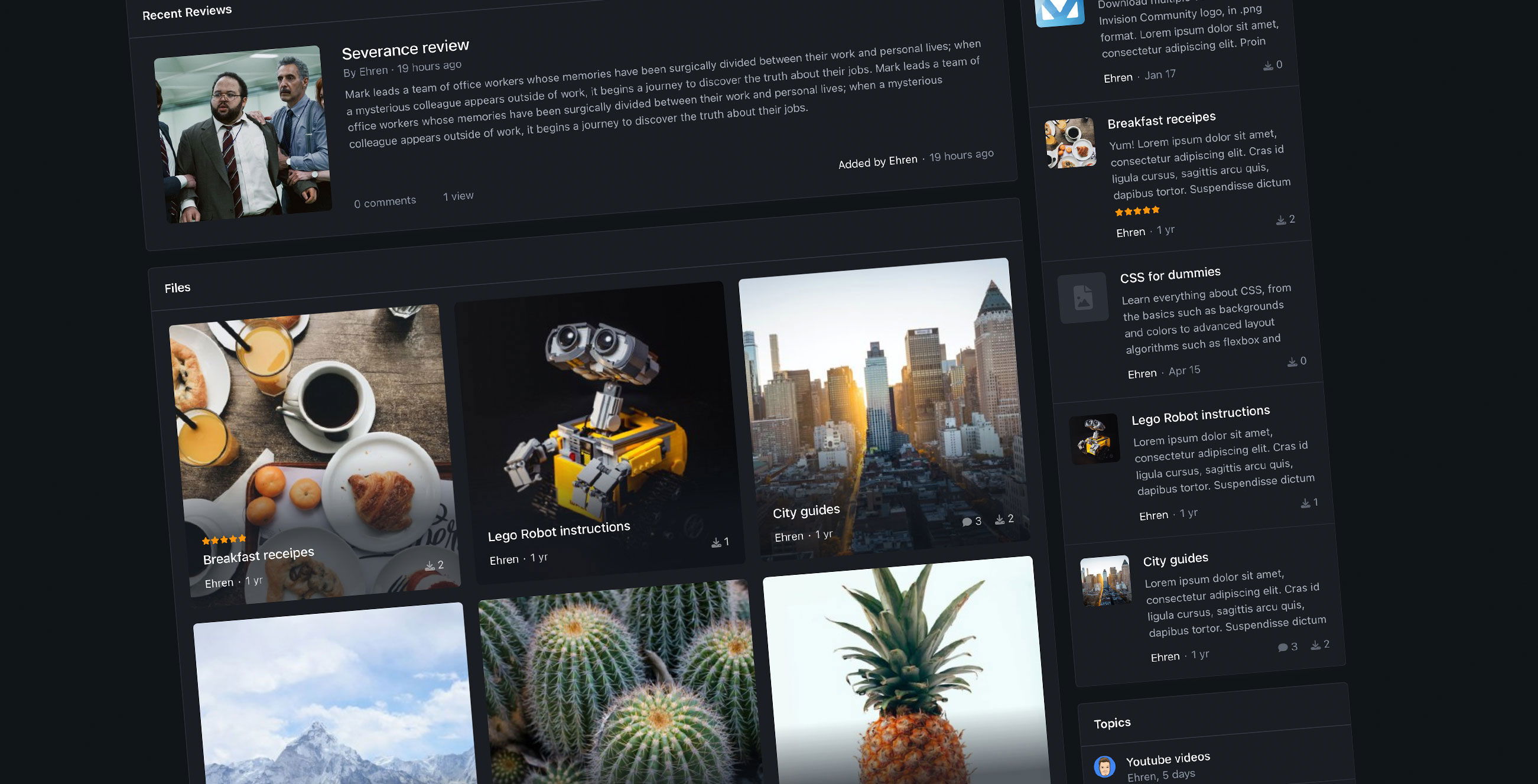
Version 5 offers much more customization by allowing you to change the design of each widget with the click of your mouse - no coding necessary! When dragging a widget onto your page, a new toolbar at the bottom of the page appears, holding all of the widget design options. Lets take a look at some below!
Grid
A familiar a very layout used elsewhere in the suite, the Grid design neatly aligns entries in a grid with a large cover photo sitting up top. A great combination of visual imagery alongside meta data such as entry descriptions.
Featured
A spacious list and a great way to feature content, pardon the pun.
Wallpaper
Perfect for content which includes uploaded cover photos or thumbnails! The Wallpaper design stretches each image to make it occupy the entire background, overlaid by a minimal amount of content. A subtle gradient sits behind the text to ensure it's easy to read, even on detailed images.
Rows (table)
The Rows design is a very familiar one, used very often throughout other areas of the suite. Content is displayed in a neat table, that collapses into a more compact design on small screens.
Minimal
Great for displaying a lot of content in a compact area! Minimal only shows primary information and hides meta data such as entry descriptions and stats. Great for sidebars, or areas with limited width.
Minimal Grid
The Minimal Grid design removes large meta information and displays content in a nice, compact grid. A nice option for displaying a lot of content while being cautious of vertical space.
Carousel
The Carousel option is quite unique because it can be applied in tandem with other widget designs, and is a perfect way to make the existing layouts even more compact. For example, by default, the Wallpaper design is aligned as a grid, but with the Carousel option enabled, the layout is converted into a carousel instead:
Carousel-widget.mp4
Here's another example, using the Featured and Carousel options:
Blog - featured carousel.mp4
Fun fact for developers: All of these designs use the exact same HTML structure; the only thing that differs is the class name on the parent element. This makes it incredibly easy to adjust the design of your own widgets without needing to manually code multiple layouts.
Widget Areas
Version 4 was often quite limiting when it came to aligning widgets in pages. Widgets could be dragged into a stacked, vertical list but that was typically as far as you could go in terms of design. Version 5 introduces a new concept called Widget Areas, which allow you to align multiple widgets in a variety of ways. Lets take a look!
To create an area, you simply need to drag one widget on top of another.
Blog - areas.mp4
By default, they'll align themselves into a grid, but can be realigned with ease by using the toolbar at the bottom of the page. The toolbar also holds controls for adjusting the width of widgets, and the gap between them:
Blog - alignments.mp4
Widget Designs and Widget Areas in Version 5 make it incredibly easy to create a completely custom page in a matter of seconds. We're really excited for you to get your hands on these new tools in Invision Community 5, and are looking forward to seeing all of these new page designs in the wild, in the very near future!
As we move closer to releasing Invision Community 5, I wanted to review a few key features I believe your members will love after you upgrade to Invision Community 5.The all-new editorWe have to start with the brand new editor, recoded and redesigned from the ground up. The new editor is not just faster and leaner, but also remarkably user-friendly, ensuring an upgraded experience for your members in Invision Community 5.Your members will love the streamlined toolbar that no longer hides buttons on smaller devices. They'll also appreciate the new emoji and icon panel, which allows them to insert over 1,700 icons to enhance their posts.Content boxes, resizing images, and media embeds via drag handles will also be well received.Finally, small UI improvements, such as new line arrows on blocks that can be tapped or clicked to insert new lines accurately, will end fiddly cursor placement and settling for poor spacing.The editor is the most important touch point within your community, so we wanted to ensure that Invision Community 5 does this perfectly. New live community featuresI can speak from experience that when I see other people typing, I'll stick around to see what they say. Likewise, if I post a topic and I see multiple people reading it, I'll keep tabs on it to see if any replies come in.These are not just great engagement features but also an exciting experience. Invision Community 5 takes it further, blurring the lines between group chat and a traditional topic. Now, when a new reply or reaction is made, it will appear magically on your screen, keeping your members on site for longer.Your members will love feeling like they are part of the live community and watching reactions and replies in real-time. They'll also appreciate seeing their notification bell numbers increase without having to refresh or move between pages.
Topic SummariesTime is our most valuable resource. Your members use many apps and communities in a day, so when they make time to visit your community, we want to ensure that they get the most from your forum in the shortest amount of time possible.Long topics are great but few have the time to read through dozens of pages. Topic summaries take the very best of a topic and remove the rest, allowing your members to optimize their time well while on your community, making their experience more efficient and productive.They'll love keeping up to date with more topics without scrolling past gifs and side quests.
Dark mode and the new mobile experienceLate-night scrolling becomes much more comfortable with Invision Community 5's native dark mode. Your members will love being able to choose a mode or allow it to sync with their devices, giving them a uniform experience across the many apps they browse.They'll also appreciate the new user experience, which includes improved performance, better accessibility for screen readers, and a vastly improved phone experience. We've made sure Invision Community 5 is mobile first.
The new tagging experienceInvision Community 5 reinvents tagging to make it more community-focused and increase content discovery across all apps. With its new tag pages, you can easily bring gallery photos, forum topics, events, and blog entries into a single page in Invision Community 5.Your members will love following their favourite tags to get notifications on new content and discover more of your community they are interested in without having to browse many forums and different areas of your community.
These are just the top five features we think your members will love. Are you looking forward to these features or perhaps some of those not mentioned here? As always, let us know in the comments.
There's a lot for your members to love with Invision Community 5, and we recently covered five of the best features. Today, I want to discuss five features your team will love.One of the main concepts for Invision Community 5 was to reduce the complexity of power-user tools like theming and page building. These functions had been built around those with deep technical and coding knowledge, locking out many community teams. We also wanted to build new tools to help busy community teams organise, moderate and identify trusted members.Did we achieve that? Let's look at five new features we think your team will love in Invision Community 5.The new theme editorI can't describe how much I love the new theme editor. It is everything we wanted for Invision Community 5 and more. Now, anyone can manage their theme without needing to be knowledgeable in HTML and CSS. There's so much to discuss, so it's best to head over to the news article we put together. From an easier way to select colours and drag-and-drop header arrangements to simpler ways to upload logos and preview your community on tablets and mobiles, the theme editor puts all the power and complexity of managing themes into the hands of your community team.The editor, combined with the new views, such as the feed view for forums, article-like featured first post in topics, and the new sidebar view, Invision Community 5, really does take things to the next level.
The new page editorWe've taken the concepts of drag-and-drop widgets to a higher level with Invision Community 5.You no longer need to create custom blocks using HTML and CSS to produce fantastic custom pages. With the new page editor, you can access a library of pre-built widgets with multiple view options, such as grids, rows, and carousels. Coupled with the power of Pages databases, you can quickly build custom pages to showcase the best content from your community.Jimi, a valued customer, recently created a walkthrough video showcasing the new theme and page editors. It is a must-watch to experience the system's power.
Assign topicsGetting the right help to your members at the right time can take time and effort. Pairing a community question with the expertise of specific team members can require some manual overhead with external systems.It can also be difficult to hold your team accountable, ensure they are answering questions in good time, and get an overview of their assignments.These issues are fixed in Invision Community 5 with the topic assignments feature. You can assign a topic to a specific member of your team or a group of members. You also have complete oversight on the volume and time required to reply to your entire team.It's a great feature that helps keep your community running smoothly.
Badge creator and icon pickerThis feature is a dark horse. At first glance, it looks like a nice feature, but perhaps it is something that you may not use. However, I believe this is a feature your team will love. There are many areas where you may need custom graphics. We have rank badges, one-off celebration badges, custom reactions and more. In the past, you'd have been required to do this with apps like Illustrator or Photoshop and import them back in.As part of our vision to bring power tools to everyone, we built a badge creator that allows you to combine over 1,700 icons and hundreds of emojis with badge backgrounds to quickly create custom badges and reaction icons. It really only takes a few minutes to create all the custom graphics your community needs.In addition, there are now many areas, such as menu items, where you can use icons and emoji to enrich your user experience.Who doesn't love the ability to create badges without needing a designer?
Community ExpertsCommunity experts are vital to the well-being of any community. The Pareto principle holds true in your community. Twenty percent of your members create eighty percent of the interactions across your community, but featuring those members to newer users can be difficult. In the past, we've relied on metrics such as the date they joined and the number of posts they've made, but these celebrate longevity but not expertise.Invision Community 5 uses a bespoke algorithm to identify and feature experts based on the speed, accuracy and helpfulness of their responses.This not only celebrates those members with an exclusive badge and notification, but it also helps other users identify those community leaders who are more likely to help them and guide them through their journey with you.We think your team will love that Invision Community 5 identifies these members for you and allows them to help lead your community.
I could have easily written about ten features your team will love, but these are my top five. Do you agree? Which features are you most looking forward to? Let us know in the comments.
Oftentimes, we're so focused on getting new members and subscribers that we forget to show gratitude for members who are already contributing/visiting.
No matter how good your content is, how accurate your keywords are or how precise your microdata is, inefficient crawling reduces the number of pages Google will read and store from your site.
Earlier this year, Invision Community launched a native gamification system called Achievements. We added significant improvements to Achievements in our new release, 4.6.8, out now! 🎉
Wouldn't it be nice if the Invision Community editor could re-use whole replies, text snippets, and even reply templates?
As we get ready to welcome more customers into our staffed community support area, this feature idea has become a reality to help form personalized replies.
Nearly two decades ago, Invision Community President, Charles , set out to make a leading online community platform. Around that time, Charles also met his now-husband of 18-years and hasn't looked back since. Until now.