


Empower Customers.
Lighten the load on support.
Build a thriving support hub where customers help each other, share solutions, and find trusted answers. Easily reduce tickets and improve satisfaction.
-
Lower Ticket Volume
Deflect common questions with self-serve answers.
-
Faster Resolution
Peer-to-peer help and accepted solutions speed fixes.
-
Increase Customer Retention
Fast help increases customer satisfaction.
-
Always-On Coverage
Global communities support each other while your team sleeps.
Help your community help each other
Deflect tickets by turning common questions into searchable answers. Helpful voting and signposting the accepted answer helps future readers.
Helpful content earns reputation and showcases trusted community experts your new members can follow.
-
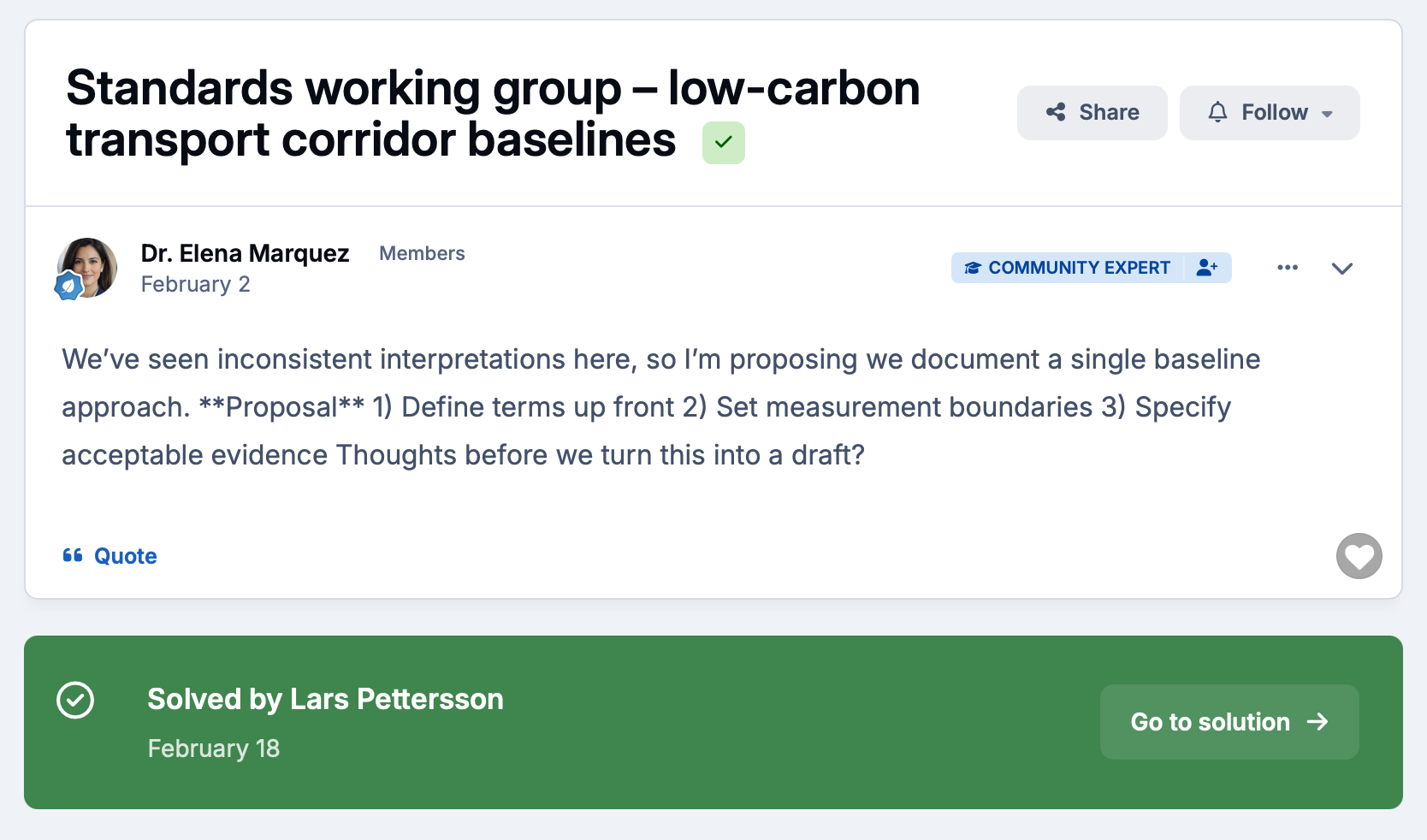
Accepted answers
Mark the best response so every question becomes a resource for the next person who searches for it.
-
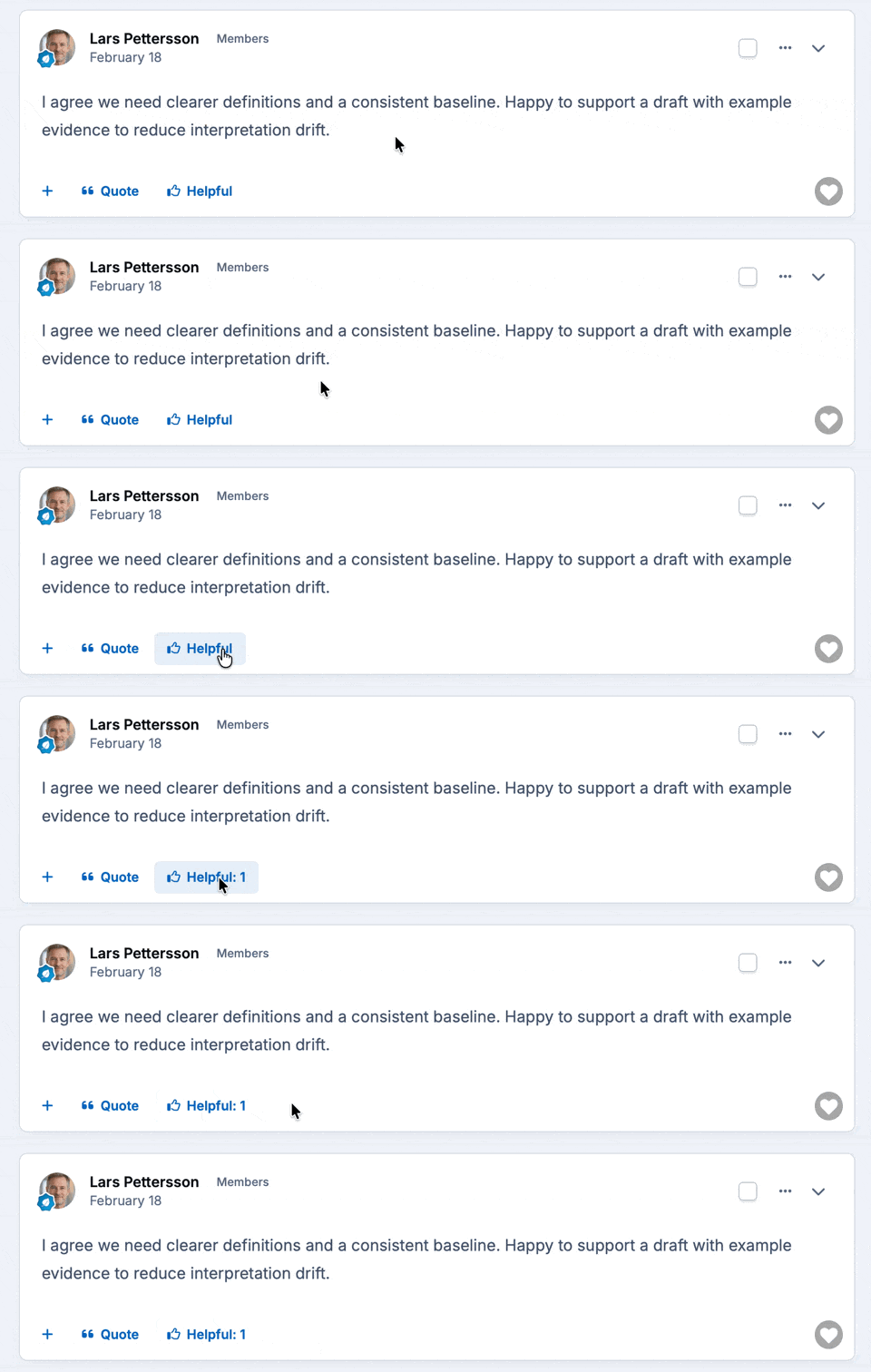
Helpful voting
Members surface the most useful replies to the top, so quality answers are always the first thing new visitors see.
-
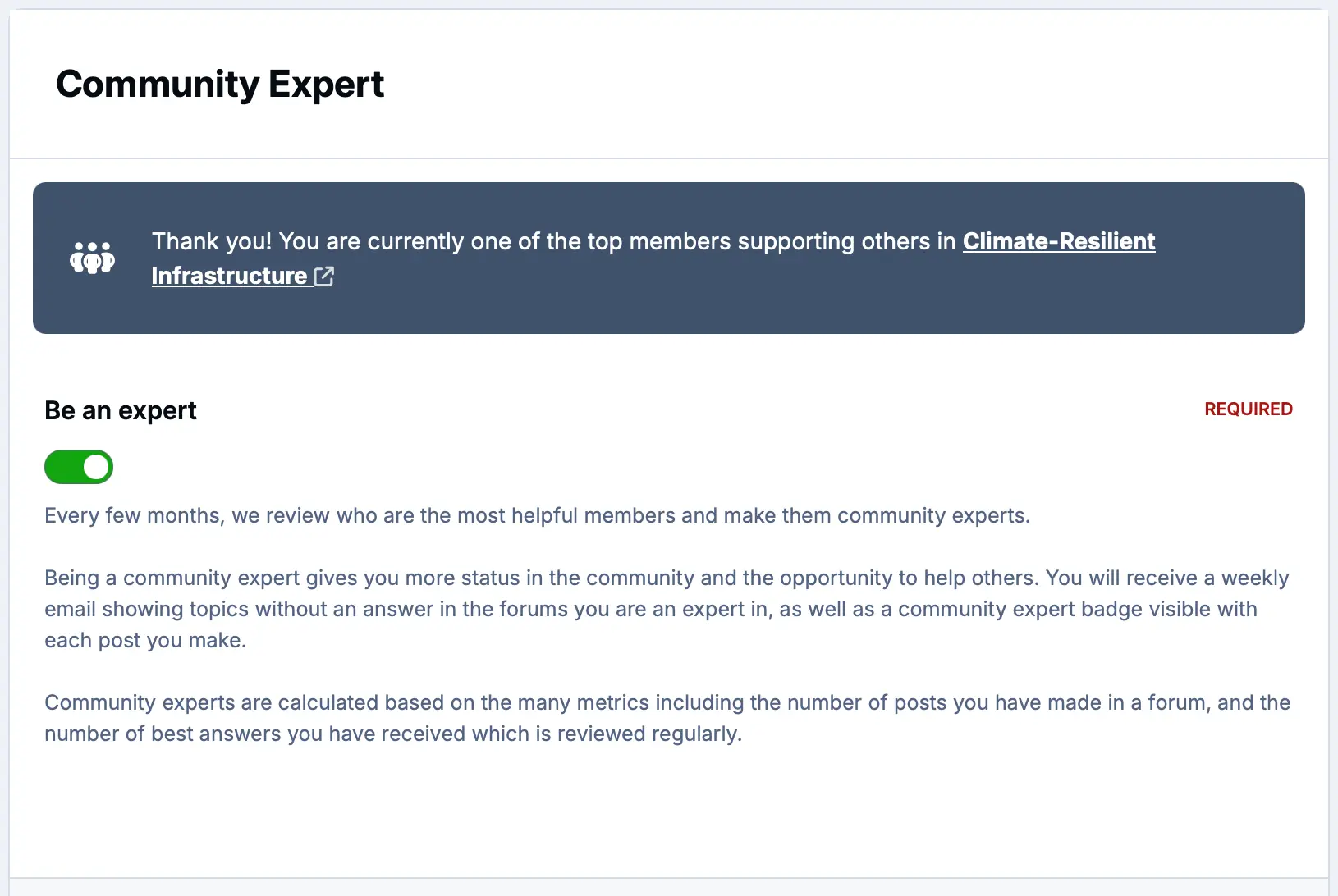
Community experts
Reputation and badges identify your most trusted voices, giving new members someone credible to follow and learn from.
Turn your community into your AI advantage
With every question answered and every problem solved, your members are building a knowledge base that works for you around the clock.
Optimize it for on-site AI agents and search, so it surfaces instantly on your site and appears in AI answers across the web.
-
Accepted answers
Mark the best reply so AI systems can identify authoritative answers and surface them in search and AI responses.
-
Structured markup
Invision Community outputs semantic HTML and schema-friendly markup so your content is optimally formatted for AI ingestion from day one.
-
Moderation tools
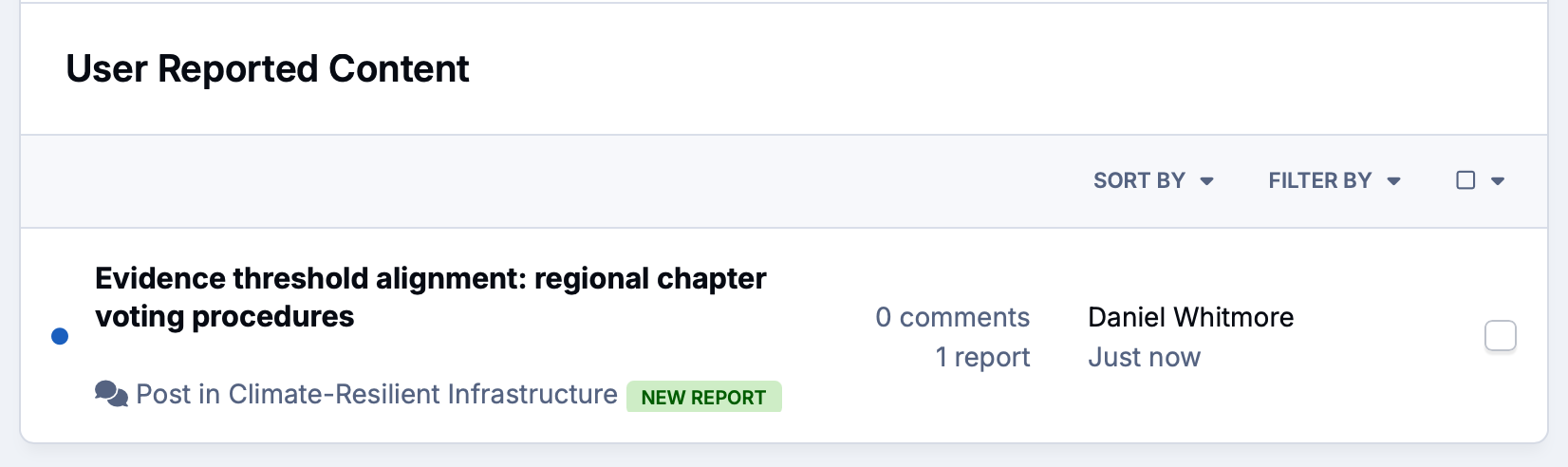
Keep your knowledge base clean and trustworthy with spam filtering, content approval and member reporting.

Help people find what they're looking for
Powerful search with tagging and filters reduces duplicates and gets customers to solutions faster. Suggested duplicates keep threads tidy.
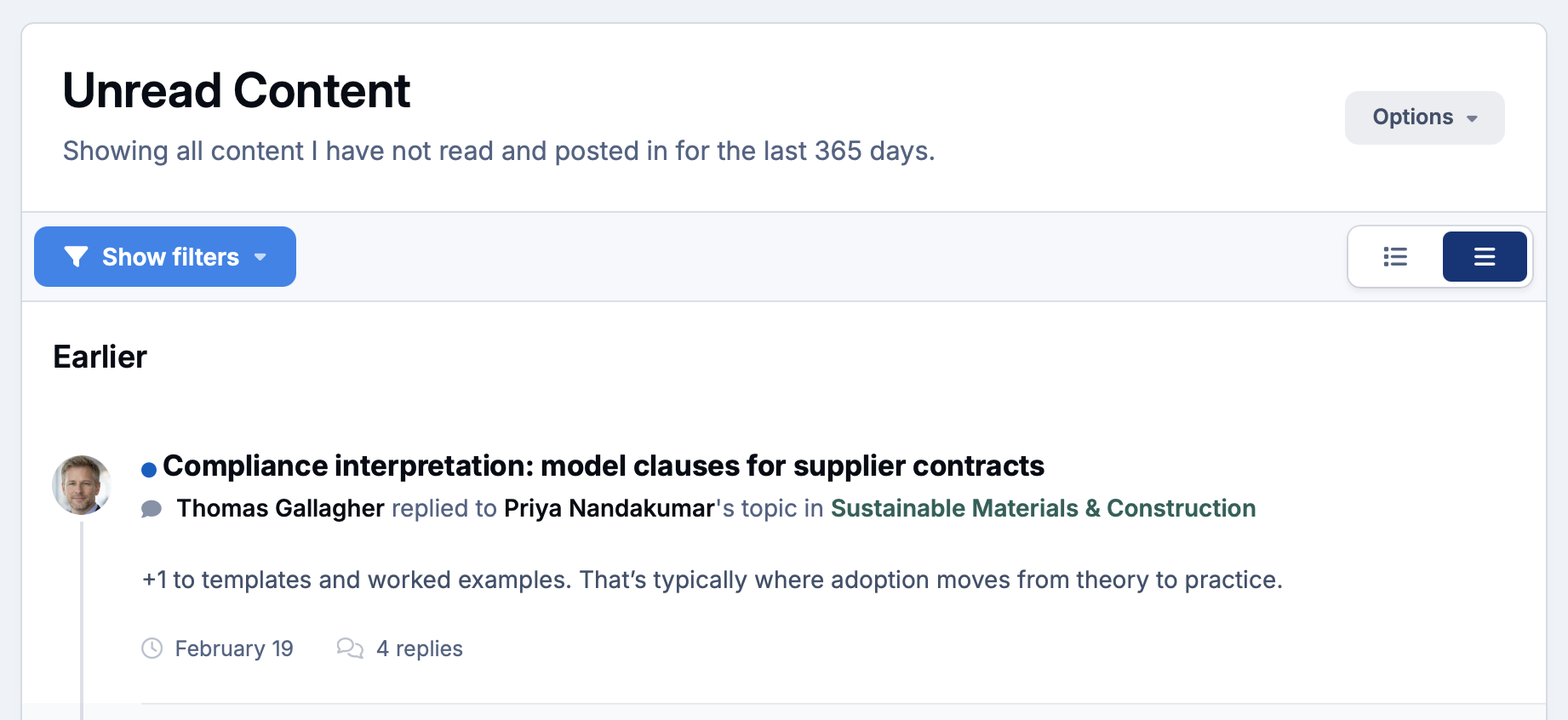
Give every member a personalized feed of the content that matters to them. Filter by content type, author, forum or tag, save the results, and pick up exactly where you left off.
-
Activity Streams
Create custom streams to show community content you want to prioritize. Filter by unread, specific members and more.
-
Tagging
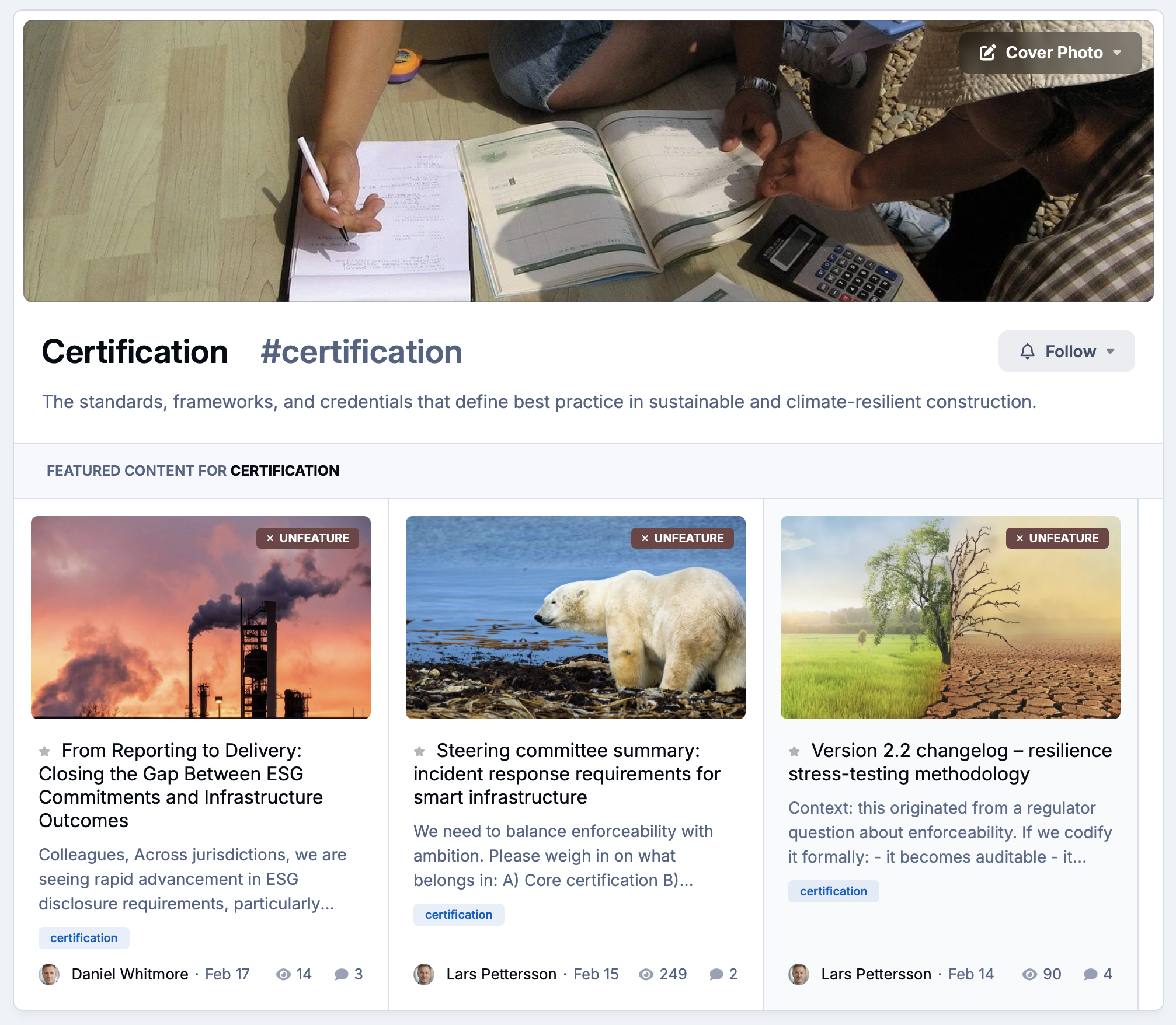
Structured tags and categories keep content organized and surfaceable, making every answered question easier to discover.
-
Analytics
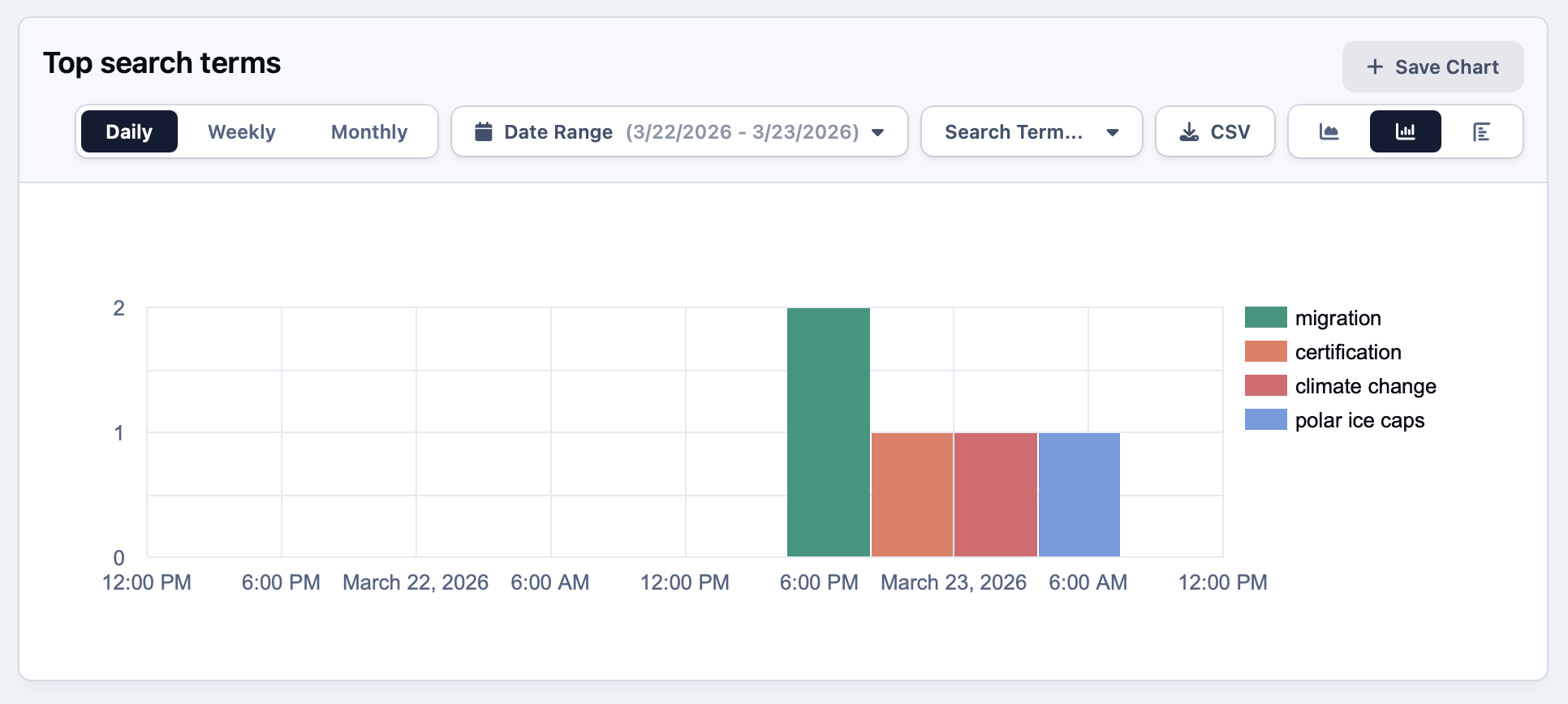
See exactly what members are searching for and not finding, so you know where to create new content or route to direct support.
Keep your community healthy
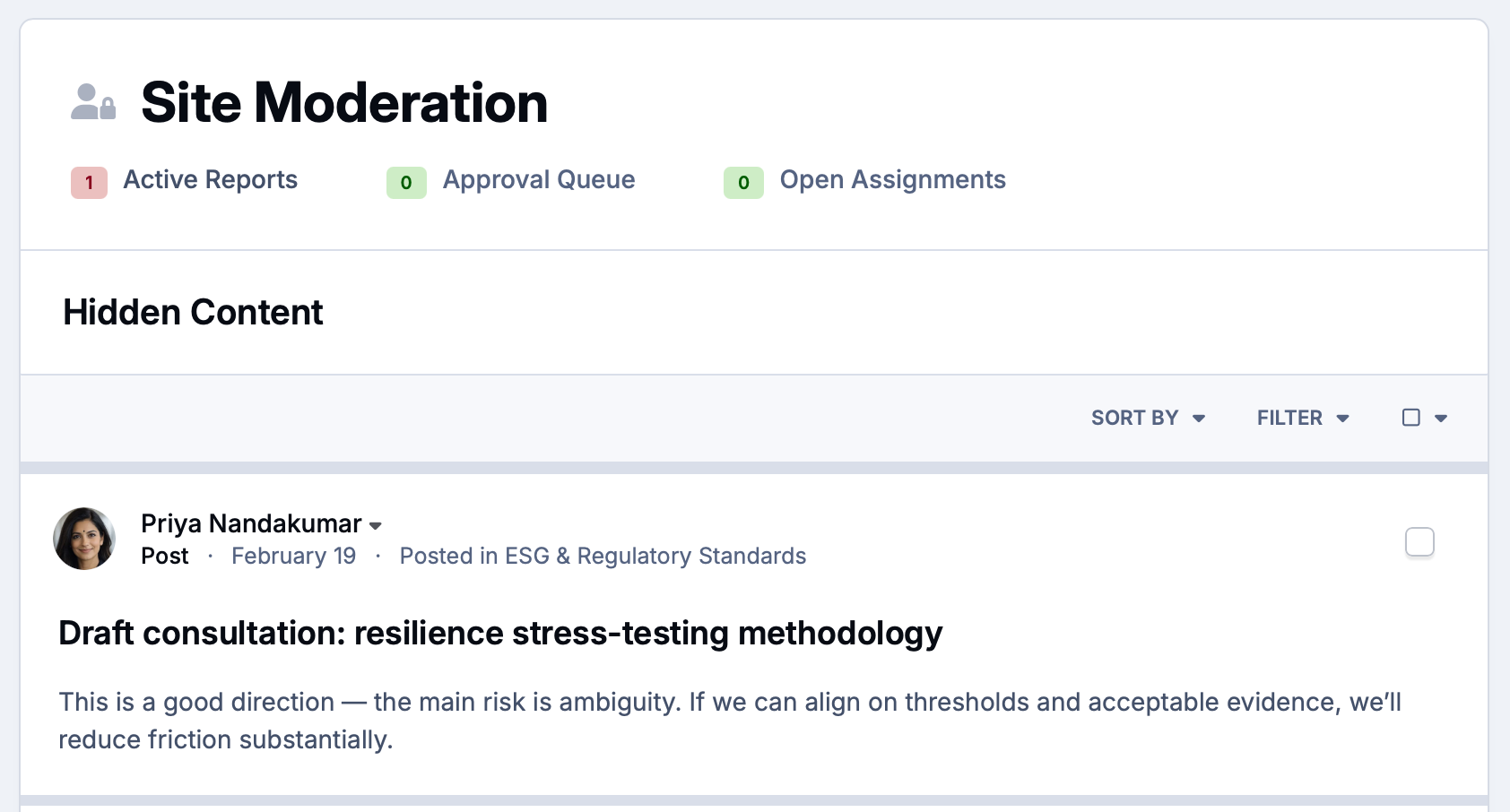
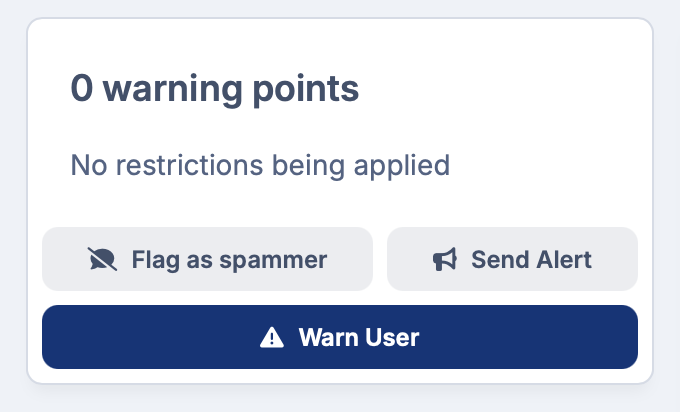
Invision Community gives your moderation team everything they need to keep discussions on track, from approval queues and reported content to warnings and alerts.
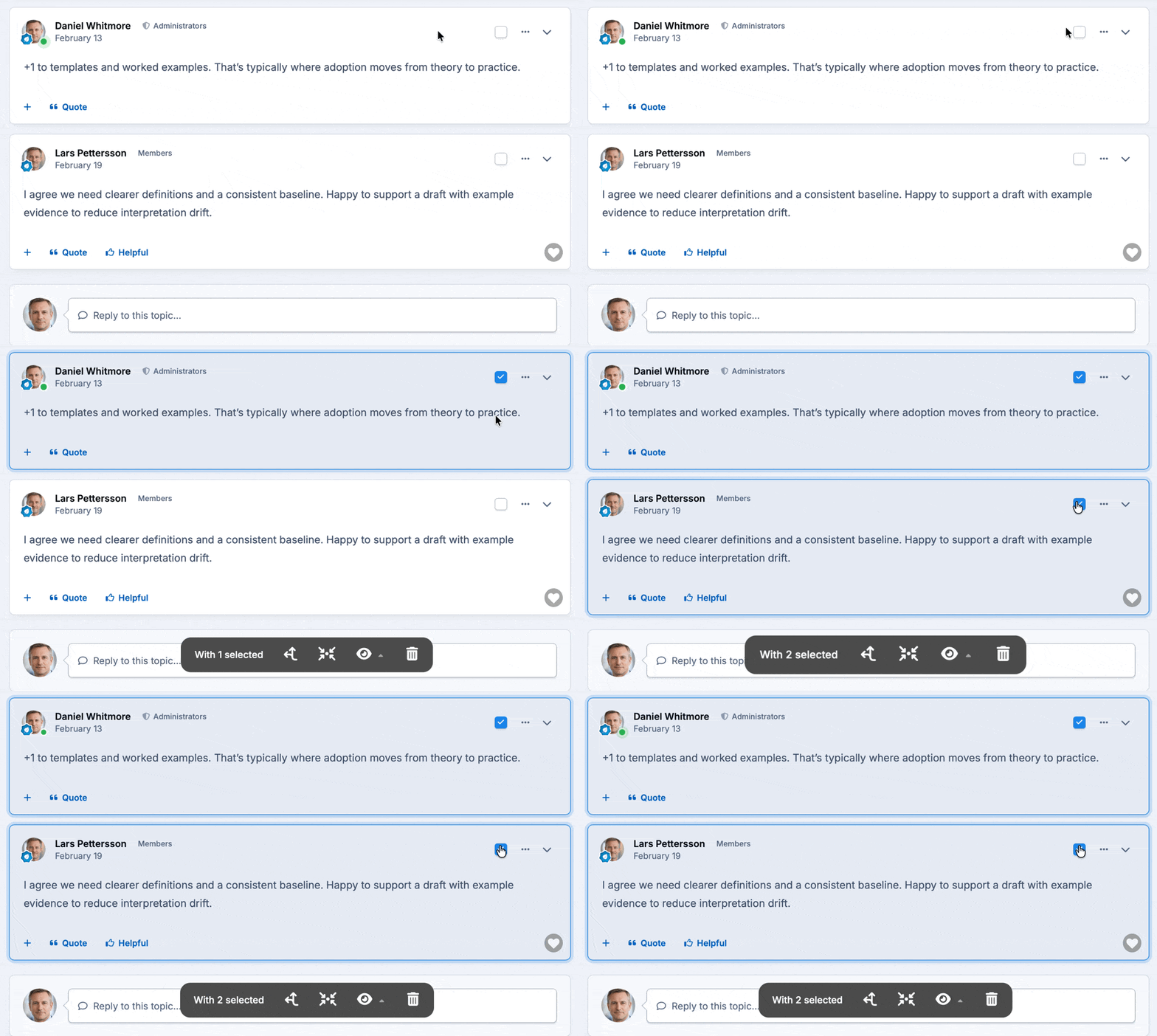
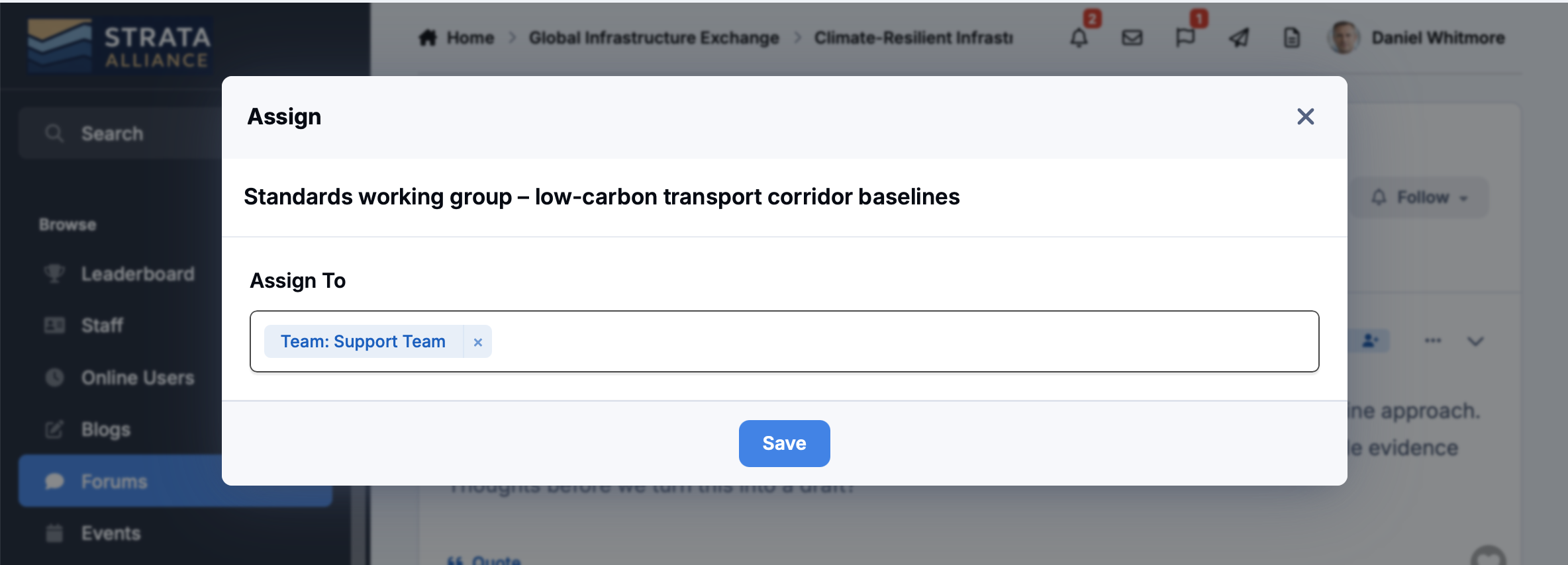
Assign topics directly to team members so nothing slips through the cracks and every member gets the right response from the right person.
-
Content moderation
Approval queues, reported content and deletion tools keep discussions clean and friendly.
-
Member management
Warn, suspend or ban members with pre-defined sanctions and an audit trail your team can refer back to.
-
Topic assignments
Route topics to the right team member so every question gets a timely, informed response from the right person.
Know what's working before your customers tell you.
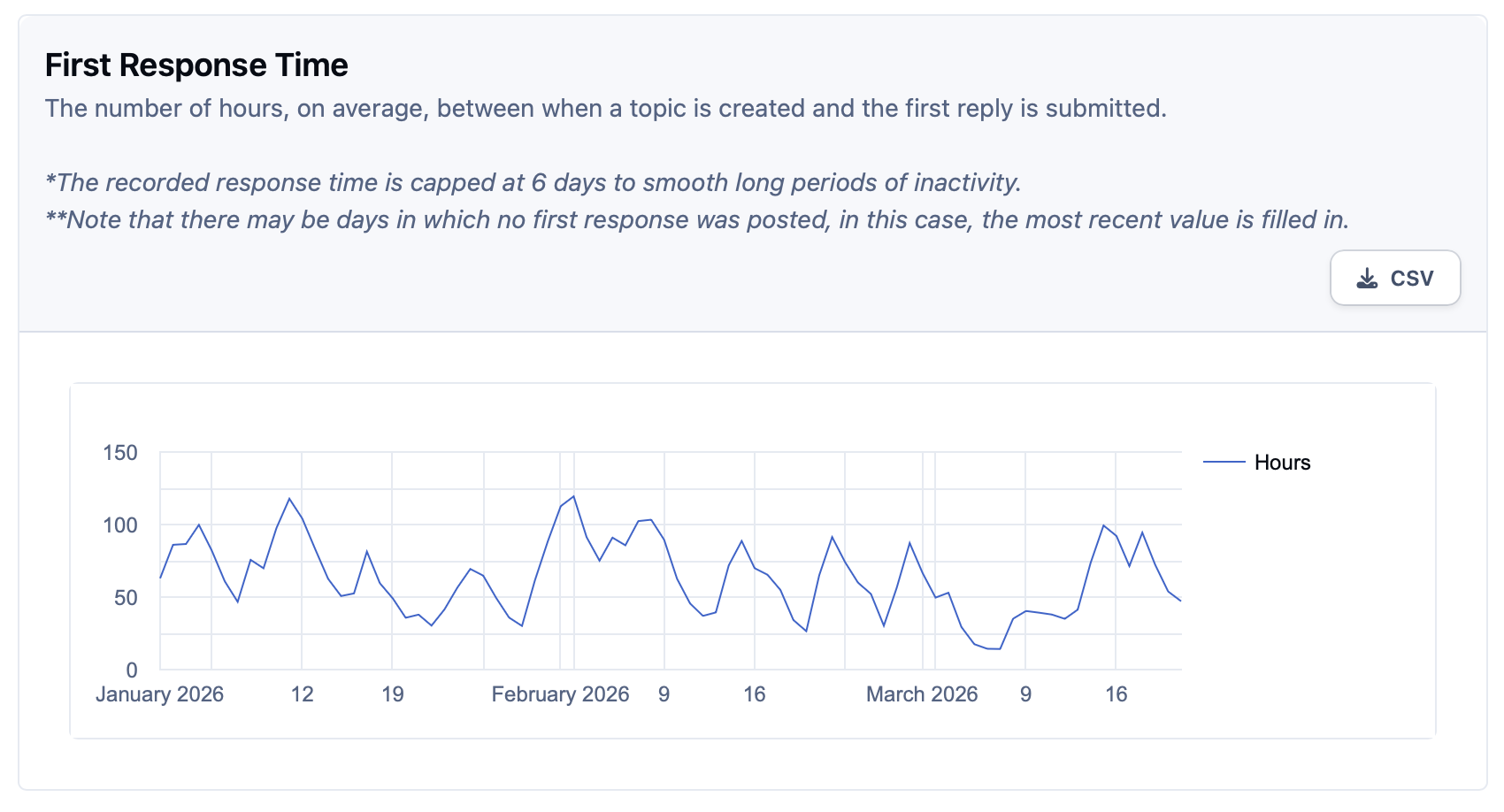
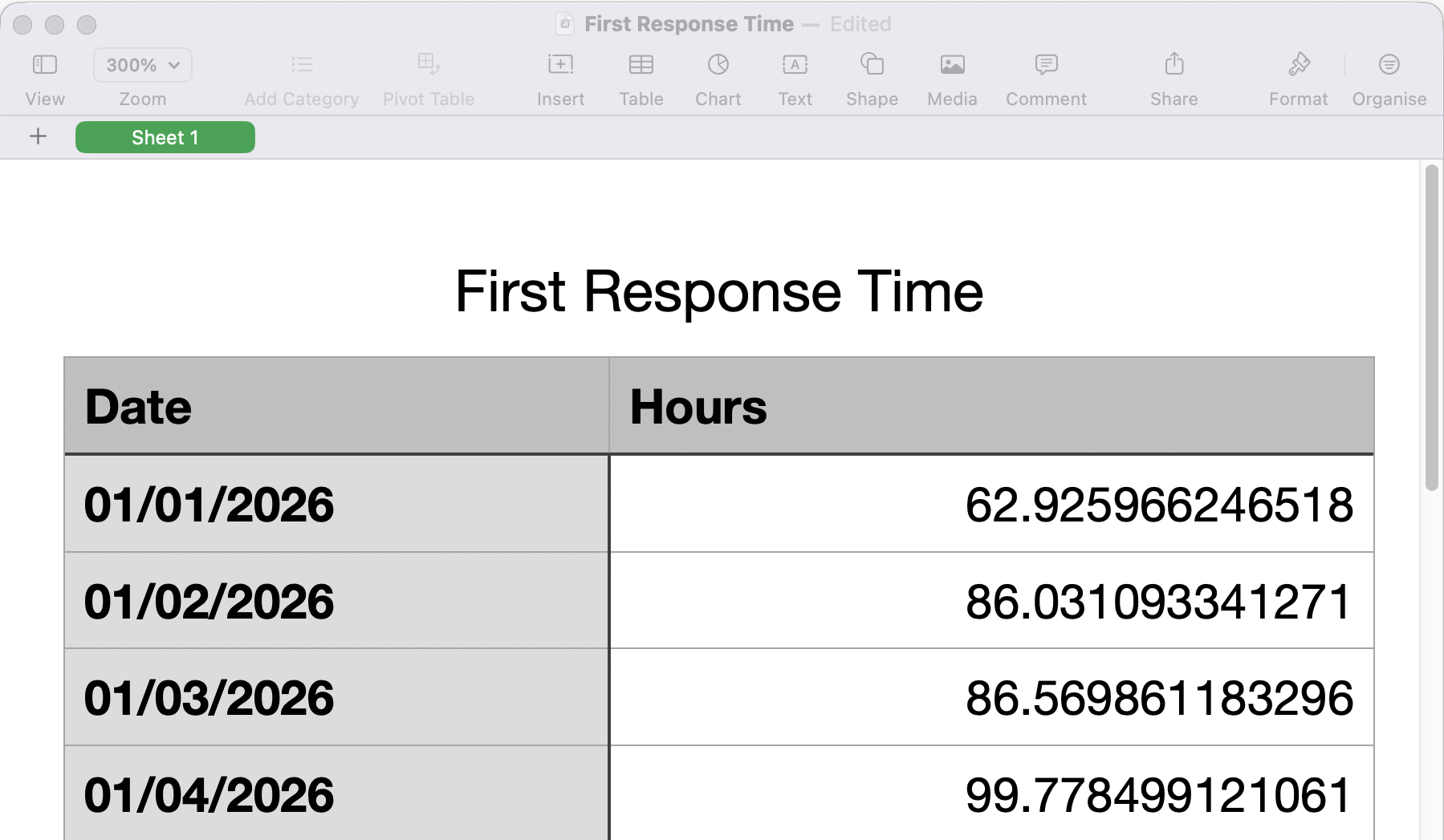
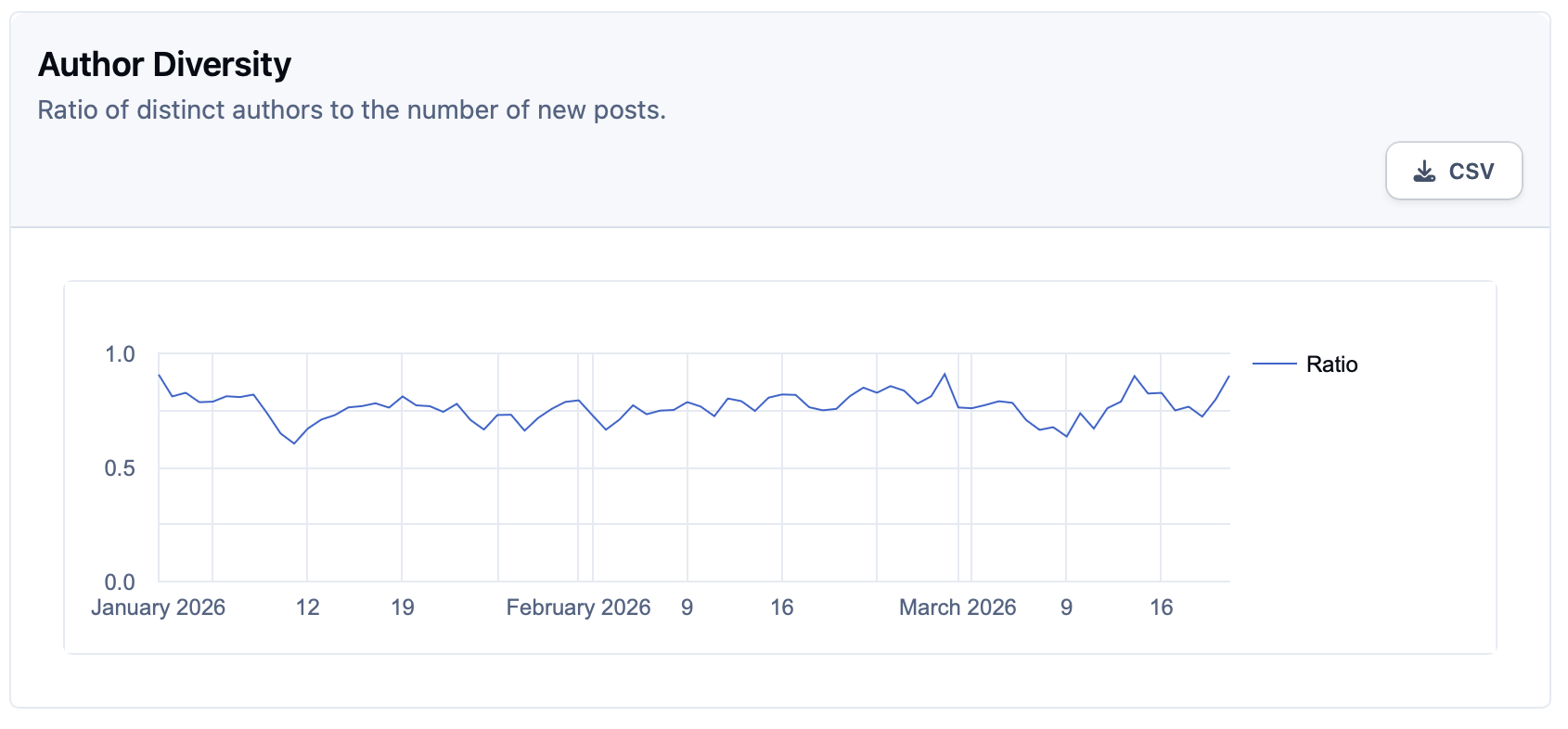
Track engagement, response times and content performance across every part of your community from your control panel.
Export any dataset to CSV and share the metrics that matter with your wider team.
-
Community Health
Monitor author diversity, DAU/MAU, engagement scores and first response times to spot trends before they become problems.
-
Time-to-answer
Track how quickly members and moderators are responding to new topics so no customer question goes unanswered for too long.
-
Exportable reports
Every metric across forums, courses, downloads and user activity can be pulled into a CSV and fed into your existing reporting stack.
Connect your community to the tools your team already uses.
Invision Community's full REST API and webhook system allows you to use automations and sync data across your entire stack.
From SSO and identity providers to CRM and support platforms, your community works alongside your existing tools rather than in isolation.
-
Single Sign-On
Connect via OAuth, SAML or your own identity provider so members log in once across every tool in your ecosystem.
-
REST API and webhooks
Trigger automations and sync community activity in real time with any platform in your stack, from Salesforce and HubSpot to Zendesk and Help Scout.
-
Custom integrations
Move topics and member data into external systems easily from existing moderation tools.
Explore all solutions
-
Customer Success
Customer Success
Deflect tickets, empower customers, and turn your user base into a self-sustaining support ecosystem.
-
Brand Advocacy
Brand Advocacy
Turn customers into loyal advocates. Connect your audience and build a community around your brand.
-
Educational
Educational
Build a learning community where knowledge is structured, shared and retained.
-
Creator Communities
Creator Communities
More control, deeper relationships, and real monetisation, without handing your audience to someone else.
-
Internal Teams
Internal Teams
The intranet your employees will actually use. Knowledge, culture, and communication in one place.
See Invision Community in action
Explore real communities built with Invision Community and discover how organizations are driving engagement, building loyalty and creating thriving communities.


Key Features
Invision Community is packed full of features to ensure your community has all that it needs.
- Best answerCut through noise
- Knowledge baseBuild structured docs
- Search answersStreams & tagging
- APIsConnect workflows
- SSOFast sign-up
- EmbedsIn-app widgets
- AssignmentsStaff ownership
- AnalyticsIdentify wins
- DeflectionSave money
Ready to lighten your support load?
Give customers trusted answers, scale coverage, and reduce support costs with a community they love to use.