


beats23
Clients
-
Joined
-
Last visited
Everything posted by beats23
-
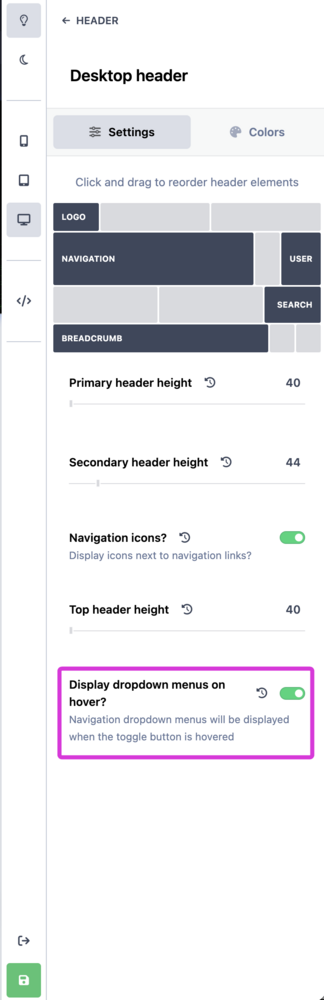
Where do I go to change the navigation drop down settings to hover? Ok, I found it.
-
Apparently, the cover photo is much easier to change with this CSS. .ipsFallbackImage::before { background-image: url('https://yoursite.com'); mix-blend-mode: inherit; }
-
Hi, @Ehren is it possible to get the CSS code to also change the default profile cover photo? I modified your code above as shown below, but I can't get it to work. Thanks /* Replace default_photo.png avatar */.ipsCoverPhoto__container:has([src$="default_photo.png"]){ background-image: url("https://site.com/avatar.png"); background-size: cover; } .ipsCoverPhoto__container:has([src$="default_photo.png"]) img{ display: none; }
-
I did think about that, changing the file permission to read only. But I don't know if doing that would cause any issues with the IPS installer during an update.
-
How did it happen? Did your forum members post over 1,000 comments with iFramely embeds in 24 hours?
-
I'm just wondering. If for any reason Iframely change their stance in the future and stop offering this service, say for example, like that "Photo bucket" company, will all the Iframely links posted on the website become dead links like "Photo bucket"?
-
Iframely Integration is nice.
-
Thank you very much. I truly appreciate it 👍.
-
This is what I've been doing for the past months. The only issue with this method is that every time I update the IPS software, my custom avatar image gets overwritten again with the default one by the IPS software installer. The default guest avatar file is: core_84c1e40ea0e759e3f1505eb1788ddf3c_default_photo.png and located in this folder: public_html/static/resources/84c1e40ea0e759e3f1505eb1788ddf3c_default_photo.png I tried to figure out the CSS from the code above, but I can't get it to work. Does anyone with CCS knowledge have the CSS code to change the default guest avatar to a custom photo? Can you post the exact CCS code I can use to achieve this? Maybe @Ehren can help with the needed CSS code?
-
Can you give an example of the CSS code that can be used to achieve this?
-
I too have the same issue, and I want to add a new photo to be shown for the guest avatar. The info posted by Gary does not do this.
-
I do not have a setting in the constant.php file to use beta on my live website. However, I get a notification in the ACP telling me to install this beta.

-
Yes. Do grant the admin the ability and authority to override the PDF file iframe restrictions, accompanied by a clear warning about the implications of this action. I'll wait some more for a solution👍.
-
Embeing a PDF file, for example, https://my-site.com/uploads/pdf_files/radio-manual.pdf in the editor. The PDF file will not display due to default sandbox restrictions set my IPS dev for PDF files. It was mentioned that IPS was looking into it. Five releases have passed, and I see no mention of this issue or a solution. Having an update from IPS about embedding PDF files with the editor would be nice. This issue restriction is causing a lot of grief on my website. This is what the PDF file looks like in the web browser when embedded with the editor.

-
Bump.
-
Will the option to embed PDF files with the editor be released soon?
-
Ok Thanks 👍.
-
I see this in v5.0.1 update: #3539: Better iframe allow attribute handling However, I still cannot embed PDF files and Apple Music share links. I do not see any changes made to the iframe sandbox allow attribute. It looks the same as before. <p></p><div class="ipsEmbeddedOther" data-og-user_text="f"><iframe src="/uploads/pdf_files/radio.pdf" class="ipsRawIframe" sandbox="allow-scripts allow-same-origin" allowfullscreen="" loading="lazy"></iframe></div>
-
Is your downloads app saving files in a folder other than the default /uploads folder? The same happened to me. I changed the download app folder back to the default location before the v5 upgrade, and I no longer have that issue.
-
@Charles did mentioned on the forum that the course app "may" come to classic customers at a later date, but it seems "minds" has changed and us the classic costumers will never get it 🙁🙁🙁. I use a third-party course app. However I would pay the extra fee to have access to the IPS official course app on my classic account for the benefits of having all my major applications under one IPS roof and the guaranteed comfort of future updates and support. Ps. I'm a tinker at heart and I can't live without being able to tinker and learn new stuff. Your cloud packages doesn't allow tinkering in the backend engine plus I can't afford the price for the cloud package I would need, so classic it has to be for me.
-
On my Redis it says it has access to 61G memory. Where how do I limit the amount of memory Redis uses?

-
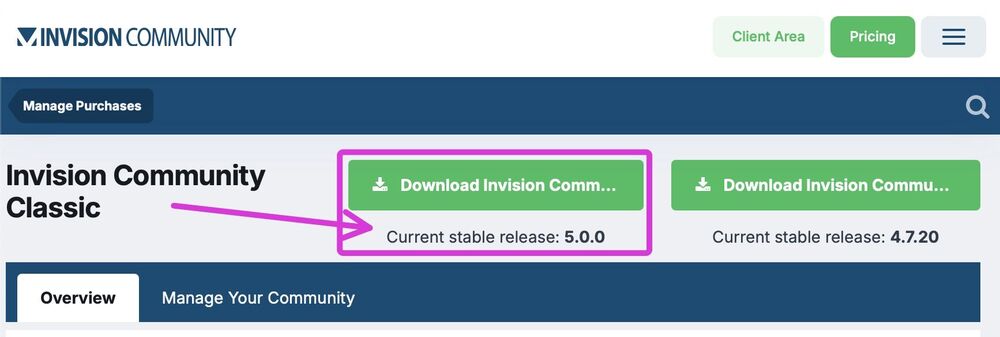
The v5 download link is in the client area.
-
Yes, it's best to clean up before the upgrade. That way, you'll have a nice tidy clean house for the new furniture 😀. Here is what I did, which gave the best functioning upgrade when beta testing. Manually delete all plugins. Manually disable all apps that store data in the database that you need, as later, when a v5 version for those apps is released, you will regain that data that the app stores. Manually delete all other apps that don't store data in the database. Create a new theme, set it to the default theme, and then manually delete all other IPS and custom themes. Manually delete the Pages app custom templates if you have any. The idea is to return IPS to its default state before the upgrade. All these steps may not be needed for your setup, but those steps worked for my setup.
-
Wonderful ✌.
-
In v4 I can change the default cover and avatar photos in ACP theme, manage resources. In v5 the manage resources is empty. How can I do it in v5?









