Jump to content
View in the app

A better way to browse. Learn more.

Invision Community

A full-screen app on your home screen with push notifications, badges and more.

To install this app on iOS and iPadOS
  1. Tap the Share icon in Safari
  2. Scroll the menu and tap Add to Home Screen.
  3. Tap Add in the top-right corner.
To install this app on Android
  1. Tap the 3-dot menu (⋮) in the top-right corner of the browser.
  2. Tap Add to Home screen or Install app.
  3. Confirm by tapping Install.

Drewfus

Clients
  • Joined

  • Last visited

  1. Have you uploaded the v5 files to your root then you go to https://yourdomain/admin/upgrade Make sure you backup your site just in case you need to go back.
  2. Admin , system , get support you can update from there.
  3. I have updated to 5.0.17 beta 1 and do not see workflow in my admin is this for cloud users only? This is what I see.
  4. Can't seem to apply the patch the spinner just keeps spinning.
  5.    My Sharona reacted to a post in a topic: 5.0.12 Released
  6. Already a topic on this issue
  7. nope it was not just downloaded and its still beta 1 plus there is no upgrade in my ACP
  8.    Adlago reacted to a post in a topic: Invision Community 5.0.10 Released
  9. Don't see 5.0.10 beta 2 in client area yet
  10. Did you try from you ACP? system ...get support
  11. @David N. It will work if you upload as an attachment test.mp4
  12. @Marc works fine from admin but the file in client area is 5.0.8 beta 2 not 4.7.21 beta 1
  13. Not whats happening to me I downloaded the 4.7.21 beta 1 from client area and it install 5.0.8.beta 2 instead of 4.7.21 beta 1
  14. Apparently the 4.7.21 beta isn't right I upgraded and in my admin it says 5.0.8 beta 2 its not 4.7.21 beta 1 so I assume someone uploaded the wrong version.
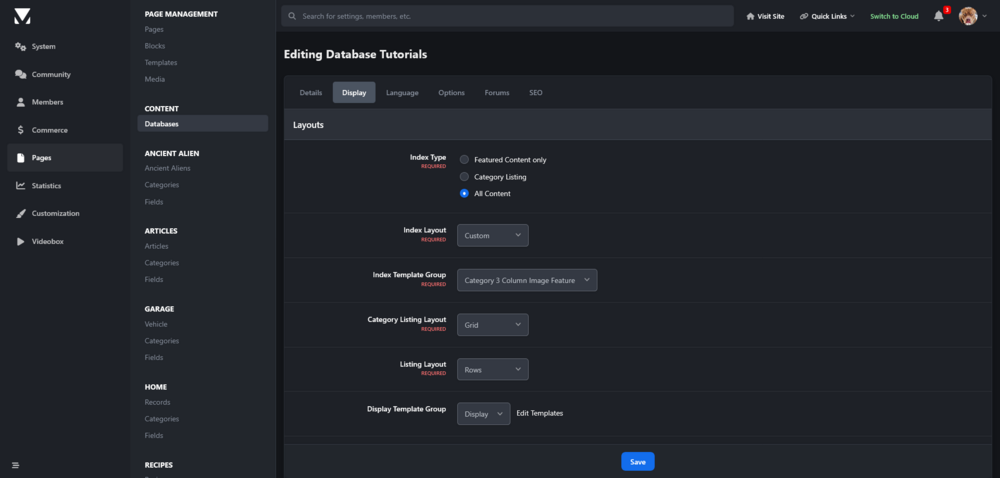
  15. I think he meant the database itself where you would go to your database then display all content , custom something like the image below. I may be wrong .

Account

Navigation

Search

Search

Configure browser push notifications

Chrome (Android)
  1. Tap the lock icon next to the address bar.
  2. Tap Permissions → Notifications.
  3. Adjust your preference.
Chrome (Desktop)
  1. Click the padlock icon in the address bar.
  2. Select Site settings.
  3. Find Notifications and adjust your preference.

