


Mike G.
Clients
-
Joined
-
Last visited
-
-
-
-
-
-
I totally get it and see how it could be more of a problem on your site. Unfortunately I don’t know of a way to automate it other than manual intervention and creative ingenuity. Maybe not ideal, but an alternative option could be to hide images from the tag pages via css so they’re not confusing to visitors.
-
Hey @michimachi, have you tried featuring tags from the tag pages? In doing so, you have the option to customize the image with your own preferred photo. I understand that isn’t the exact functionality you’re looking for, but it may be a stop-gap while the team considers your feedback.
-
-
-
-
Congrats on a successful year. Can’t wait to see what’s in store for 2026! 👏
-
Upgraded both sites without issue! The one site asked for my license key again, but a quick copy and paste from the client area did the trick. That was a first. Now it's time to get ready for the next update.
-
I kept pushing off starting S1 and after the first few episodes I still wasn't sure how I was going to feel about it. You nailed it though. Every episode in S2 was a 10/10 and I can't think of another show that maintained that quality from beginning to end. Oh, and "Devour feculence" is staying in my memory bank forever. 😆
-
I started Season 1 a few weeks ago and caught up in time for the finale. What a ride! That 3 year wait after the Season 1 finale must've been torture, though. This show is going to live rent free in my head until Season 3
-
Yahoo, this is an amazing update! Thanks for the heads-up on Elastic Search as I was using version 7.17 (now on 8.11). Search index is rebuilding now. I tested the new club search feature and it's been working flawlessly so far. That's a huge add, thank you! Thank you for helping me deal with my Severance withdrawals. It's no joke. I can't express my appreciation enough for the work this team puts in to improve and keep innovating on what's already the gold standard in community software.
-
Nice touch with the club forum changes! 👌 This puts "Carolina Panthers Panthers Forum" to shame!
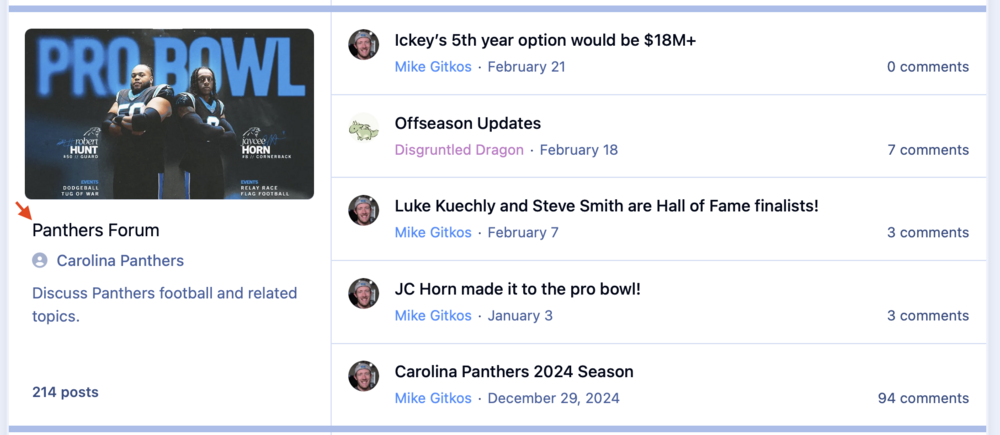
-
I'll be reception if it means free pizza!
-
Lookin' fresh!
-
This is something that’s been very top of mind for me and it will be a huge relief knowing these measures are in place when I switch to the cloud. Thank you for making this a priority!
-
CONGRATULATIONS on the release!!!! 🎉 And thanks for allowing me to be a part of this journey!
-
All good, here! 🙌
-
I’ve also find it helpful to utilize the geolocation options. When a new spam account registers, I take a look at their location and add it to the spam prevention list if they’re not from my target geos. Here’s my list geolocation settings, but it may differ for you.
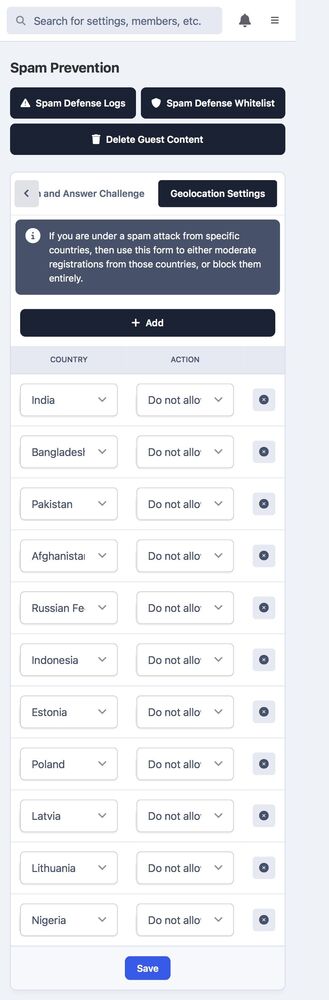
-
Thanks for the quick fix! All good, here! 😀






