Jump to content
View in the app

A better way to browse. Learn more.

Invision Community

A full-screen app on your home screen with push notifications, badges and more.

To install this app on iOS and iPadOS
  1. Tap the Share icon in Safari
  2. Scroll the menu and tap Add to Home Screen.
  3. Tap Add in the top-right corner.
To install this app on Android
  1. Tap the 3-dot menu (⋮) in the top-right corner of the browser.
  2. Tap Add to Home screen or Install app.
  3. Confirm by tapping Install.
Support Availability Notice

GoGators

Clients
  • Joined

  • Last visited

  1.    GoGators reacted to a post in a topic: Invision Community 5.0.1 Released
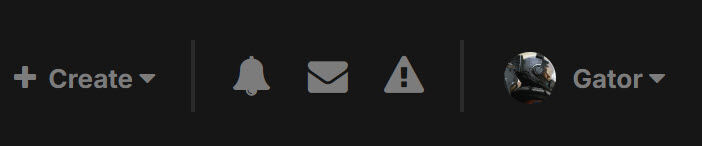
  2. Not a fan of the small icons in the new themes in 5 What made Invision board great to me was its big and bold look it had since I purchased it back in June of 2011. I know it is subjective, but I feel the small, capitalized fonts and small icons deter from that signature Invision board look/appeal. Other aspects of the theme are great, but don't feel tiny icons enhance the theme whatsoever. I hope you give us an option to display version 4 icon set on release. (This also applies to the side bar as well, because those icons do not stand out either (too small) The old theme was just perfect. \ Thanks for listening...
Account

Navigation

Search

Search

Configure browser push notifications

Chrome (Android)
  1. Tap the lock icon next to the address bar.
  2. Tap Permissions → Notifications.
  3. Adjust your preference.
Chrome (Desktop)
  1. Click the padlock icon in the address bar.
  2. Select Site settings.
  3. Find Notifications and adjust your preference.
