


R G
Clients
-
Joined
-
Last visited
-
 R G reacted to a post in a topic:
Undo deletes and mistakes with the new Page Editor rollback feature
R G reacted to a post in a topic:
Undo deletes and mistakes with the new Page Editor rollback feature
-
-
-
-
I am getting this issue while updating to 5.0.9. I tried 3–4 times.

-
-
I don't have any keys. I just opened the Zapier page and I got this error.
-
I disconnected and tried to enable it again. But I still get the same error.

-
I am getting below error on the Zapier page "3C414/1 Zapier needs to use the REST API to communicate with your community, but there is currently an issue with your REST API setup. Visit the REST & OAuth page to learn more and fix this issue." I am on 5.0.8
-
Thanks for this.
-
-
-
Yes, I had updated to v5.0.0 Beta 11 from I think 7 when I had set up. Post that I couldn’t update to 11.1 and now 12.
-
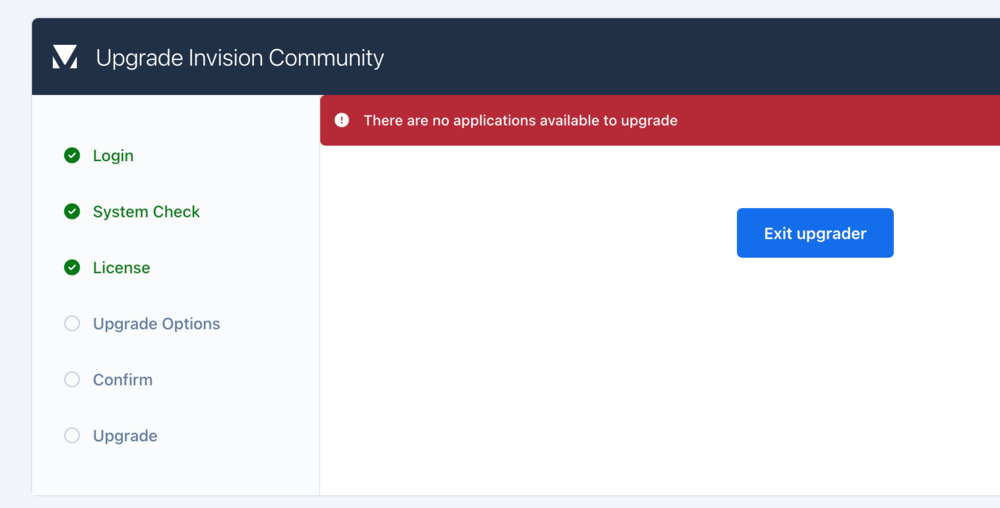
I am getting this error.
-
To change the fixed tabs. For example, I want to add a custom page there. The same issue raised by @WebCMS in the above post.
-
Is there a way to change the mobile footer menu?
-
I am on the cloud plan and I want to create a demo version of IPS5. I found this link from the Beta information page, but this page doesn't exist. How to create the demo?
-
Will it be a different cloud account for testing (and not my live site)? If yes, then I am looking forward to testing V5 😃



