Ehren
Invision Community Team
-
Joined
-
Last visited
Everything posted by Ehren
-
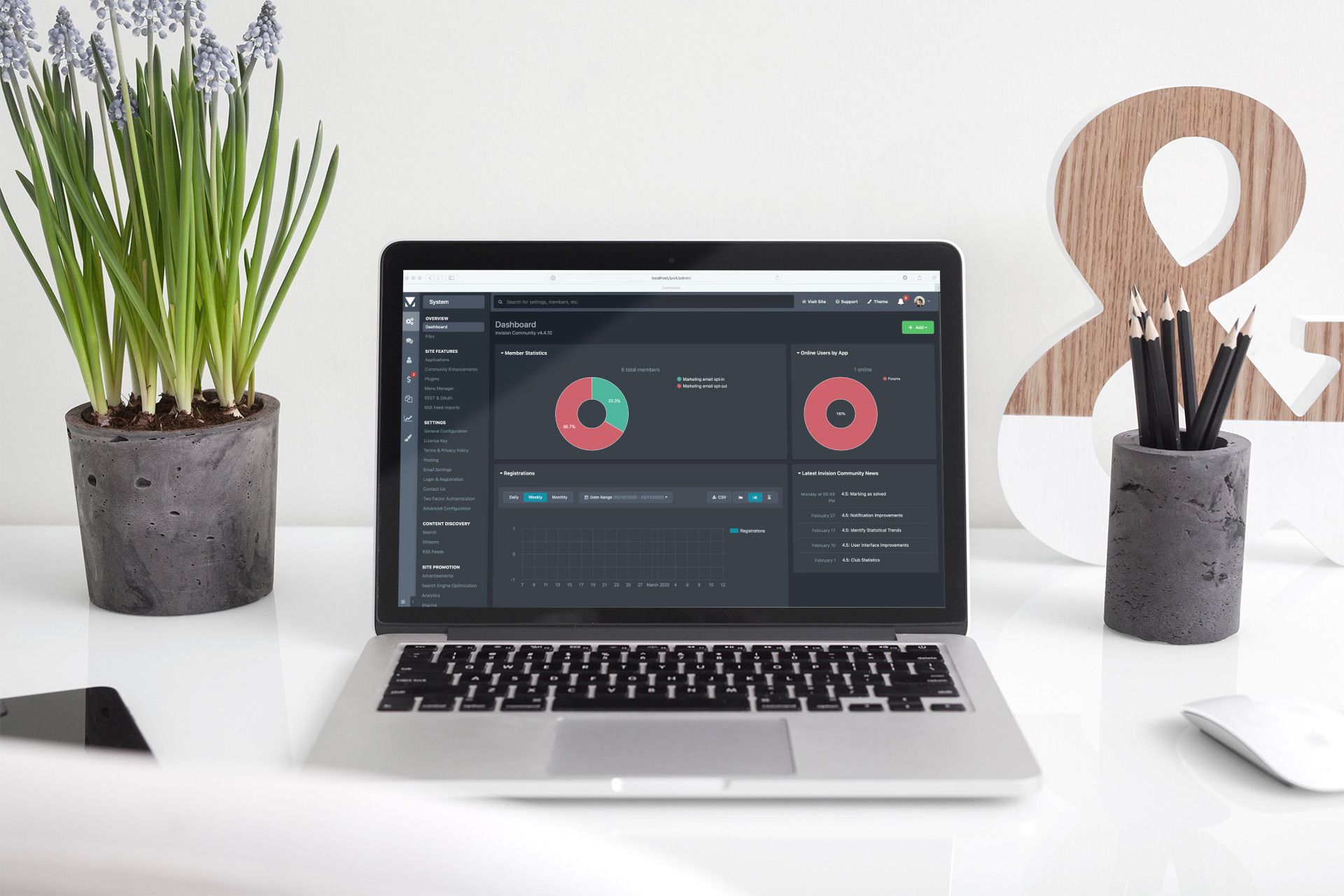 A short while ago we revealed the new look Admin CP for Invision Community 4.5. The focus was on increasing the workspace, brightening and modernising the look. However, for some this new look was perhaps a little too bright, especially when setting your OS to use dark mode. Rather than cause an increase in sales for sunglasses, we went ahead and implemented a dark mode for the Admin CP. You can set it to work inline with your OS preference, or you can choose to enforce light or dark mode. I'm sure the next question you're about to ask is "Hey Ehren that looks amazing and now working at 3 am won't wake up the neighbours when I log into the AdminCP but can you do the same for the front-end?" The short answer to that is "no". The theme system isn't currently designed to support both light and dark colour schemes, however our marketplace has a great selection of dark themes to enhance your community. I hope that you like this new feature and I just wanted to say thanks for your feedback; we do listen!
 -
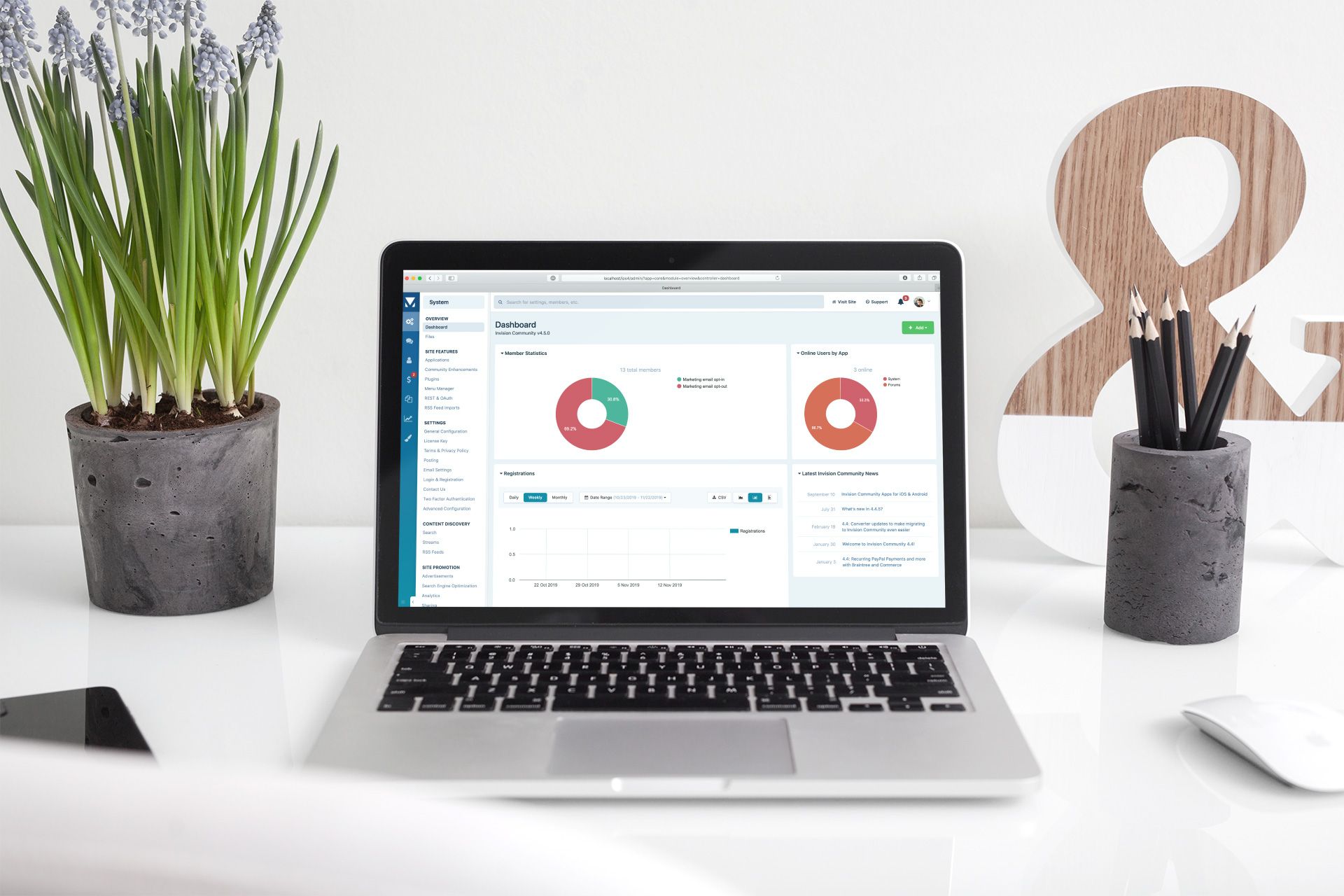 Invision Community has come a long way over the past five years. We've added many new features and invigorated the front-end user experience to keep it current and in-line with modern interfaces. One area that has remained largely the same is the Admin Control Panel. When we released Invision Community 4.0 back in 2014, the Admin Control Panel was updated but has stayed relatively dormant since. But that's all about to change with the upcoming release of Invision Community 4.5! The Admin Control Panel in 4.5 has received a substantial update, resulting in a modern color scheme and a clean, minimalistic design. We felt that a lighter, more open design allowed the content more space and to feel less crowded. The dark grays have been replaced with shades of blue and aqua which closely reflects Invision Community's new branding, while other colors have been lightened and saturated. Along with the new color scheme, the overall layout of the ACP has intentionally been kept similar to the existing version, resulting in a design that feels surprisingly familiar yet refreshingly new at the same time. We hope you've enjoyed this small sneak peek into Invision Community 4.5 and we look forward to introducing you to some more new features in the upcoming weeks!