


Nigel Moore
Clients
-
Joined
-
Last visited
-
 Nigel Moore reacted to a post in a topic:
Spring Update: Changes coming to Invision Community this month
Nigel Moore reacted to a post in a topic:
Spring Update: Changes coming to Invision Community this month
-
-
-
We're currently in the pre-planning phase of our v5 upgrade and I'm excited for the floating toolbar and mobile enhancements. However, we will definitely miss the SOURCE feature for a number of reasons, with the main one being tghat embed a lot of Zoom Clips and Loom Clips which don't natively unfurl like Youtube etc does. So, we currently click on the SOURCE button and paste in the Embed code and switch back to WYSIWIG and they work perfectly. Is it possible to add functionality so that Zoom and Loom clips both automatically unfurl when pasted into the new editor?
-
-
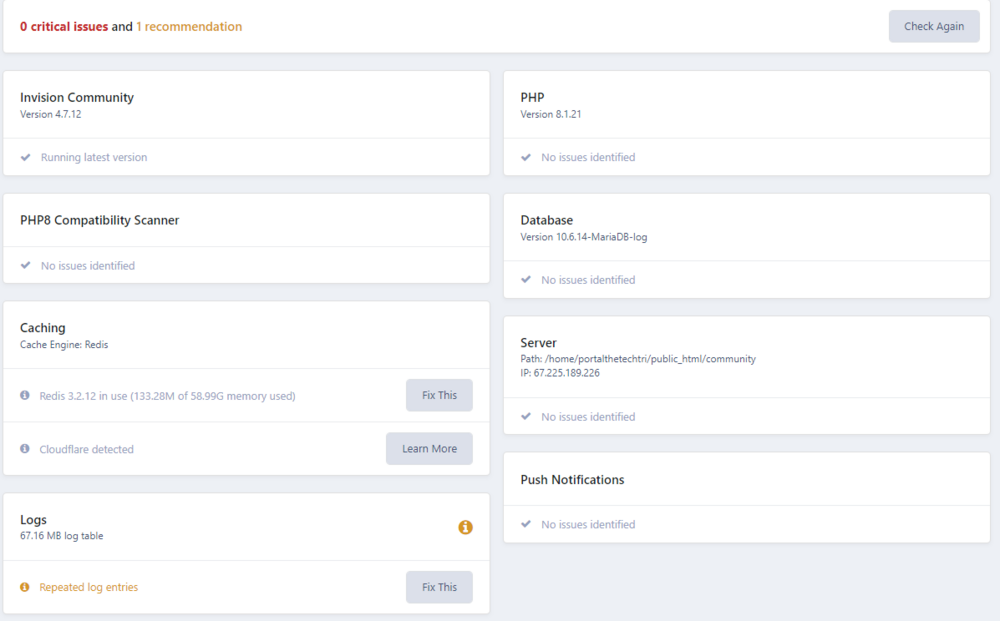
Has anybody experienced problems with push notifications on phones? We set the manifest configuration in System > Settings > Web app > Manifest. This os our current situation: Push notifications (and red badge) are working fine in Desktop PWAs (chrome & edge), but not working at all in phones (iOS or Android), not notifications arriving nor badge showing. We tested on several devices without luck. Attached our current support stats: Thanks!
-
Hello @beats23, thanks for the suggestion, do you know where I can find the proper installation steps for this prompt? It is just uploading the clevr.PWAInstallPromptIOS.mpk file to the form root? Thanks!


