


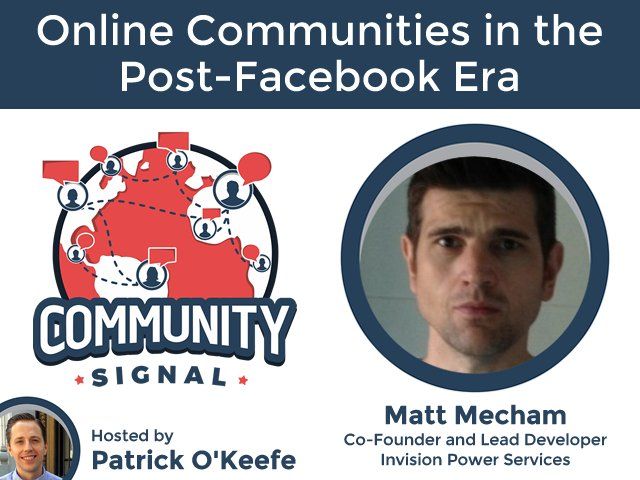

Matt was recently invited onto the Community Signal Podcast, where he spoke with host Patrick O'Keefe.
Everything from how Matt got started with online communities right up to the possibility of a post Facebook era was covered in their 45 minute chat. Matt also gives a little insight into how Invision Community works behind the scenes.
From Community Signal:
QuoteMatt Mecham’s code has powered far too many online communities to count. Developing popular online community software since 2001, he worked on YaBB and founded Ikonboard, before co-founding Invision Power Services, the company behind Invision Community.
Given his long view of the industry, Matt sees the timeline of online community as progressing through a few eras: The early years, when he began developing software. The middle years, where platforms became more cognizant of UI considerations and SEO. The recent years, Facebook opening to the public and the resulting impact. And now, which he refers to as the “post-Facebook era.” Where will online communities go in that era? Plus:
- The community software business shift from licensing to SaaS (software as a service)
- New features vs. bloat
- Why he turned down a job offer from vBulletin

