


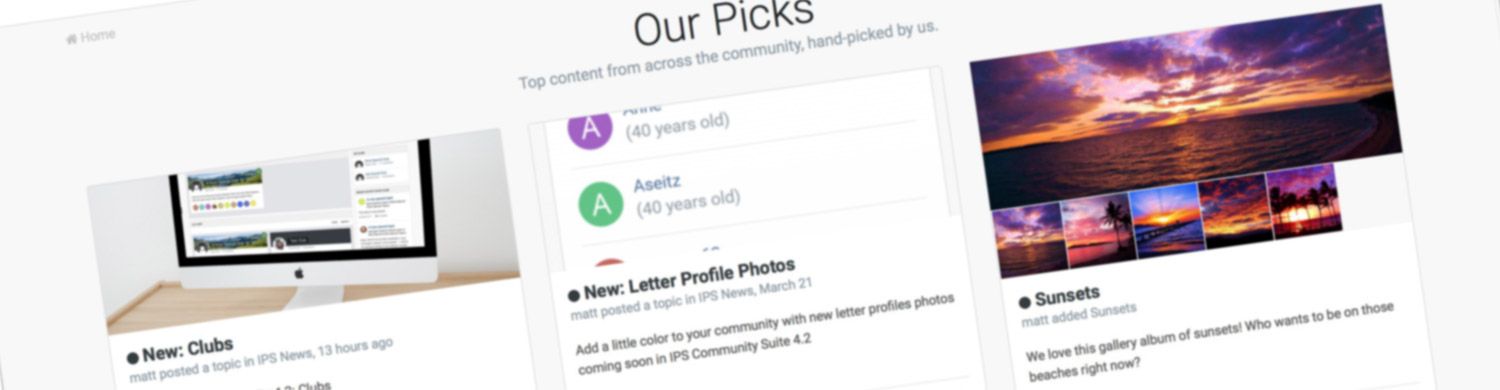

Here is the roundup of what's new in Invision Community 4.2!
Highlights
There's a lot of new feature in 4.2 but here are a few of the highlights:
Promoting Content - A new way to promote content in your Community internally, on Facebook, and on Twitter.

Clubs - Clubs are a brand new way of supporting sub-communities within your site. Many people have requested social group functionality in the past and Clubs are our implementation of this concept.

Reactions - Offer more fine-grained sentiments towards content than a simple up/down or 'like'. They are now in common usage on social networks, and so users expect to be able to be more nuanced in their response to something they see.

Complete Your Profile - Encourage or require members to fill out the details on their profile. Also now allows for quick registration to encourage joining.

And a whole lot more..
It goes on... here is the full list!
- Leaderboard Enhancements
- Richer Embeds
- Group Promotion Improvement
- Fluid Forum View
- Member History
- Editor Uploading Improvements
- Authy Integration
- Commerce Improvements
- New REST API Endpoints
- Gallery Improvements
- Statistic Reporting
- Copy Topic to Database
- Downloads Index Page
- Blog Sidebar
- Promoting Content
- Clubs
- Reactions
- Calendar Venues
- Social Sign In Streamlining
- Calendar Add Similar Event
- Gallery Lightbox Navigation
- Letter Profile Photos
- SEO Improvements
- Device Management
- Delayed Deletes
- Calendar Event Reminders
- Content Messages
- Recommended Replies
- Complete Your Profile
Be sure to visit each entry above for more information and screenshots. We hope you enjoy Invision Community 4.2!
Edited by Charles


