
Jump to content
View in the app

A better way to browse. Learn more.

Invision Community

A full-screen app on your home screen with push notifications, badges and more.

To install this app on iOS and iPadOS
  1. Tap the Share icon in Safari
  2. Scroll the menu and tap Add to Home Screen.
  3. Tap Add in the top-right corner.
To install this app on Android
  1. Tap the 3-dot menu (⋮) in the top-right corner of the browser.
  2. Tap Add to Home screen or Install app.
  3. Confirm by tapping Install.

New: Leaderboard Enhancements

This entry is about our IPS Community Suite 4.2 release


Top Members

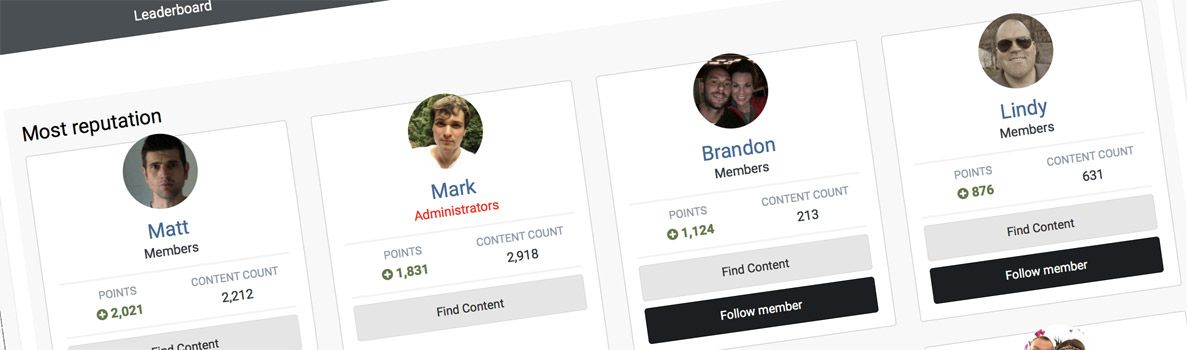
For 4.2 we made some improvements to the Top Members section of the Leaderboard. A new overview page tab shows a selection of the top members across different criteria.

Top Members Overview.png

Top Members Overview Page showing members with Most Reputation and Most Content

The filter menu allows you to view more members in any chosen category, and a new AdminCP setting controls which categories should be available.

Top Members Category.png

Top Members Categories

In the AdminCP you can configure which categories are shown on the overview page, the filter menu, and how many results show for each.

Top Members Settings.png

Top Members AdminCP Settings


Popular Contributors Widget

Another small change is the Popular Contributors widget now contains a link to the appropriate section of the Leaderboard.

Popular Contributors Widget.png

Popular Contributors Widget

Account

Navigation

Search

Search

Configure browser push notifications

Chrome (Android)
  1. Tap the lock icon next to the address bar.
  2. Tap Permissions → Notifications.
  3. Adjust your preference.
Chrome (Desktop)
  1. Click the padlock icon in the address bar.
  2. Select Site settings.
  3. Find Notifications and adjust your preference.
