
Jump to content
View in the app

A better way to browse. Learn more.

Invision Community

A full-screen app on your home screen with push notifications, badges and more.

To install this app on iOS and iPadOS
  1. Tap the Share icon in Safari
  2. Scroll the menu and tap Add to Home Screen.
  3. Tap Add in the top-right corner.
To install this app on Android
  1. Tap the 3-dot menu (⋮) in the top-right corner of the browser.
  2. Tap Add to Home screen or Install app.
  3. Confirm by tapping Install.

Trial Invision Community 4.5 Now

If you're preparing to upgrade to Invision Community 4.5, there's now an easy way to test it out.

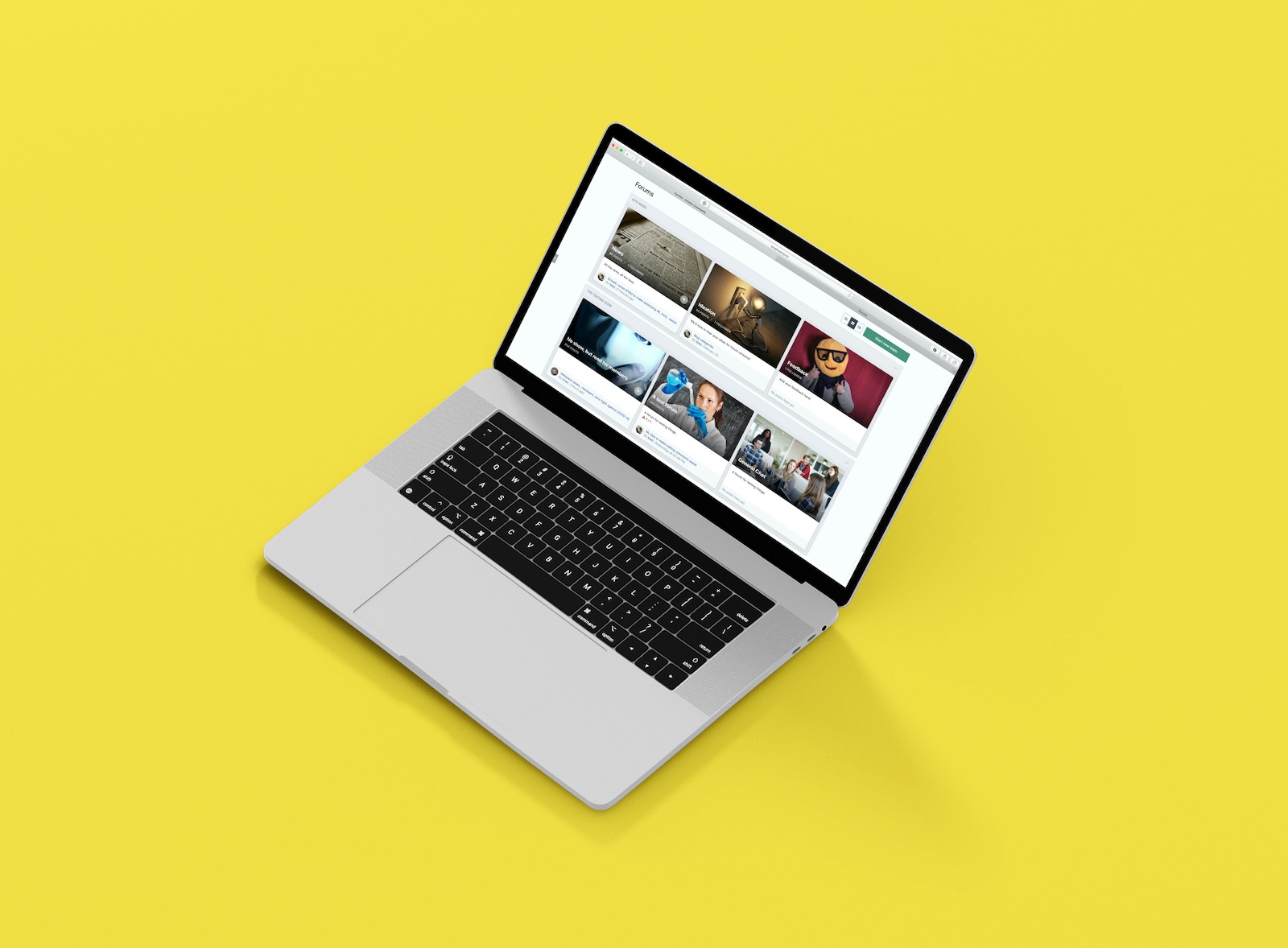
We have updated our Invision Community demo system to use Invision Community 4.5! This is a quick and easy way to take 4.5 for a test drive and test all the new functionality before making your upgrade plans.

macbooks.jpg

Taking out a demo is very simple, just head over to our demo sign up page, follow the instructions and within a few minutes you'll receive your own private demo log in.

We'd love to know what you think! Please let us know in the feedback forum.

Account

Navigation

Search

Search

Configure browser push notifications

Chrome (Android)
  1. Tap the lock icon next to the address bar.
  2. Tap Permissions → Notifications.
  3. Adjust your preference.
Chrome (Desktop)
  1. Click the padlock icon in the address bar.
  2. Select Site settings.
  3. Find Notifications and adjust your preference.
