


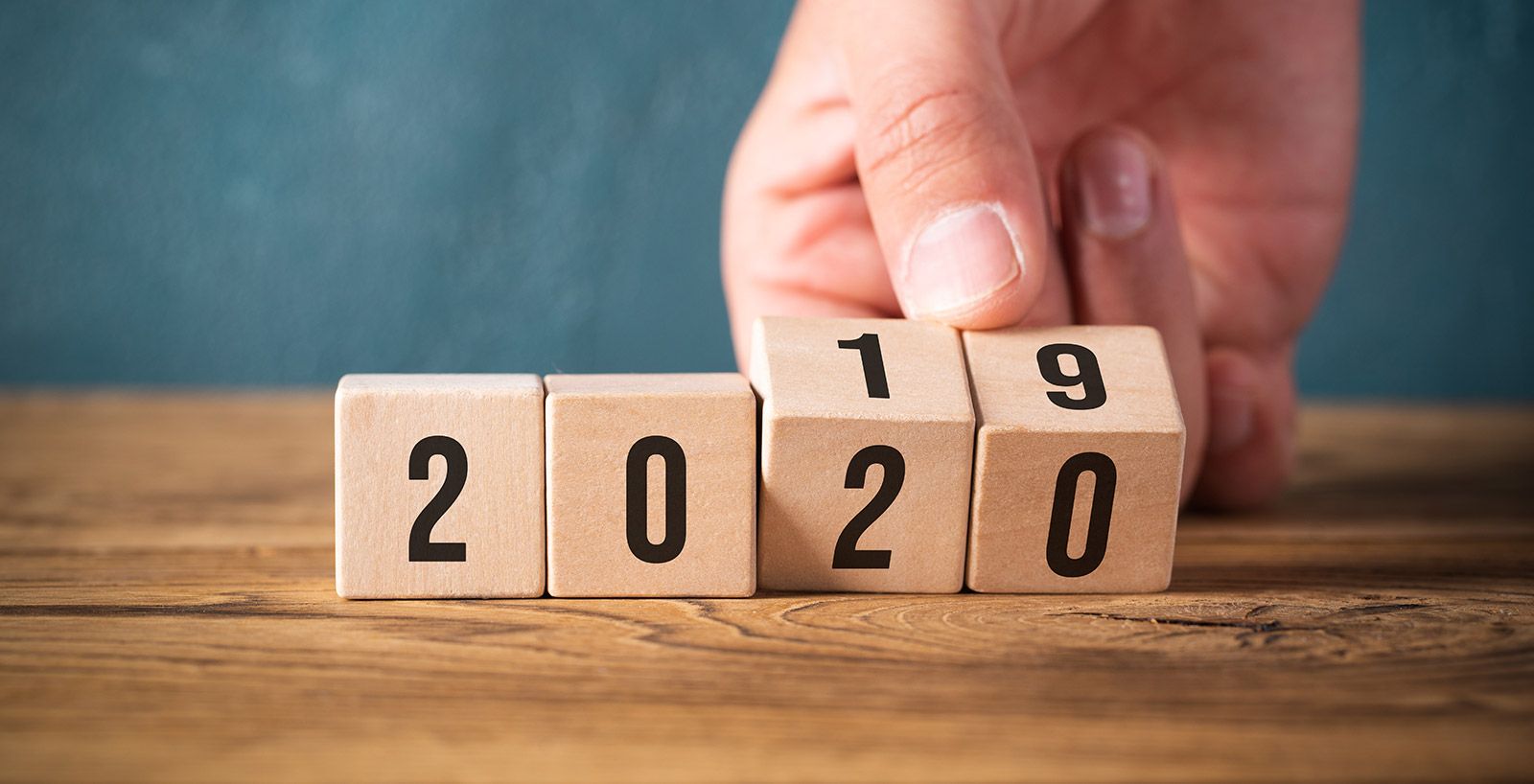

On behalf of the Invision Community staff and company, I'd like to wish our clients and community warm blessings and gratitude for the New Year.
We're proud to be the community platform of choice for you and your organization over the past year (or decade!), empowering you and your users with the space to debate, discuss, investigate, solve, innovate and celebrate a shared sense of purpose. The ability to positively touch and connect with the lives of others regardless of location is one of the most transformative benefits of the modern web -- and there's never been a greater demand or need for online communities to connect members in an authentic, branded experience.
Your community is the gift that keeps on giving, and we're delighted to be a part of it.
Here's a round-up of the 2019's most visited, most commented, and most clicked-on articles from the Invision Community Blog:
- Invision Community managers use tools like Saved Actions and Auto Moderation to work smarter with 5 of the best time saving features
- Avoid the Engagement Trap, a never-ending race that measures all the wrong metrics in a community
- The crowd goes wild in the teaser announcement of the forthcoming mobile apps for iOS and Android
- Go back in a time machine with a Decade in Review - a celebration and testament to the enduring power of community.
Once again, may the magic and wonder of the holiday season stay with you throughout the year!

