


What are assignments?
As communities grow, managing content effectively becomes about more than simply assigning moderators to areas of your community. Modern communities often rely on people with specific knowledge, responsibilities, or expertise to ensure members receive the best possible response.
Assignments allow you to direct individual topics to the right person or team, regardless of where that topic was created. Rather than hoping the appropriate team member notices a discussion, you can assign it directly to those best placed to help.
For example, you may have different people responsible for product questions, customer support, sales enquiries, or specialist subjects within your community. A member may post a question in any area, but assignments ensure it reaches the people who have the knowledge needed to respond.
Assignments help your team stay organised by clearly showing who is responsible for each topic, preventing duplicated effort and reducing the chance that important discussions are missed. This creates a smoother experience for both your community team and your members.
Assignments Setup
First, you will need to configure where assignments can be used within your community. This can be done from the settings of individual forums, or from the following location in your AdminCP:
Members → Content Moderation → Assignments
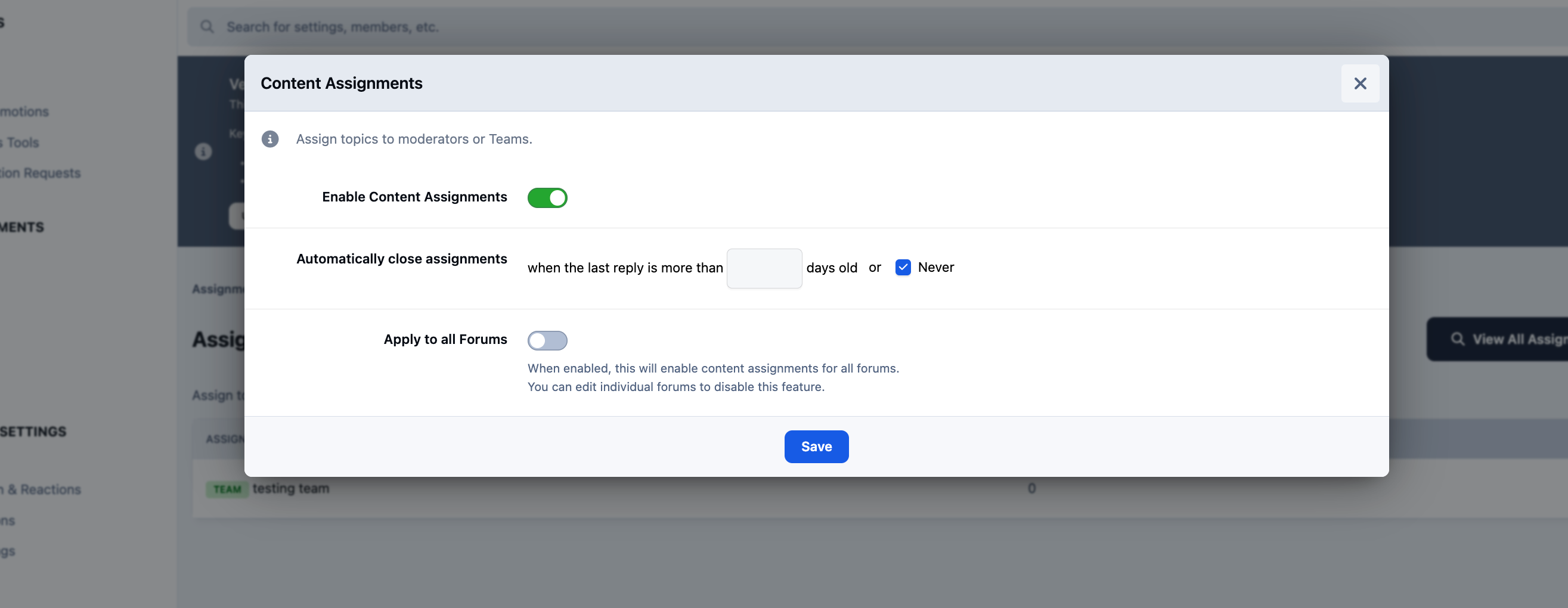
By selecting the Settings button, you can enable assignments, choose whether assignments can be closed once completed, and optionally apply these settings to all forums. This can save time by avoiding the need to configure each forum individually.
Enable Assignments
Teams
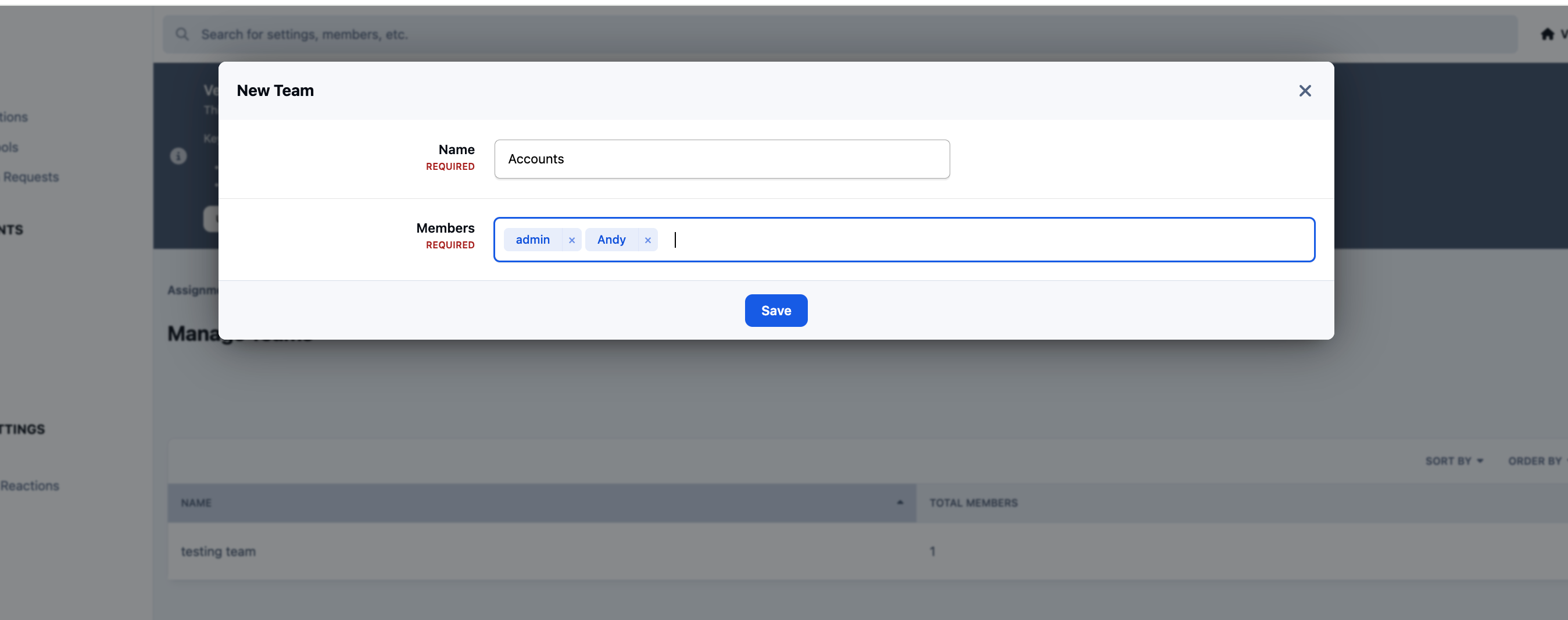
There will be times you want to assign items not just to an individual member, but to a team of members. For example, you may have a set of members who you have dealing with account queries, support queries, or development tasks. You can set these up from the 'Manage Teams' option, by selecting 'New Team'
Team Setup
Using Assignments
Assigning Topics
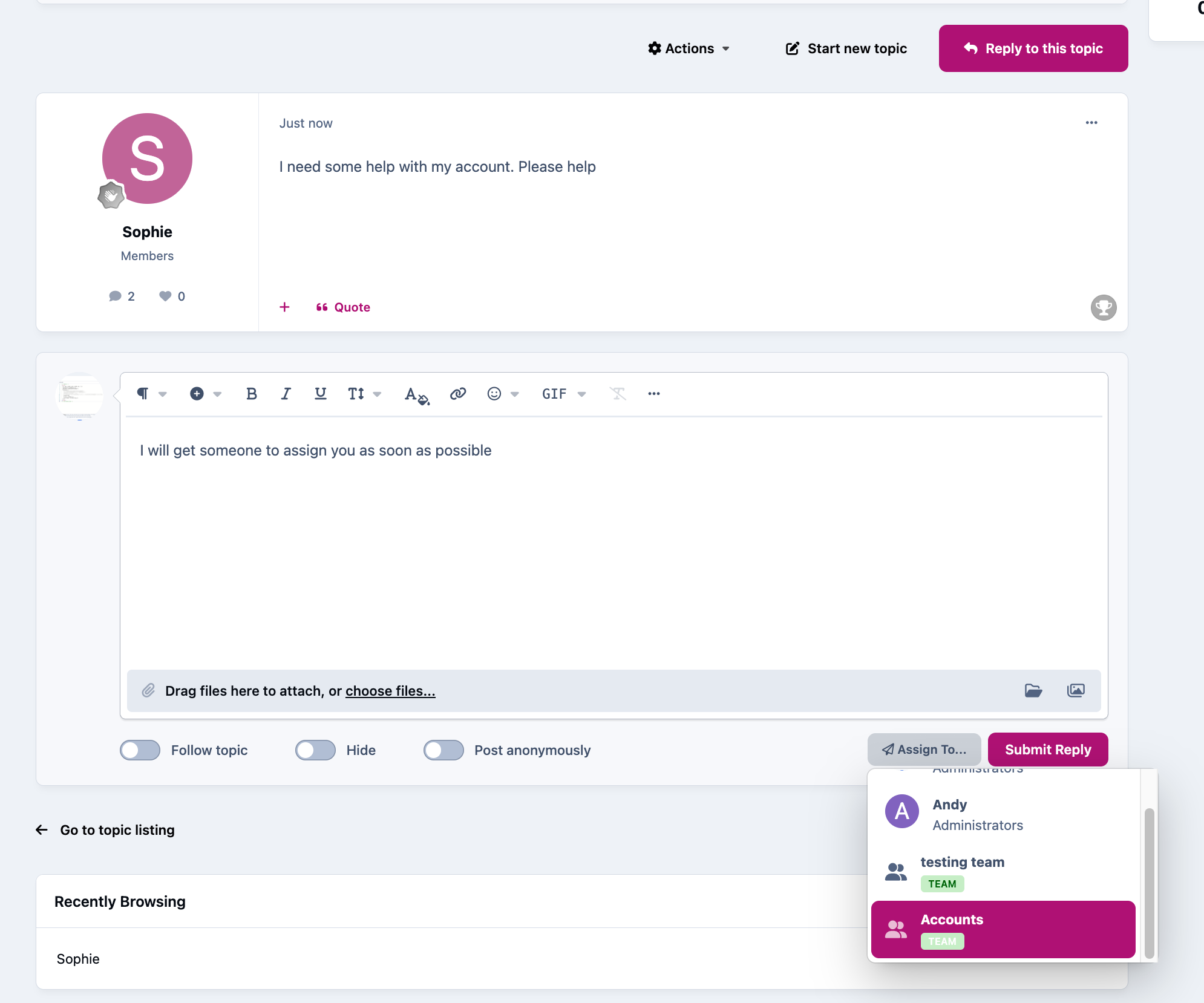
When replying to a topic, you can then assign members of staff or teams to those topics, as shown in the image below
Assign from Reply
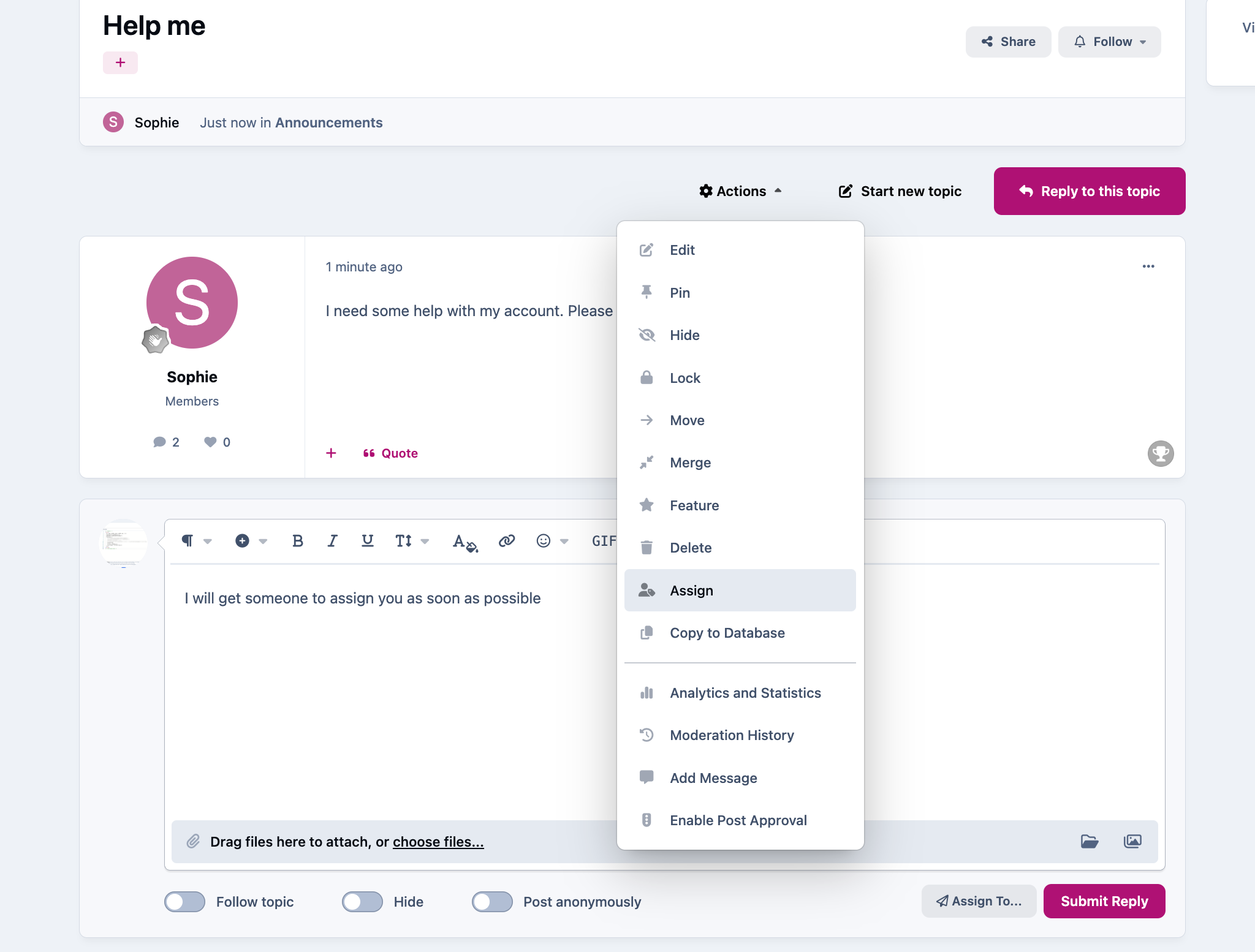
This can also be found within the actions menu, for situations where you are not replying to the topic
Assign from Action Menu
Managing Assignments
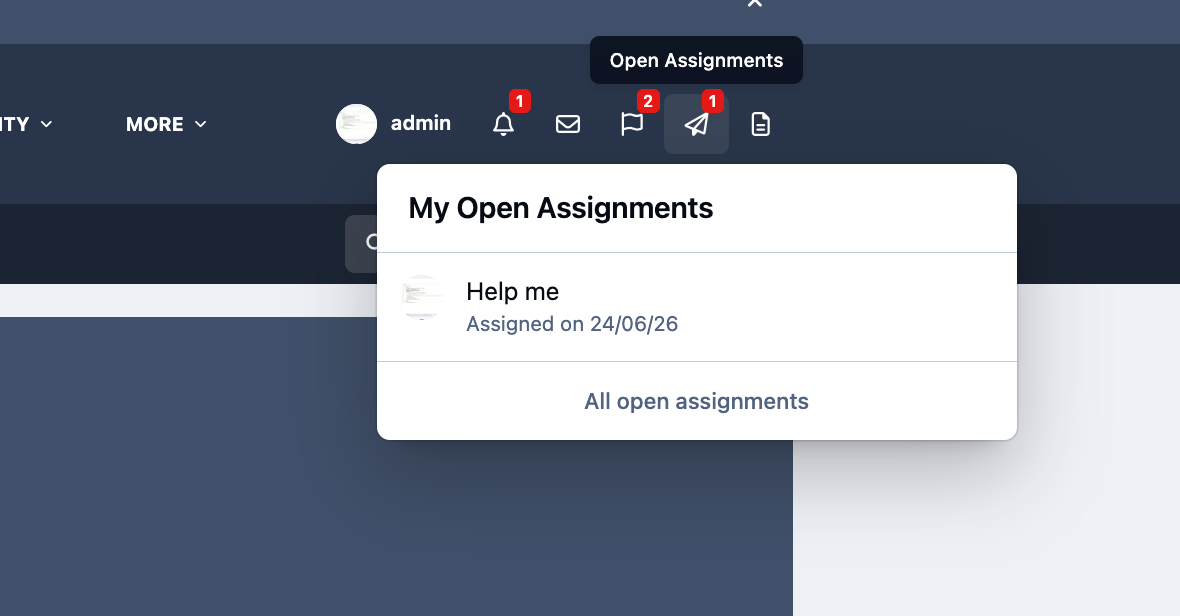
Your assignments can be viewed from the Assignments menu at the top of the page, as shown below. By default, this area displays only items that are currently assigned to you.
Selecting All open assignments will display all currently open assignments, regardless of which member of staff they are assigned to.
My Assignments
The All Open Assignments list is available within your Moderator Control Panel. From here, you can manage assignments directly, allowing you to quickly reassign items to another team or individual, or remove the assignment entirely.
All Assignments
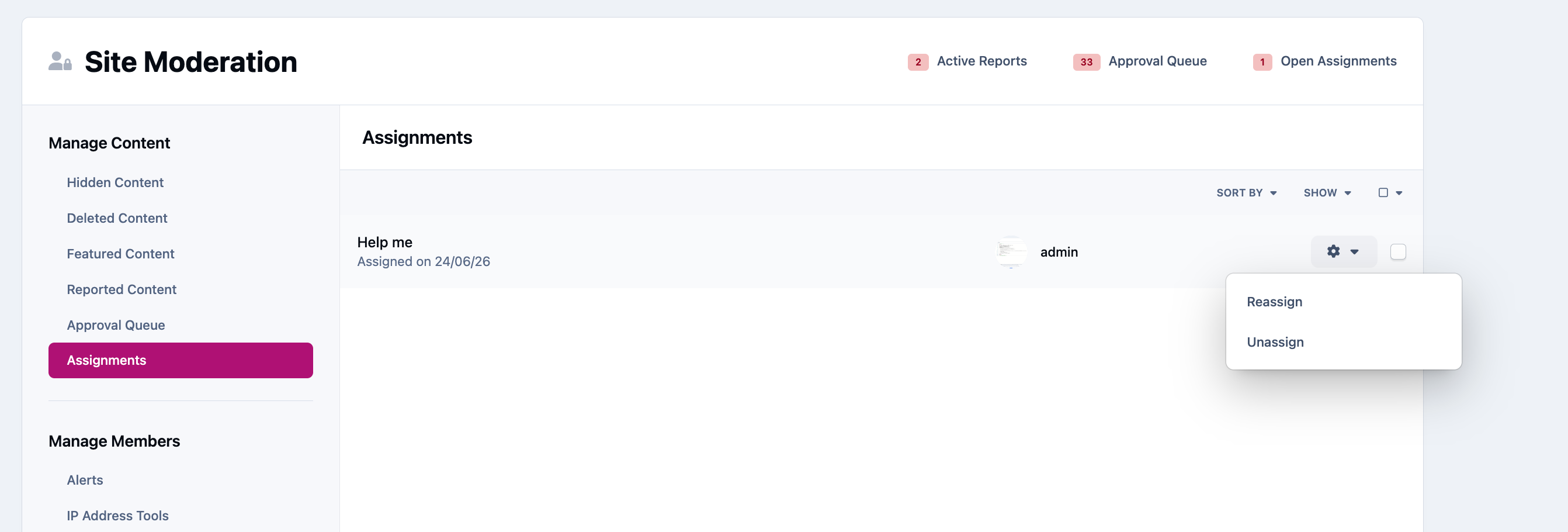
These can also be managed from the admin CP assignments area.
Recommended Comments