


Within each individual forum in the Admin CP, you’ll find a range of settings that apply specifically to that forum. These allow you to fine-tune how the forum is defined, displayed, and used by your members.
You can configure the core details of the forum, such as its name, description, and type, as well as adjust how it appears within your overall forum structure. In addition, there are usage-related settings that control how members interact within that forum—for example, whether they can post new topics, reply to discussions, upload attachments, or mark solutions.
These forum-level settings give you granular control, allowing different areas of your community to serve different purposes, whether that’s open discussion, support, announcements, or staff-only collaboration.
Forum Settings
These are the core settings for an individual forum. This is where you define the forum’s name, description, and its fundamental characteristics such as type.
Forum Settings
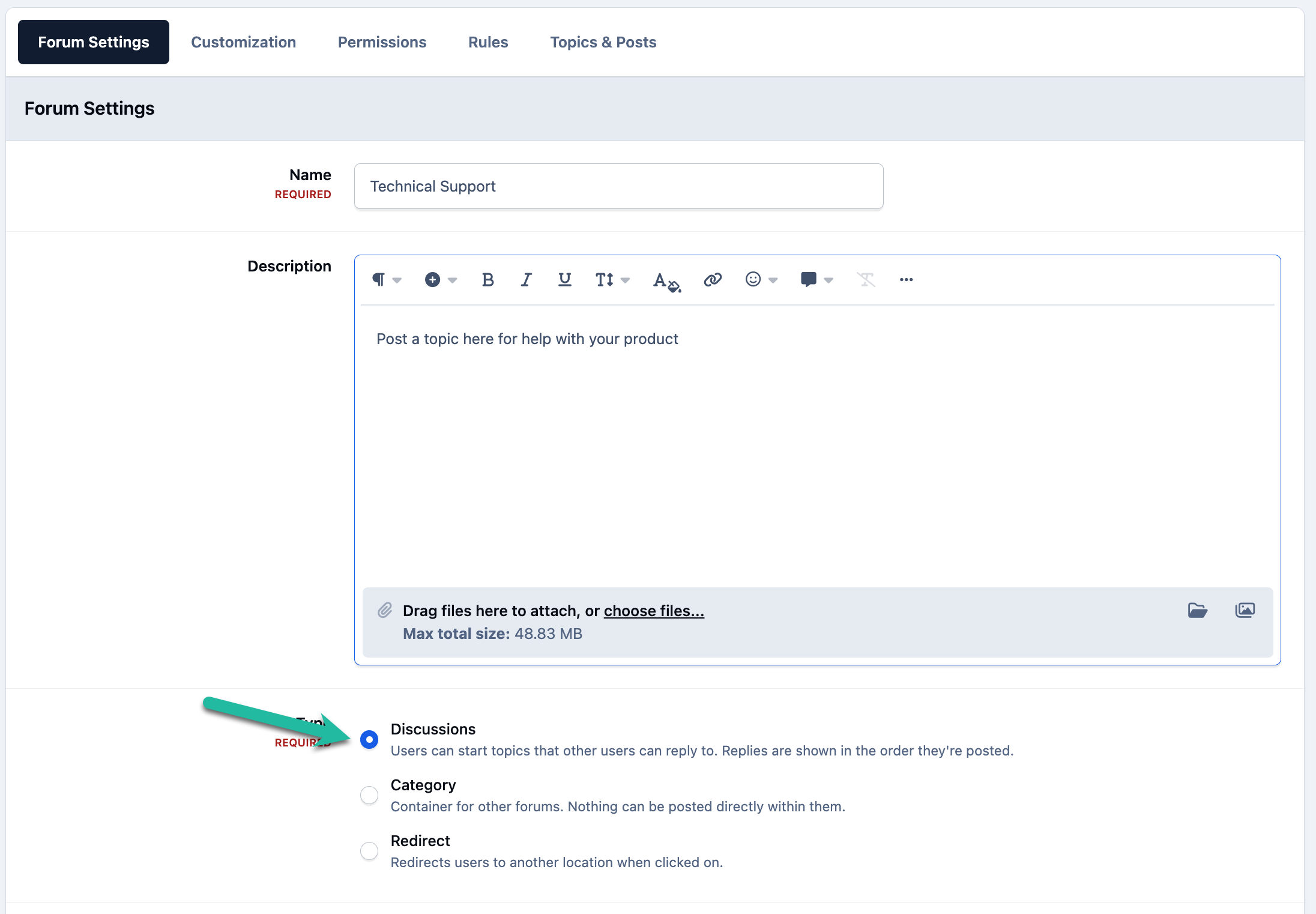
Alongside the name and description, you’ll find several additional sections that allow you to further configure how the forum behaves and how it appears to your members. These options help tailor each forum to its specific purpose within your community.
Support Forum Settings - This section includes features designed for support-style forums, such as assigning topics to specific staff members or groups and allowing members to mark topics as solved. These options help streamline support discussions and make it easier to identify resolved issues.
Forum Display - In addition to allowing you to select the order in which you would like topics to display, you can also Enable a combined fluid view, where the forum has sub-forums. When enabled, all topics from this forum and any child forums will be shown in a single list with a filter box to allow your members to filter out of specific child forums
Customization
The Customization section allows you to control how your forum appears in certain situations, giving you the ability to adjust visual and display-related options to better suit the purpose and style of that specific forum.
Forum Customization
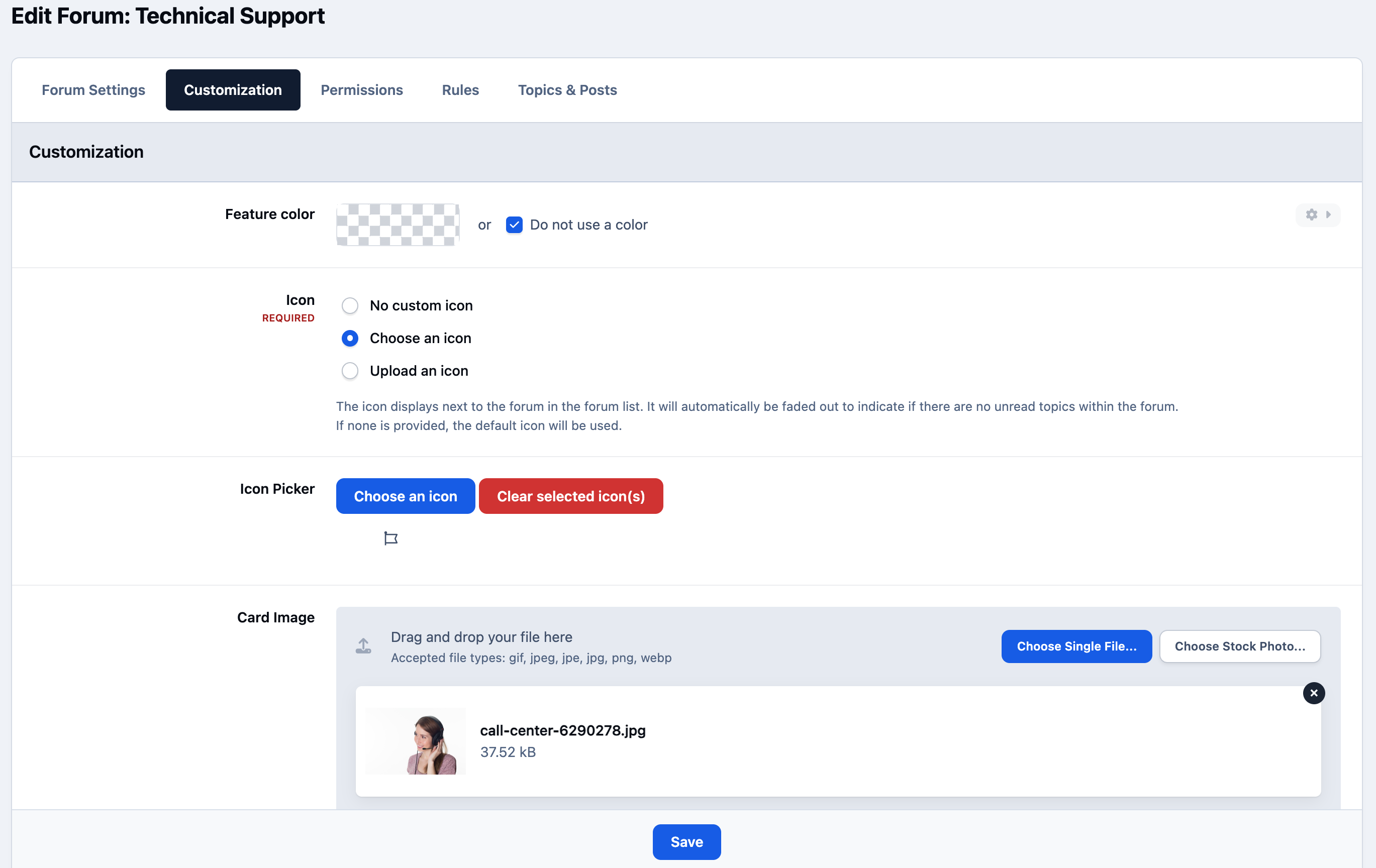
Feature Color - When set, this will highlight the forum in the color set.
Icon - When selected, you can choose an icon from a set list, or upload your own. This icon is shown when using table view for your forum index
Card Image - The Card image is an image that will be shown when using the grid or feed layouts for your forum view
Permissions
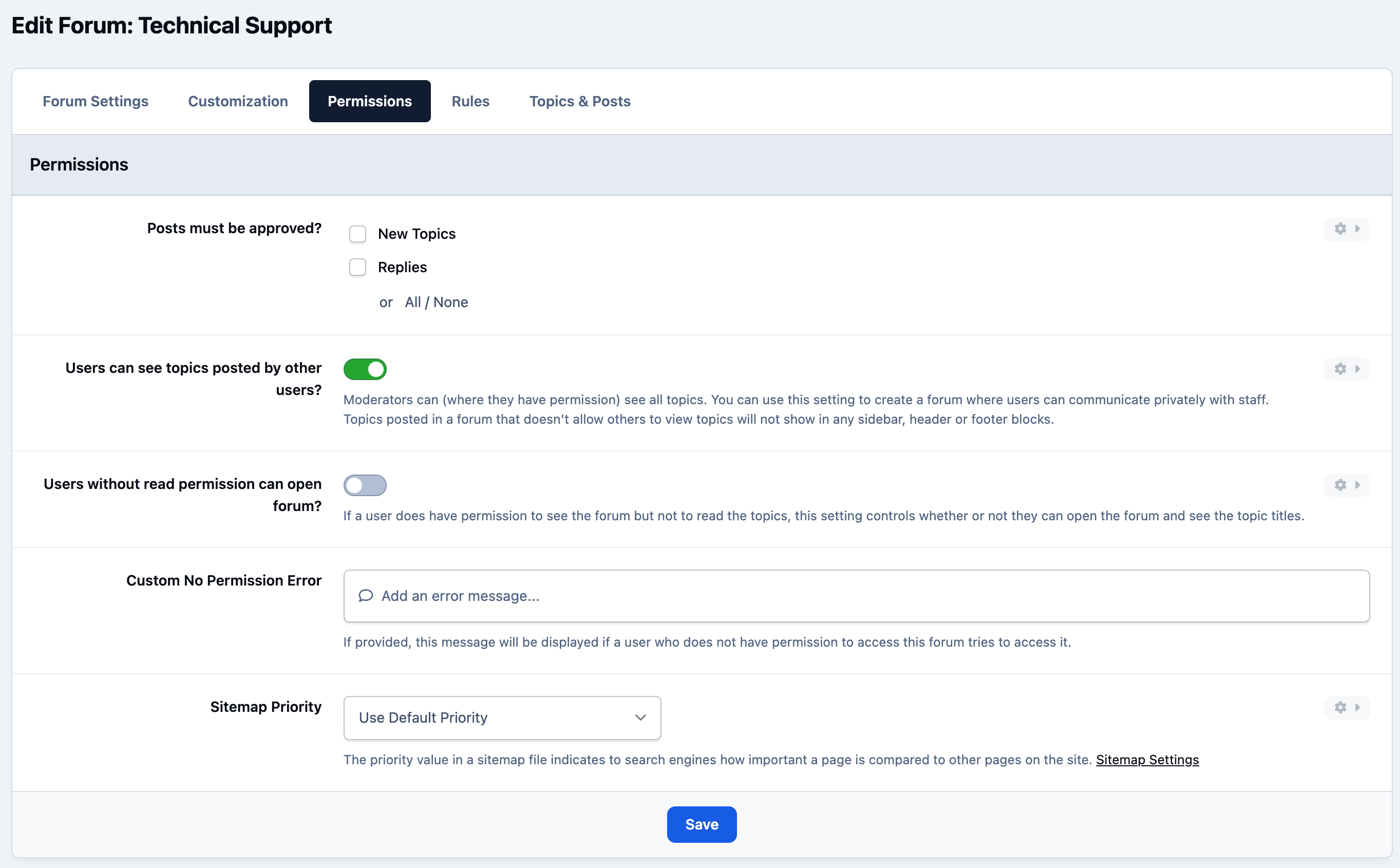
The Permissions section controls how members interact within that specific forum. These settings allow you to configure options such as content approval requirements, custom permission error messages, and other access-related controls that apply to members as a whole within that forum.
Forum Permissions
Rules
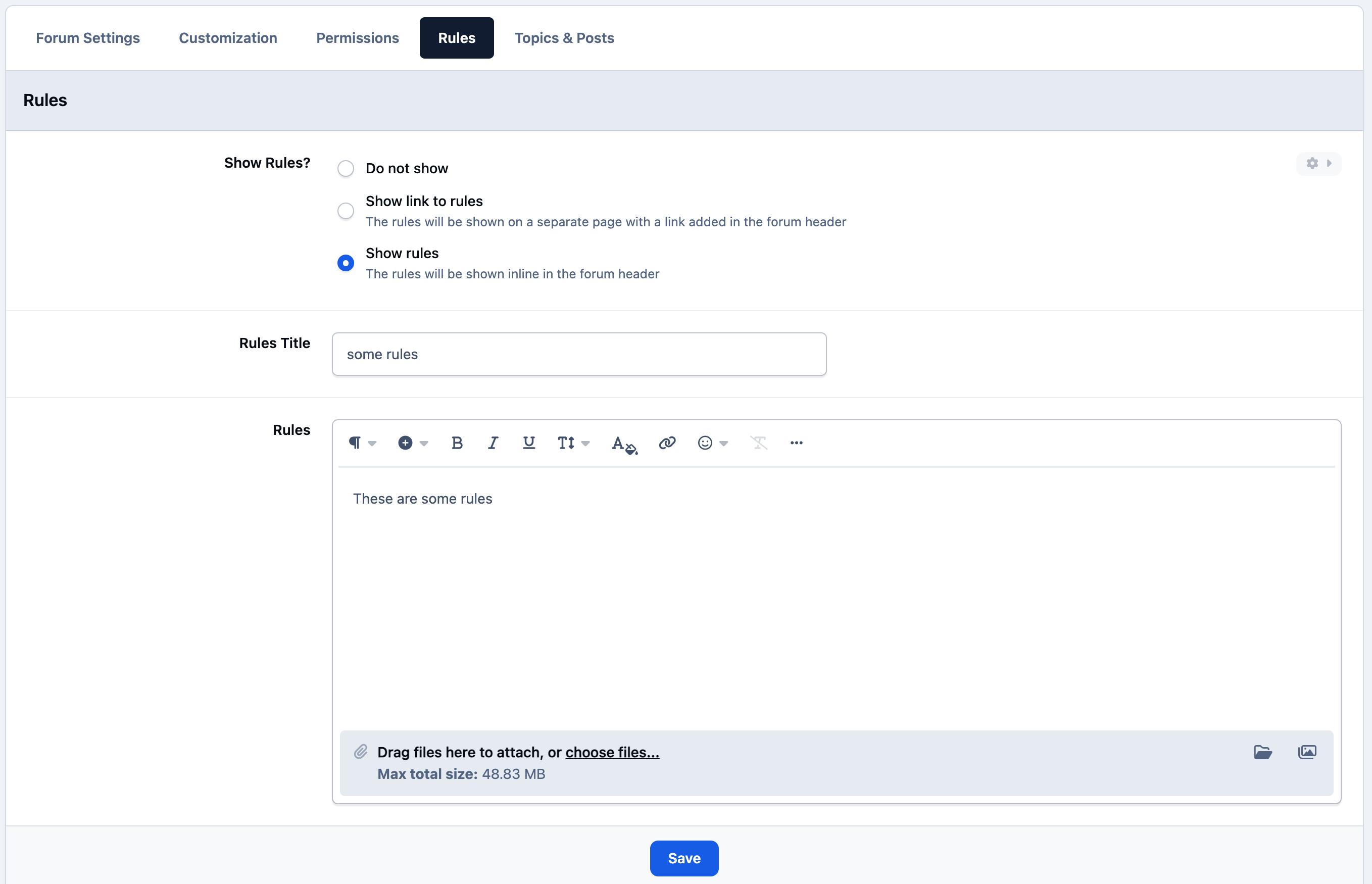
You may wish to show rules that apply just to this forum. When set, they will show at the top of that forum on the front end of the site. You can choose to either have a link to an external page, or to simply add in text to that area.
Forum Rules
Top Tip
While not its intended use, this can be helpful in displaying any information you like at the top of a forum. For example, you may wish to give information about the forum, or highlight something in this area, rather than rules.
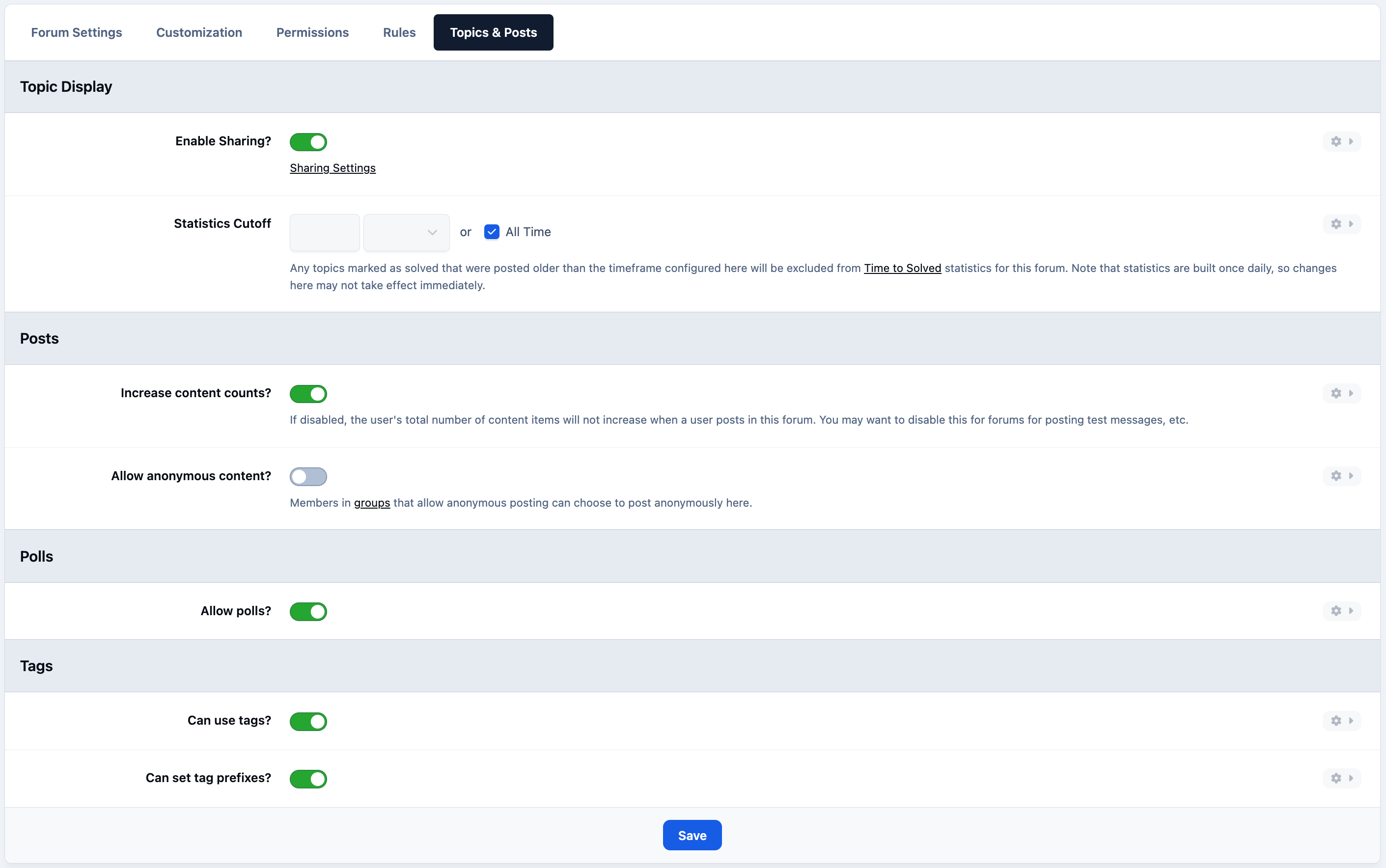
Topics & Posts
This section allows you to control what features can be used within topics and posts in that forum. For example, you can choose whether members are allowed to post anonymously, use tags, and other topic-specific functionality.
Topic and Post Settings
Recommended Comments