


Selling advertising space on your website is one of the most established ways to generate revenue — and it continues to be highly effective for many communities.
With the Commerce application, you can create and sell advertising placements throughout your site, giving you complete control over their location and duration.
Creating Ads
Advertisements can be added to your site as either image-based ads or custom HTML, directly from the following location within the AdminCP:
Simple Banner Ad
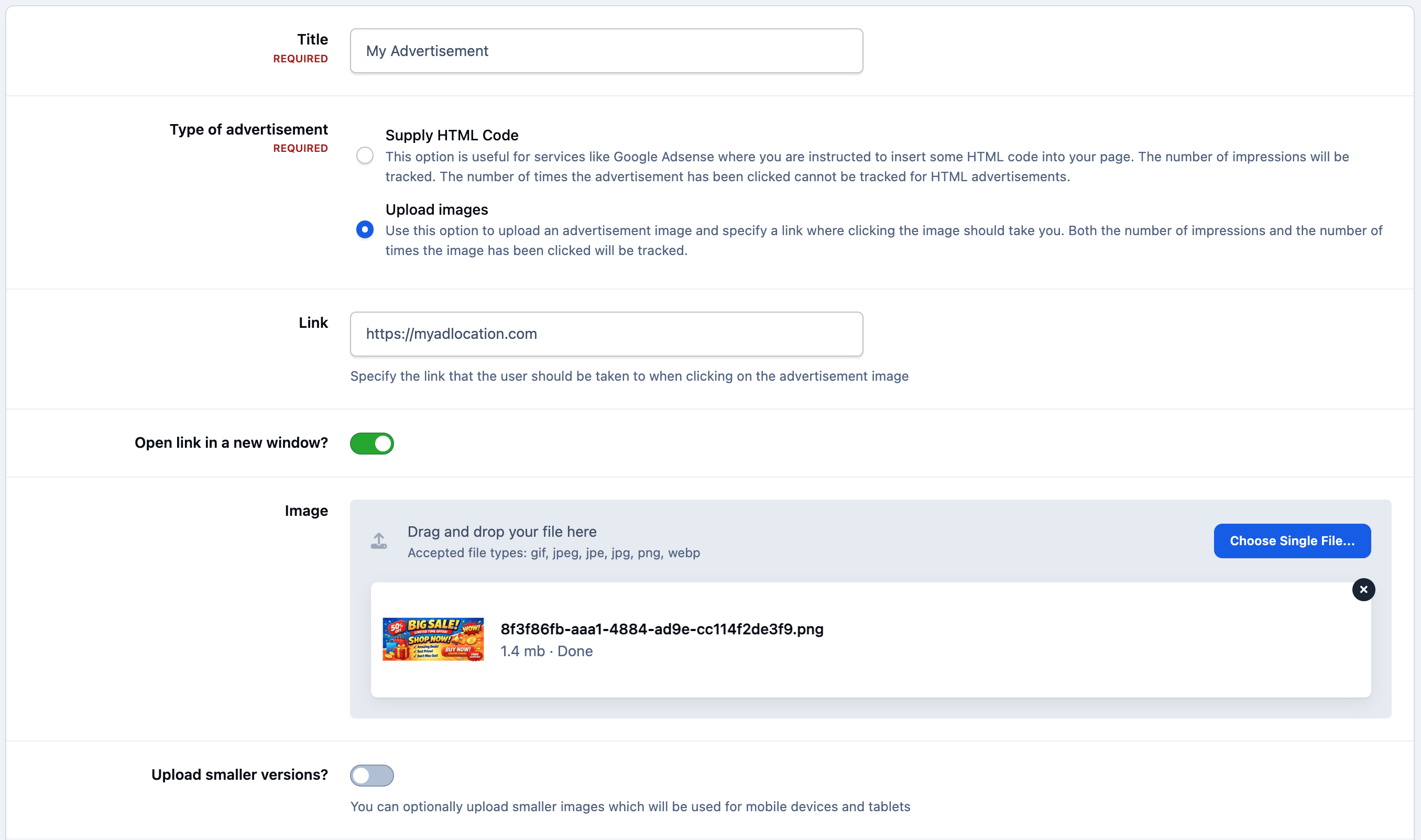
To create a new advertisement, click the 'Create New' button shown above. You’ll then be presented with the available configuration options. From here, you can either paste in your own HTML code or select 'Upload Images' to add a banner image.
{bannerAd}
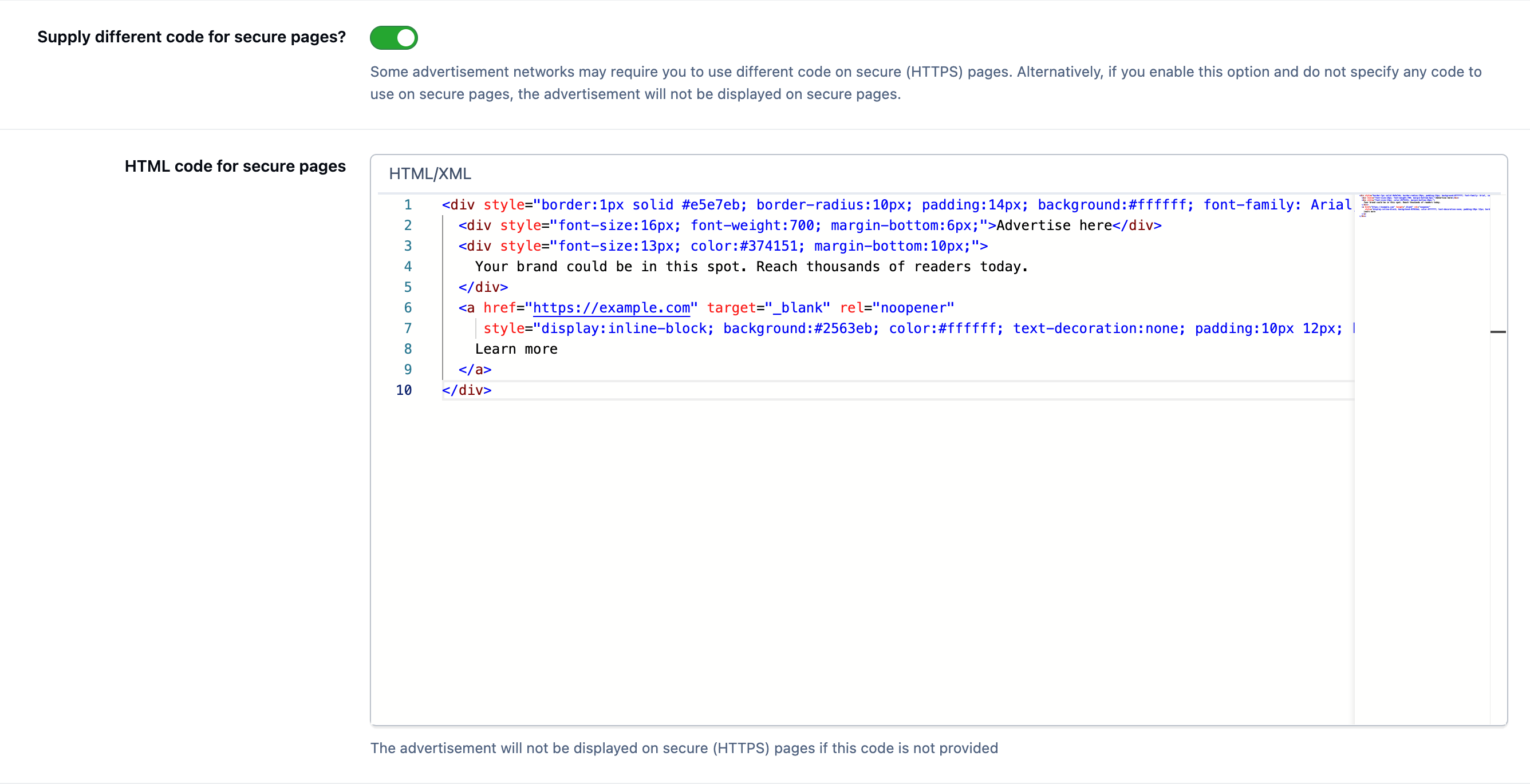
You’ll also notice the option to provide separate HTML code specifically for secure (HTTPS) pages, allowing you to tailor ad content where needed.
Secure Adverts
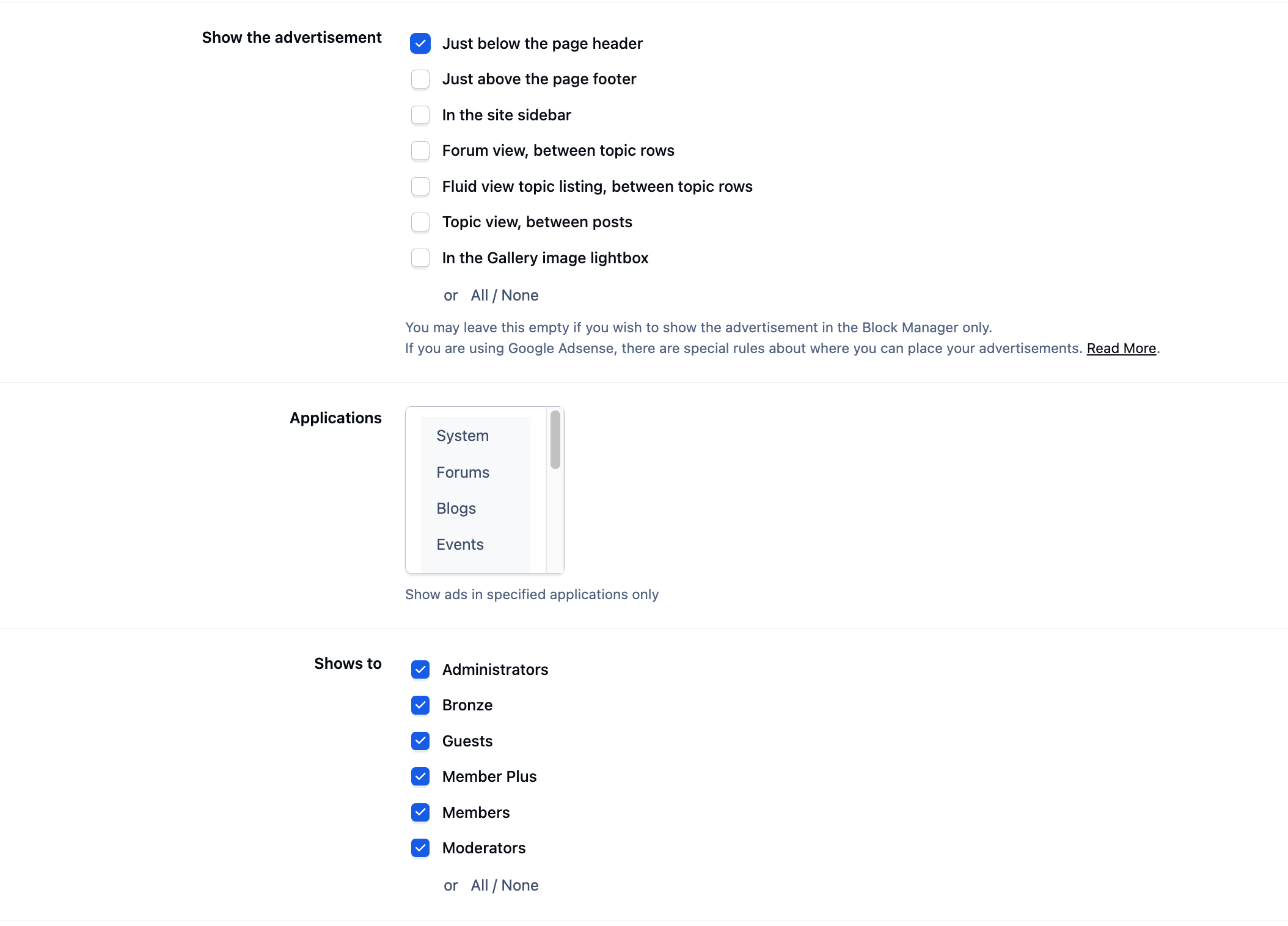
After adding your image or advertisement code, you can choose where the advert will appear and who will be able to see it.
Ad Locations
You’re able to select multiple locations for a single advert, giving you flexibility in placement. You can also define display criteria, including when the ad should appear and how long it should run, allowing you to control both visibility and duration with precision. Optionally leaving the setting blank if you wish to manually place using the page editor.
Various Advertisement Location
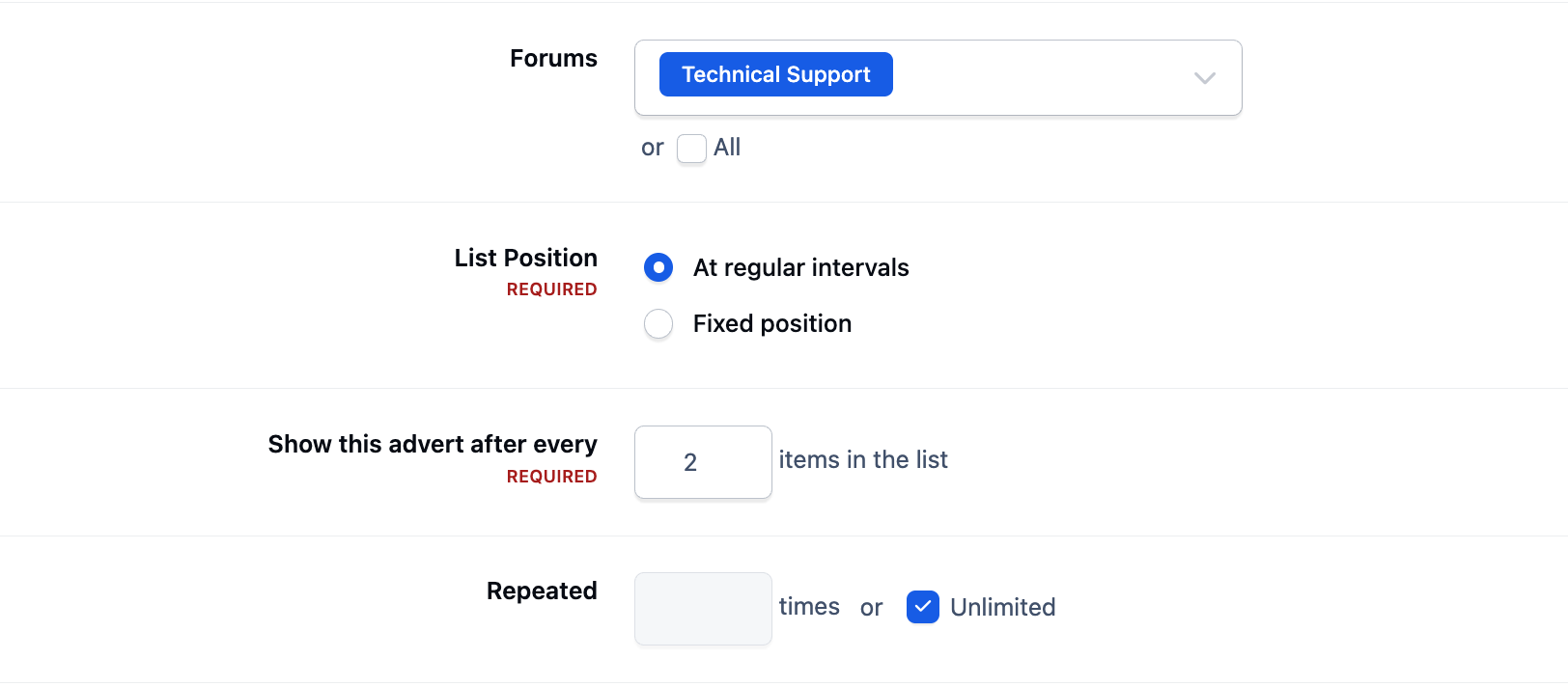
In certain areas, you’ll have the option to refine placement even further. For example, you can choose which applications the advertisement should appear in, or specify particular intervals — such as positions within forum listings.
Manual Placement
Manual placement of blocks can be achieved by selecting no location on the screen shown above. You would then place an "ad" widget from the page editor, into a page editor location of your choosing. You can read about adding widgets here
https://invisioncommunity.com/docs/getting-started/getting-the-look-right-r131/#4-widgets
This gives you more granular control over exactly where and how your adverts are displayed across your site.
Advertisement Showing After Every 2nd Topic
Ads in Email
Invision Community allows you to display advertisements not only across your site, but also within your community emails.
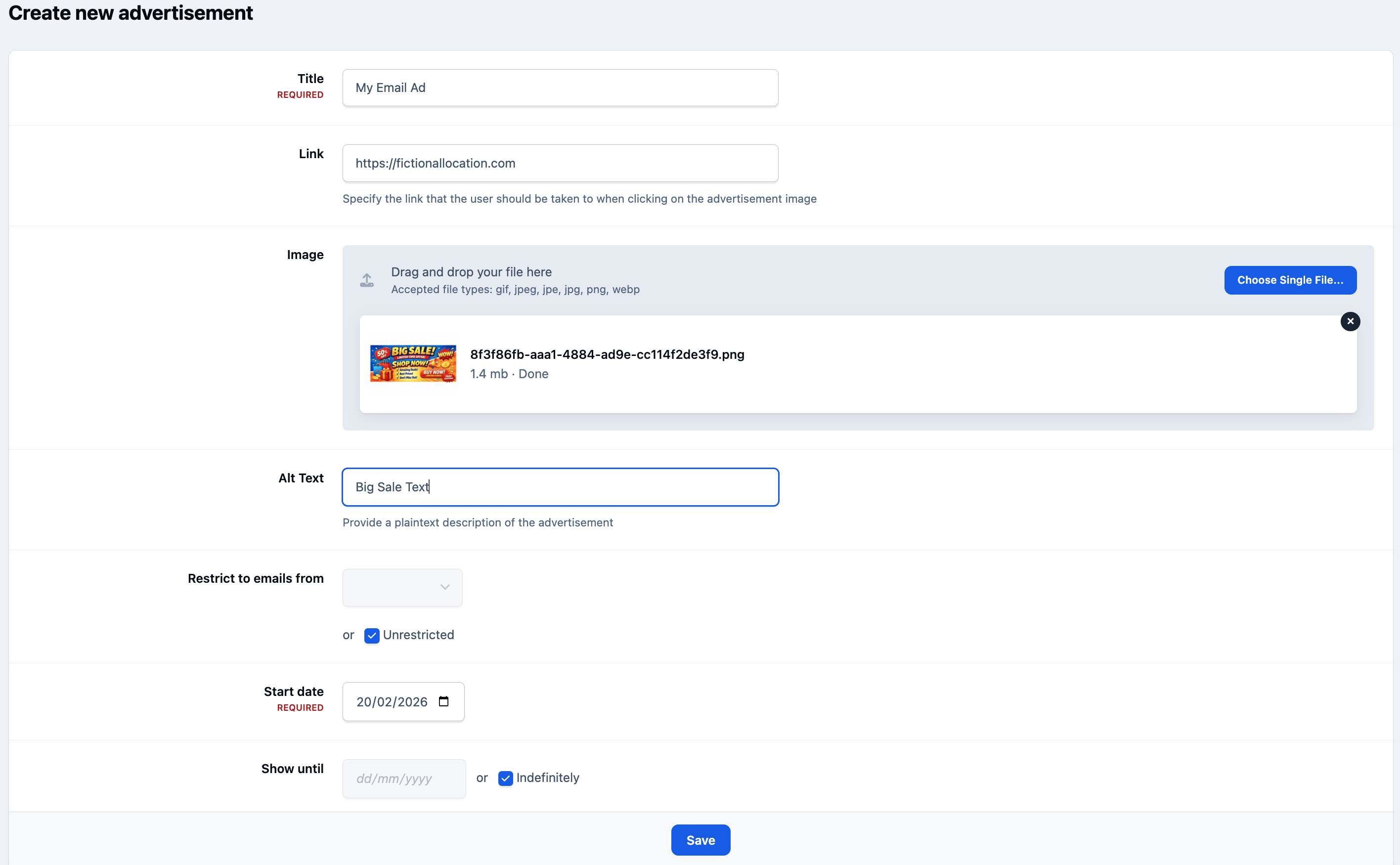
Within the same Advertisements area, you’ll find an 'Email Advertisements' tab. Here, you can create advertisements that are specifically designed to appear in outgoing emails rather than on-site.
Email advertisements can also be restricted to certain types of emails. For example, as shown above, you can configure an advert to appear only in emails related to Topics — such as topic reply notifications — ensuring your ads are targeted and contextually relevant.
Example Email Advertisement
Other Settings
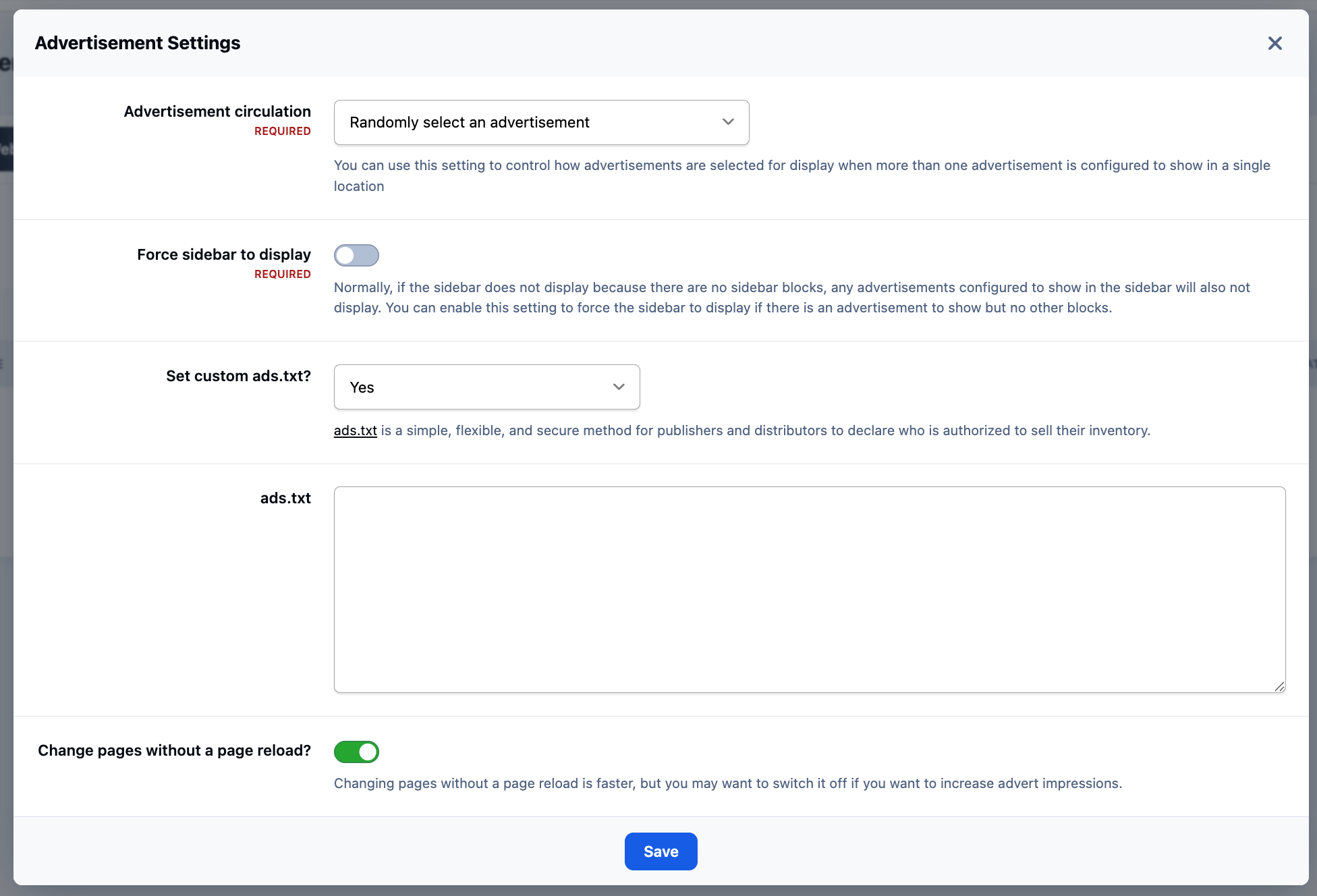
Clicking on the "Advertisement Settings" button at the top of the main Advertisements section, will show various options in how ads are displayed. In addition to display items, you can also add your own ads.txt file here. You can either add your own content, or link to an external location
Advertisement Settings Page




Recommended Comments