Jump to content
View in the app

A better way to browse. Learn more.

Invision Community

A full-screen app on your home screen with push notifications, badges and more.

To install this app on iOS and iPadOS
  1. Tap the Share icon in Safari
  2. Scroll the menu and tap Add to Home Screen.
  3. Tap Add in the top-right corner.
To install this app on Android
  1. Tap the 3-dot menu (⋮) in the top-right corner of the browser.
  2. Tap Add to Home screen or Install app.
  3. Confirm by tapping Install.
Categories

Documentation

In this article..

In this article..

    What is Commerce?

    Introduction

    Commerce is a powerful and flexible tool that allows you to sell digital products to your members. It provides an effective way to generate revenue from your community, whether you’re offering paid memberships and subscriptions or ad products directly through your site.

    Store Example
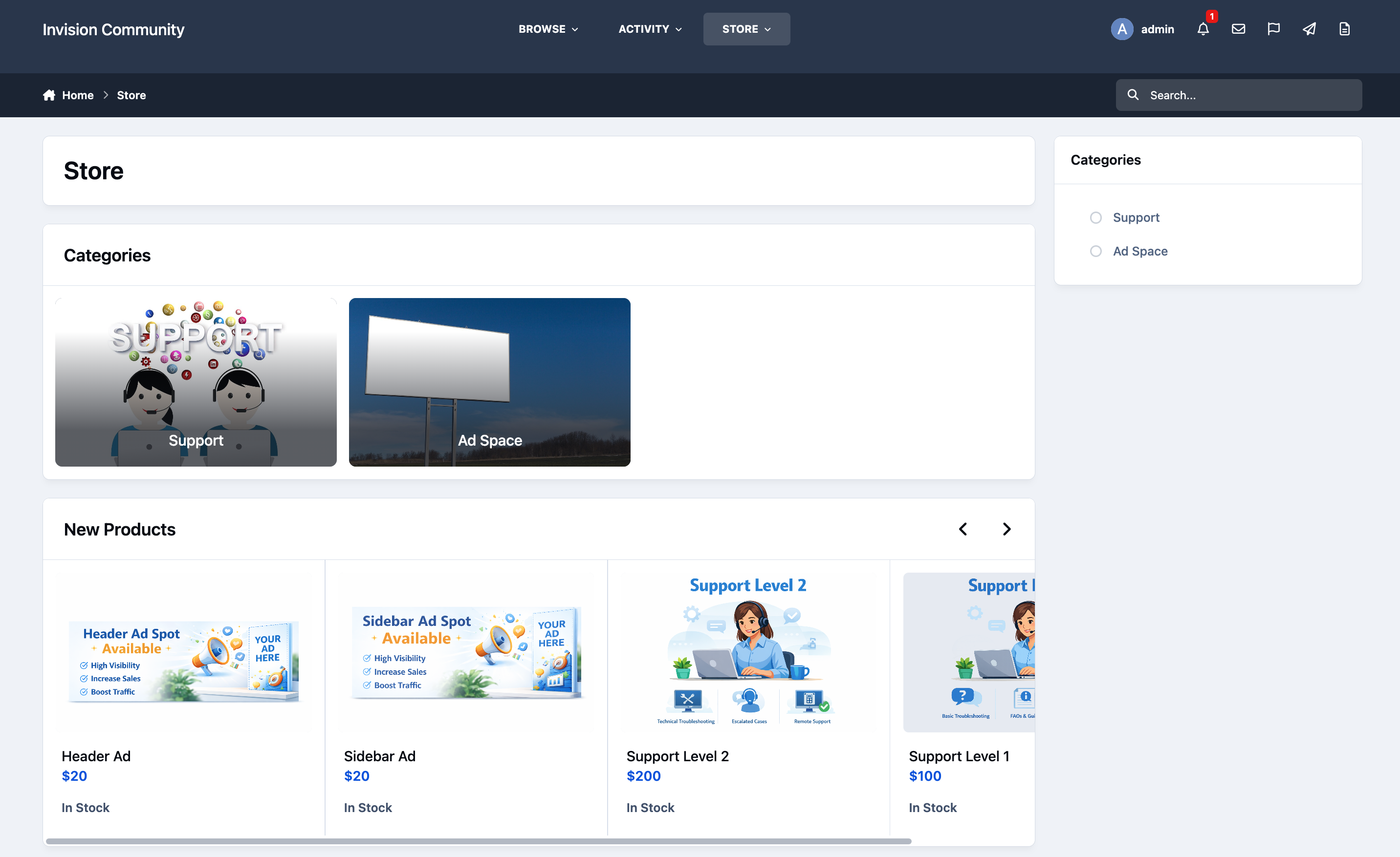
    store_main.png

    Features

    The Commerce platform includes a wide range of features designed to help you sell products in a way that best suits your community’s needs. These features include, and are not limited to, the following options. Each will be covered in more detail in the guides that follow.

    • Multiple payment methods

    • Invoicing

    • Anti Fraud integration

    • Customer profiles

    • Categorization and Filtering

    • Custom fields

    • Subscription selling

    • Automatic group promotion on purchases

    • Gift cards

    • Coupon codes

    • Donation system, with donation goals

    Example Advertisement Product
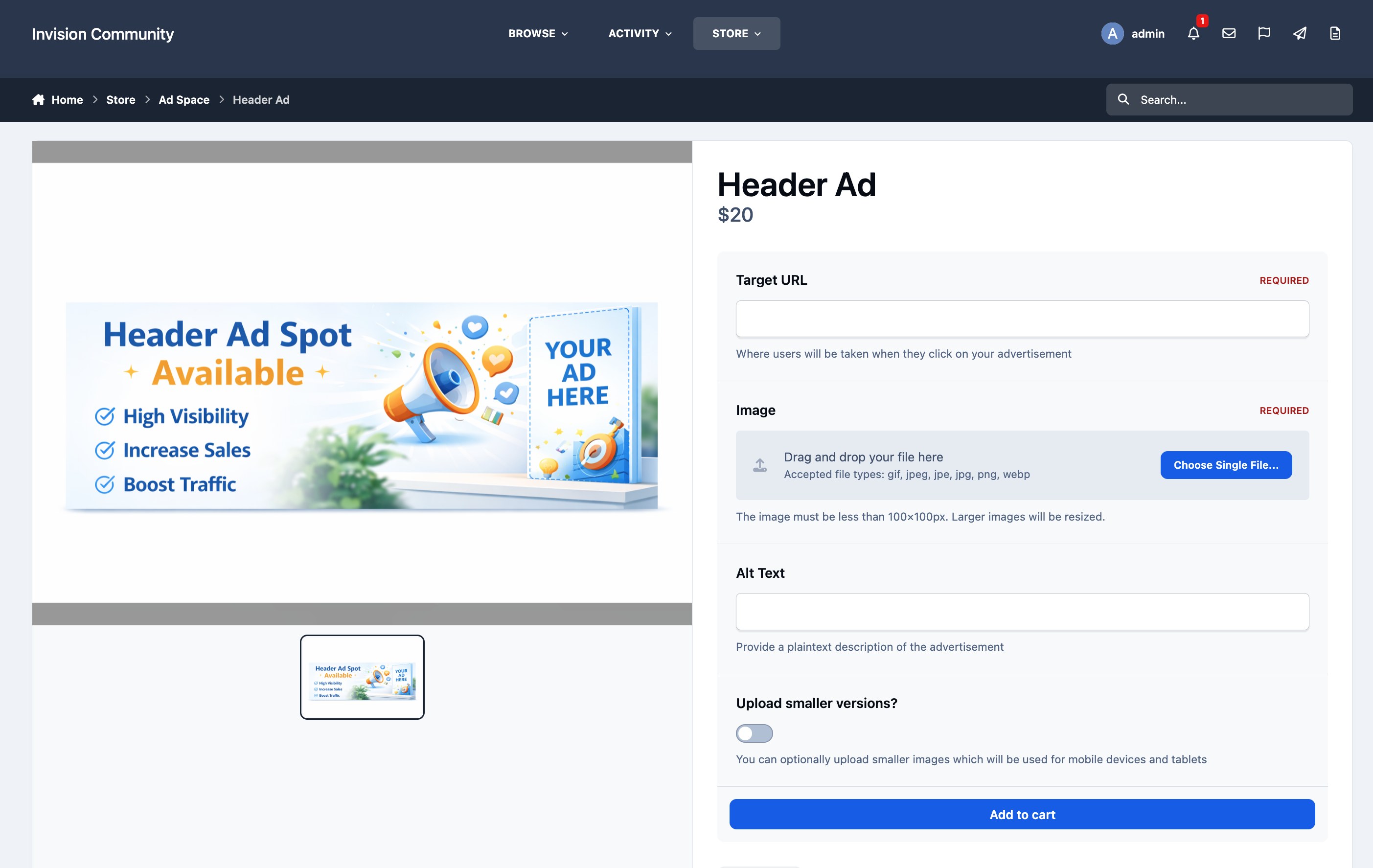
    store_headerad.png

    Throughout these guides, you’ll learn how to make full use of these features, build your own store from the ground up, and even provide customer support using the built-in support system included with Commerce.

    User Feedback

    Recommended Comments

    There are no comments to display.

    Account

    Navigation

    Search

    Search

    Configure browser push notifications

    Chrome (Android)
    1. Tap the lock icon next to the address bar.
    2. Tap Permissions → Notifications.
    3. Adjust your preference.
    Chrome (Desktop)
    1. Click the padlock icon in the address bar.
    2. Select Site settings.
    3. Find Notifications and adjust your preference.