


Get Support
Your first stop for troubleshooting should always be the Admin CP. Once logged in, head to the Support section, which will take you to the support dashboard. This can be found in the following location in your Admin CP.
System -> Support - >Get Support. (Or by selecting Quick Links in the top right)
Support Dashboard
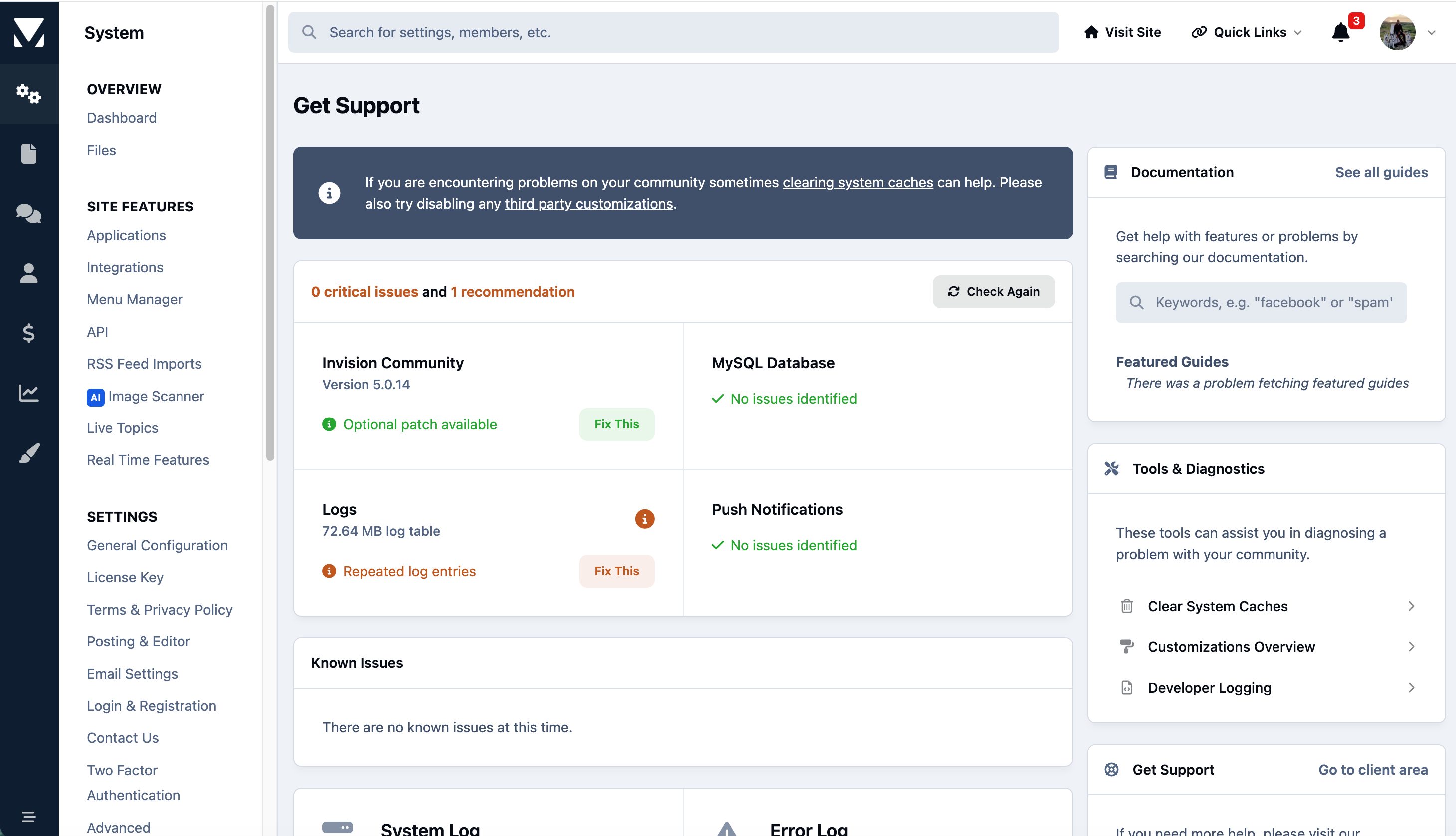
This area contains a number of built-in tools designed to help identify and resolve issues with your site.
Any issues are noted at the side of the relevant items, as seen in the image above. Clicking on "Fix This" will provide you with more information on how to fix the issue in question.
Know The Difference
Its important to understand the difference between items shown in the support dashboard. Depending on severity shown, there are some issues which should be immediately addressed
Critical issues - If there are critical issues that are showing in these area, you should address those immediately. These may be items such as incompatible items on the server, security patches, or upgrades which need to be run.
Important issues - There are items which, while should be looked at, do not dall into the category of being critical. Things such as 3rd party item upgrades being available, or recommending of a higher server component (PHP version for example).
Support Logs
In addition to issue reporting, this page also displays error information at the bottom in the form of a graph. A noticeable increase in errors can indicate a developing problem that needs attention.
Various Available Logs
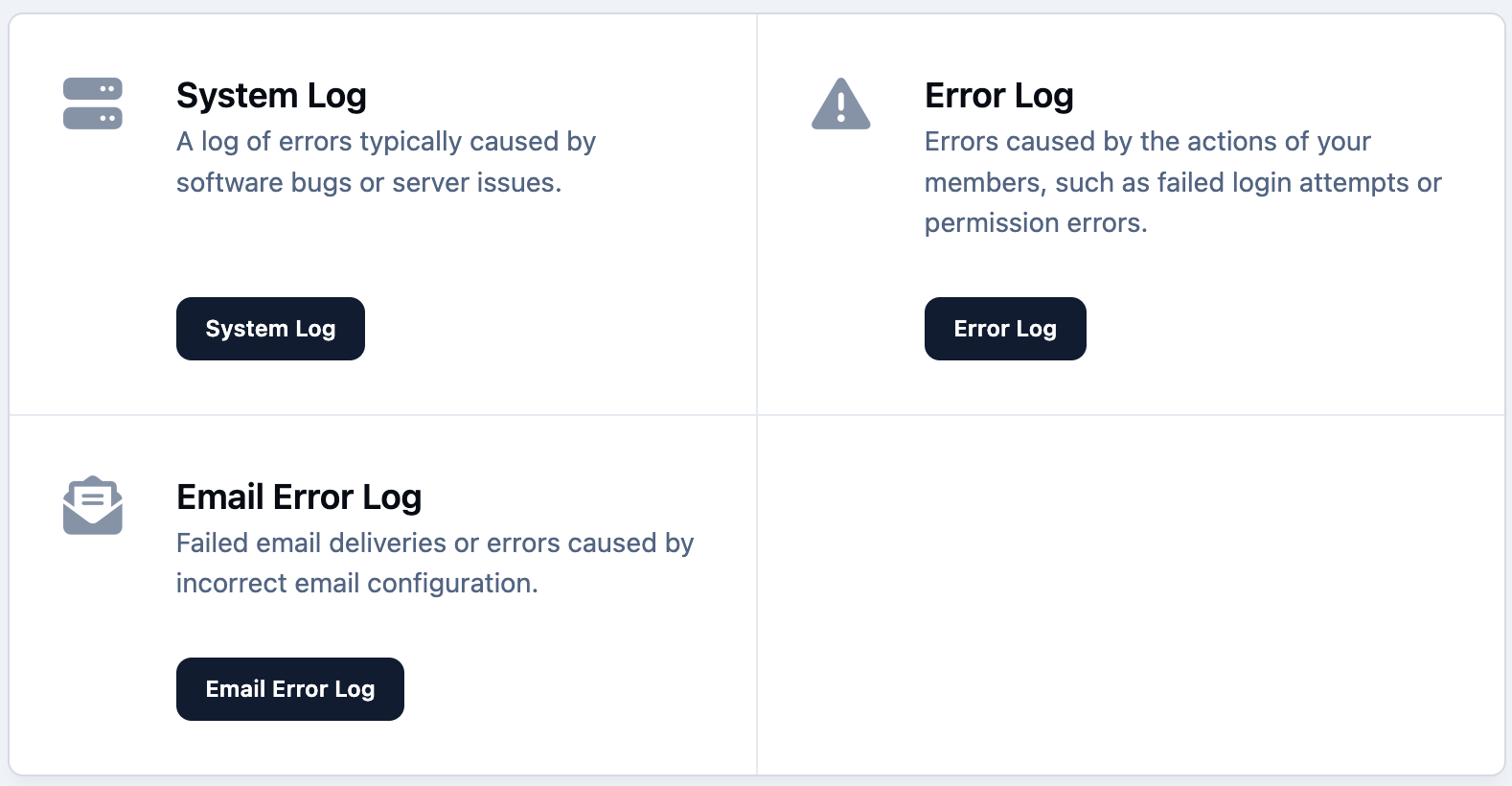
The three error types shown are:
Error logs
These are expected errors that may still be shown to users, such as permission issues or unavailable resources. You’ll also find settings here that allow you to control how detailed this logging should be.System logs
These relate to issues that would not occur during normal operation, such as database connection failures or unexpected application errors.Email logs
These report any issues related to sending email from your community.
Self Help Tools
And after reviewing the Health Dashboard, there are a few additional tools that may help resolve the issue. Starting here can often save you time in submitting a ticket, and often leading to self-resolution of issues.
Word From The Experts
If your issue relates to email or hosting and you’re using our environment, you can skip straight to submitting a support ticket. This allows us to investigate and resolve the issue for you as quickly as possible.
Clear Cache
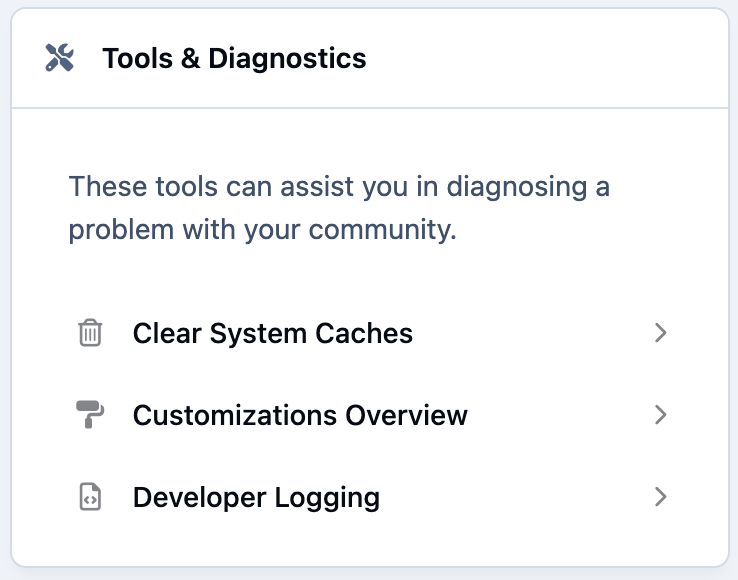
One of the first things you can try is clearing the system caches. You’ll find this option at the top of the Tools and Diagnostics section.
Support Tools
Disabling 3rd Party Items
A key step in diagnosing issues is temporarily disabling any third-party customisations you have installed. The majority of issues we see in Invision Community are caused by custom themes, applications, ads etc, rather than the core software. It is therefore important you check these before continuing with anything further.
You can disable these by entering the "Customizations Overview" link
Customization Overview
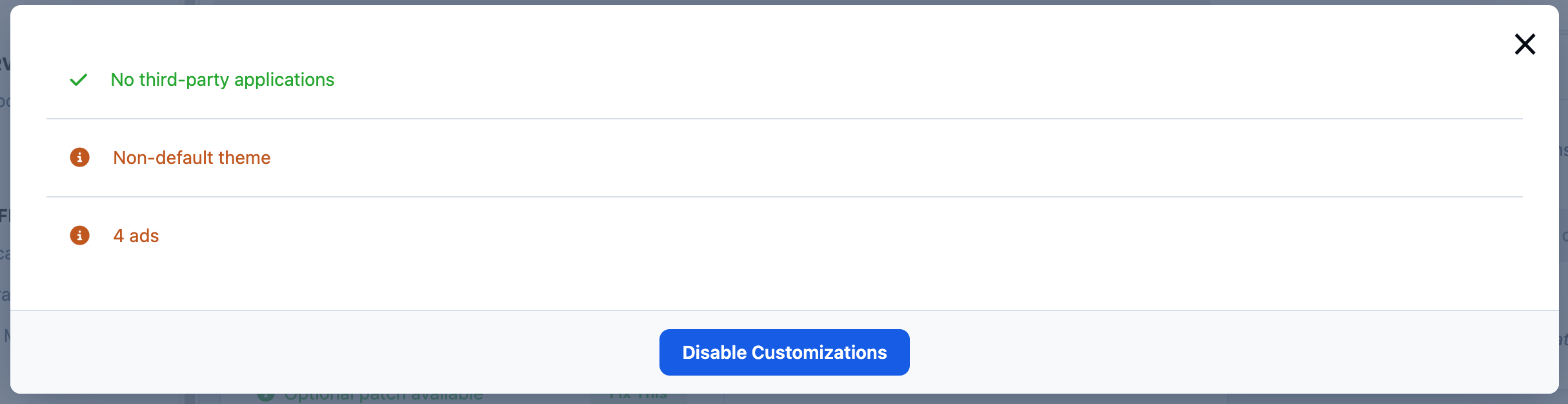
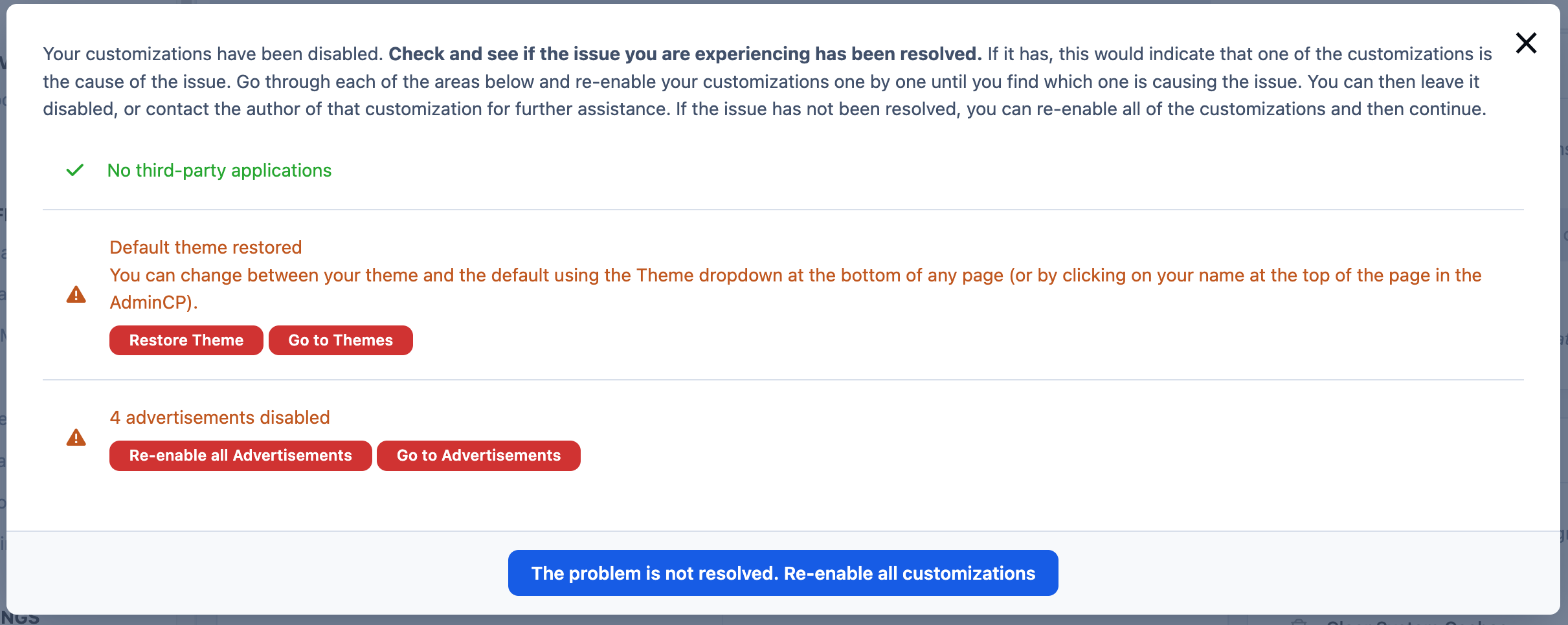
Disable all customisations using the button provided, then open your site in a new browser tab to see if the issue is resolved. If it is, you’ve confirmed that a third-party item is the cause. You can then re-enable items one at a time until the issue returns.
Once identified, the problem should be reported to the developer of the affected item.
Disabling Customizations
Still Need Help?
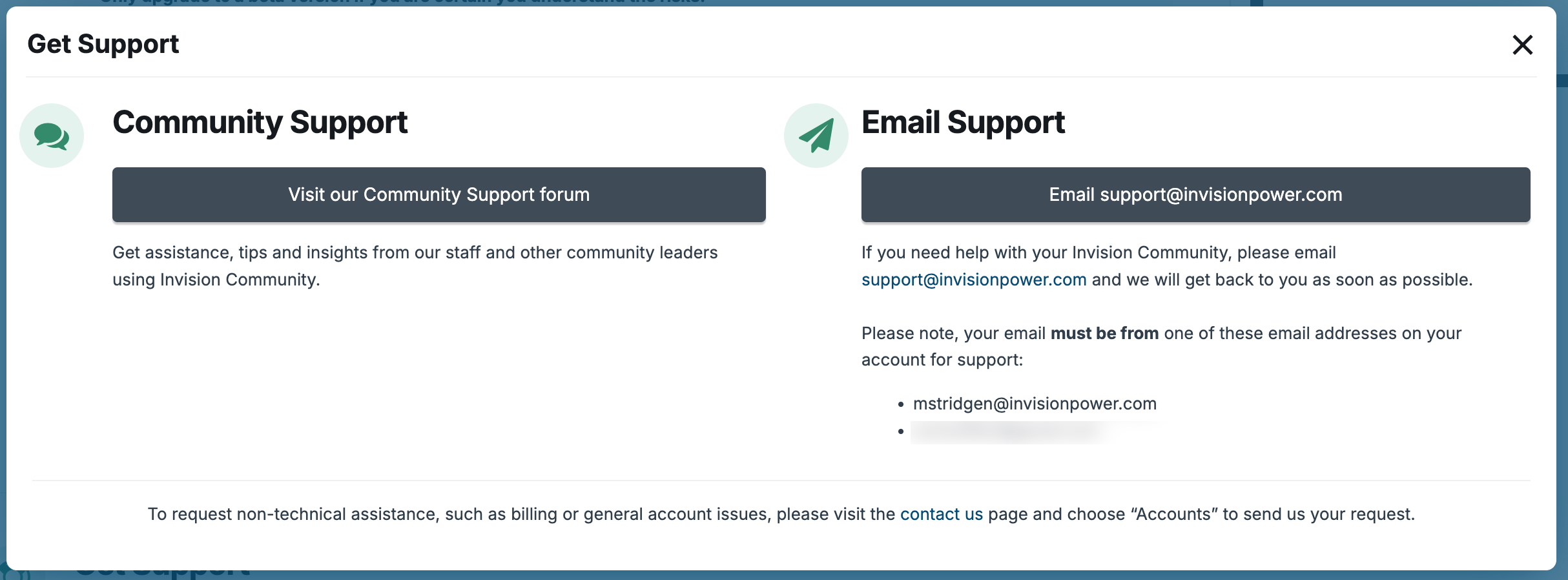
If you reach a point where none of the steps above resolve the issue, we recommend starting with our support community. The community is actively monitored and staffed by our team, making it a great place to get help and advice quickly. If your issue requires private information to be shared, or needs to be escalated to one of our developers, we can create a private support ticket on your behalf to ensure it’s handled securely and appropriately.
Emailing Support
If you need further assistance after that, you can contact us directly by email and our team will be happy to help.
You can find links to both of these within your client area. Simply visit your client area, select your licence, and choose “Create Request”.
Support Requests Client Area
Classic - Self-Hosted
Should you require assistance for one of our classic licenses, where you are self-hosted, the following items should be observed when obtaining support
All access details for your site should be updated within your client area, for the license in which you wish to obtain support.
For any issues relating to mysql, php, email, or other environment questions, you would need to contact your hosting company, or person(s) who deal with your hosting environment
Support for the Classic platform must be obtained via the support community. If a ticket is required, this will be created by our support team.
Word From The Experts
If you are unable to access your Admin CP on a self-hosted environment, you can try using recovery mode. In order to use this, add the following to a constants.php file, in your installations main directory
<?php
define('RECOVERY_MODE',True);
Once this is added, you should be able to log into your Admin CP, and it will then disable all 3rd party items for you, allowing you access. To continue afterward, you need to remove the lines from your constants.php file.
Recommended Comments