


Client Area
Your Client Area is the central place where you manage everything related to your account. From here, you can manage your purchases with us, make payments, add contacts for your package for support, and generally stay in control of your client account with us.
Below is an overview of the main areas you’ll find within your client area.
Manage Purchases
When you first log into our client area, you’ll land on the Manage Purchases section. As shown in the screenshot above, you can see all of your active licences here.
Manage Purchses
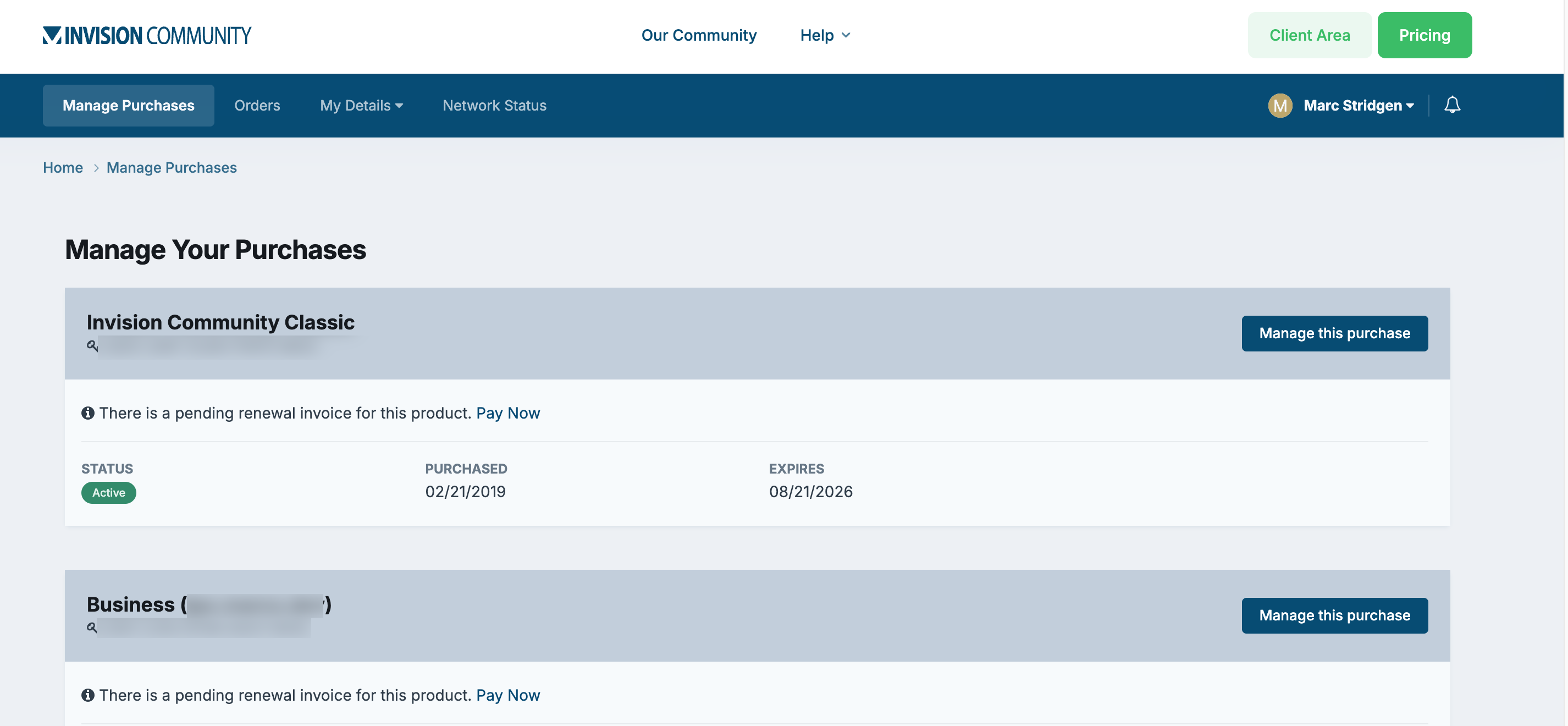
Each item can be managed by clicking the "Manage this purchase" button on the right-hand side.
Once inside a purchase, you’ll be able to view key details about your product, such as licensed URLs, renewal dates, keys and more.
If you’d like to add additional items or services to your existing package, you can do this from the same area by selecting the “Manage your community” tab.
Orders
The Orders tab shows a full history of every order you’ve placed on our system. This includes new purchases, renewals, and any other transactions.
Your Orders
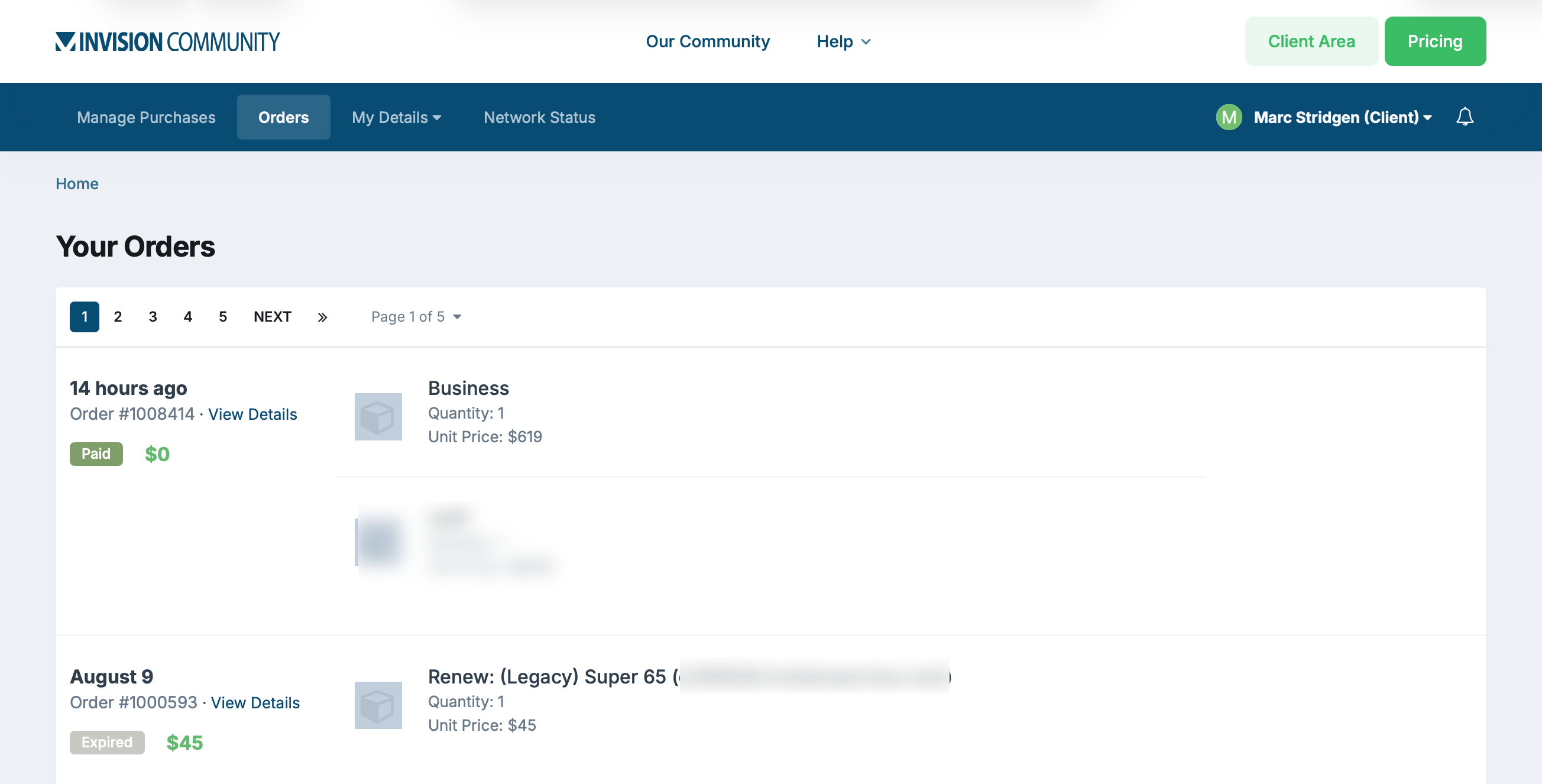
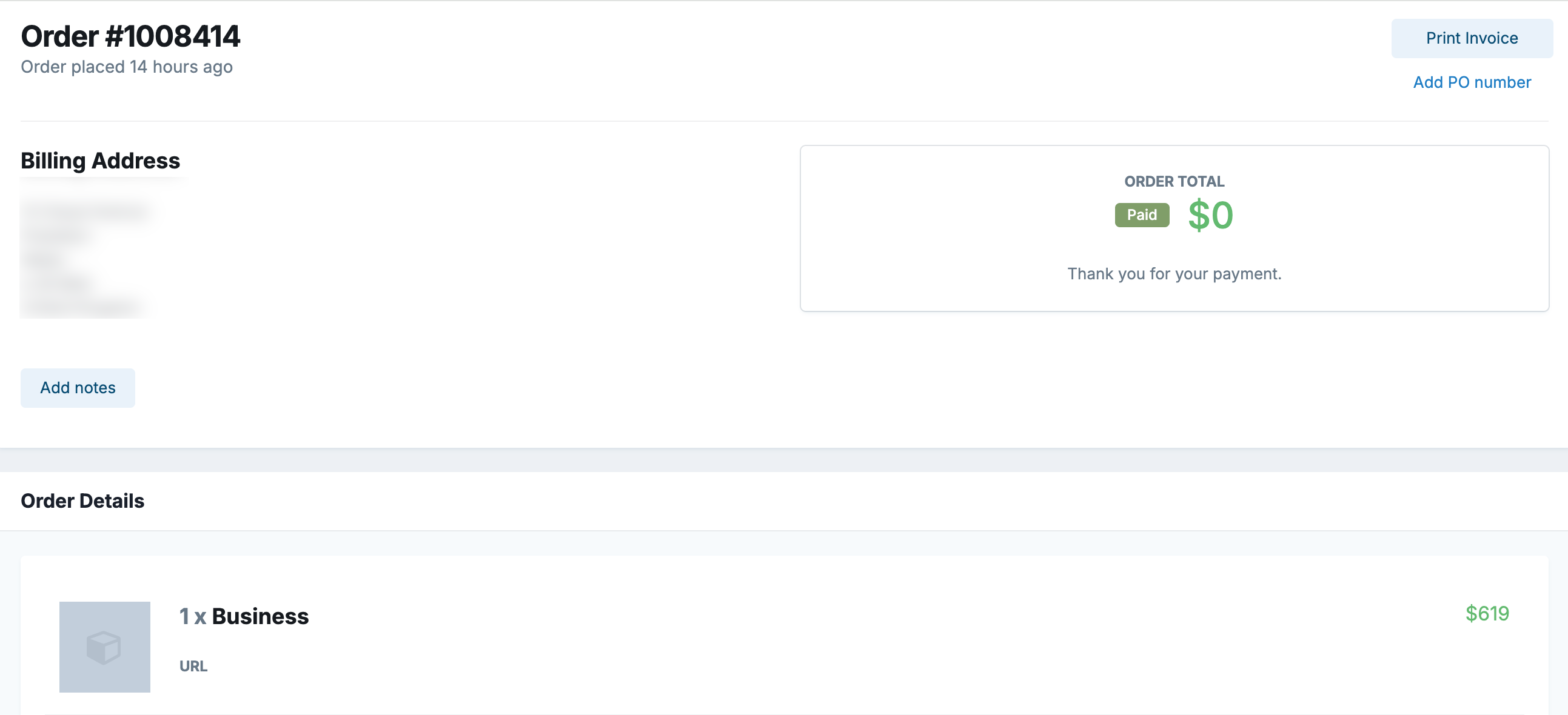
By clicking the "View Details" button next to an order number, you can see more information about that specific order, including the option to print your invoice or add a PO number.
Order Details
My Details
The "My Details" drop-down menu contains several areas where you can update and manage your account information. These are briefly outlined below:
Personal Information
Add or update details such as your telephone number and company name.Addresses
Update your billing address and add any additional addresses required for your licences.Payment Methods
Add and manage payment methods for purchases and renewals. If a valid payment method is saved, it will automatically be used for renewals.Account Credit
Add credit to your account for purchasing IPS products. Please note that this credit cannot be used in the Marketplace — Marketplace credit must be added directly within your community.Alternative Contacts
Add other people who are authorised to contact us on your behalf for billing, support, or both. You can also control which purchases they’re allowed to view.Change Email / Password
Quick links to update your account email address or password.
Network Status
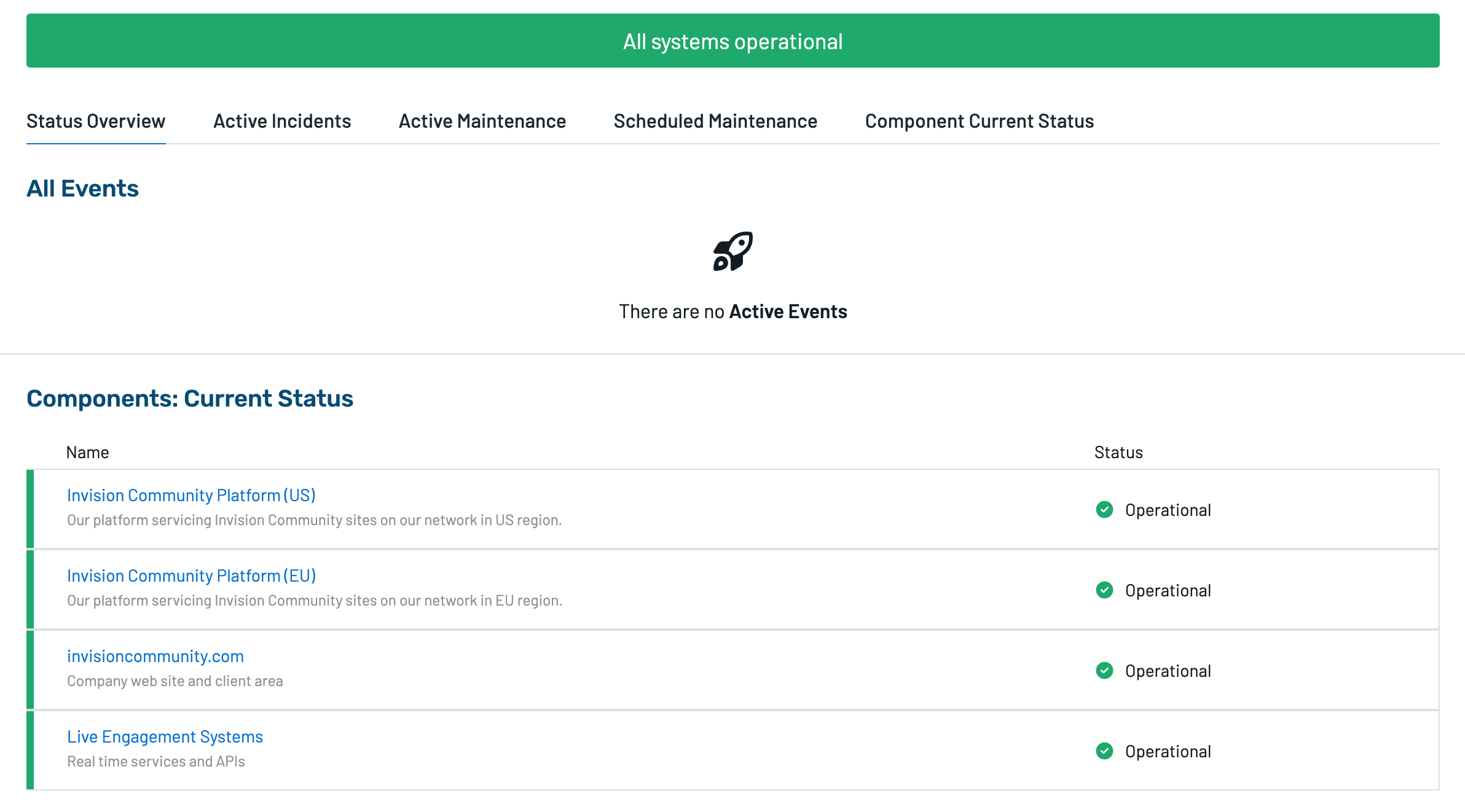
The Network Status tab shows the current health of our network. If there are any known issues or outages, they’ll be listed here along with relevant updates. You can also access this directly from the following URL, should the client area be affected - https://status.invisioncommunity.com/
Network Status Page
Recommended Comments