


Changing Your Domain
We know how important it is to use your own domain and branding to make your community feel truly yours. After purchasing your Cloud community — or at any time you wish to change the domain or subdomain used by your Cloud account — you can follow the steps below.
Your community can use any domain that you have purchased from a domain provider. Cloud communities support either a root domain (for example, domain.com) or a subdomain (for example, sub.domain.com). One of these options must be chosen for your community’s URL. Subfolder setups such as domain.com/mycommunity are not supported.
How To Change
To change your domain, go to your client area, and select your license. Once selected, scroll to the licensed URLs section, and select the "click here" link to change your domain
Where To Change

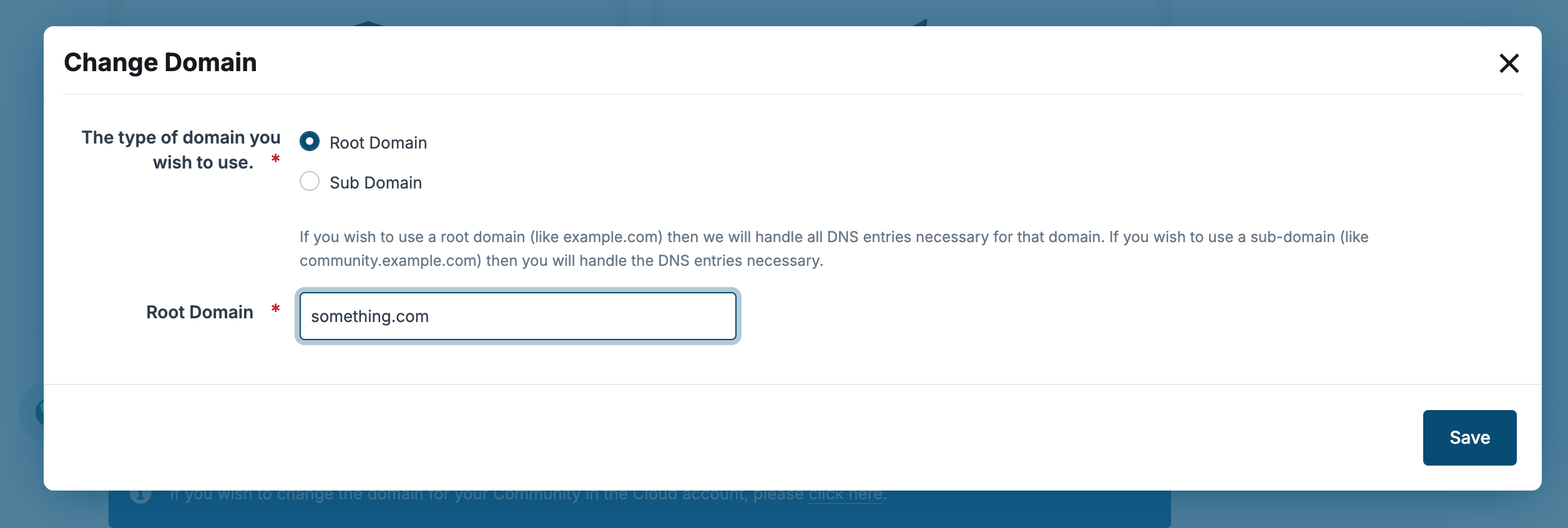
Add your domain in the location provided, ensuring that you correctly select whether its a domain or subdomain
Add Your Domain Here
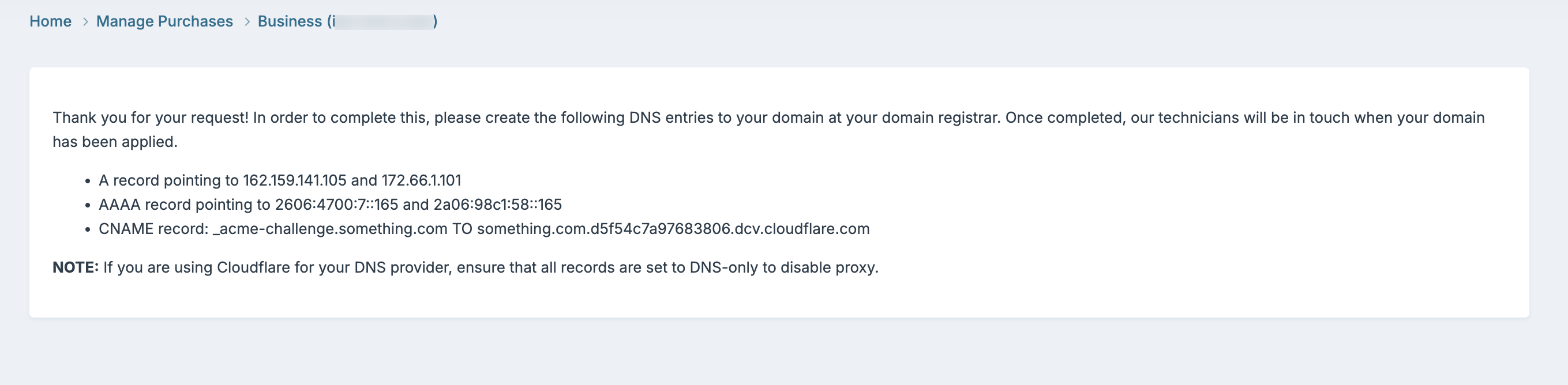
You will then be provided with the relevant DNS entries you will need to make on your selected domain. Please contact your domain provider with these details if you are unsure on how to add those.
Details For Your Domain Provider
Word From The Experts
When you submit a request, this is received by a report technician. We will first of all check the domain entires, and only once these are correct can we apply your domain to the account. We would suggest using a tool such as DNSChecker or similar, to ensure your domain entries have been added correctly, in order to speed up your domain application
Recommended Comments