Jump to content
View in the app

A better way to browse. Learn more.

Invision Community

A full-screen app on your home screen with push notifications, badges and more.

To install this app on iOS and iPadOS
  1. Tap the Share icon in Safari
  2. Scroll the menu and tap Add to Home Screen.
  3. Tap Add in the top-right corner.
To install this app on Android
  1. Tap the 3-dot menu (⋮) in the top-right corner of the browser.
  2. Tap Add to Home screen or Install app.
  3. Confirm by tapping Install.
Solutions

Blogs & news.

Writing your community engages with.

There is no shortage of news articles, blog posts and essays on the Internet. What is missing is meaningful engagement.

Gone are the days of your members shouting in the abyss. Create a functional news community or thoughtful streams of consciousness that encourages an ongoing dialogue.

Amplify your members' voices.

Curate compelling content
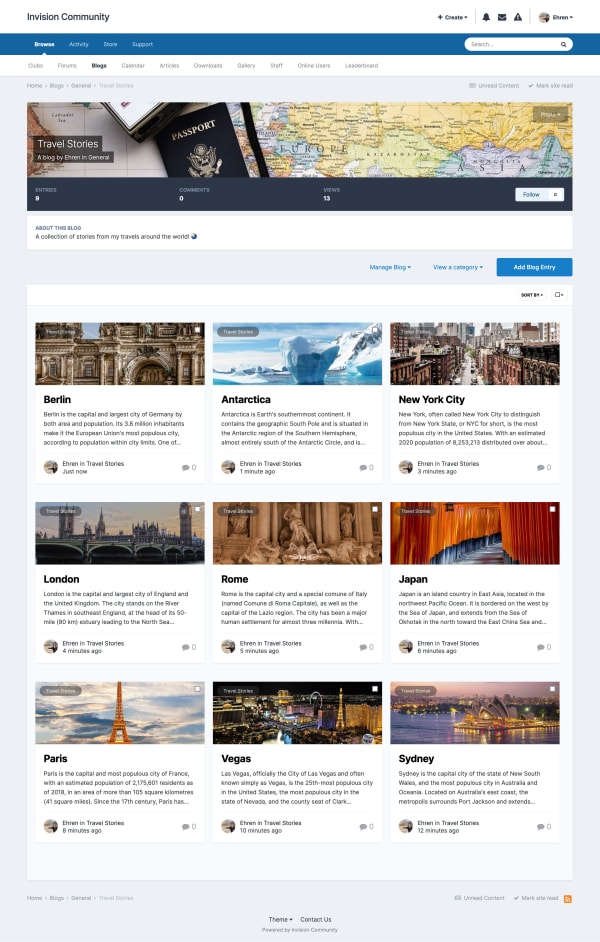
  • Sparks activity

    Promoting community news and blogs to a wider audience encourages your members to continue creating.

  • Increase viewing time

    Members stay in your community longer, contribute more and keep coming back throughout the day when they're being seen and heard.

  • Accelerates growth

    Content creation organically drives traffic. The more you show showcase your members' blog posts and news updates, the quicker the growth.

  • One-stop shop, err... blog

    Members posting blog posts and news in your community means members aren't going elsewhere to stay in the loop.

Screenshot of blog listing
Incite & inform

Dominate a niche industry

Offering up-to-date information, with a means for people to engage and comment, is miracle grow for blossoming news and blog communities.

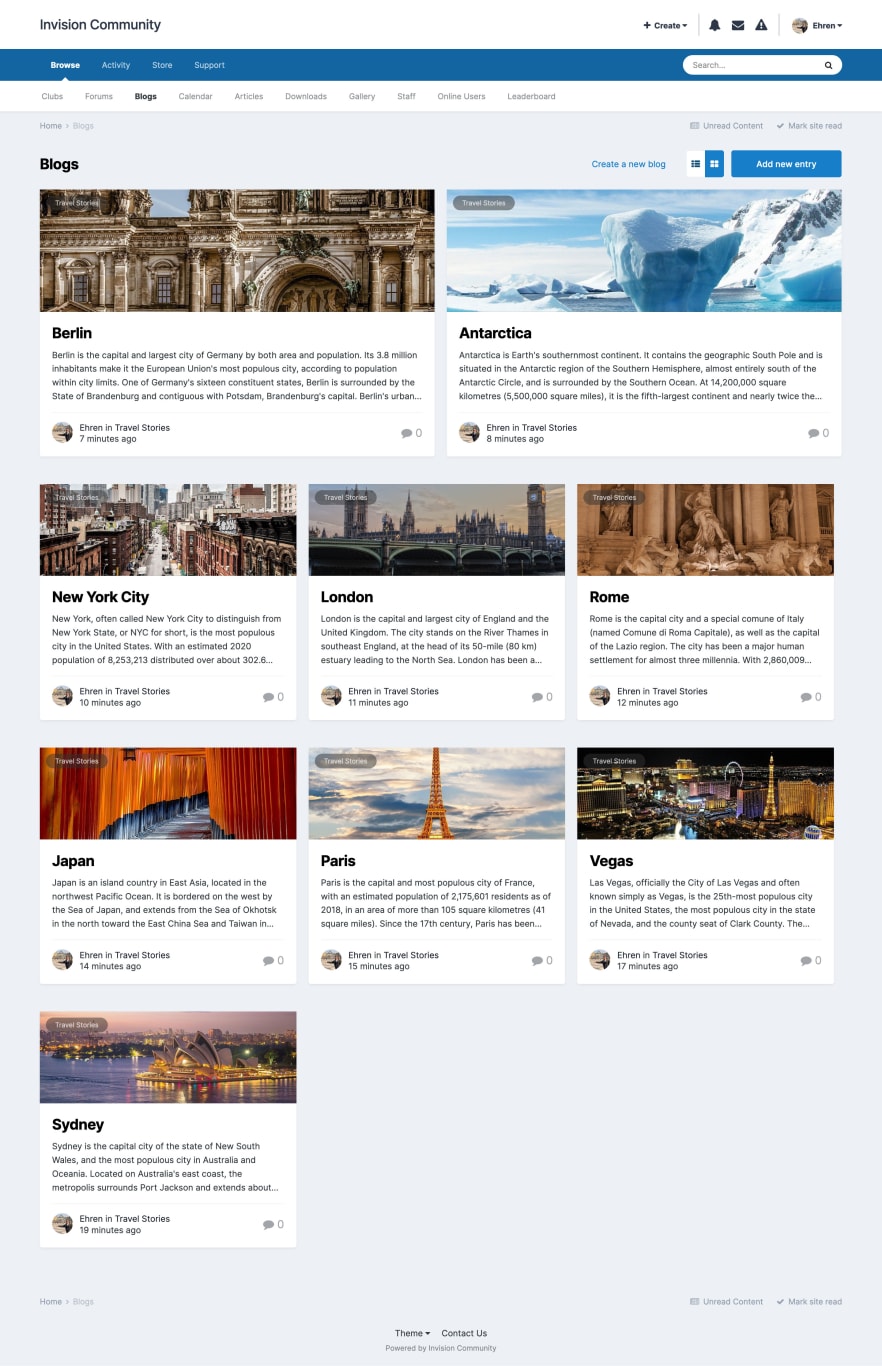
Screenshot of blog list

Extra, extra, this just in!

  • 30-day free trial
  • No commitments

Account

Navigation

Search

Search

Configure browser push notifications

Chrome (Android)
  1. Tap the lock icon next to the address bar.
  2. Tap Permissions → Notifications.
  3. Adjust your preference.
Chrome (Desktop)
  1. Click the padlock icon in the address bar.
  2. Select Site settings.
  3. Find Notifications and adjust your preference.