Rene Ashmore
Clients
-
Joined
-
Last visited
-
-
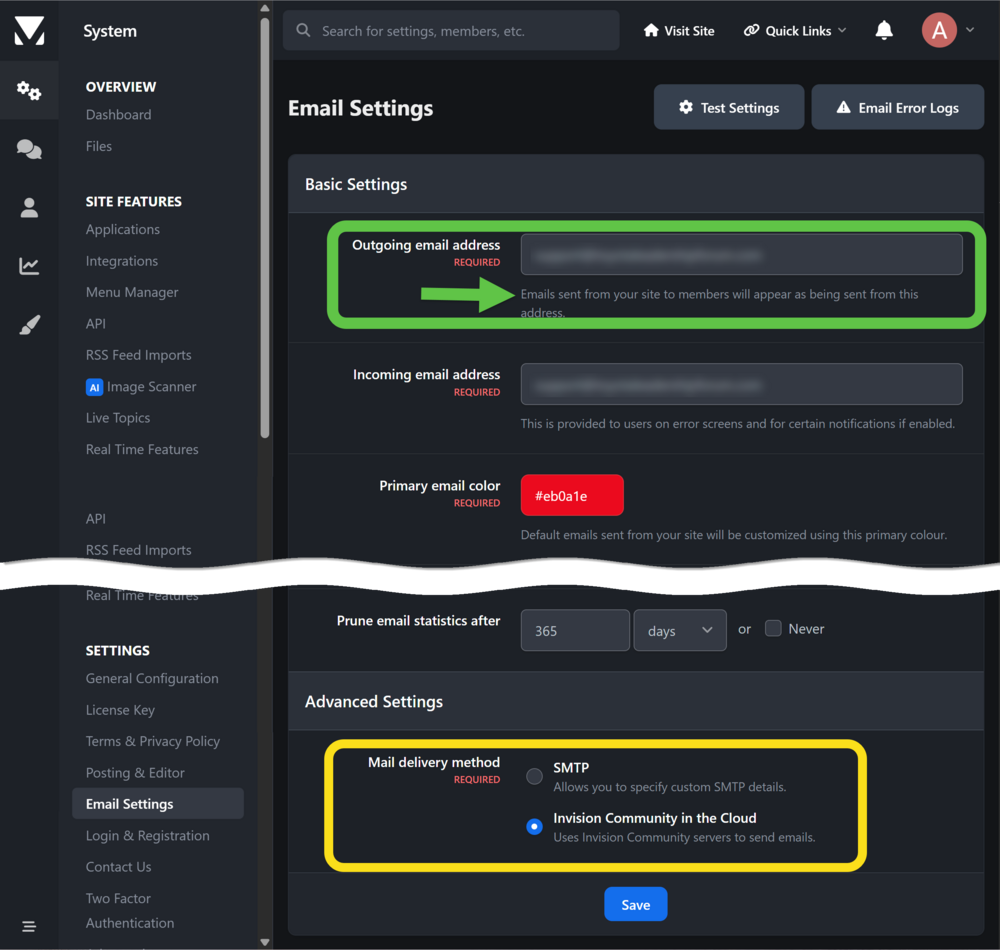
Thank you, @Jim M . It is a bit confusing because the "Email Settings" page makes it seem like all emails will come from the address that is entered in the top box. [see green box] What does this setting actually control? But now I understand that the setting at the bottom actually controls outgoing emails. [see yellow box]
-
-
-
Thank you very much, @Randy Calvert! I found what you described in the language pack and that will do the trick. Regarding the "from" email address, in our configuration this email is coming from [email protected]. Do you have SMTP set up in your system? I suspect I might need to do that.
-
-
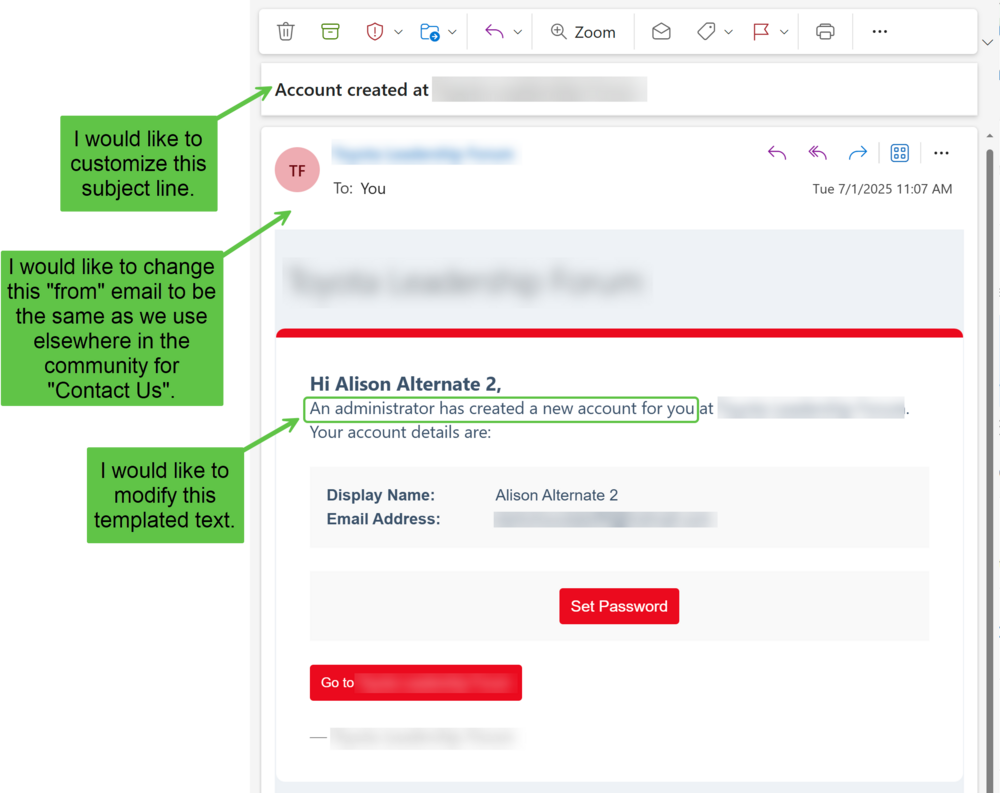
I'm looking for how to adjust the "from" email address, the subject line, and the templated text inside the email that is sent to new members. In our community, the only method we use to add members is: Administrator creates a new account in the admin area. The Administrator does not set a password on their behalf. The new member receives an email. They click on that email, which lets them set their password and then enter the forum. This process works well, but I would like to modify the three components in the screenshot below, and I can't find where this is controlled.