Christian Meixner
Clients
-
Joined
-
Last visited
Everything posted by Christian Meixner
-
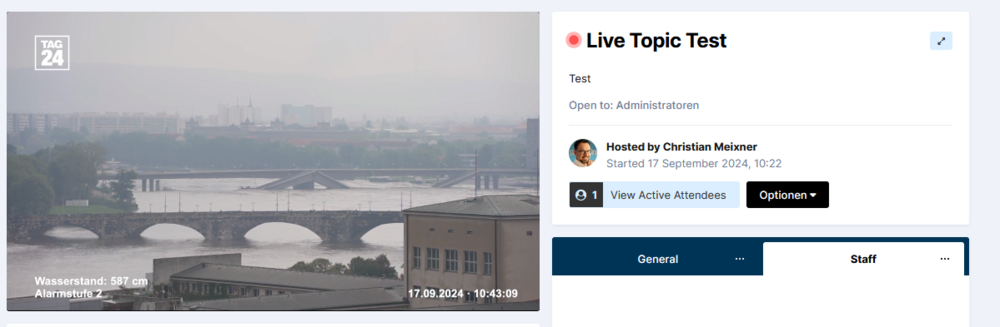
Ok, I've figured it out. Seems like one of the scripts delivered by in Google Tag Manger seems to break the video embedding (and ad blocker fixes this by blocking GTM). Sorry for the inconvenience! I'll take a look into how to fix GTM.
-
Can you confirm that this is a bug or are we using it wrong? And if, so: what would we need to change to make it work?
-
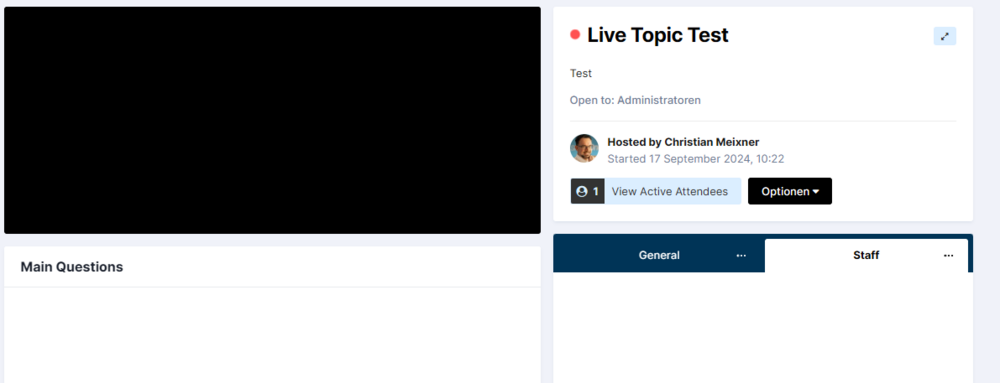
We've just tried out the new "Live Topics" feature that was added last year, but we didn't manage to get the live video stream working. What did we do? I have set up a new "test live topic" and entered a random currently running live stream from YT, e.g. that one: https://www.youtube.com/watch?v=nV8_nx_QpQM Also tried the URL vom YT's embed code: https://www.youtube.com/embed/nV8_nx_QpQM?si=QzsBwgEESYpC4Gcc The result for all browsers (except one, more below) is an empty black rectangle. Browsers tested: Chrome, MS Edge, Firefox, Safari, Chrome Mac. Result: The only combination where I could get it work, was Firefox (Windows) with an ad-blocker ("uBlock origin") enabled! When disabling the ad-blocker the video again does not show. We also tried several other currently running YT live videos. All with the same result. What are we doing wrong here? Any help appreciated.