James_H
Clients
-
Joined
-
Last visited
Everything posted by James_H
-
That is amazing! Thank you very much! Yes, they are now not linked to gallery. Damn.
-
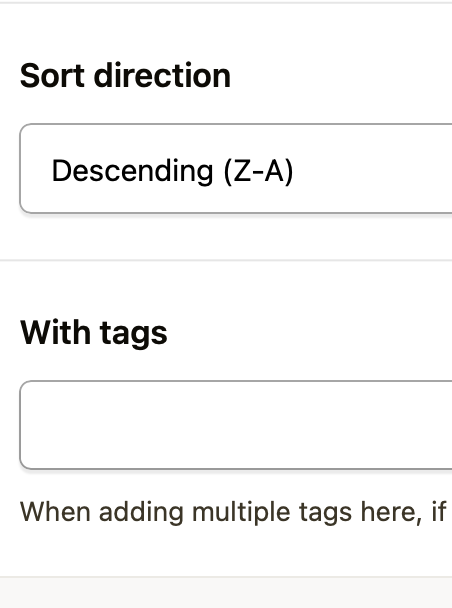
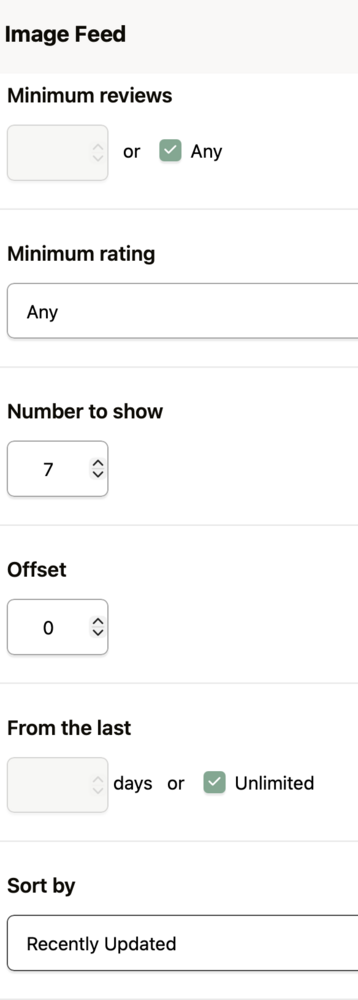
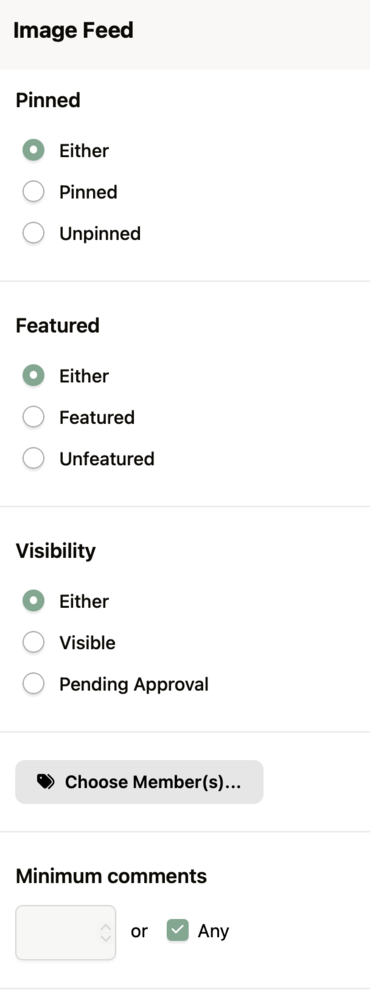
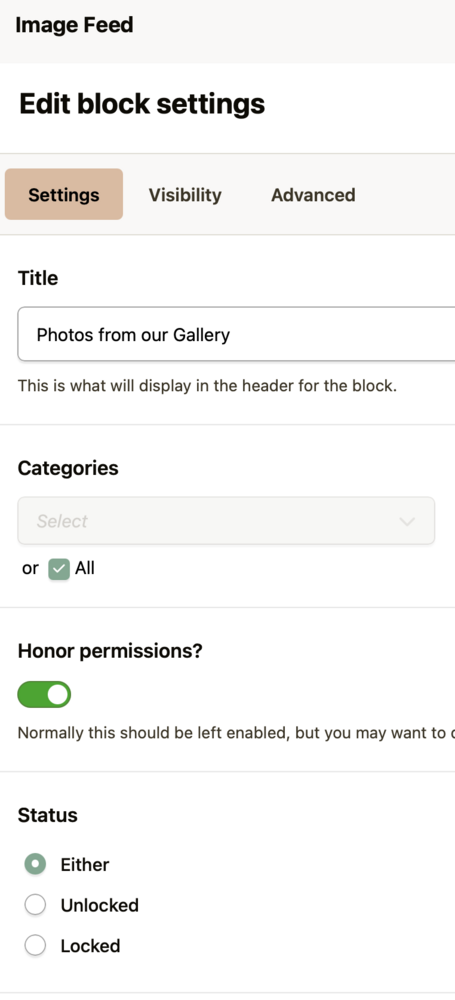
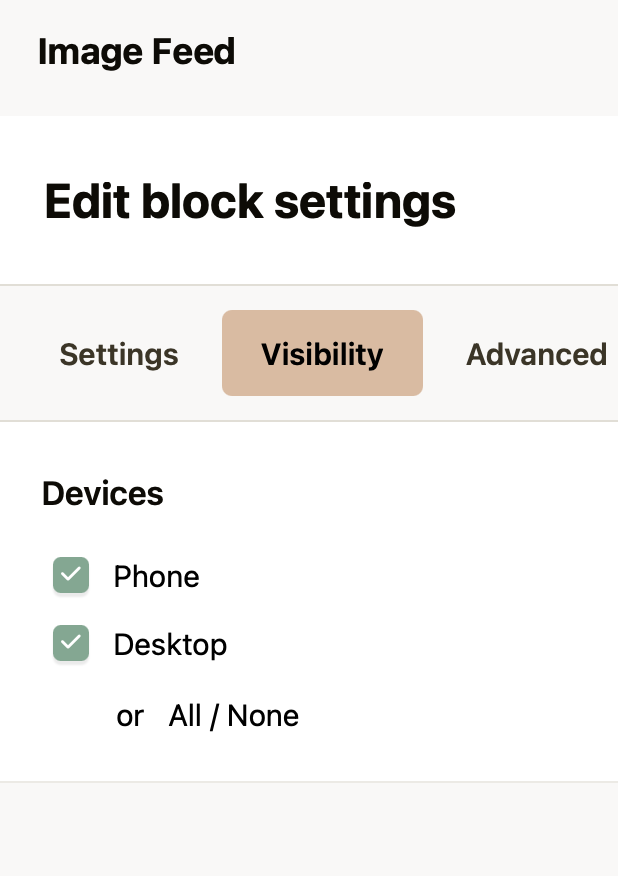
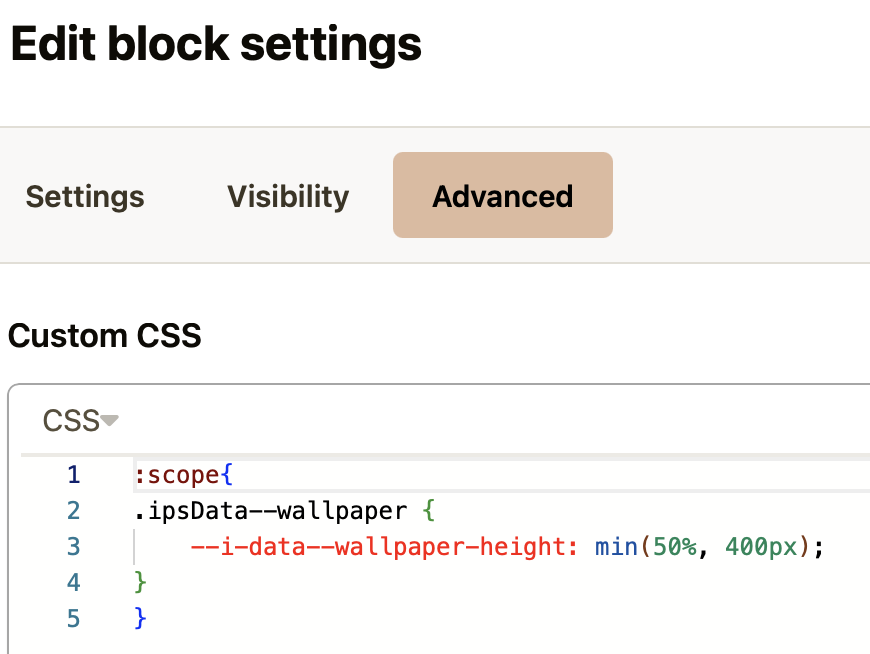
Yes, I'm using Image Feed. My settings are: Many thanks, Jim
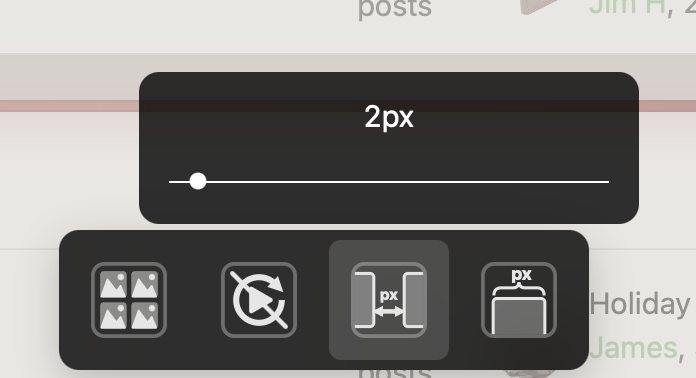
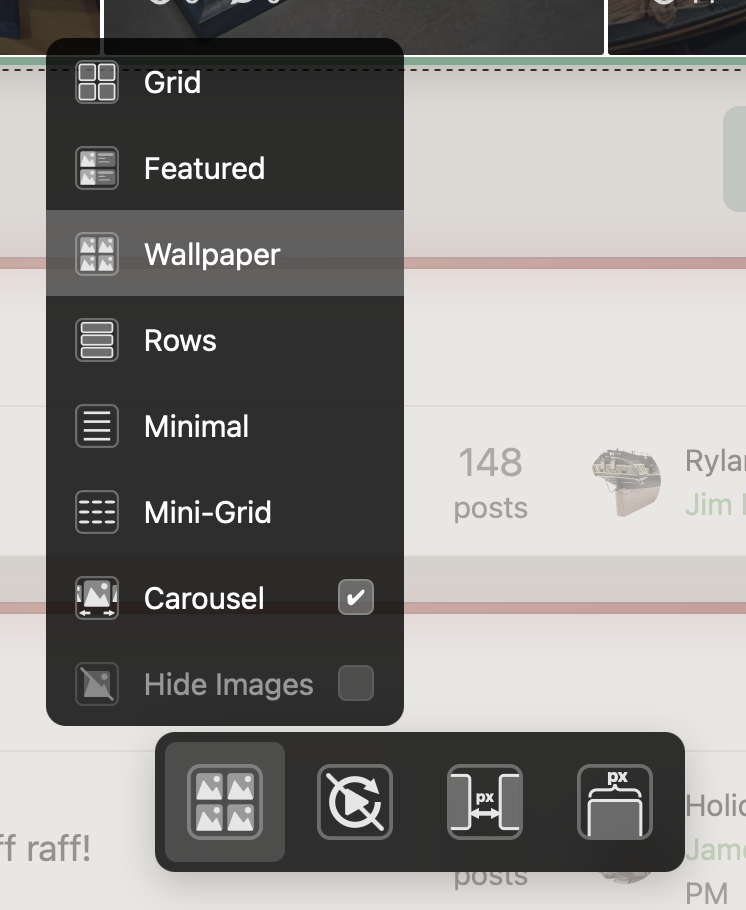
-
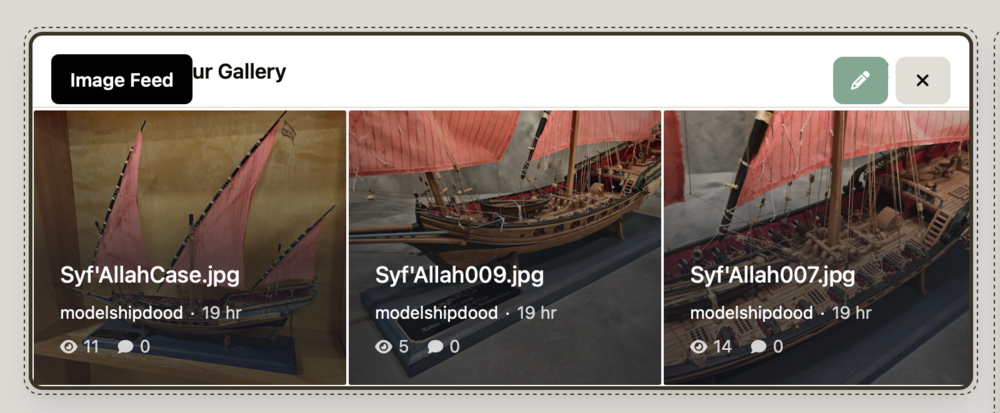
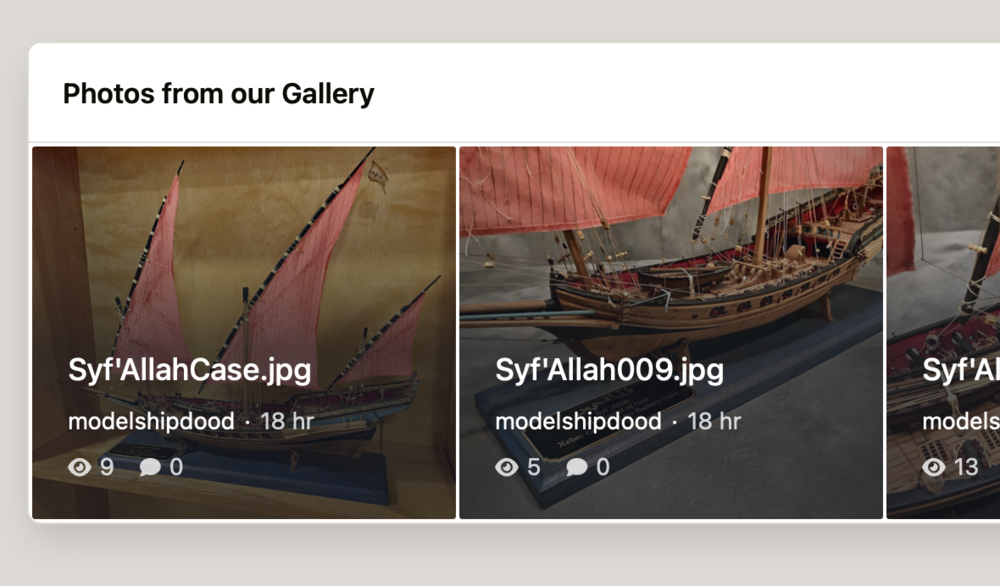
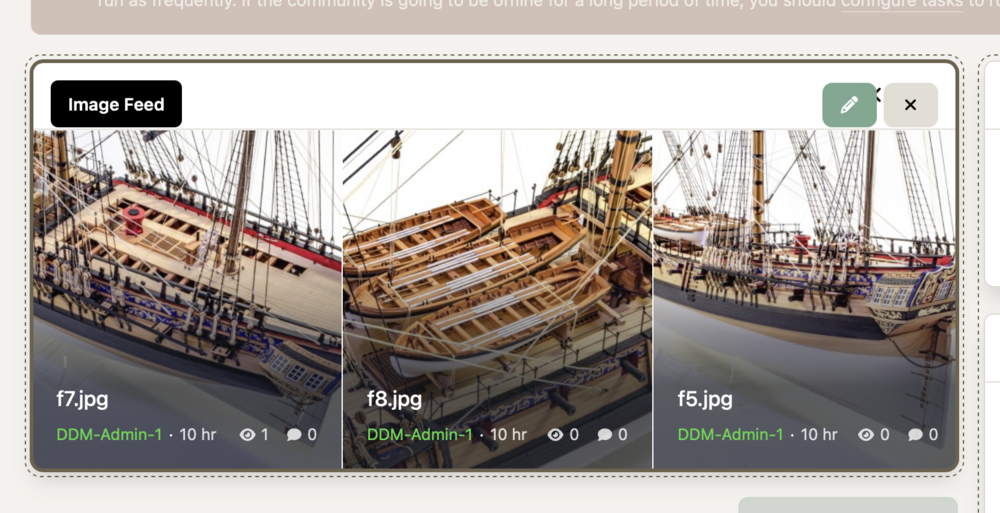
Hi all, Is there any CSS that can be added to remove the image names from the Gallery carousel that's shown as a widget on Home Screen? They aren't too great to look at with the text plastered across them. Cheers, Jim
-
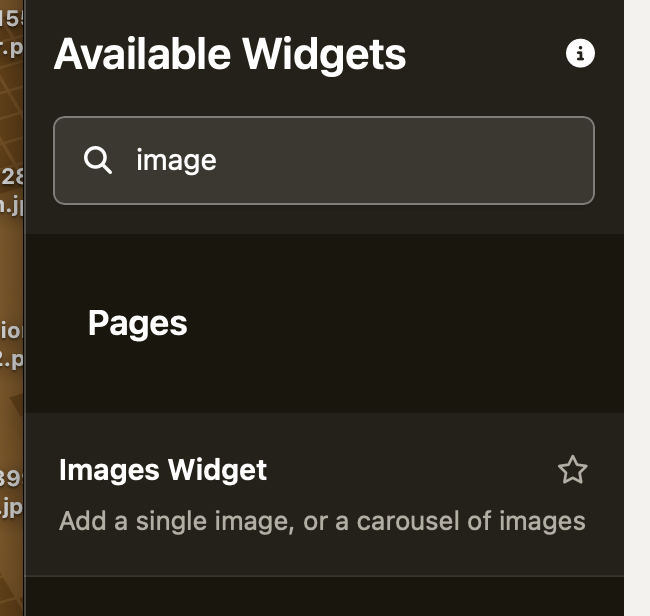
Hi all, I have installed the images widget to my v5 community using Page Editor. The only problem with this is that it won't: Auto scroll Show only one image per time At the moment, you need to manually click arrows to make the images move, and then the last one doesn't altogether disappear, and it looks odd. Would anyone have any custom CSS that would make this work more elegantly? Many thanks in advance. Jim
-
That's perfect, thank you very much! I did find the smallest size to be a bit too large. I'm more used to how it looked on v4, which was more compact and not taking up lots of real estate. Again, thanks!
-
Just checking in to see if there's any answer to this. TIA.
-
Thanks for taking a look, Marc. Much appreciated.
-
My bad, This is the image feed block on v5. Accessible by Page Editor.
-
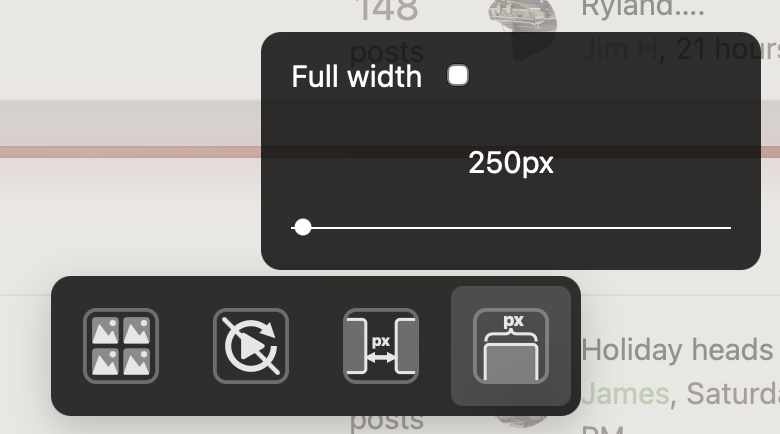
Hi, Is there a way via custom CSS to further reduce the height of the image carousel so it's smaller than 250? Thanks, Jim