


What is a widget?
Widgets are one of the core ways you can customise the layout of your community within Invision Community. They allow you to place both dynamic and static content into widget areas throughout your site, helping you highlight important information and improve the overall experience for your members. They can display a wide variety of content, such as recent topics, member statistics, calendars, custom text, advertisements, feeds from Pages databases, and much more.
The Basics
Widgets can be added, removed, and rearranged using the built-in drag-and-drop system while viewing the front end of your site. This allows you to quickly experiment with layouts and build pages that best suit your community’s needs, without requiring any coding knowledge. Widgets come from the page editor, which you can switch on from the link in your user menu
Link to Open the Page Editor
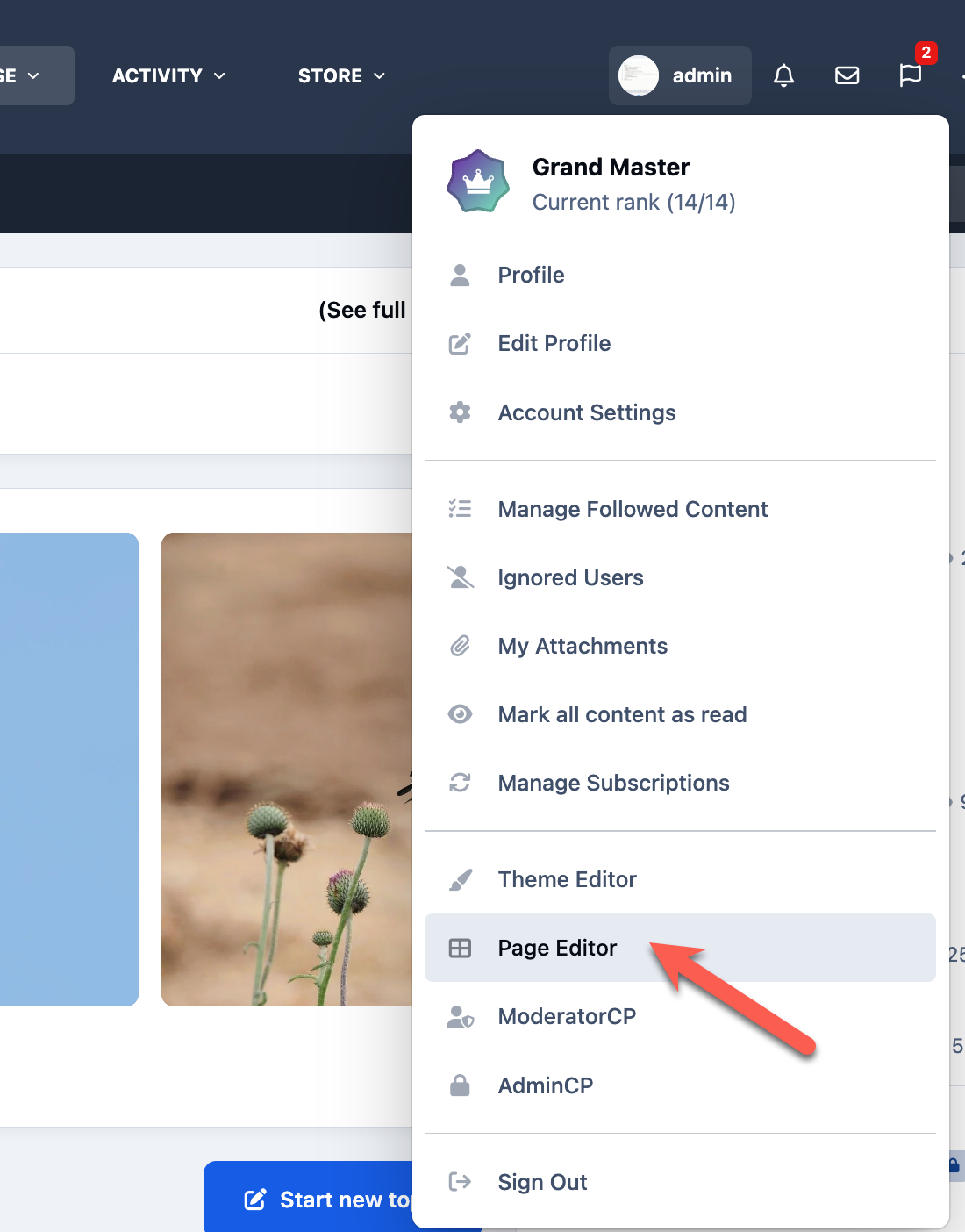
Once selected, you will see the page editor, and can drag/drop widgets into any of the location shown.
Dropping Widgets
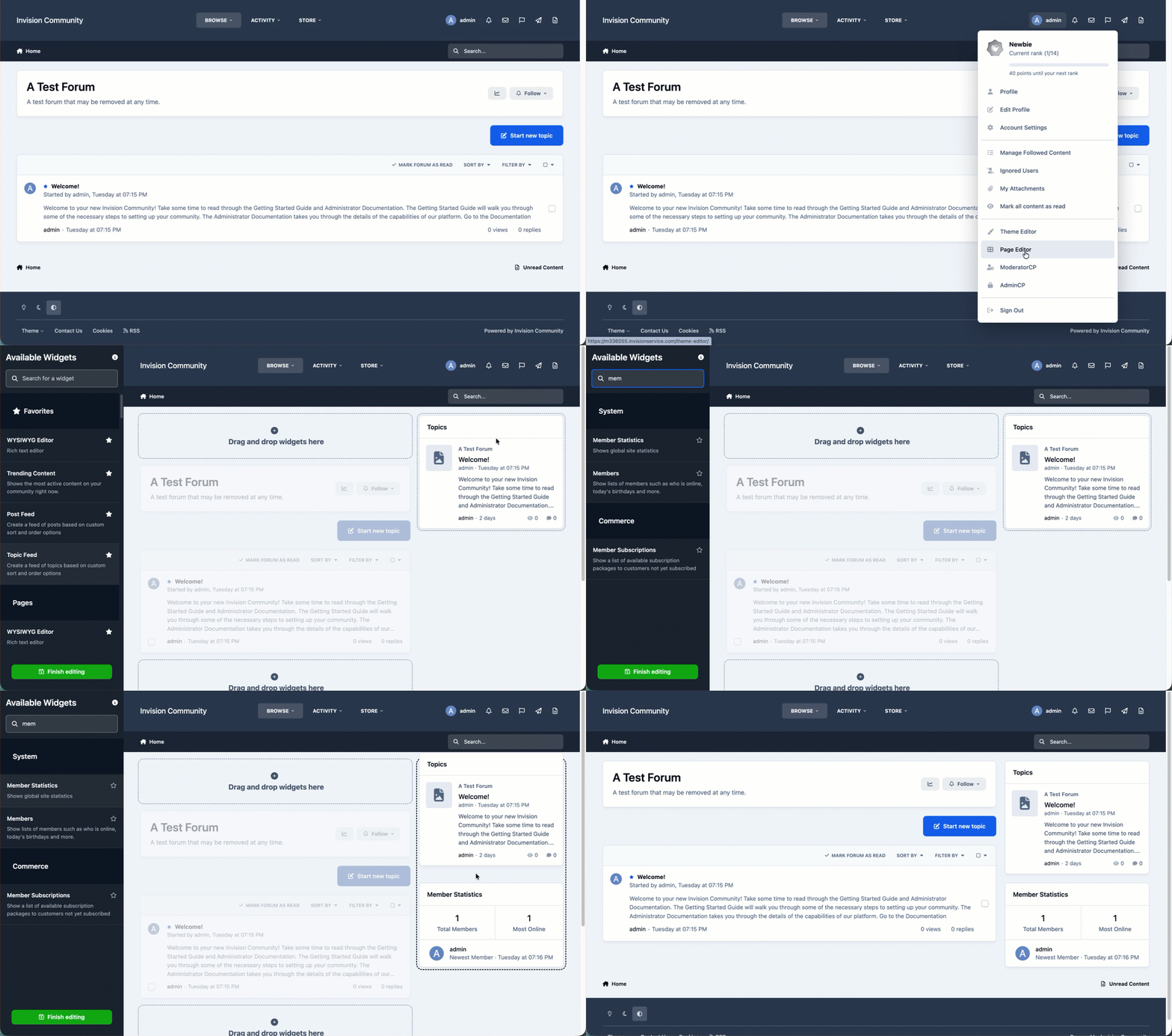
Two things that are worth noting on the page editor
You can use the search bar, in order to find specific widgets. This saves scrolling through them all once you are familiar and know what you wish to add
You can click on the star icon to add to the favorites at the top of the list. If you have widgets you commonly use, this can be helpful to stop you having to scroll through the list each time.
One thing that may not be immediately obvious, is that you can stack widgets on the top of each other. When doing this, it will give the option to move through the widgets using the provided arrows
Dragging Widgets Over Other Widgets
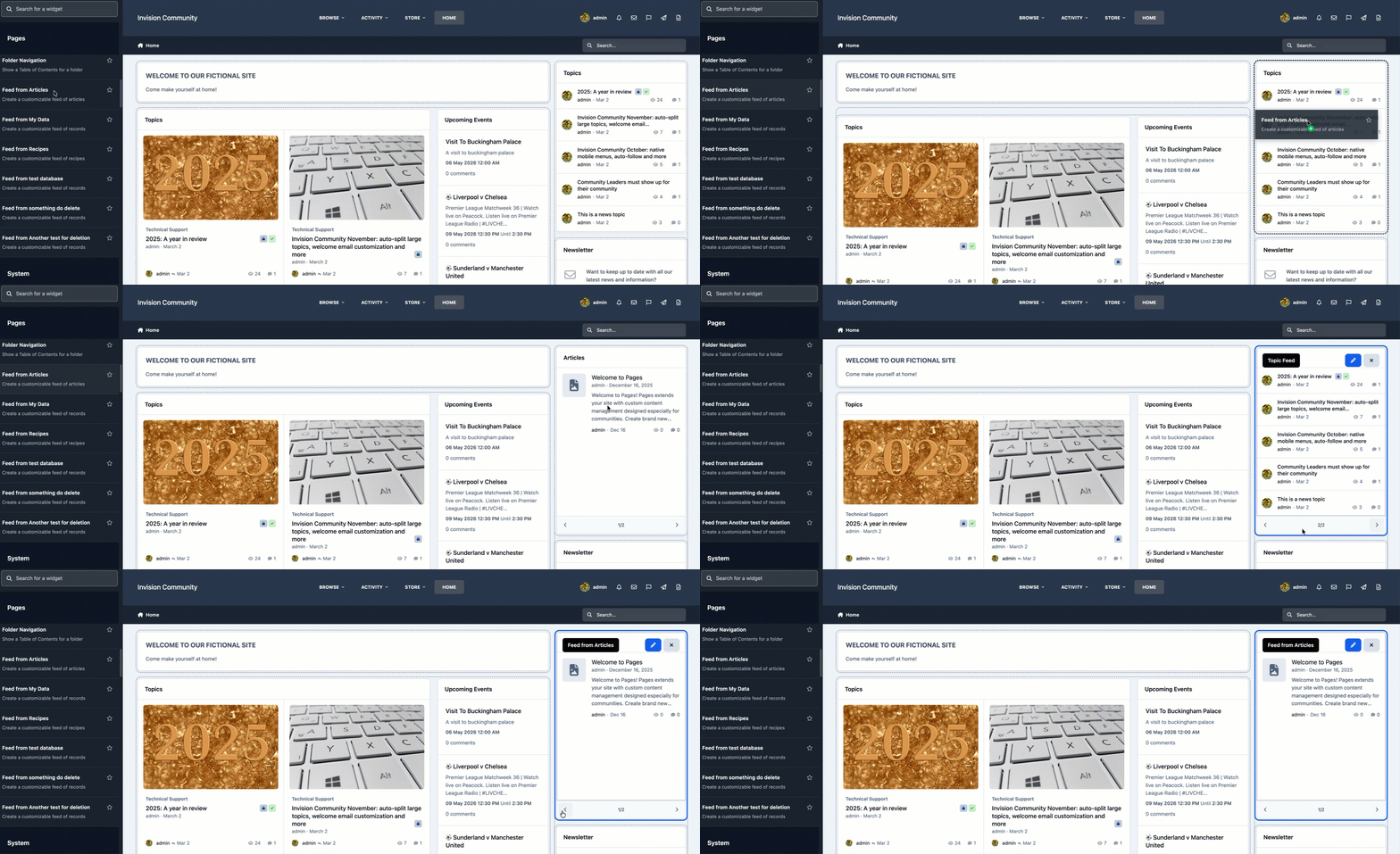
Within the wider mid areas these can also be dragged side by side. Allowing for richer designs within your community.
Editing What Shows
The first thing that we can do in widgets is to edit what that widget shows. Whether this is a topic feed where you wish to show only a specific subset of topic, or something like a database where you want to show set categories, you would do this using the edit icon.
Editing a Widget
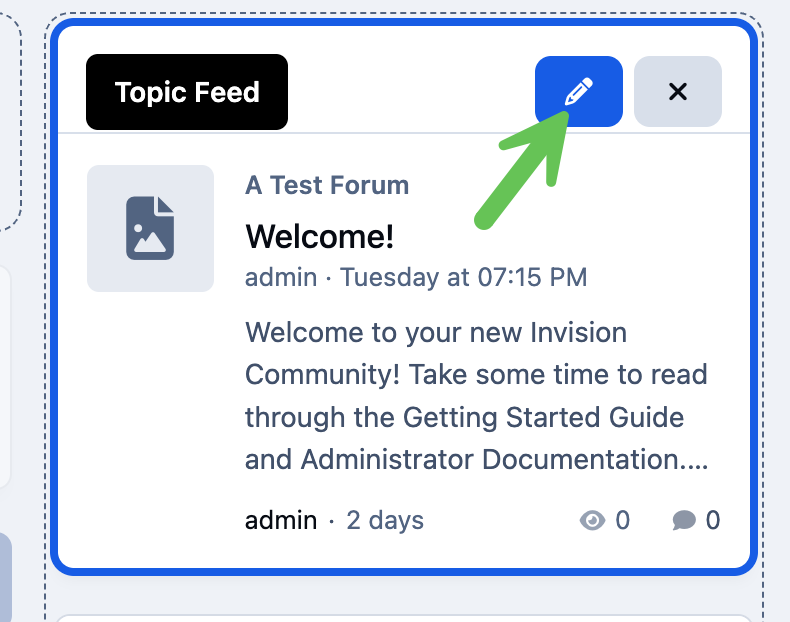
What options are available will depend on the widget used. This is an example of what is shown on the topic feed
Widget Editing
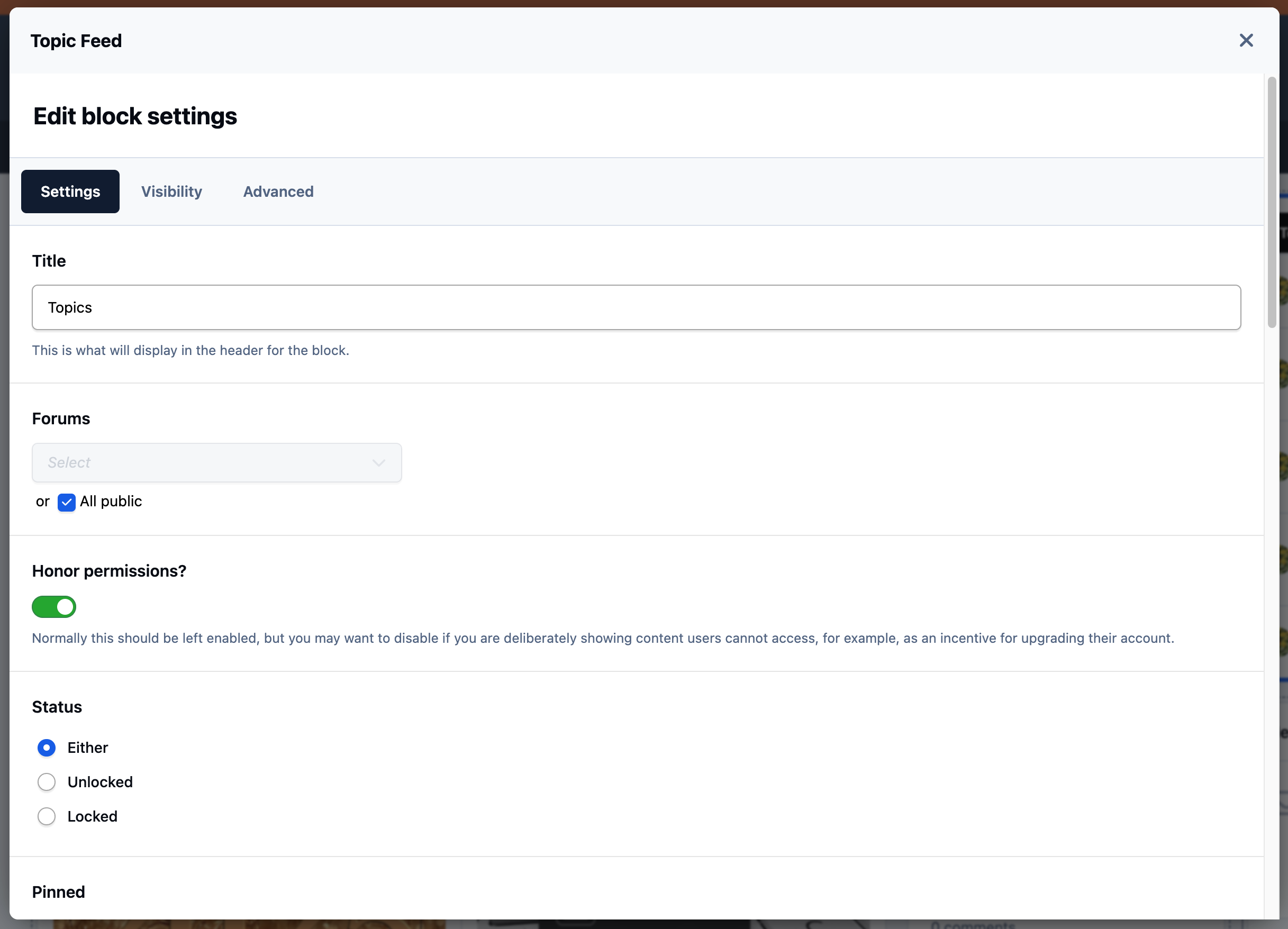
Most widgets will contain the Visibility and Advanced tabs
Visibility - This allows you to set on which devices the widget is shown (mobile, desktop etc), and whether or not to show in clubs
Advanced - While this can contain other items, the core item is the ablity to add your own custom CSS which applies only to that block
Widget Layouts
Widget layout options are one of the most powerful options within the page editor. These allow you to set how a widget shows on the page. When you select any widget, you will get a layout bar that shows at the bottom of the page
Changing Widget Layouts
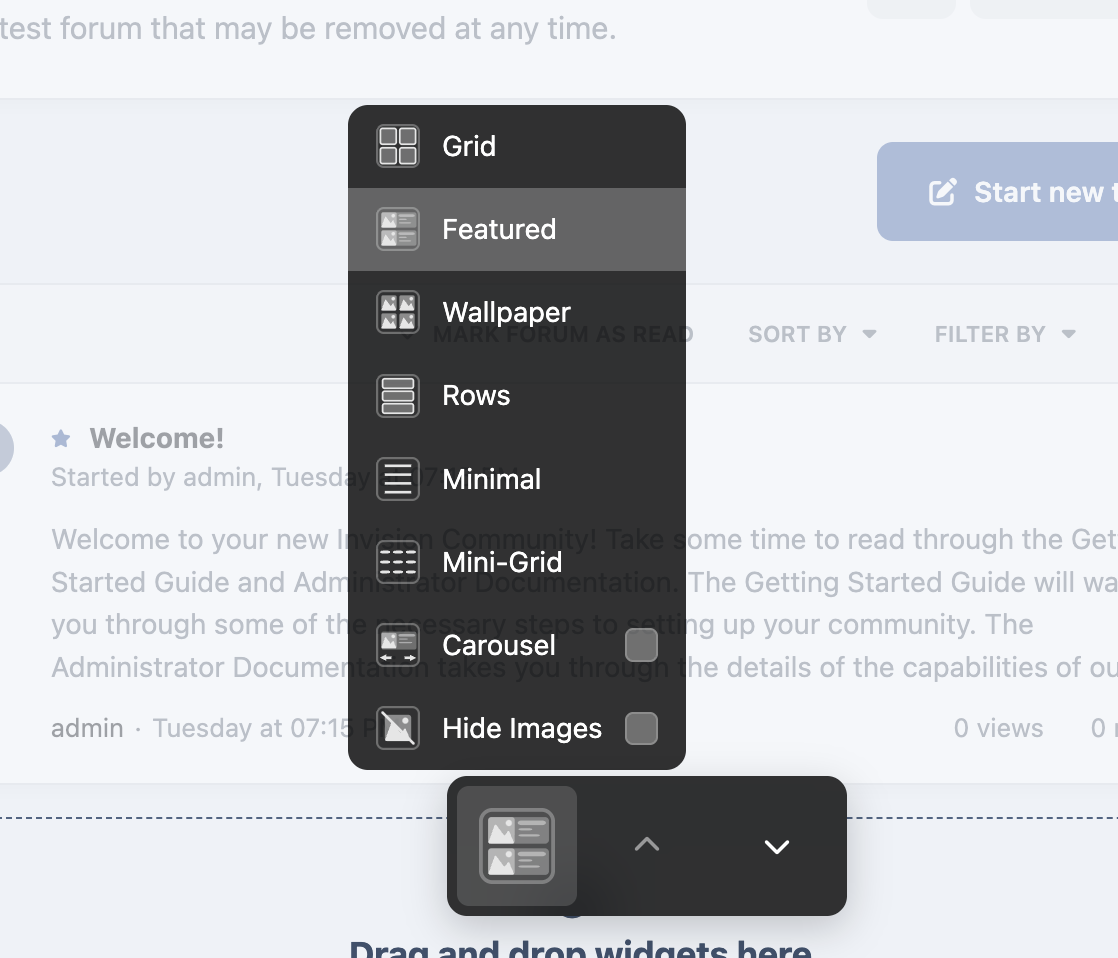
When selecting an area where two widgets have been placed side-by-side, you will see additional layout options related to that section, as shown below. These options allow you to switch between layouts such as carousels, grids, sidebar arrangements, and more. Other settings within this area can also be used to adjust margins, padding, and spacing for the selected layout.
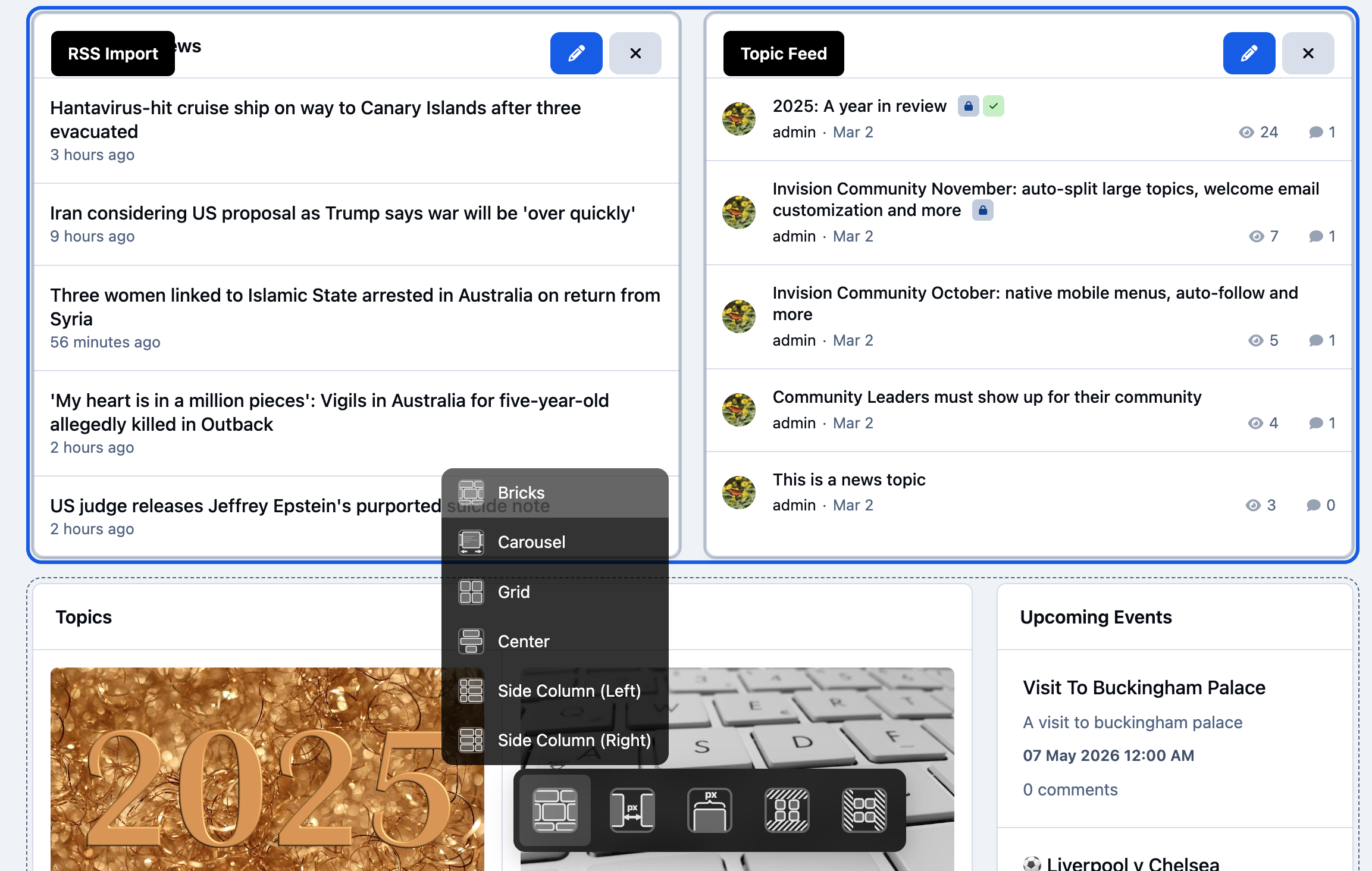
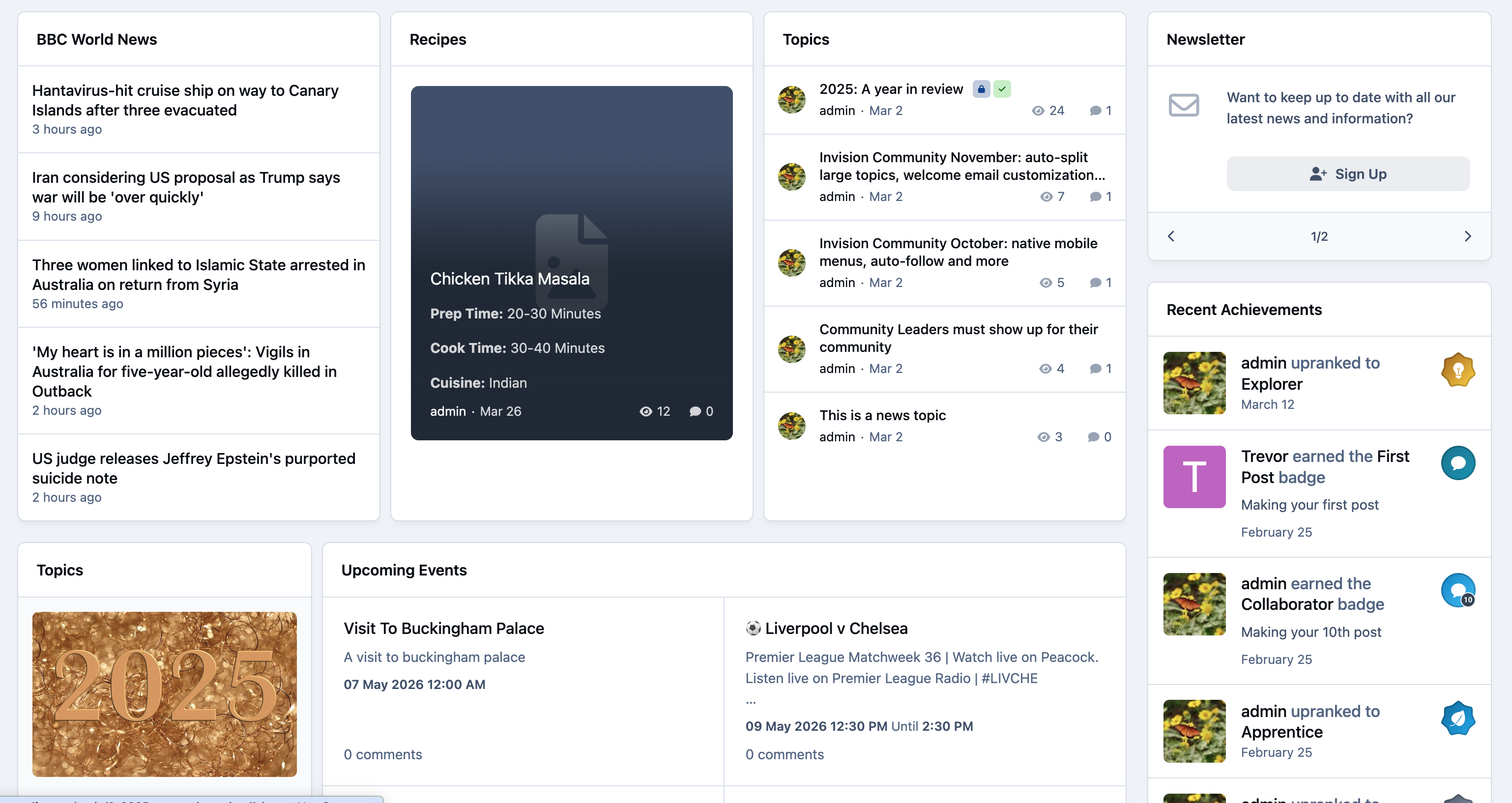
By using these options, you can create a wide variety of layouts to suit the needs of your site
Example Widget Layouts
Recommended Comments