


For more experienced theme designers, there may be times when you need to go beyond the standard options available in the theme editor. This may be to add new functionality, prepare items for redistribution with your themes, or insert additional elements into a theme.
The following sections outline some of the tools available to help with this.
Templates
Within Invision Community, you can create custom templates that can then be used within other templates through the use of a short tag.
To create a custom template, navigate to the following area within your theme menu:
{yourTheme} → Theme Designer: Templates
From here, you can create and manage templates that can then be referenced elsewhere within your theme.
Custom Template
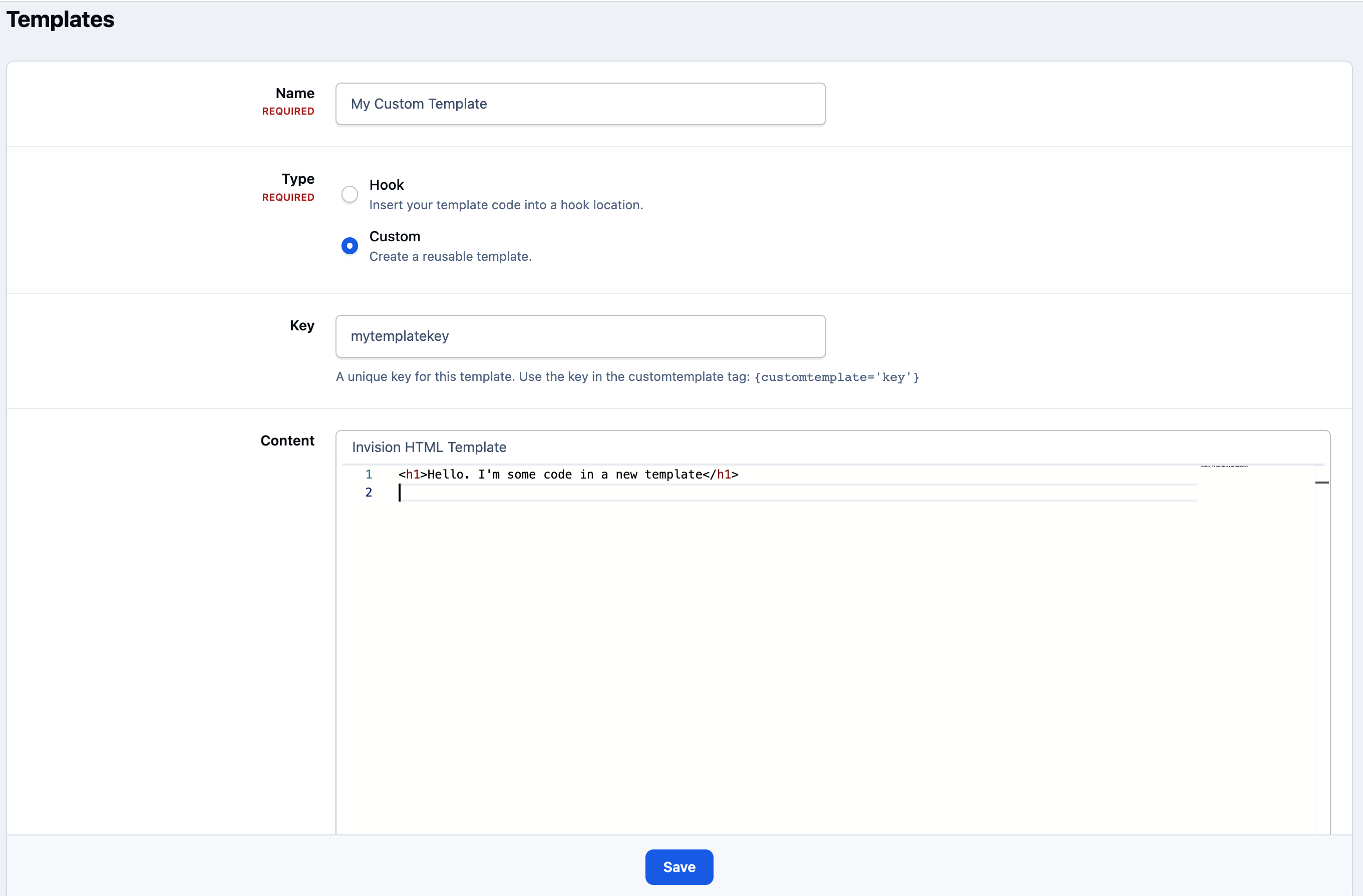
Here you can add whatever code you need. you can then call that template from any other templeta as needed, by its key. For example:
{customtemplate='mytemplatekey'}
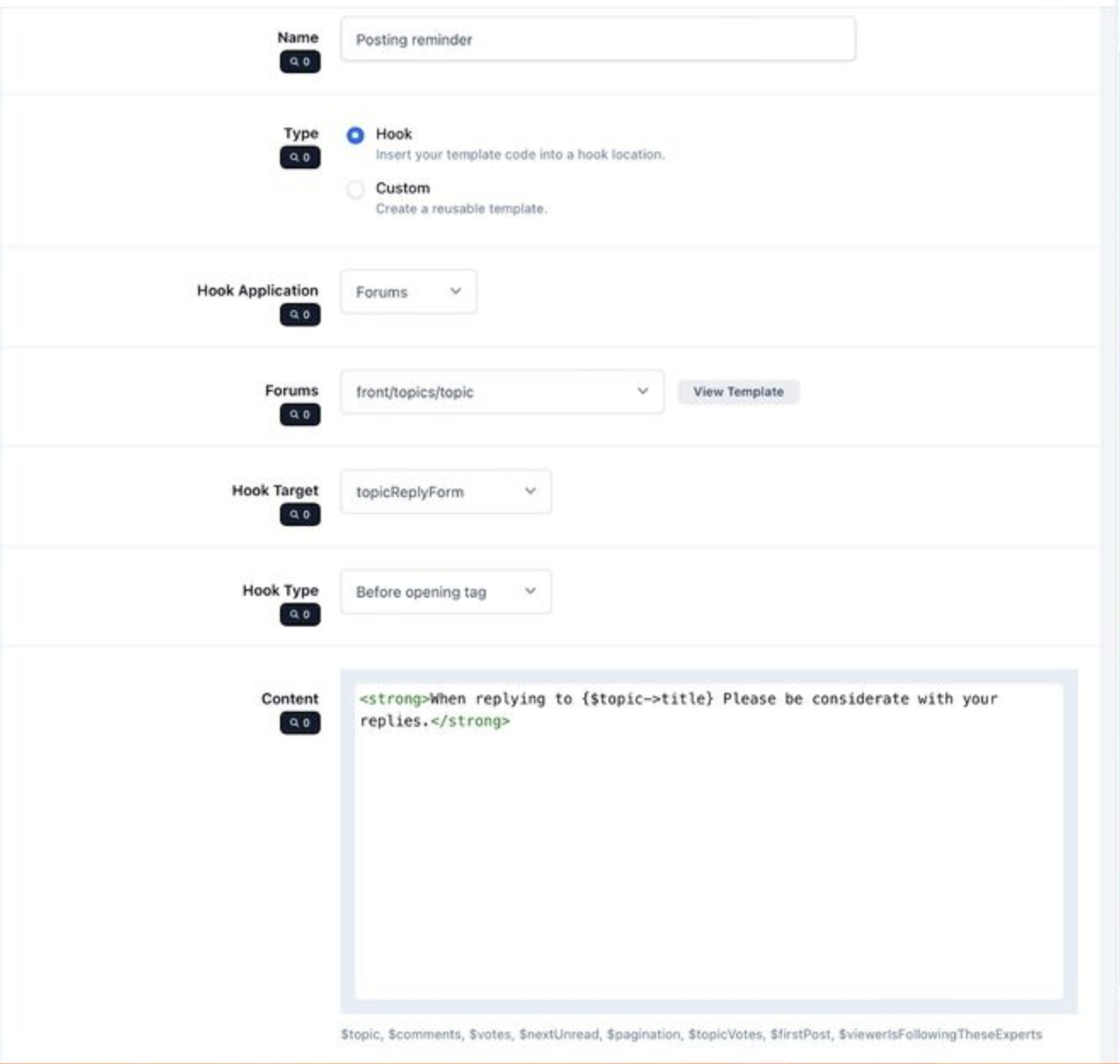
You can also use custom templates to hook into specific areas of an existing template, allowing you to insert code in specific locations such as before the opening tag, after the opening tag, before the closing tag, or after the closing tag.
Here is an example adding a message above the editor on forum posts
Template Hook
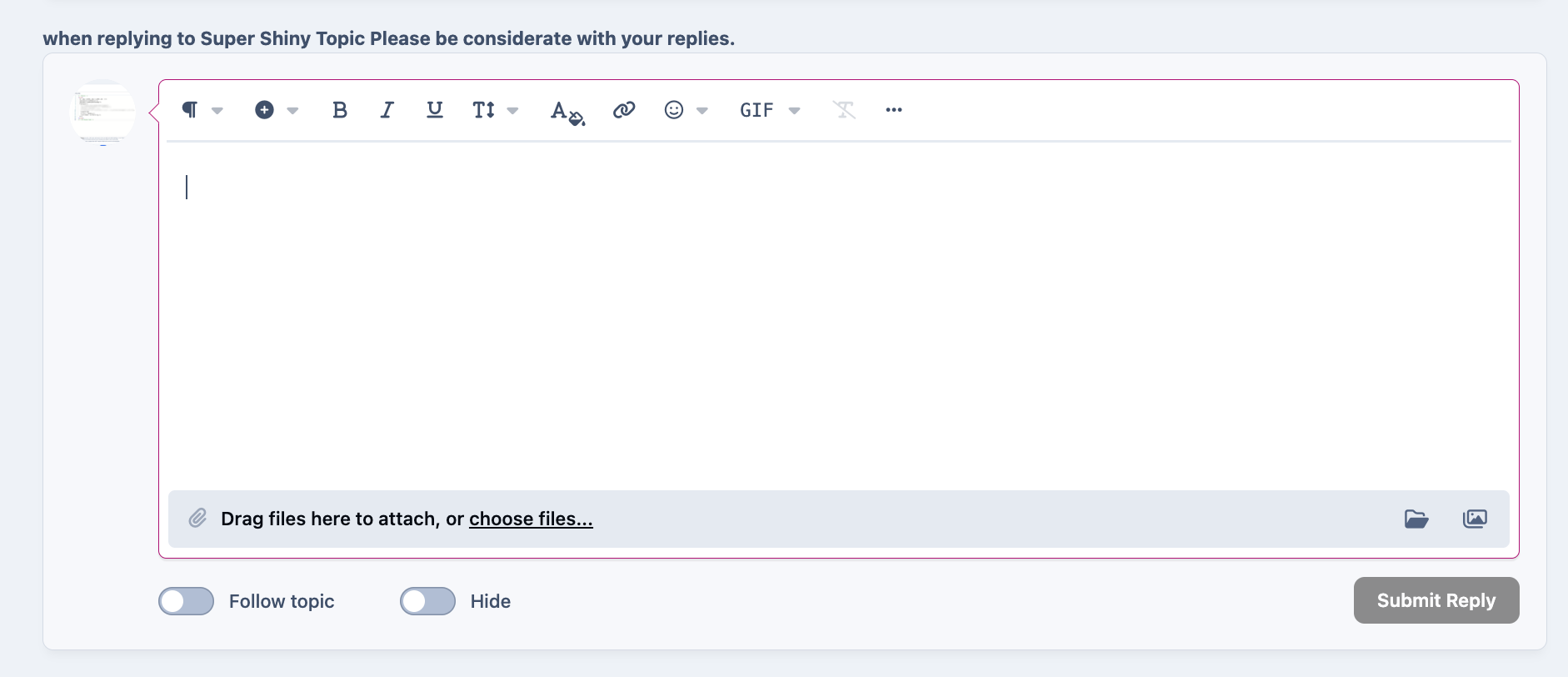
The result of this being as below
Template Hook Example
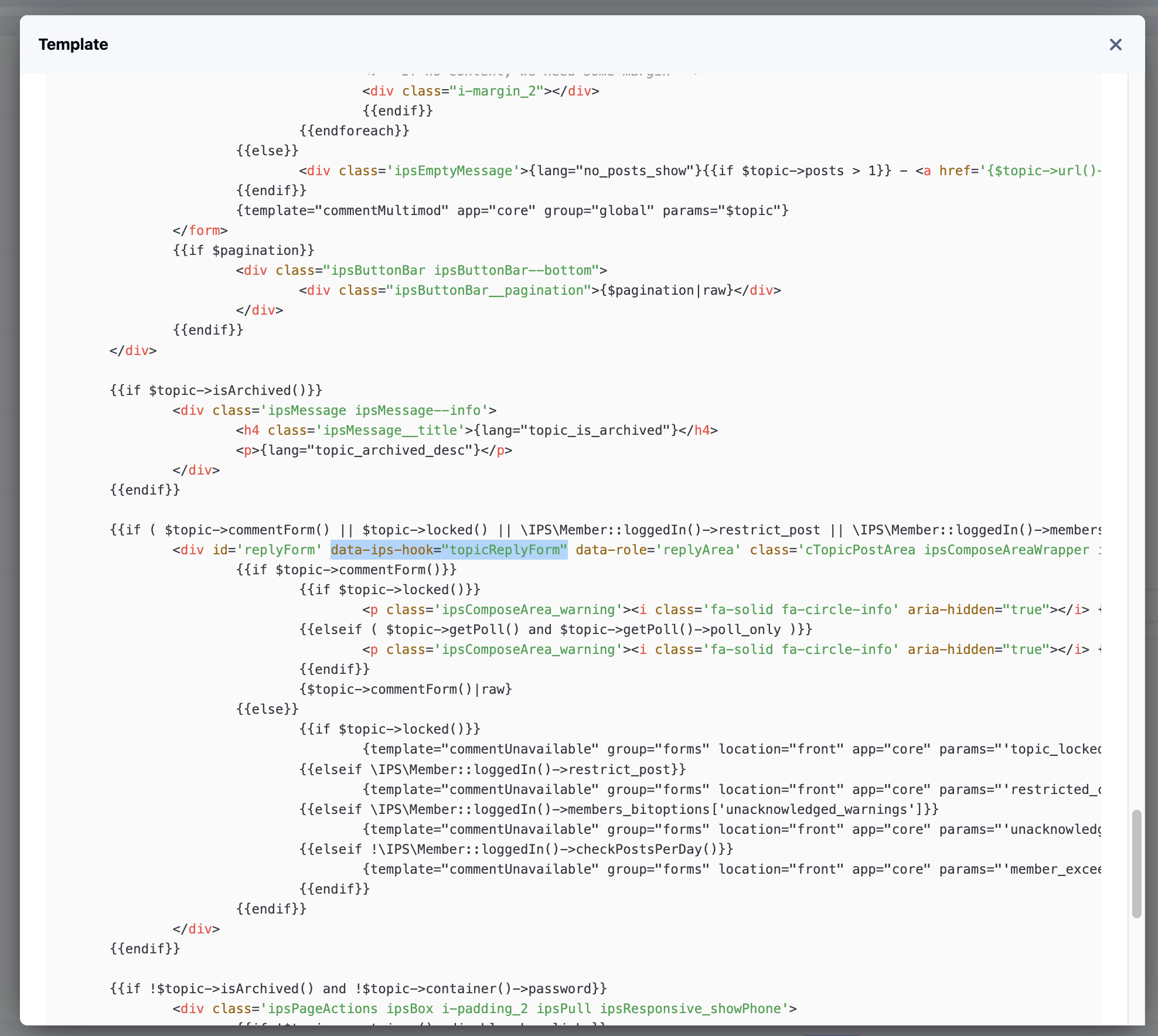
Clicking the "View Template" button will allow you to see the whole of the selected template. This can be helpful in ascertaining where you would like to place your code. Hooks points can be seen throughout the code, as shown in the example
Viewing a Template
Editor Settings
When creating a new theme, you may wish to add settings to the theme editor. This can be done from the following location in your themes menu
{yourTheme} → Theme Designer: Editor
Once here, you can add a new category and add settings into this category, or add settings into an existing category.
Editor Settings List
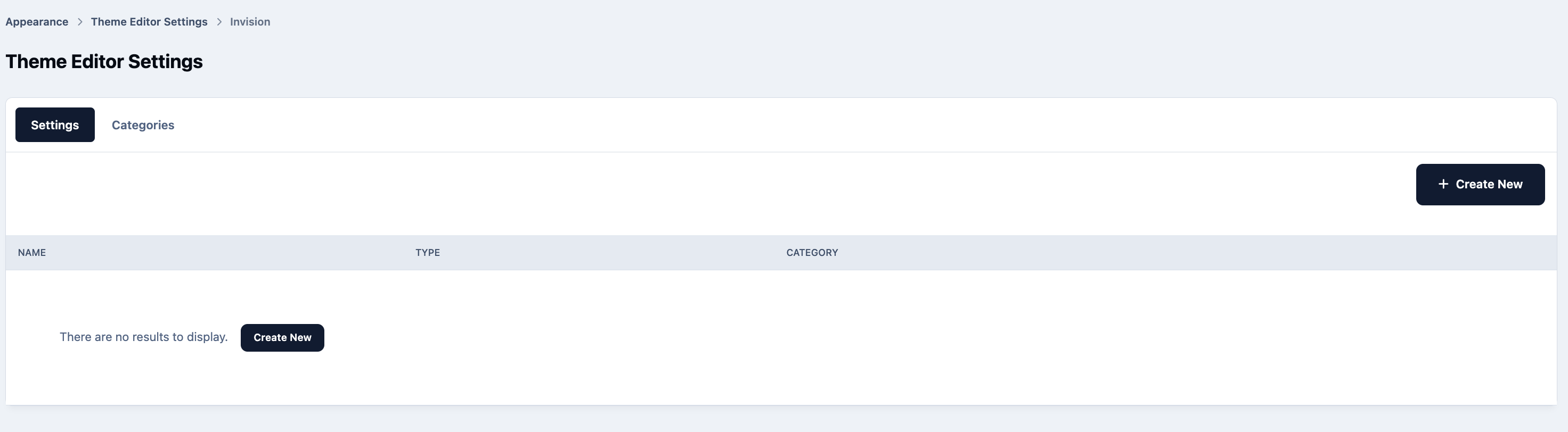
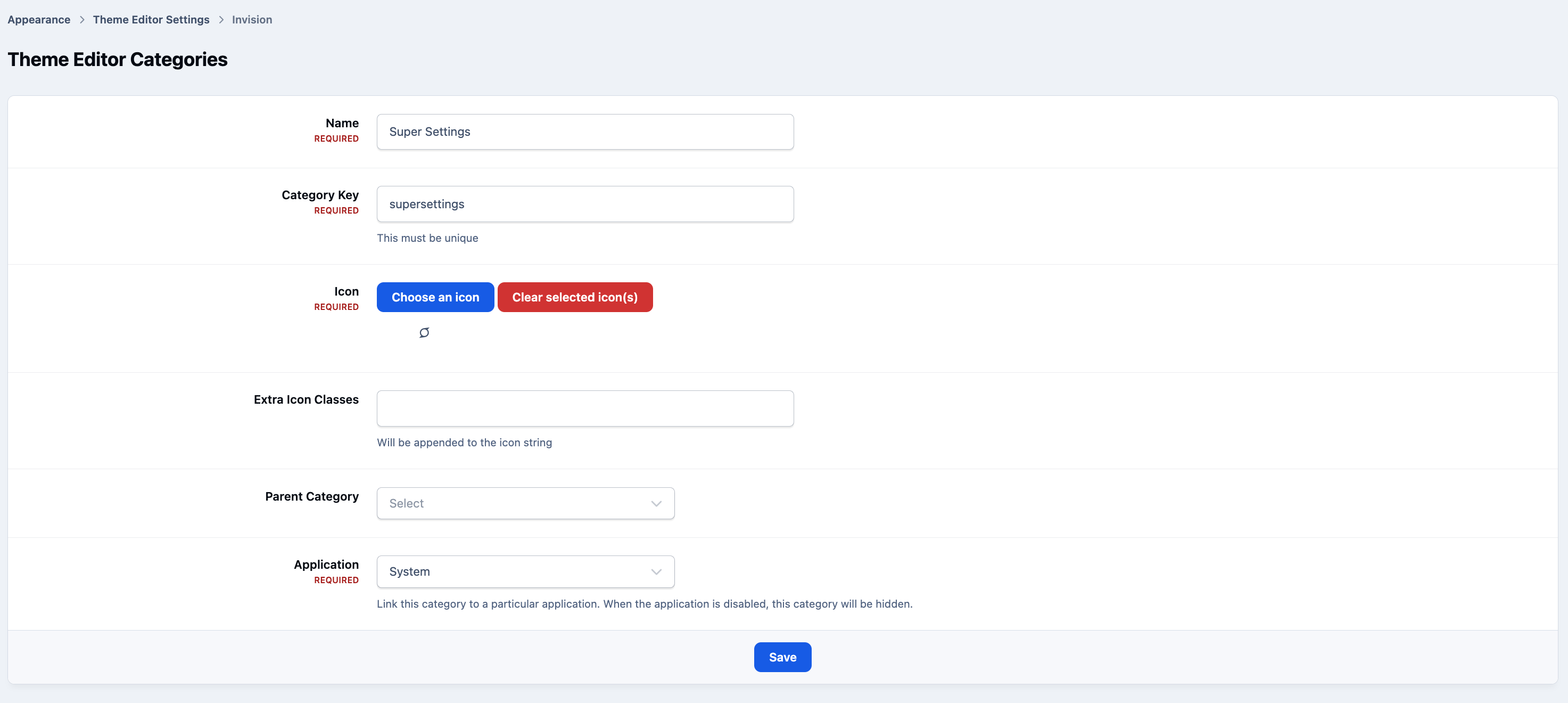
First we are going to add a category for our settings. We will attach it to the system application as we always want this to be available, regardless of applications that are enabled or disabled. If your setting is specific to an application, you would place it within this application
Editor Categories
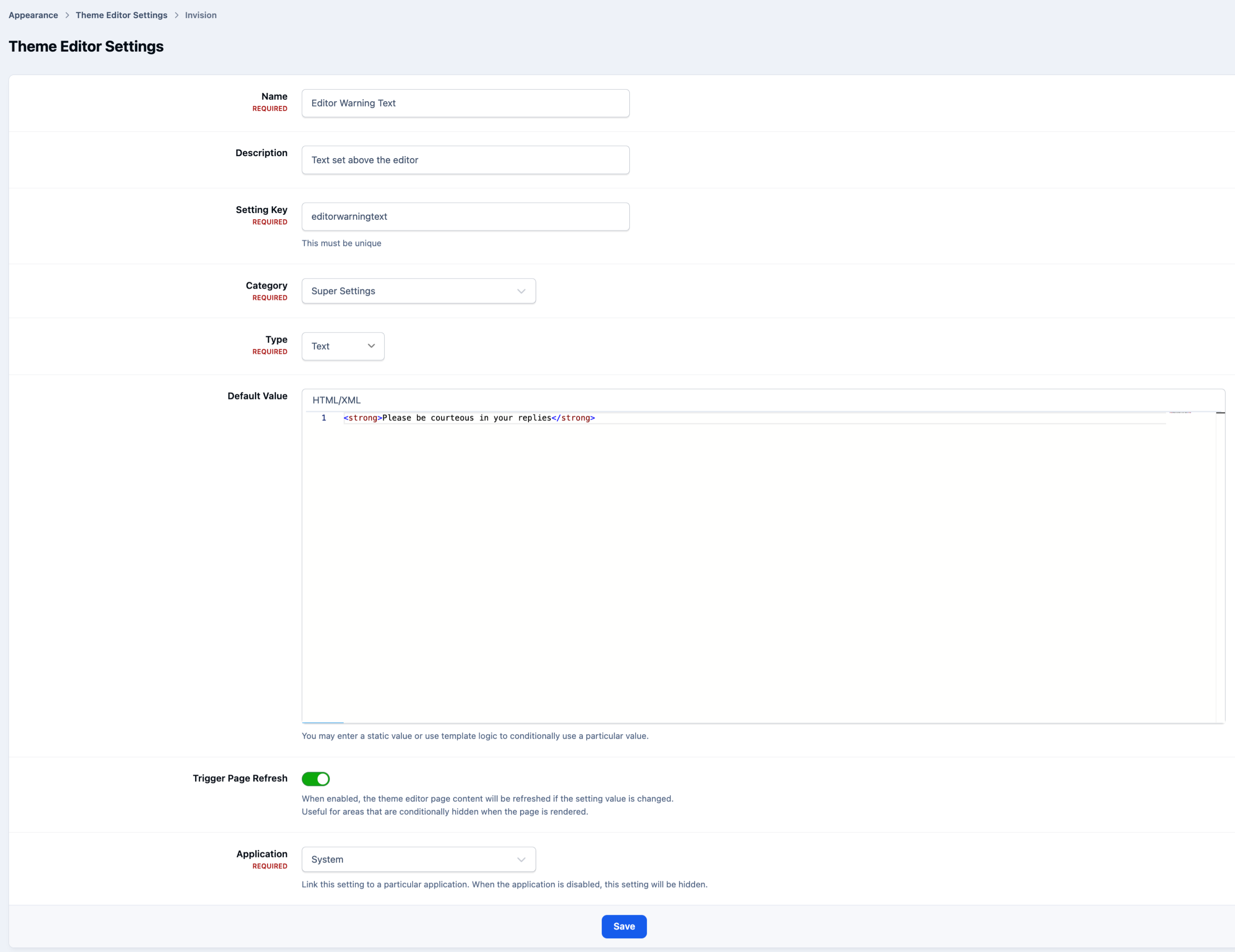
We will now create a setting for our text above the editor, used in the templates example above, to allow the admin to set what is to show. Here I have added a default text and allowed the screen to refresh so the admin can immediately see the change on screen when using the theme editor
New Editor Setting
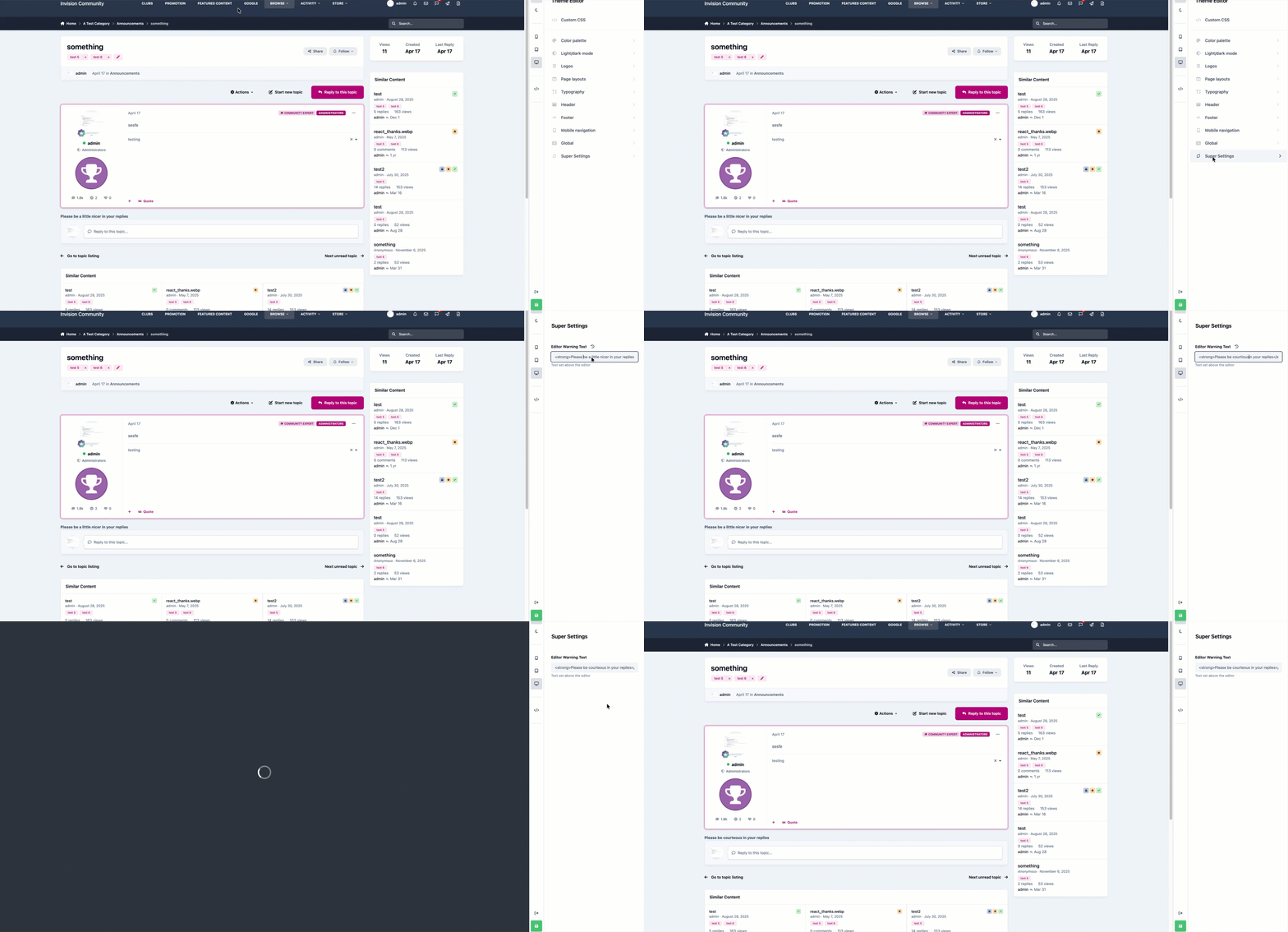
To use the text from this setting, you would refer to your settings key as shown below
{theme="your_setting_key"}
Here is our setting in action
Example
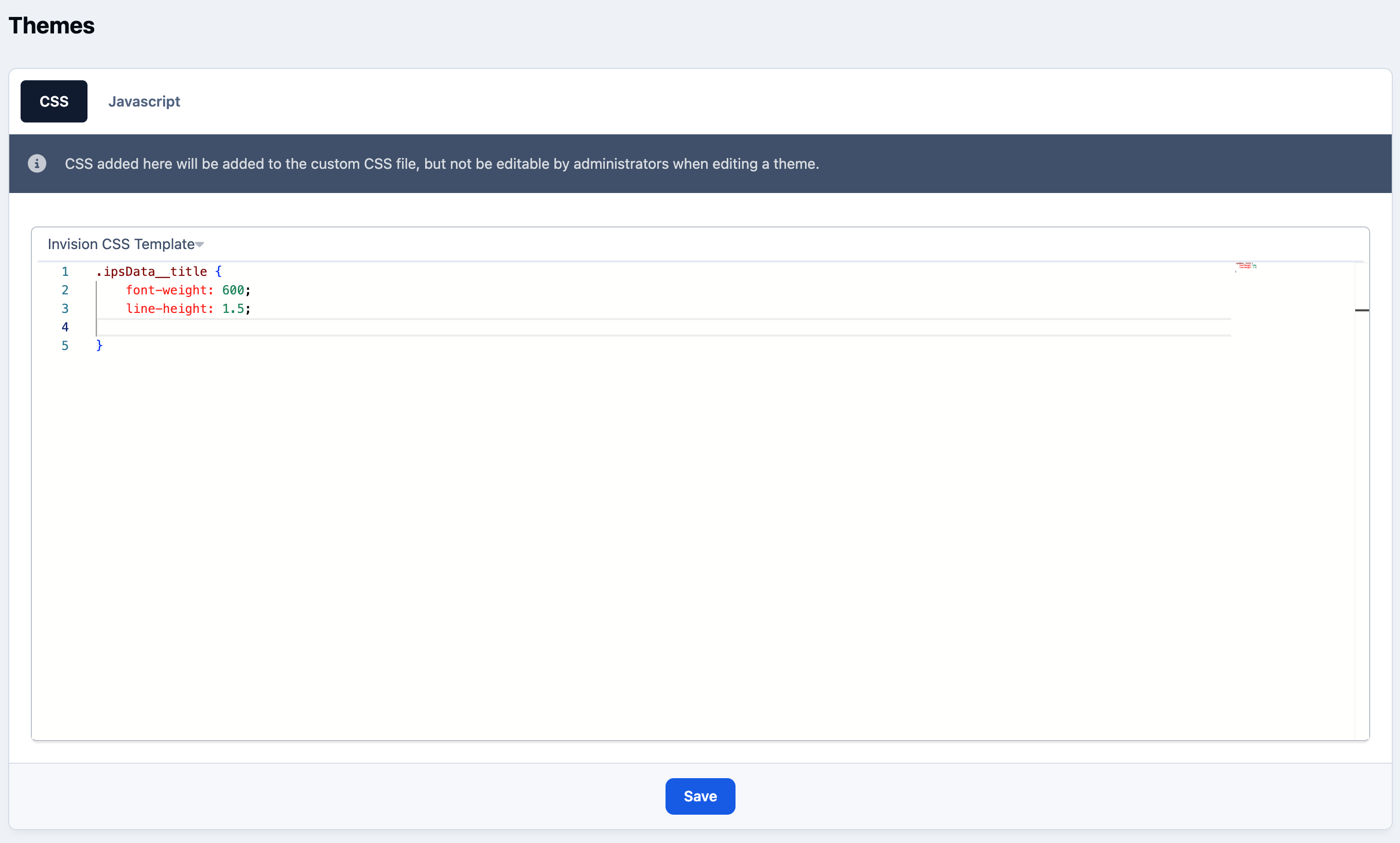
Core CSS & JS
In this area you can add CSS & JS that your customers cannot edit. Simply go to the following area within your themes menu
{yourTheme} → Theme Designer: Core CSS & JS
Core CSS & Javascript Additions
Recommended Comments