


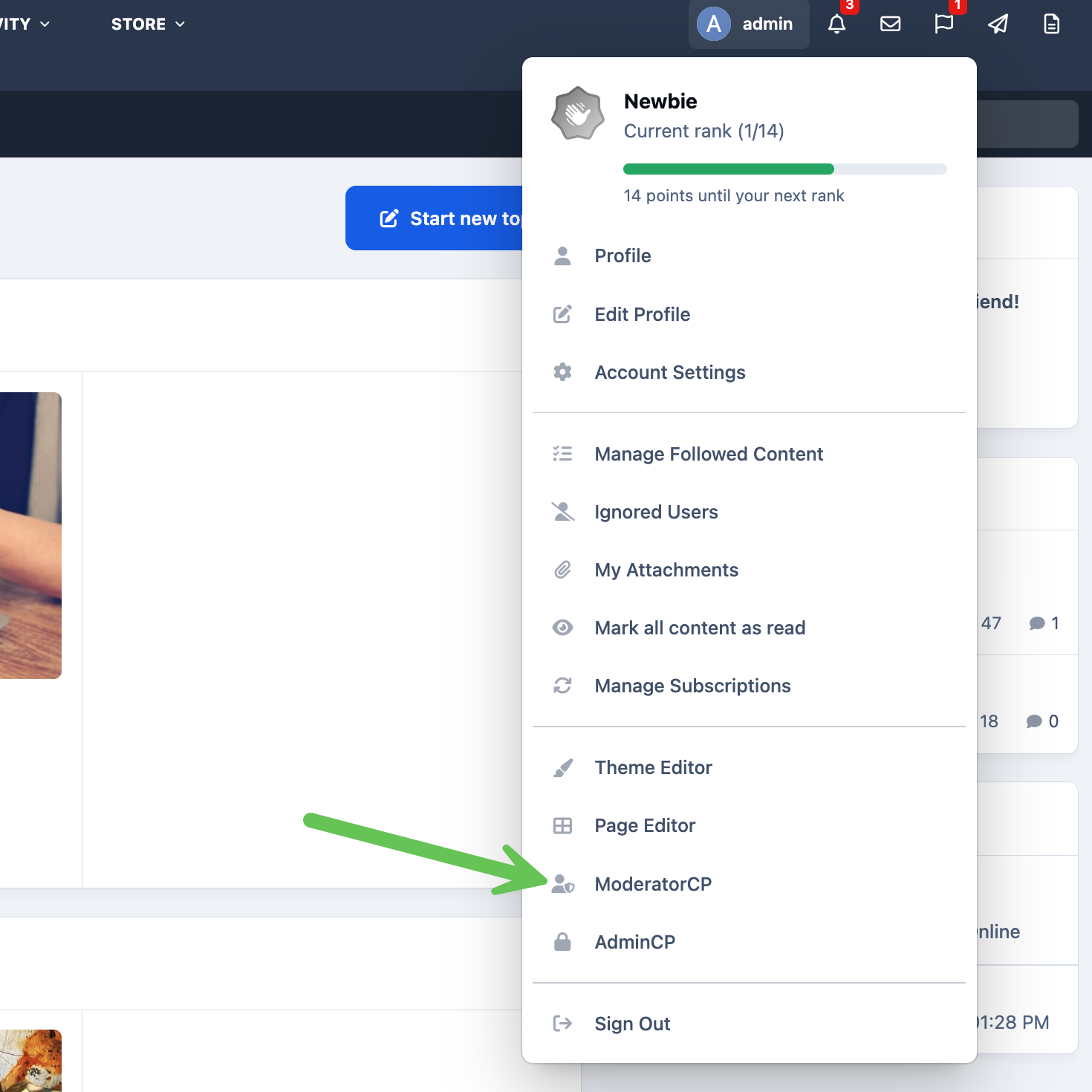
The Moderator Control Panel, knowns as the Moderator CP, provides a central hub for moderators to manage items that require attention, along with access to a range of useful moderation tools designed to help keep your community running smoothly.
From here you can manage content such as deleted and hidden items, featured content, and assignments. Manage members by adding alerts to the system, view warnings, and find information about specific members, and create announcements and live topics for your community.
Accessing the Moderator CP
Managing Content
The manage content area consists of the following items. Some of which we will discuss in more detail where needed
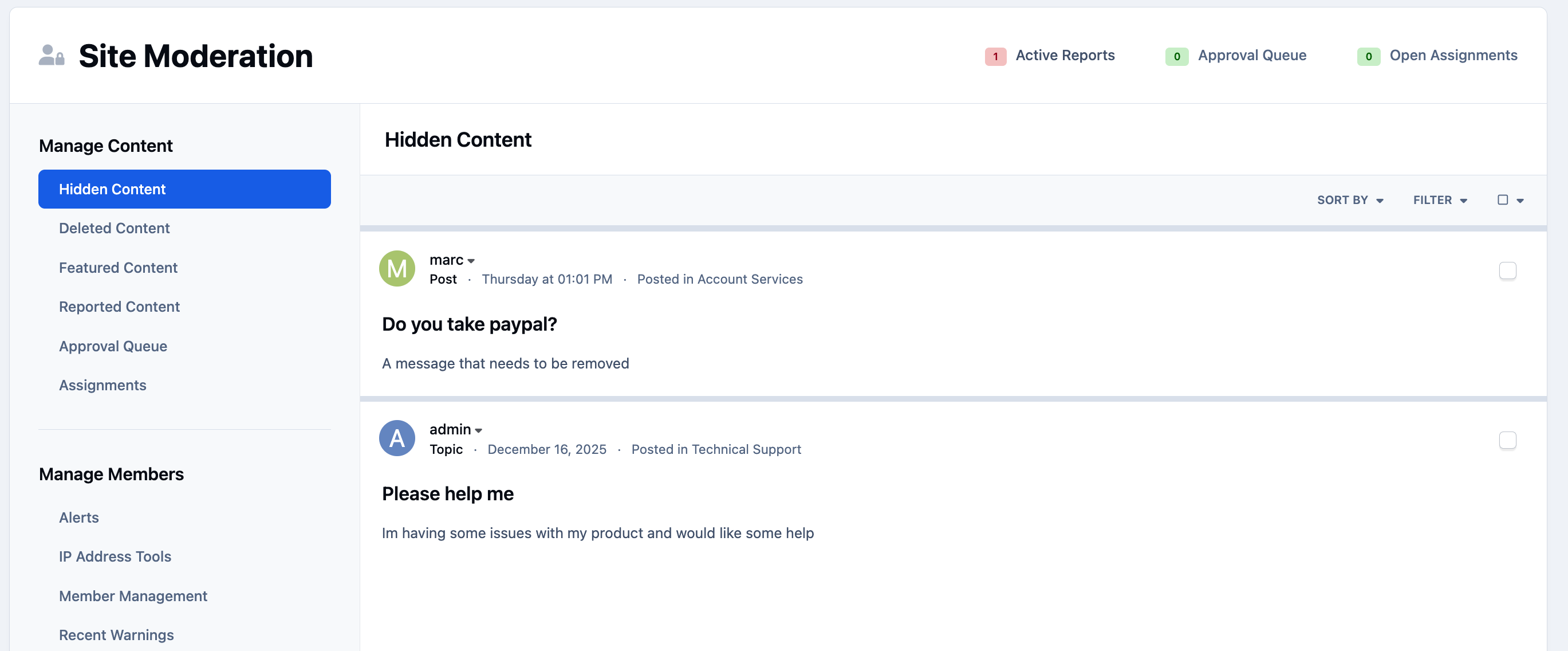
Hidden Content - From here you can unhide one of more items of content, or delete them entirely
Featured Content - Viewing and managing currently featured items.
Approval Queue - Viewing a list of items which have been flagged for approval. From here you can delete, hide, or approve the items
Hidden Content List
Deleted Content
Deleted content will appear here, provided your site is not configured to permanently delete items immediately. By default, Invision Community retains deleted content for 30 days before it is permanently removed from the system.
This retention period can be adjusted from the following location in the Admin CP:
System → Settings → Posting & Editor
Keeping deleted content for a period of time can be helpful if items need to be reviewed or restored before they are permanently removed.
Reported Content
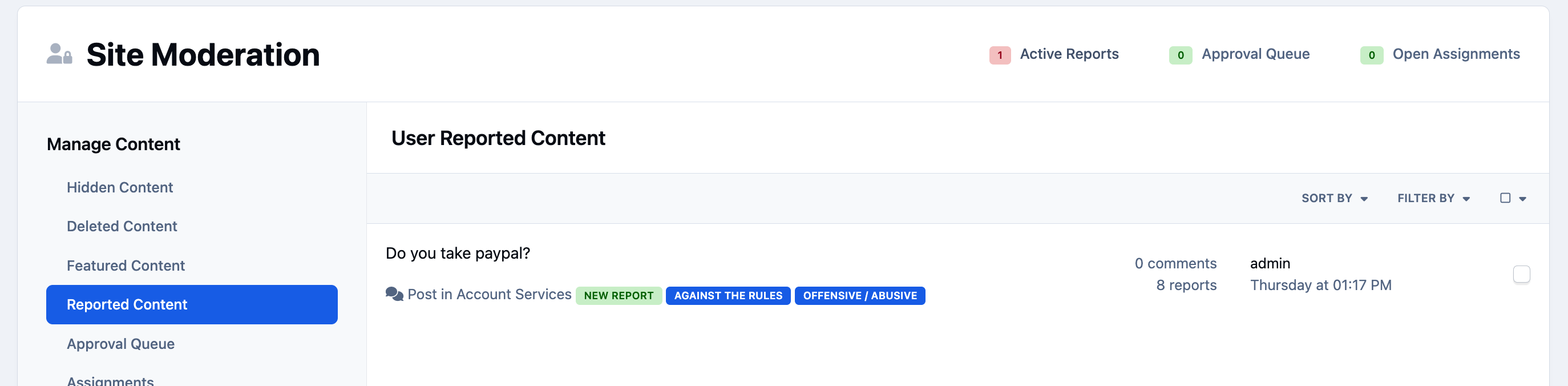
The reported content section displays any items that have been reported by members across your site. From here, you can open individual reports to review the details and context, or select multiple reports at once for bulk processing and moderation actions.
Reported Content List
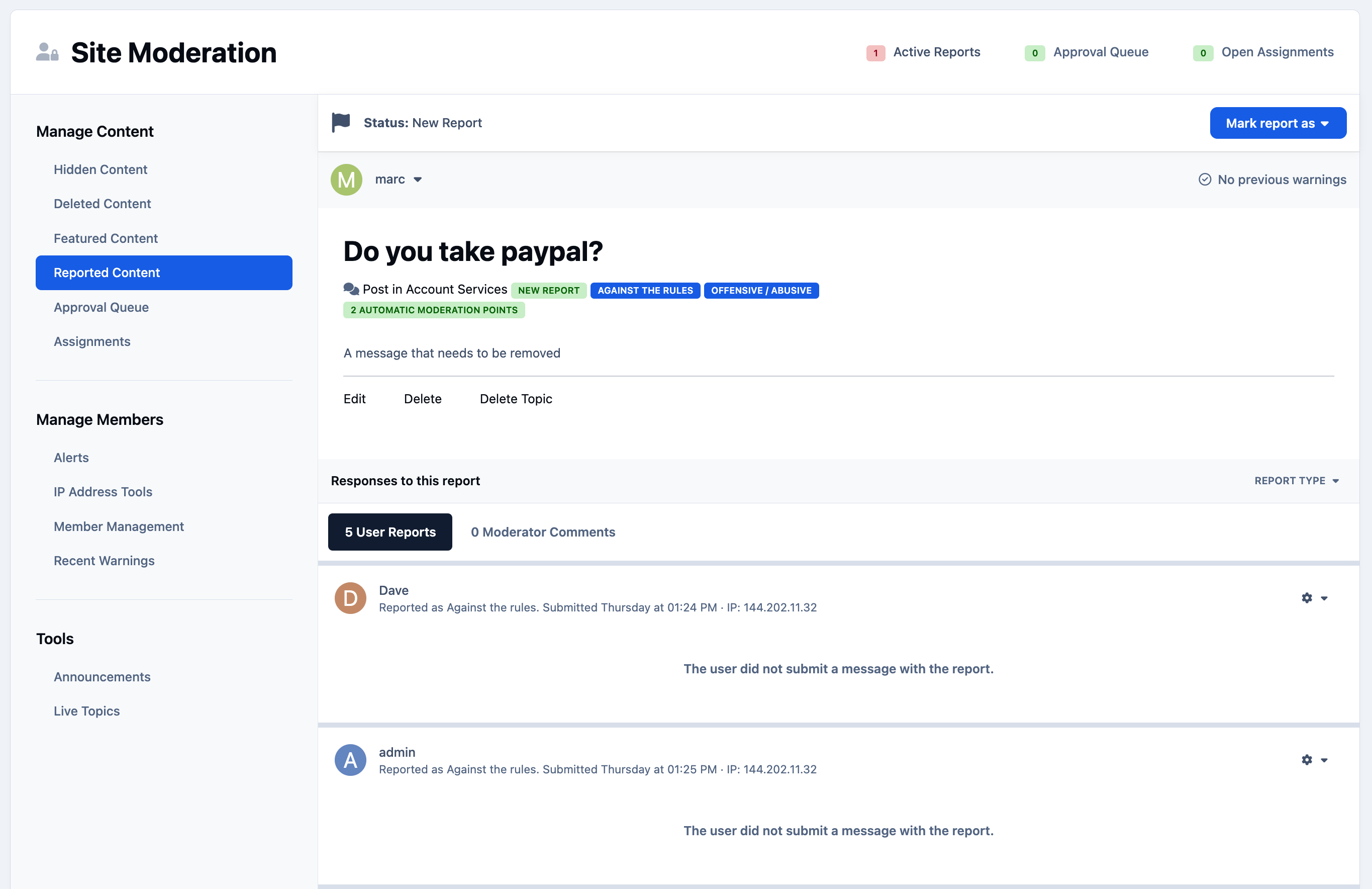
Selecting any reported item will take you to the report screen for that specific report. From here, you can see which members have reported the content, view any moderator notes, and take action on the report, such as marking it as completed or rejected.
Managing Reported Content
Assignments
Assigning a topic to a specific moderator or a team of moderators helps ensure each topic receives the appropriate attention, regardless of where it was posted within the community.
Topic assignments allow issues to be handled more quickly by clearly identifying who is responsible for managing the discussion. They also help keep the moderation team accountable by making it possible to track workload and measure response times. These insights, in turn, enable community leads to assess performance and maintain consistent quality standards across the team. You can assign an item to a person or team, using the actions menu.
Assignment
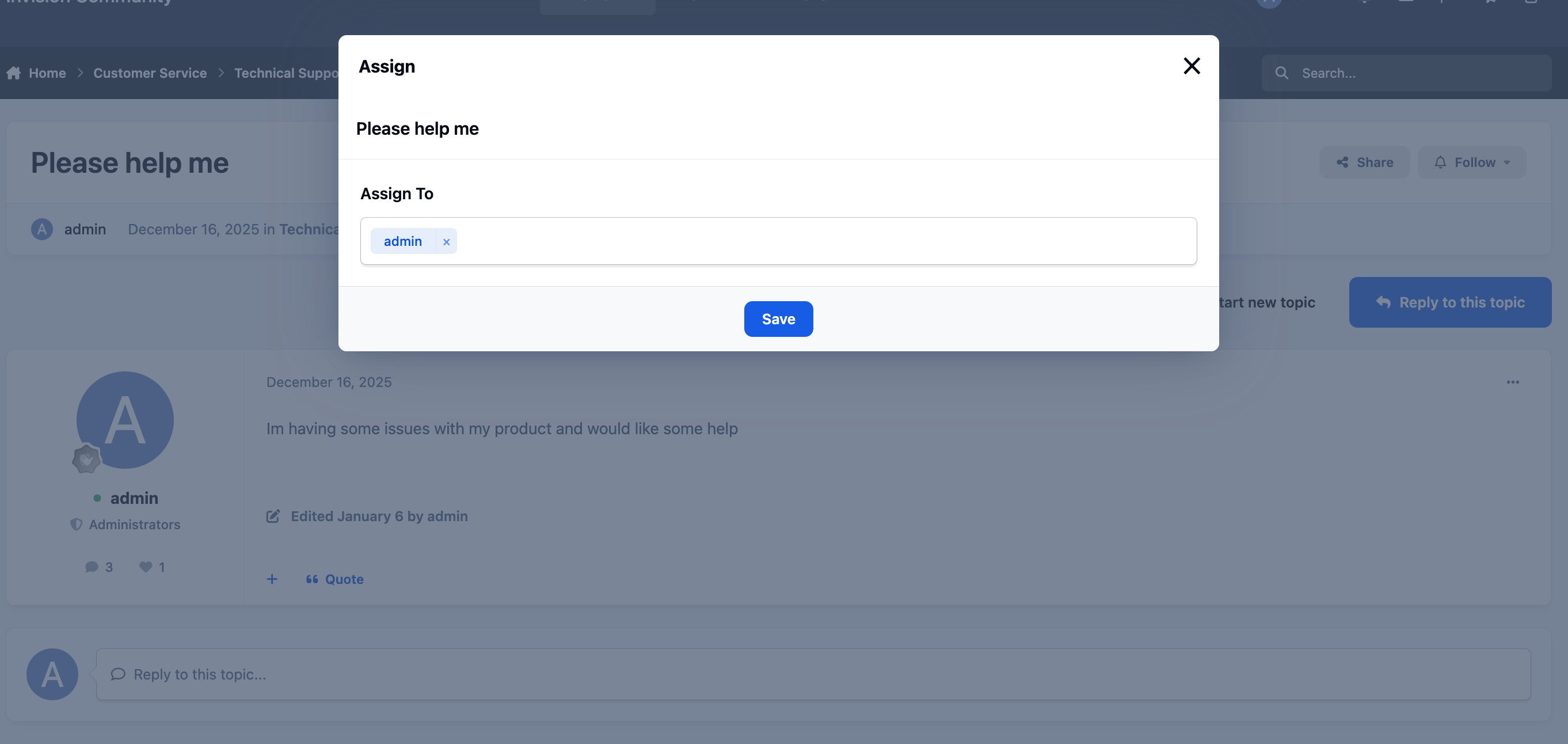
Notifications will be sent to any member of an assignment group who has notifications enabled. These assignments will also appear in the Open Assignments section of the Mod CP, allowing staff to quickly see which items require attention.
A direct link to Open Assignments is available in the navigation bar for easy access.
Assignments List in Moderator CP

Notifications will be sent to any member of an assignment group who has notifications enabled. These assignments will also appear in the Open Assignments section of the Mod CP, allowing staff to quickly see which items require attention.
A direct link to Open Assignments is available in the navigation bar for easy access.
Admin CP Assignments
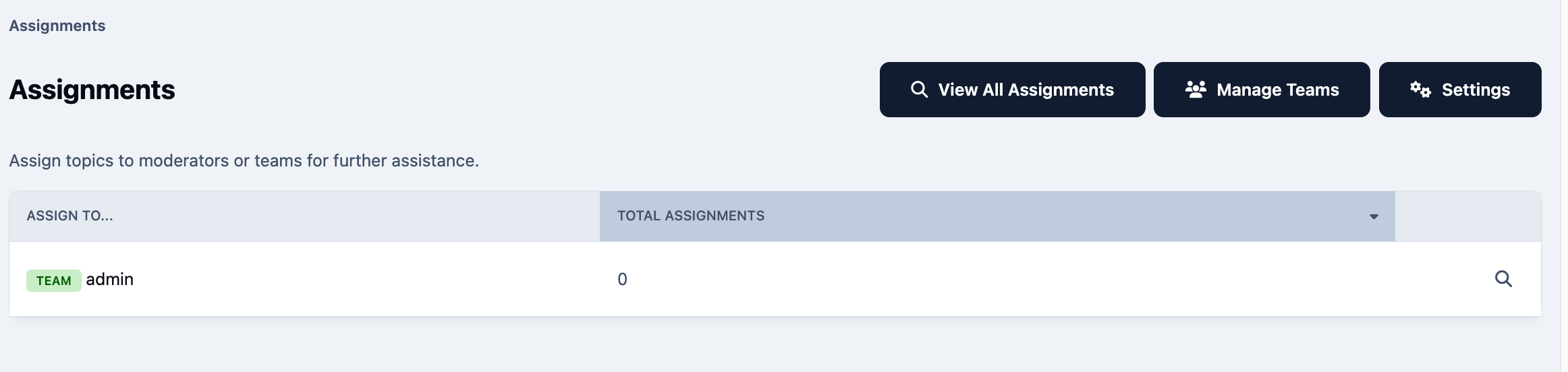
In addition to assigning topics to individual moderators or moderator groups, you can also create your own custom assignment groups. For example, you might set up a dedicated testing team for a specific product or feature.
These custom assignment groups can be created and managed from the following location in the Admin CP
Members → Content Moderation → Assignments
Manage Members
You can quickly manage members from within the Moderator CP using the Manage Members section. Each of the options available in this area is explained below.
Alerts
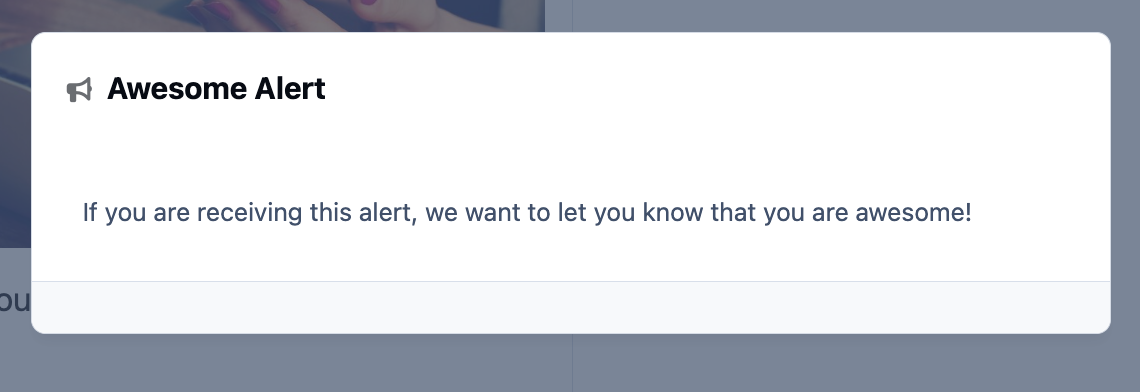
Alerts allow you to quickly bring important information to the attention of users on your site. They can be sent to individual members or entire groups, making them useful in situations where a private message or warning may not be appropriate.
For example, alerts can be used to share quick information with new members, notify a staff member immediately, or send a promotional message to a specific group.
Alert in Action
Selecting the Alerts section will show a full list of alerts that are already configured on the system. From here, moderators can review existing alerts, see who they apply to, and manage or update them as needed.
Alert List in Moderator CP
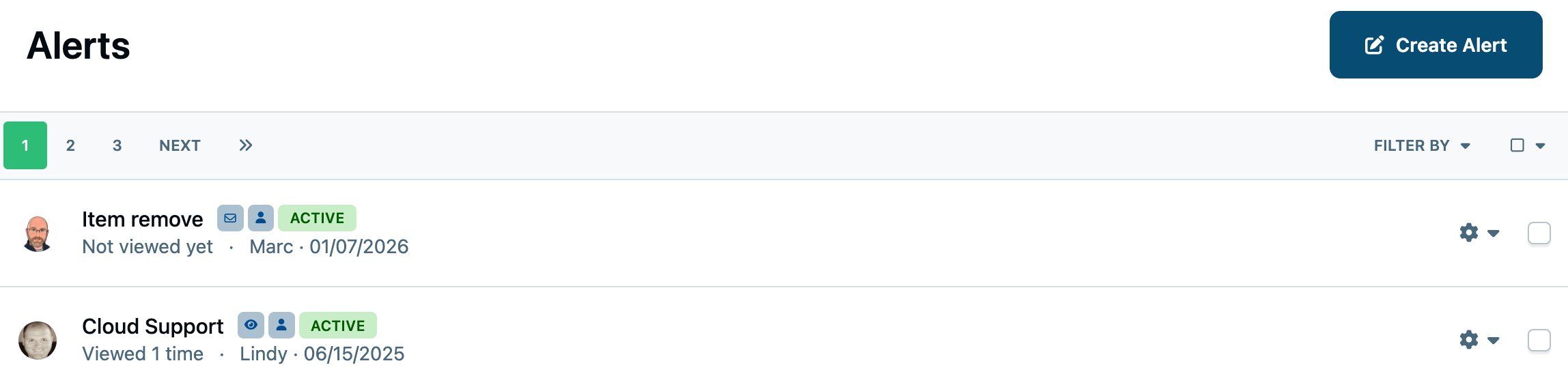
Select Create Alert to add a new alert to the system. From here, you can define the criteria that determine who the alert is shown to, as illustrated in the example below.
IP Address Tools
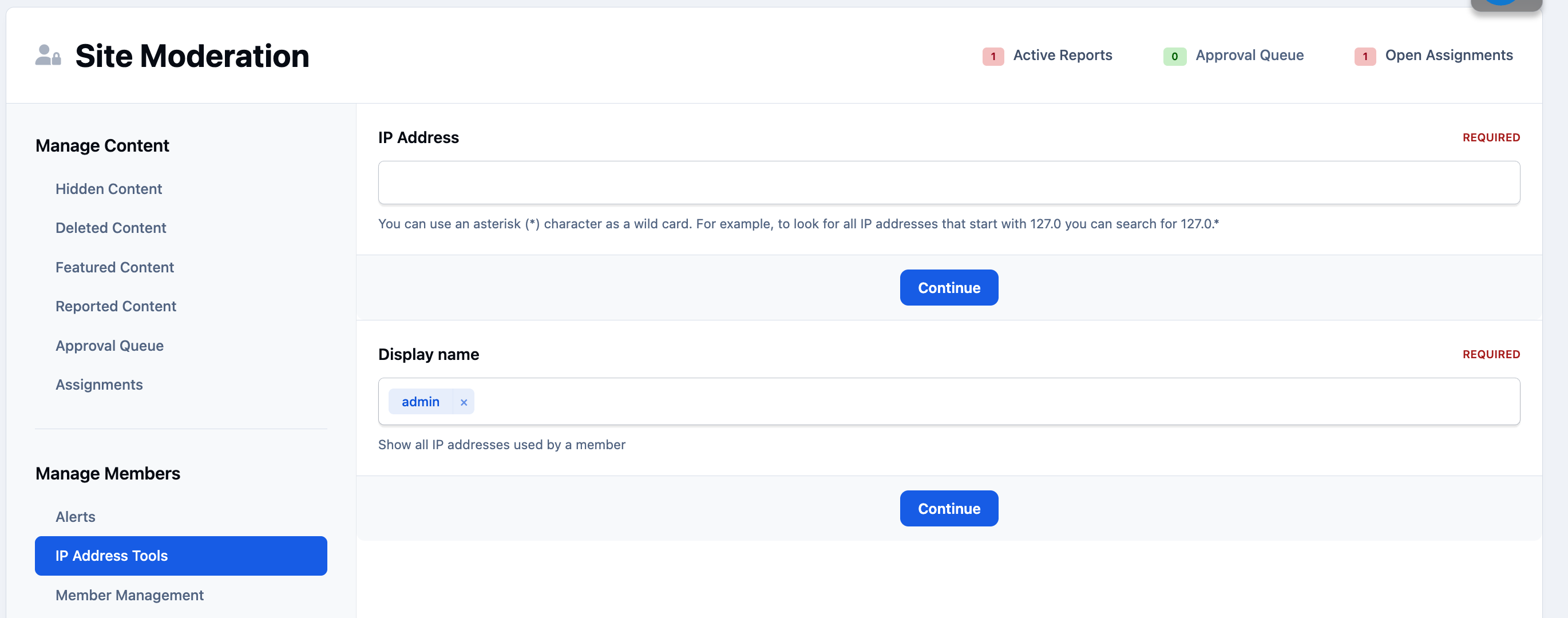
The IP Address tools allow you to view site-related information associated with a specific IP address. To use this feature, simply enter an IP address into the provided field and select Continue.
Alternatively, you can choose to view all IP addresses that have been used by a particular member on the site, by entering their name. This can be helpful when investigating account activity, identifying potential abuse, or reviewing login patterns during moderation or security checks.
IP Address Tools
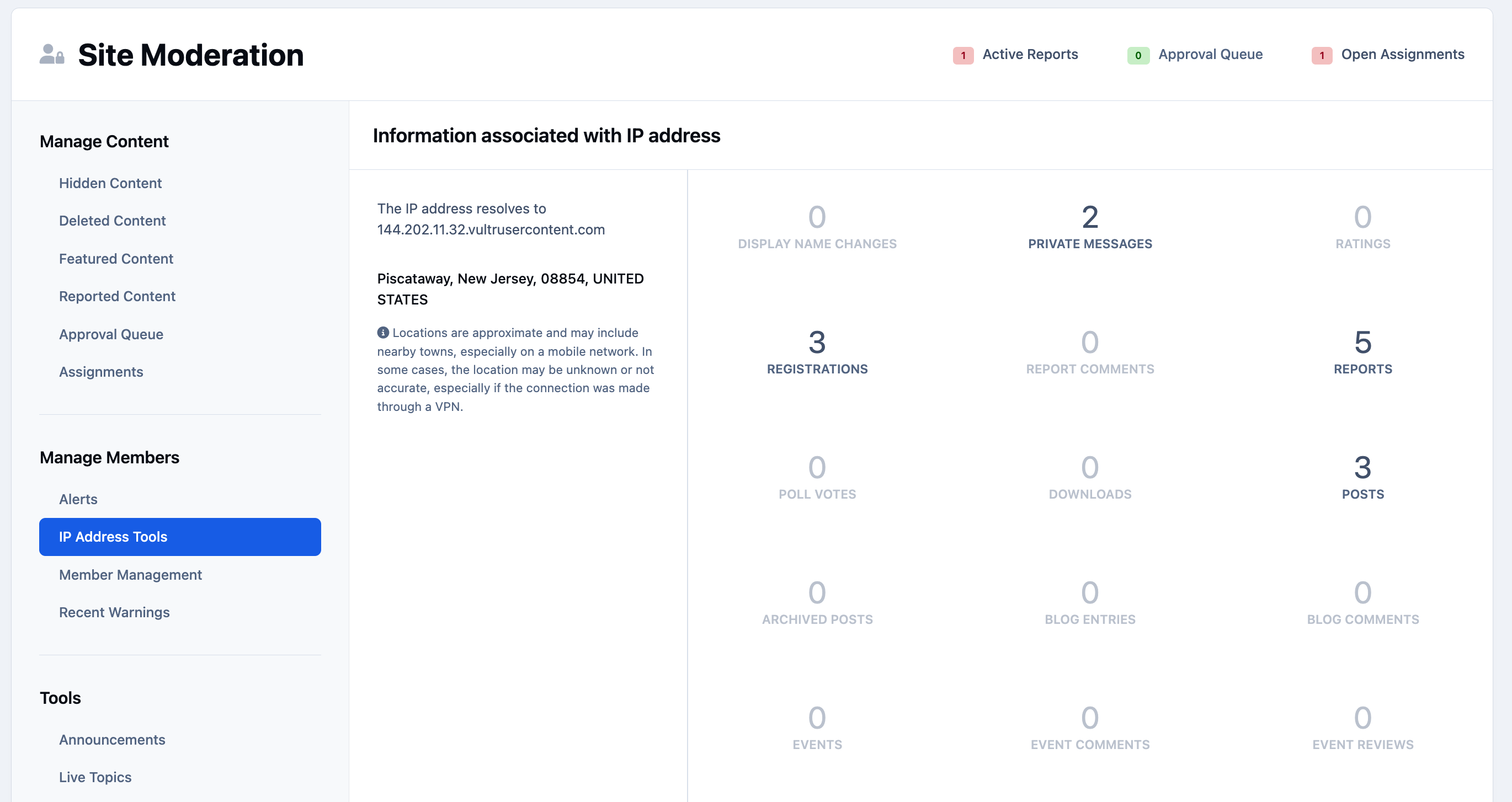
In the example below, a local IP address has been entered. As shown, the results display a range of information about how that IP address has been used on the site, along with any available location details.
Looking Up an IP Address
Top Tip
This tool can be particularly useful when investigating problematic behavior on your site. If you notice an IP address associated with a user who is causing issues, you can use this feature to check whether there are other members or related content linked to the same IP address.
Member Management
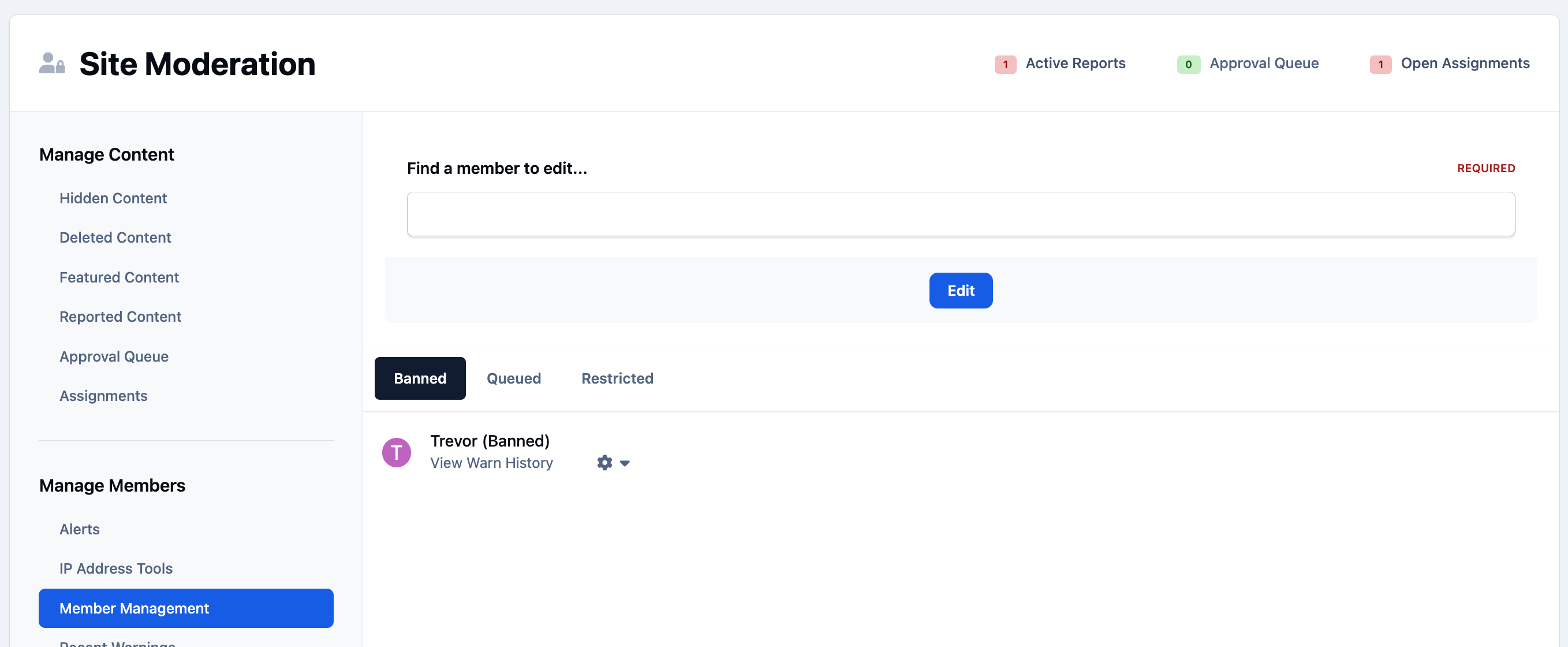
ou can quickly manage members from within the Moderator CP using the Member Management section. By entering a member’s name, moderators can locate and edit that account, subject to the permissions they have been granted.
Below the search area, you’ll also find helpful lists showing members who are currently banned, restricted, queued for moderation, or banned from chat, allowing for quick access to these users.
If the moderator has permission to view email addresses, they can also search for members by email from this section.
Editing a Member
Recent Warnings
Selecting the Recent Warnings section will display a list of the most recent warnings issued across the site, allowing moderators to quickly see which members have been warned and review recent moderation activity.
Showing Warnings
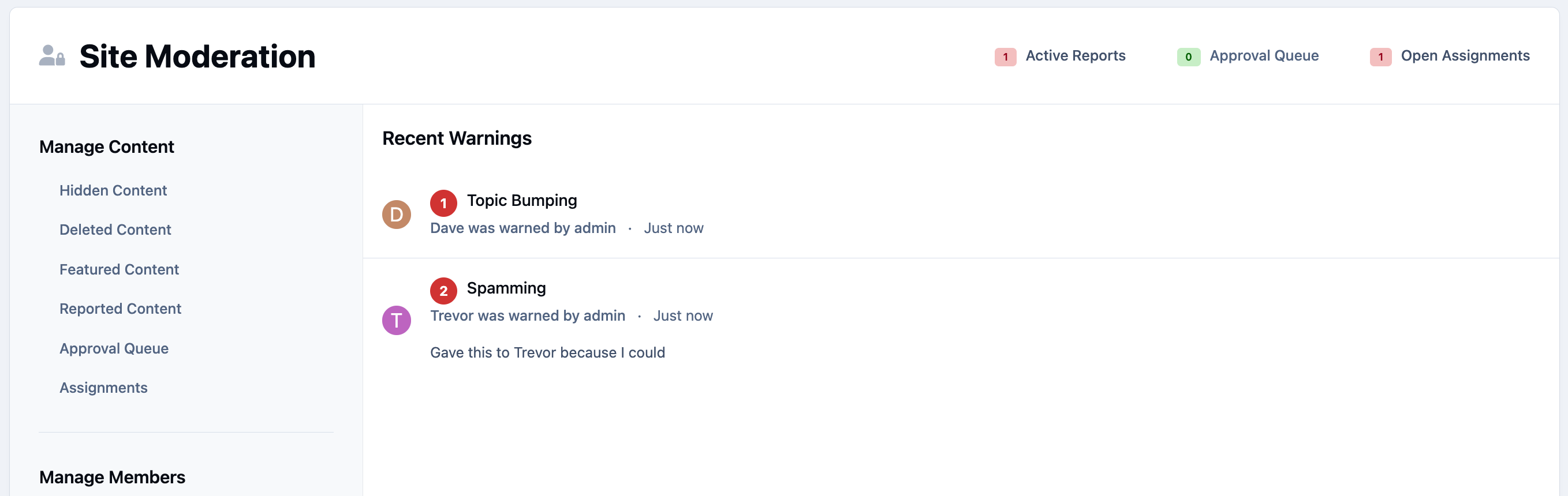
Selecting any warning will show you more detailed information about it and provide the option to revoke the warning if needed.
Other Tools
Announcements
This section of the Moderator CP allows moderators to create and manage announcements that are attached to specific areas of the site. Active announcements are clearly indicated using status flags, making it easy to see at a glance which announcements are currently in use.
To create a new announcement, simply select the Add Announcement button.
Creating Announcements
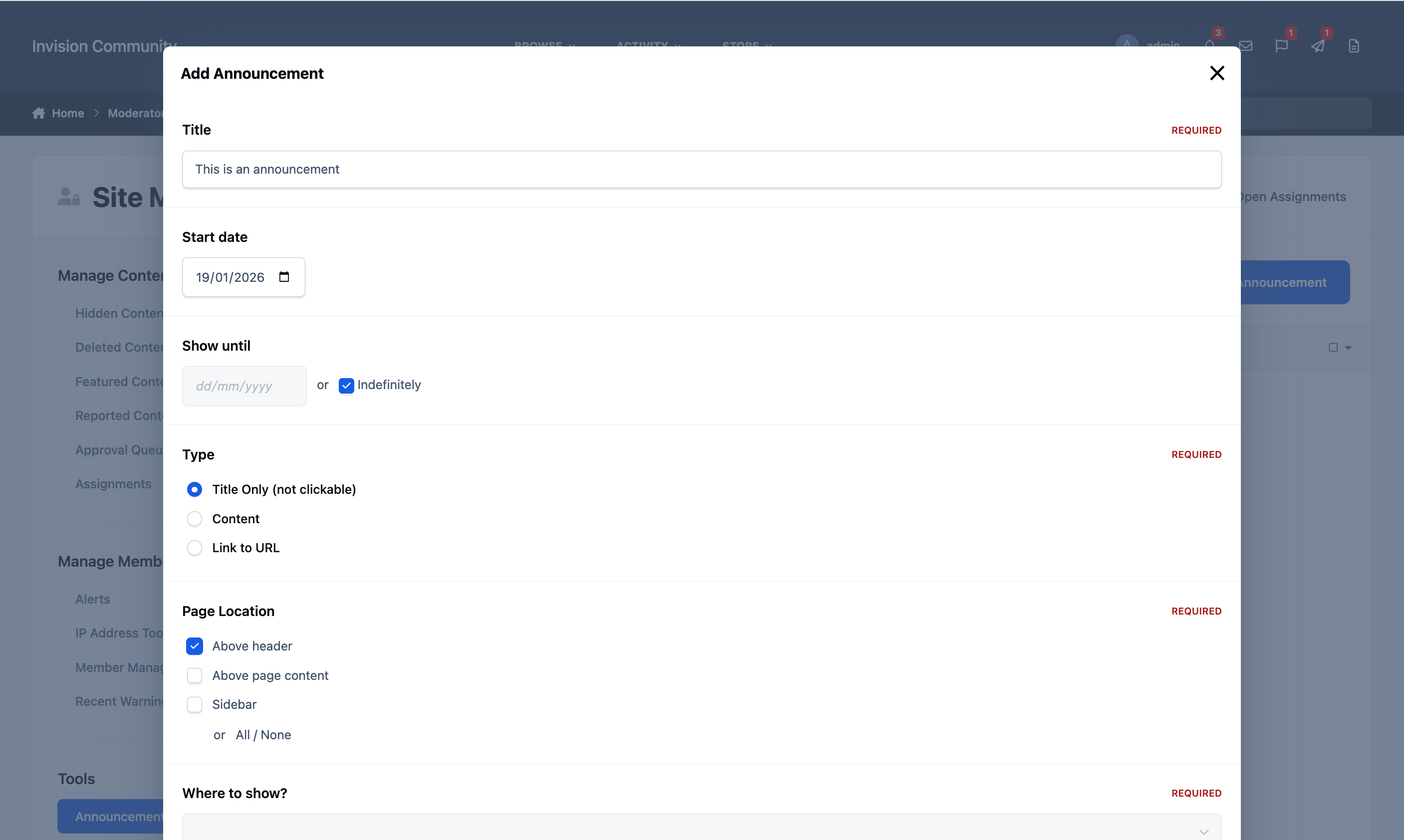
Announcements can be displayed in several locations across the site, depending on how you want them to be seen:
At the top of the page
Above the main page content
Within the sidebar
Example of an Announcement in the Header
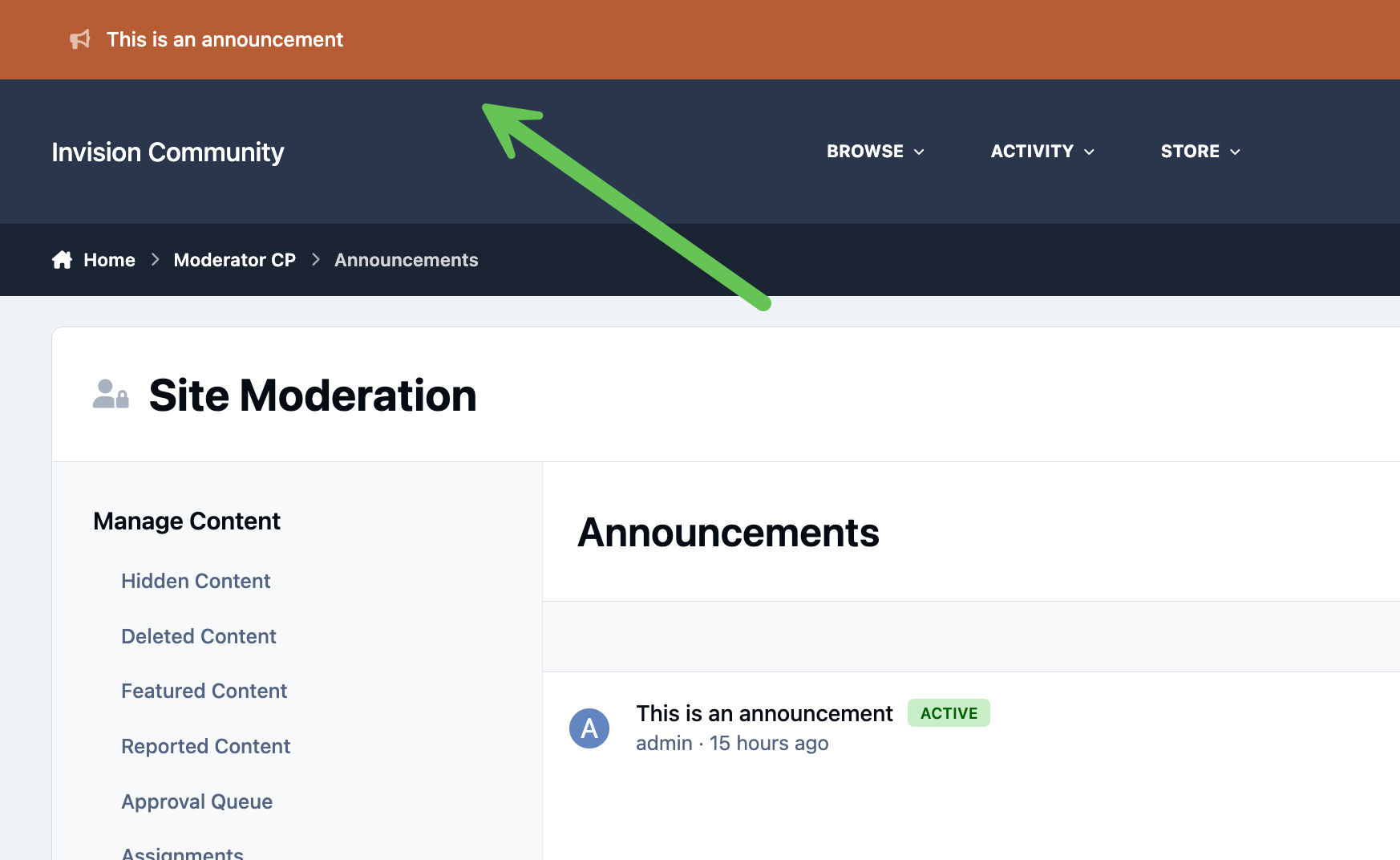
Each announcement location offers slightly different behavior. For example, announcements shown at the top of the page can be dismissed by members if they no longer wish to see them. In contrast, announcements displayed above the page content or within the sidebar are always visible and cannot be dismissed.
For each announcement, you can also choose which applications and specific pages it should appear on, as well as which member groups are able to see it. In addition, you can select a color for the announcement to help it stand out or match the importance of the message.
Live Topics
Live Topic can be created within this area, by selecting the "Schedule Live Topic" button provided, along with a list of current and past live topics
Live Topics in Moderator CP
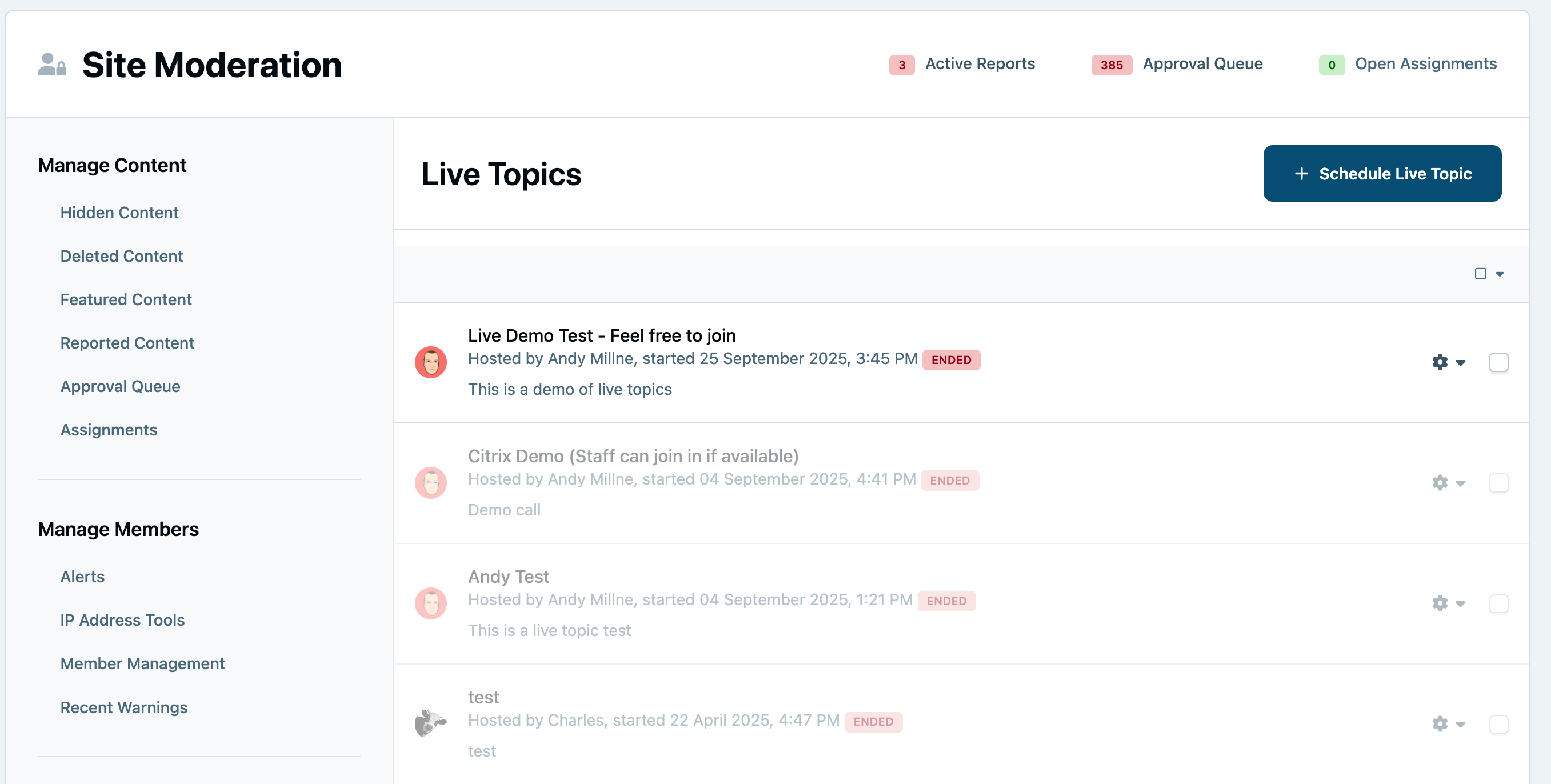
You can read more about live topics within our guide for this area here {Add A Link Here}
Recommended Comments