


Invision Community includes a Saved Actions feature that allows community staff to perform multiple moderation actions on one or more topics at the same time. For example, you might apply a title prefix, move a topic, and add a reply in a single step. This is ideal for handling common, repeatable actions.
While saved actions work well for “canned” responses, they are less flexible when you want to personalize a reply.
Stock replies solve this by allowing you to create full replies, partial responses, or reply templates. These can then be quickly inserted and edited as needed, giving moderators the speed of pre-written responses while still allowing for a personal touch.
Saved Actions
Saved Actions offer many time-saving options, allowing moderators to quickly apply common combinations of actions without repeating the same steps each time. A wide range of actions can be selected and combined to suit your moderation workflows.
Creating Saved Actions
Saved Actions can be set up from the following location in the Admin CP
Community → Forums → Saved Actions
Saved Actions List
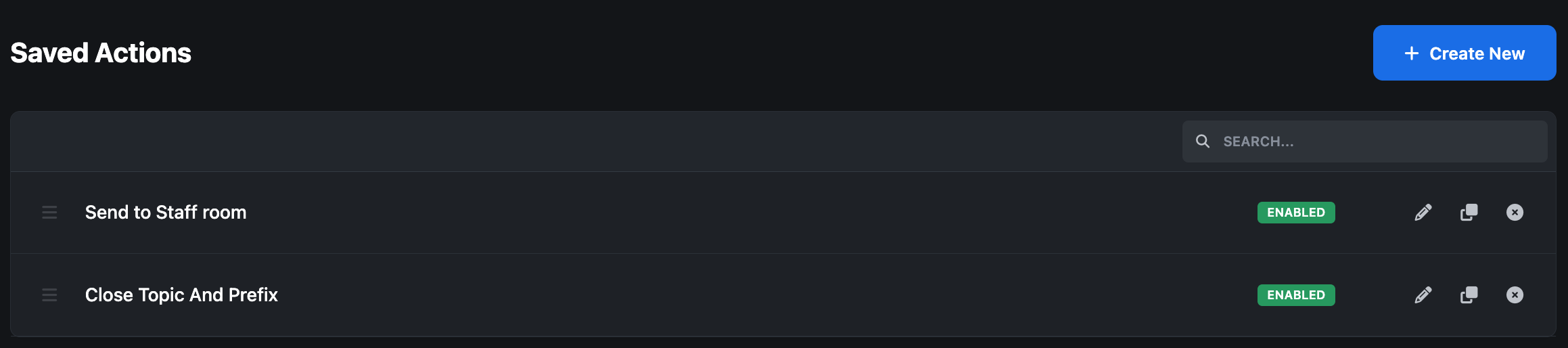
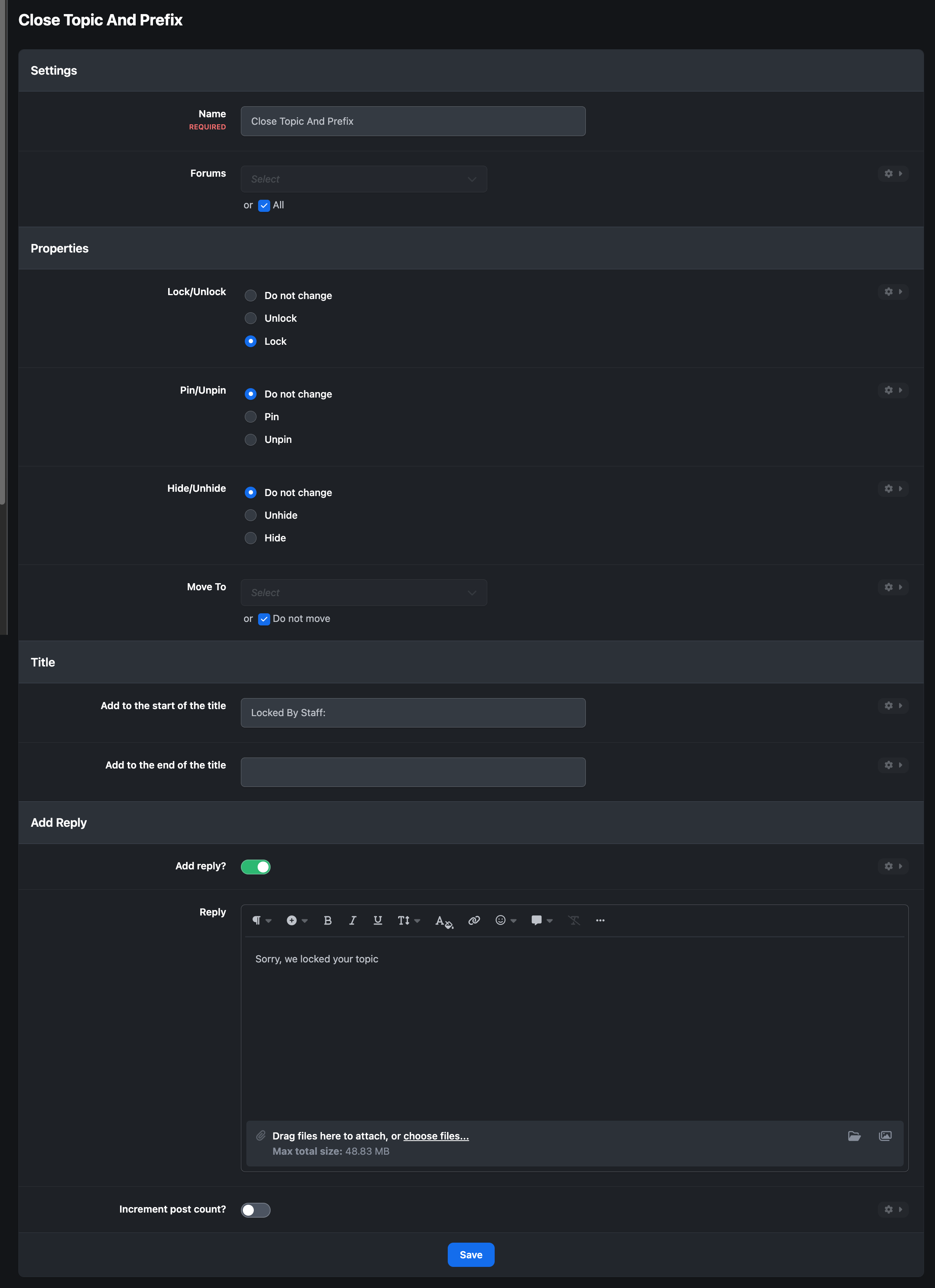
Below is an example showing a saved action that has been created to quickly lock a topic, apply a “Locked by staff” prefix, and add a short message to the topic explaining the action.
New Saved Action Setup
Using Saved Actions
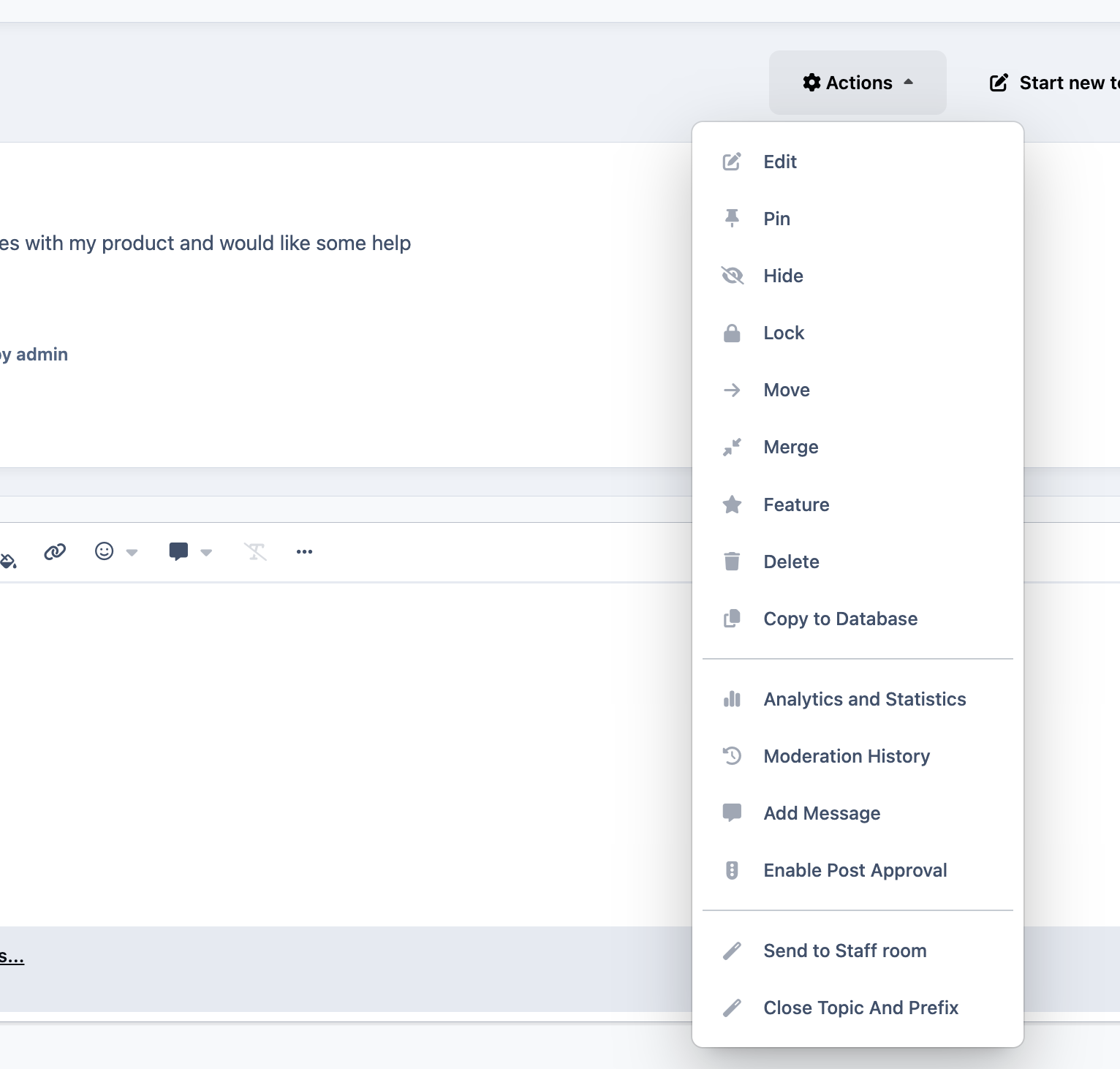
Once created, saved actions can be used by selecting the the relevant action in the 'Action' menu, within a topic on the community
Selecting Your Action
Stock Replies
Stock replies are pre-defined response snippets that can be inserted directly into the editor. They’re particularly useful for repetitive replies or as starting points for partial responses that you can then personalize.
For example, you might create a stock reply containing instructions on how to contact your support team. Using stock replies in this way helps save time while ensuring consistent, accurate information is shared across the community.
Creating Stock Replies
Saved Actions can be set up from the following location in the Admin CP
Customization → Editor → Stock Replies
Stock Creation List
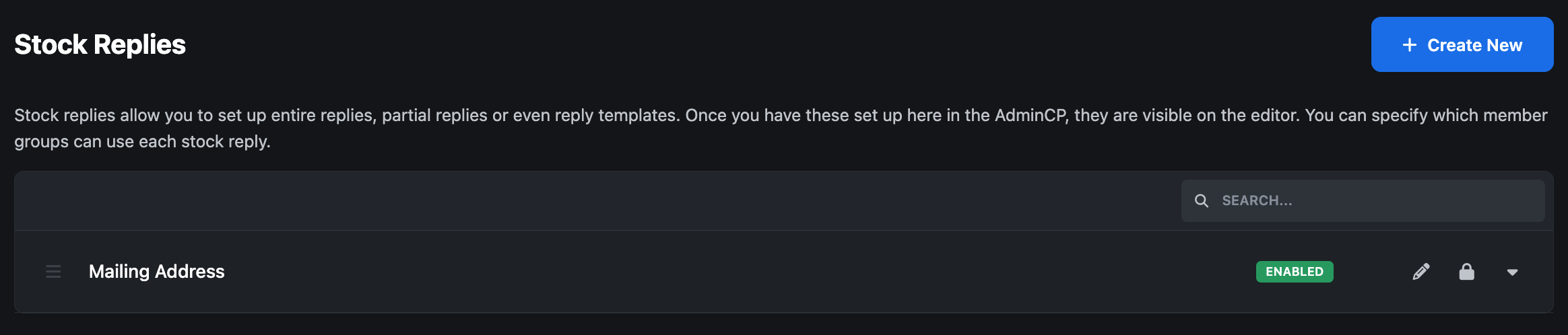
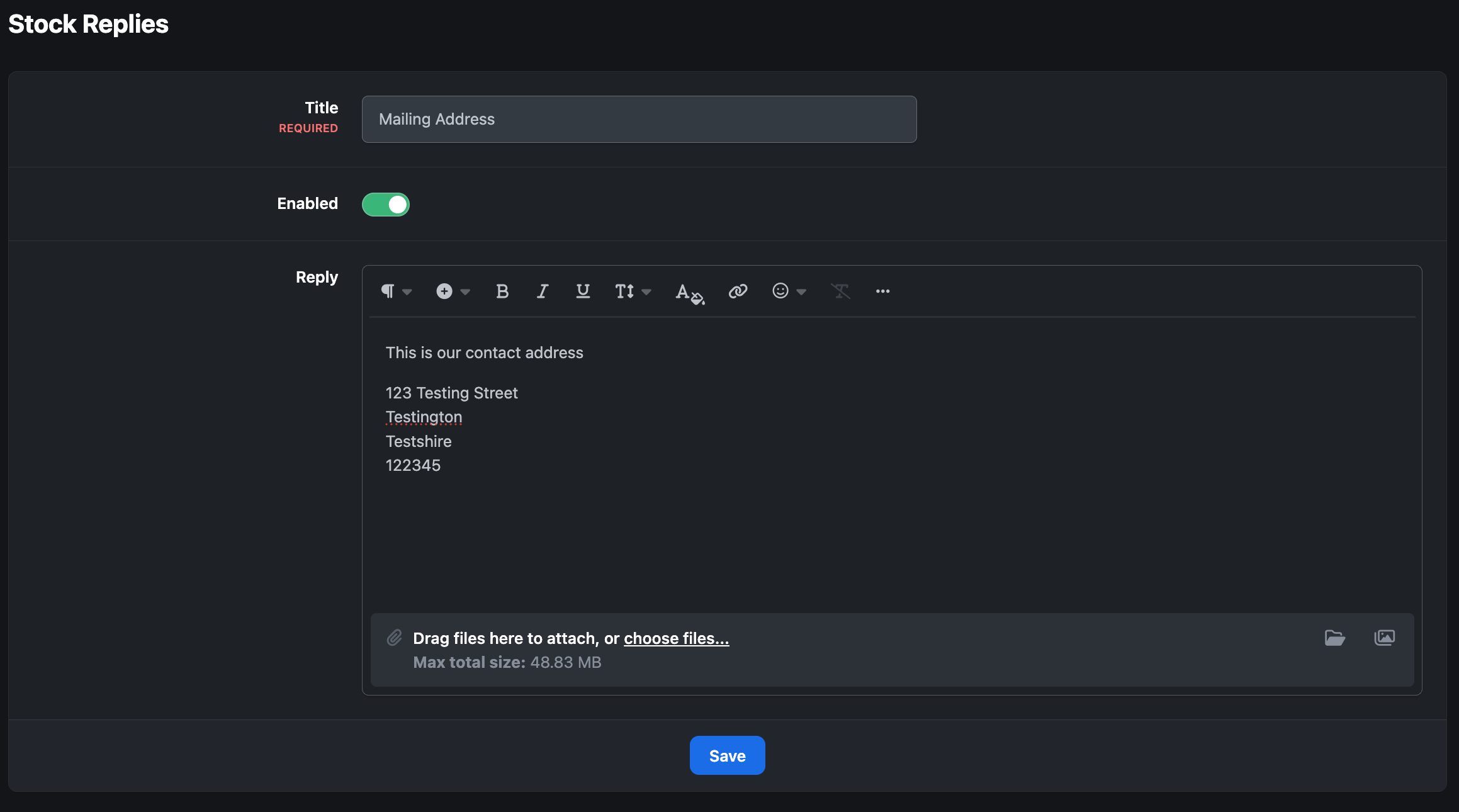
Creating a new stock reply works in much the same way as creating other types of content. Once the reply has been saved, you can choose which member groups are allowed to use it.
If needed, these permissions can be adjusted at any time by selecting the lock icon in the stock replies list.
New Stock Reply Creation
Using Stock Replies
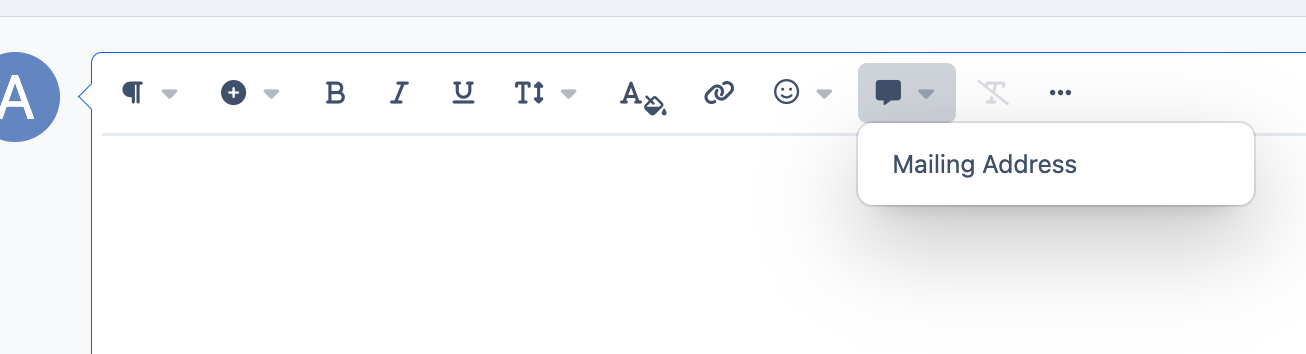
Once created, stock replies can be inserted directly from the editor.
Selecting a Stock Reply
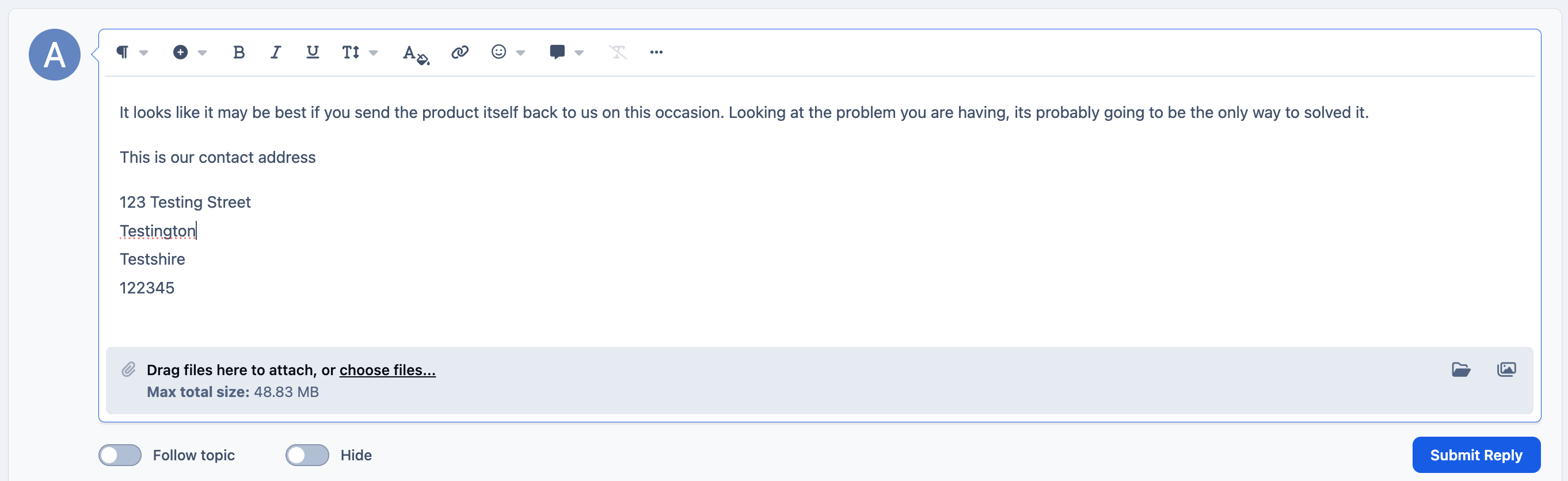
In the example below, the same stock reply has been used to quickly add on to a response to a member’s comment.
Using Stock Replies to Add to Replies




Recommended Comments