


When reading topics, comments, or other content, you’ll often see replies from your team members. While Invision Community already allows you to assign custom group images and member titles, important staff responses can sometimes blend in with other replies.
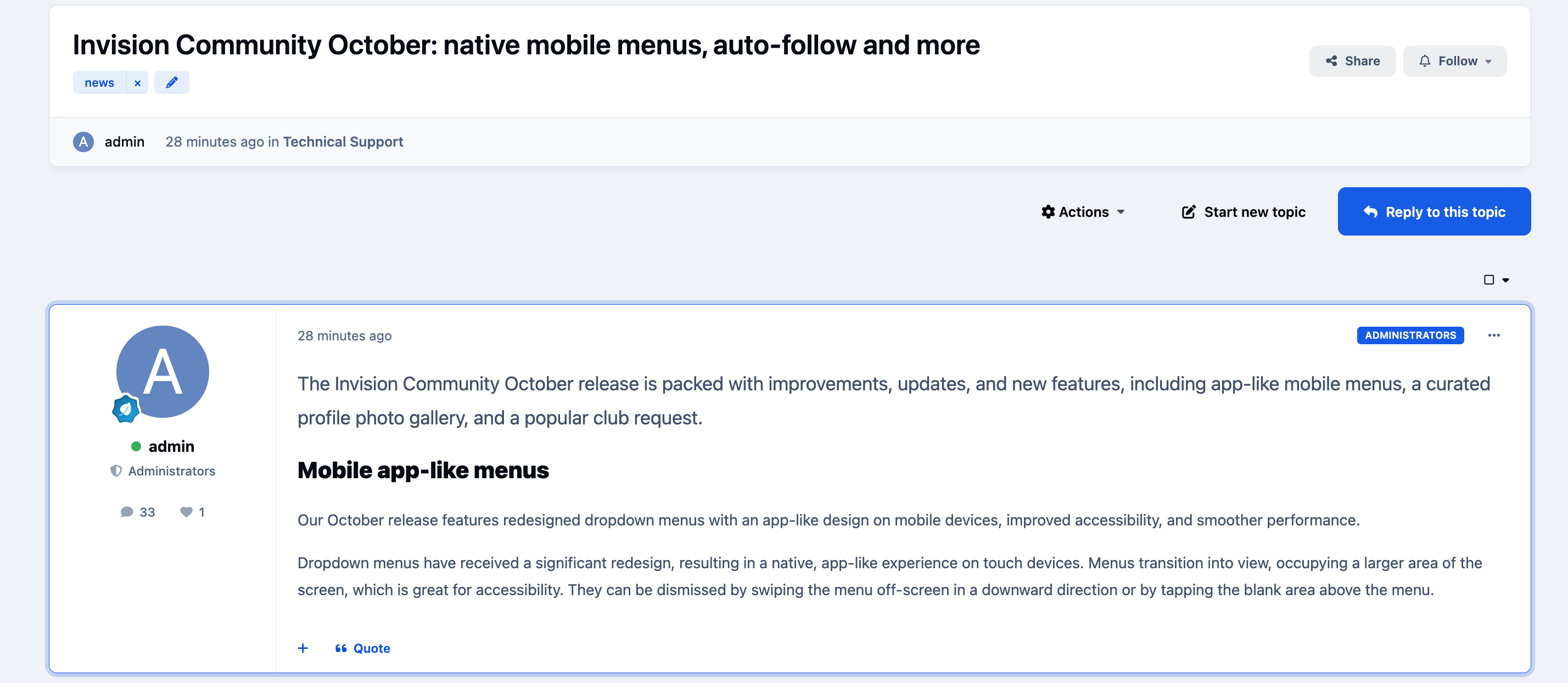
To help important responses stand out, you can enable post highlighting for specific member groups. When enabled, posts from those groups will be visually distinguished from regular replies, ensuring they’re easier for members to notice, as shown in the examples below.
Highlighting Options
Post highlighting can be enabled within the settings of any member group.
From the group configuration screen, you can choose whether highlighting is enabled and specify whether it should apply only when the group is set as a member’s primary group, or also when it’s assigned as a secondary group.
You’ll also find an option to display moderation notices between posts, which can show details of actions taken — such as when content was edited, approved, or moderated — along with the relevant timestamps.
For further guidance on creating and editing member groups, please refer to the dedicated guide available in the menu on the left.
Switching On Highlights
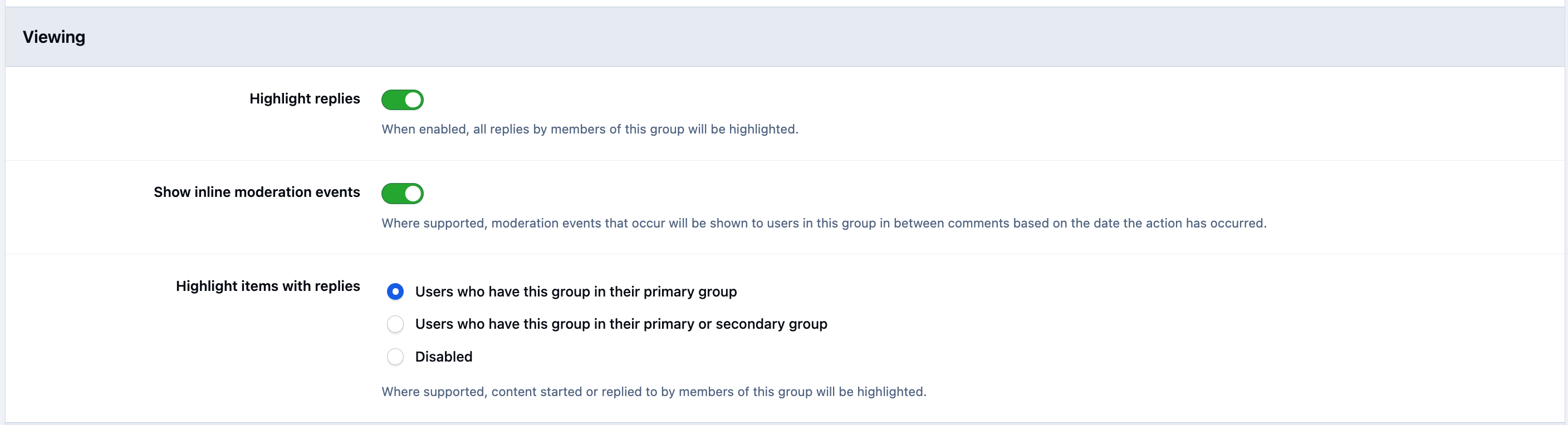
In this example, post highlighting has been enabled for the Administrators group.
As shown below, posts made by administrators are visually distinguished using the primary colour defined in your theme settings, making their replies stand out clearly from the rest of the discussion.
Example Highlight




Recommended Comments