


Creating Administrators and Moderators
Once your suite is installed, you’ll likely want to set up members of your team to help manage and run it. This may include staff who moderate specific areas of your community, as well as others who assist with broader administrative tasks. These roles are referred to as Moderators and Administrators.
Before setting these up, it’s important to understand the difference between the two. At the most basic level, Administrators are members who have access to the Admin CP. No one can access the Admin CP unless they have been granted administrator permissions in some form.
Moderators, on the other hand, carry out staff actions on the public-facing side of your site. This includes tasks such as deleting posts, moving gallery images, or editing another member’s content.
Word From The Experts
A common misconception is that Administrators automatically have access to everything. As mentioned earlier, the term Administrator simply means that a member has access to the Admin CP. It’s entirely possible for someone to have full Admin CP access while having no moderation permissions on the front end of the site at all.
Because of this, if you want to give someone complete and unrestricted access, they should be set up as both an Administrator and a Moderator, either individually or via their member group.
It is very important you give only people you trust, access to staff items
Adding An Administrator
Administrators can be created from the following location in the Admin CP:
Members → Staff → Administrators → Add Administrator
Once you choose to add an administrator, you can select either an individual member or an entire member group.
Add Administrator
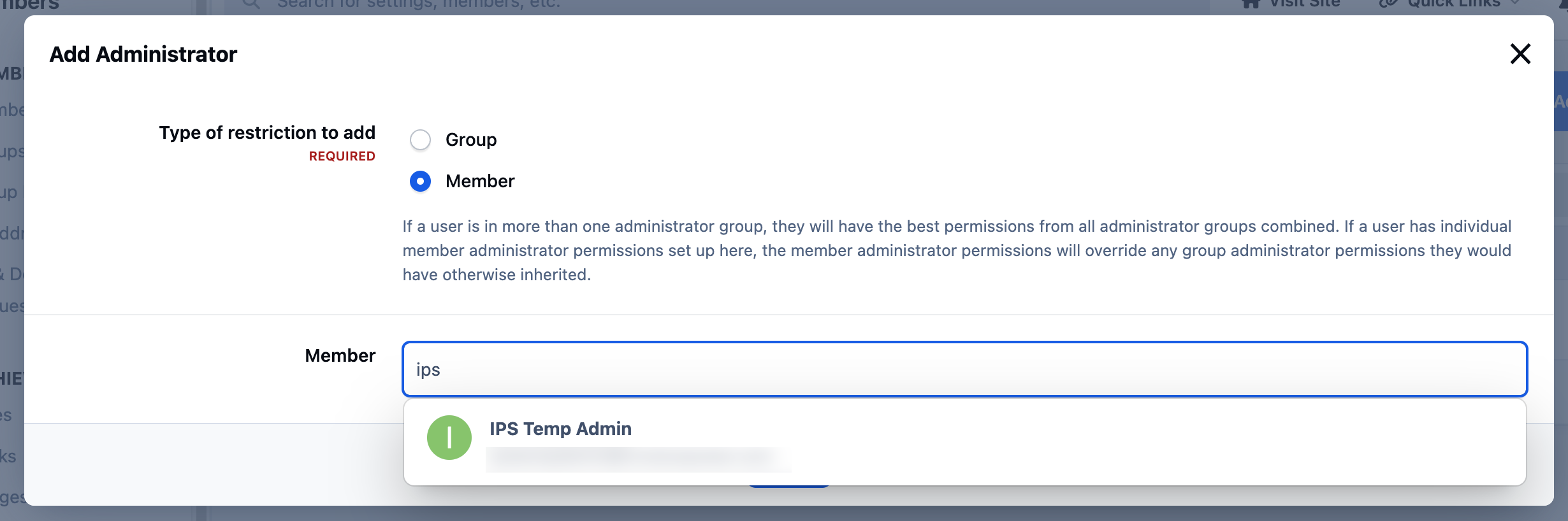
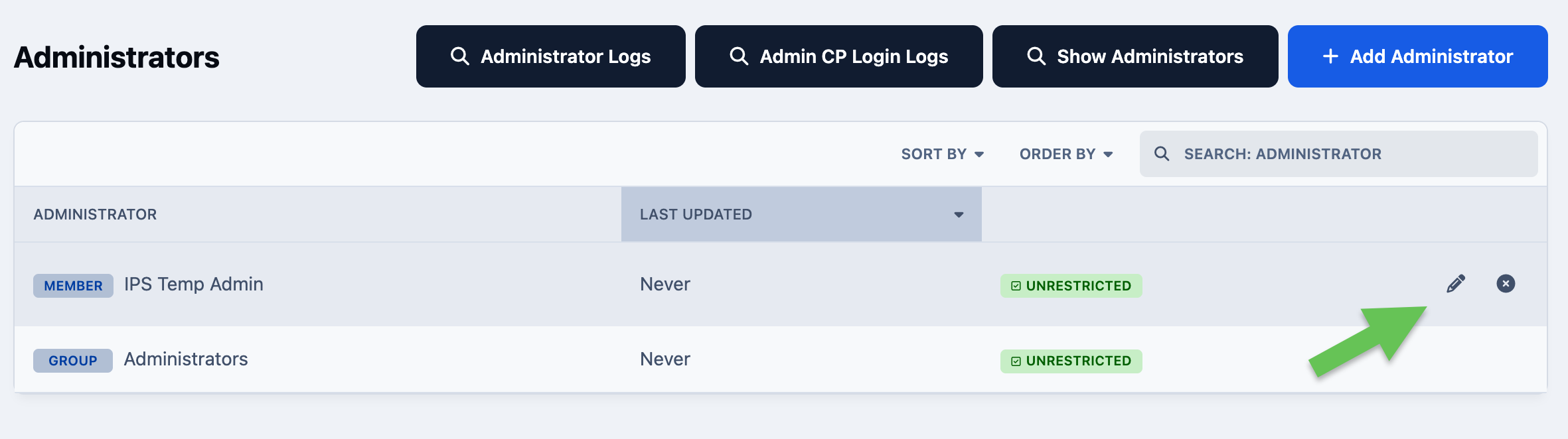
After selecting the member or group and saving, they will be added immediately to the list of administrators. You can then edit the permissions for that administrator entry if needed. By default, new administrators are granted full permissions.
Edit Administrator
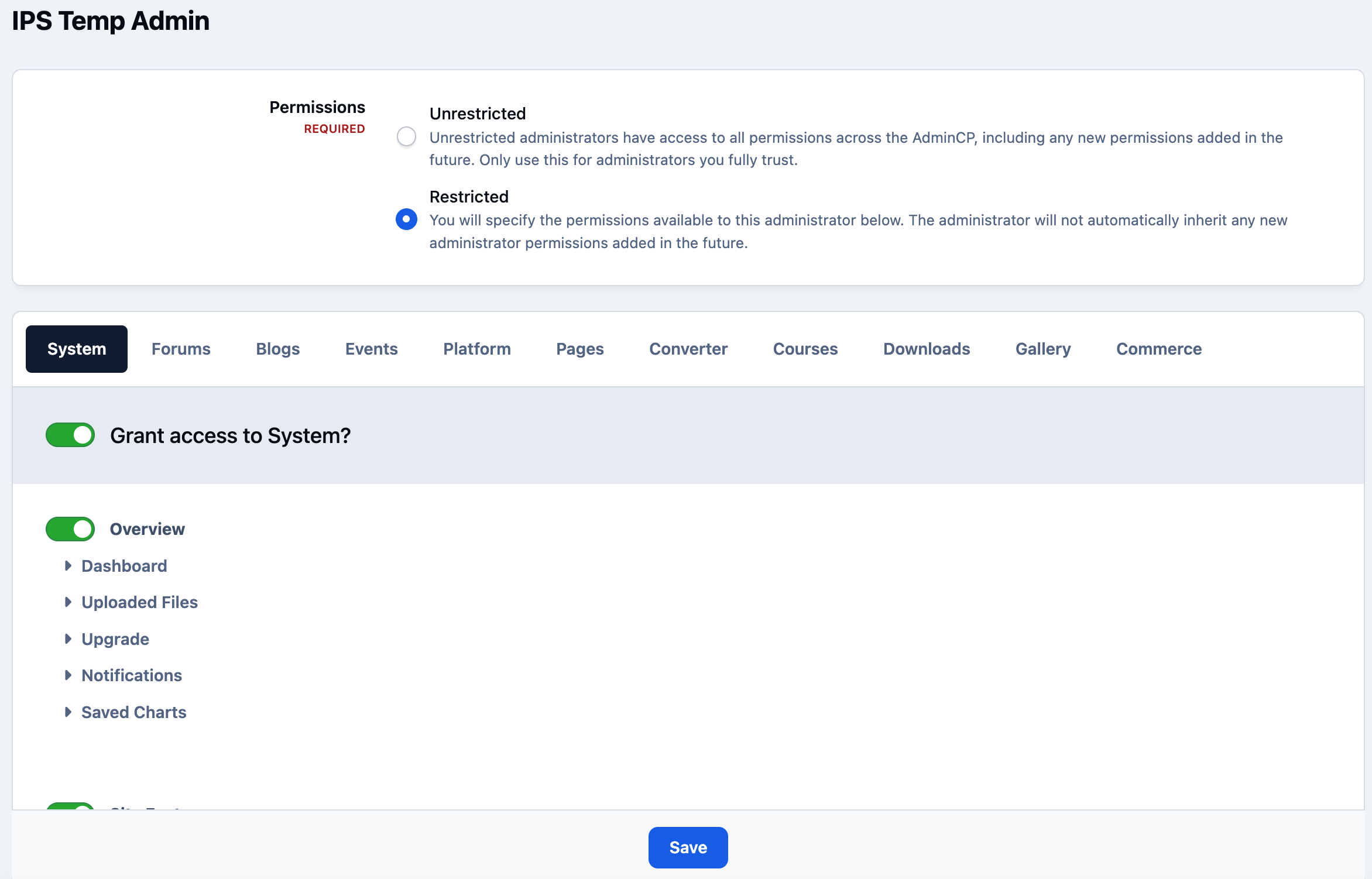
If you choose to display restricted permissions, you’ll be able to select or deselect specific areas that the administrator is allowed to access. Any areas that are not selected will be hidden from that user or group.
Restricted Administrator
Quick Note
If you add an individual member, and a group that an individual is a member of, then the member entry permissions will override that of the group entry.
Adding a Moderator
Moderators can be configured from the following location in the Admin CP:
Members → Staff → Moderators → Add Moderator
When adding a moderator, you can assign the role to either an individual member or an entire member group.
Add Moderator
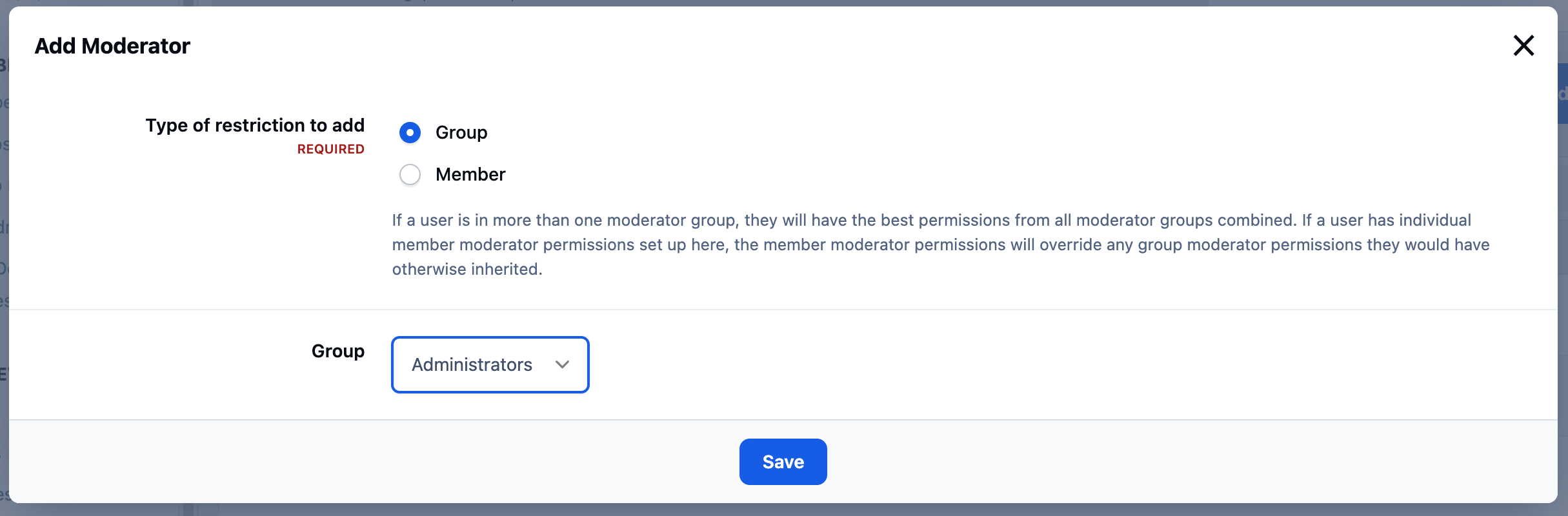
After selecting the member or group and saving, they will be added immediately to the list of moderators. You can then review and adjust the permissions for that moderator entry if needed. By default, moderators are granted all available permissions.
Edit Moderator
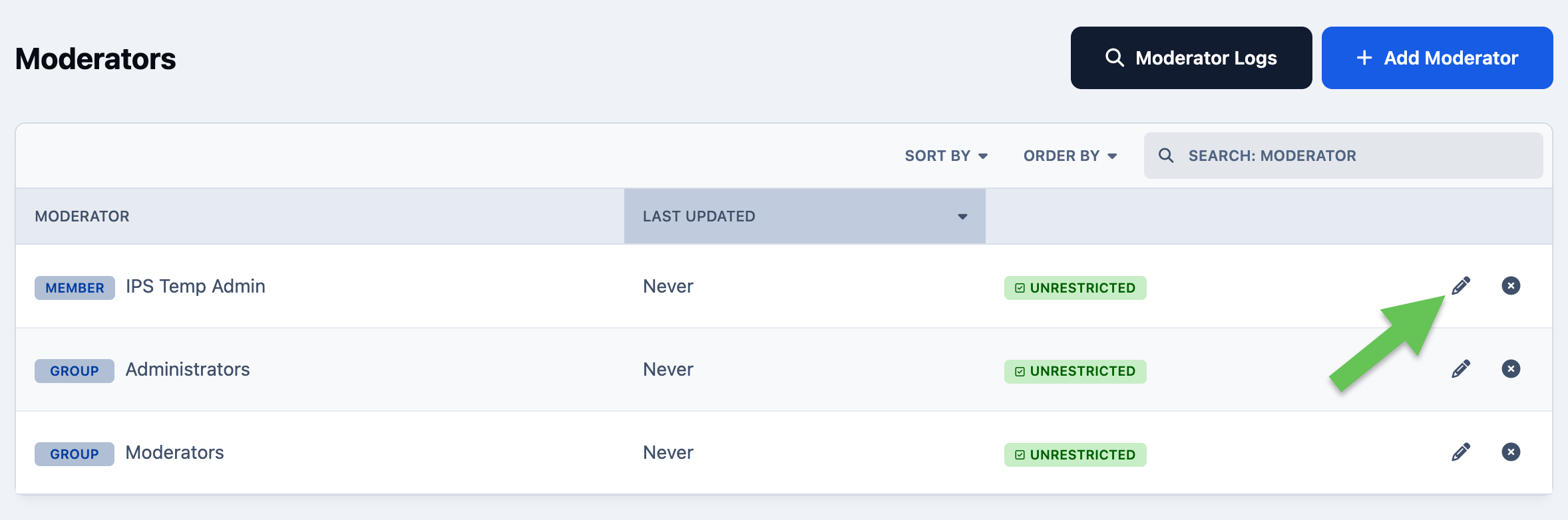
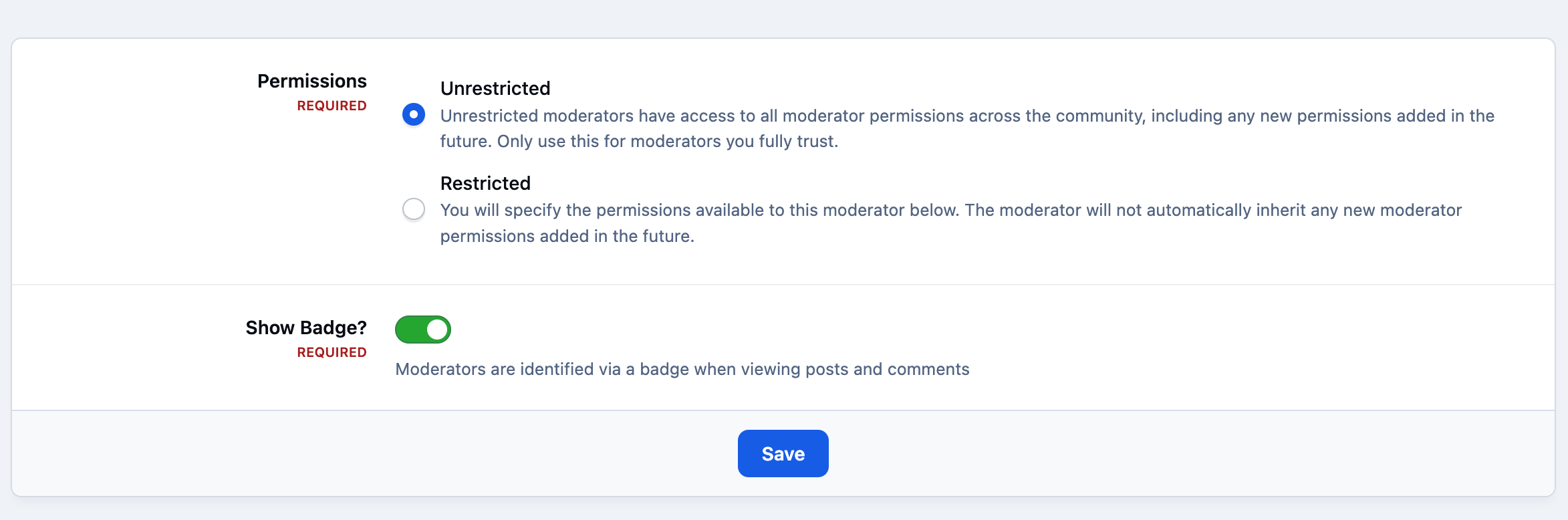
You’ll then be given the option to switch the moderator to a more restricted permission set. You can also choose whether the moderator badge is visible to members on the front end.
Unrestricted Moderator
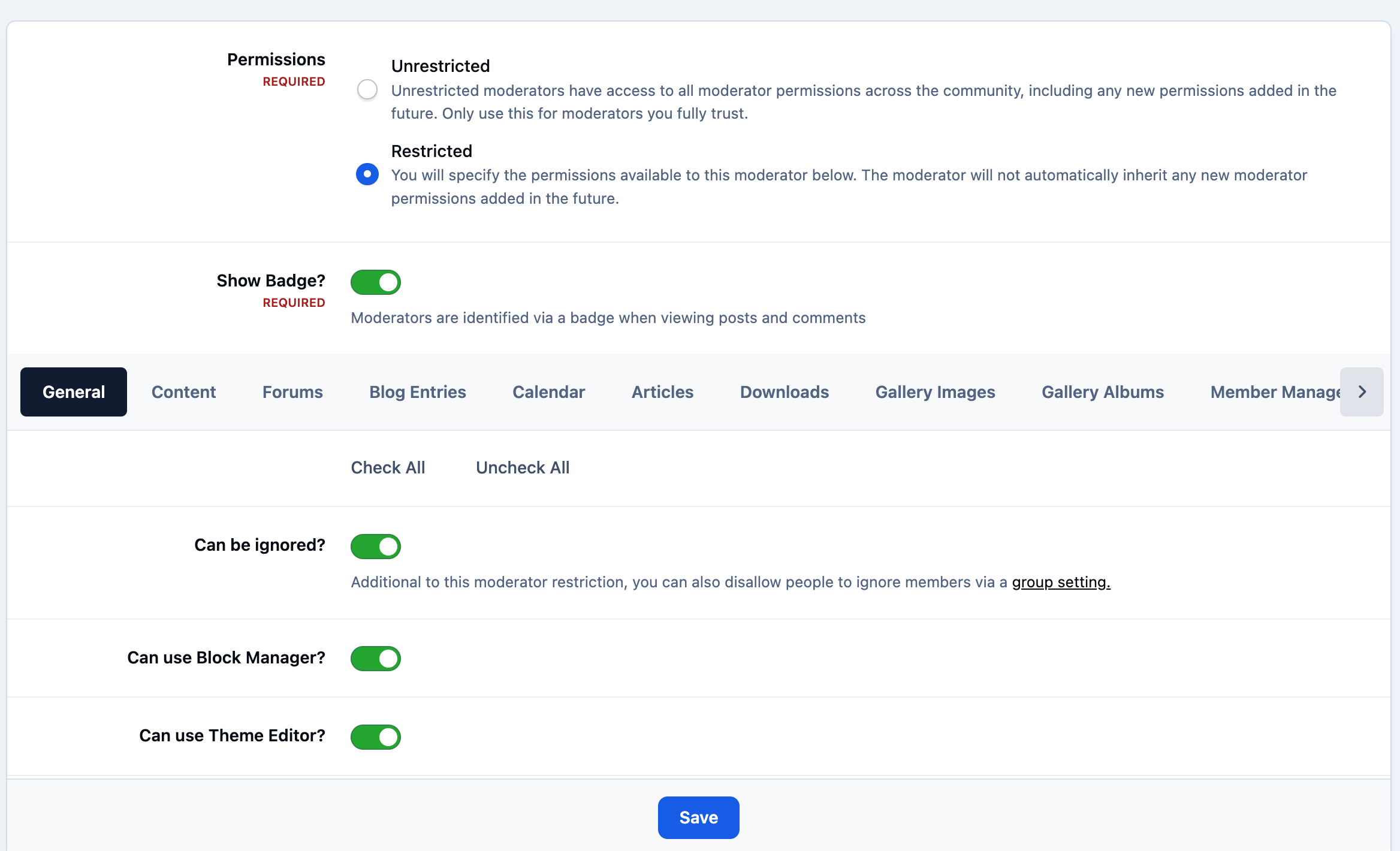
If you enable restricted permissions, you can selectively choose which actions the moderator is allowed to perform.
Adding Moderator Restrictions
Top Moderator Tip
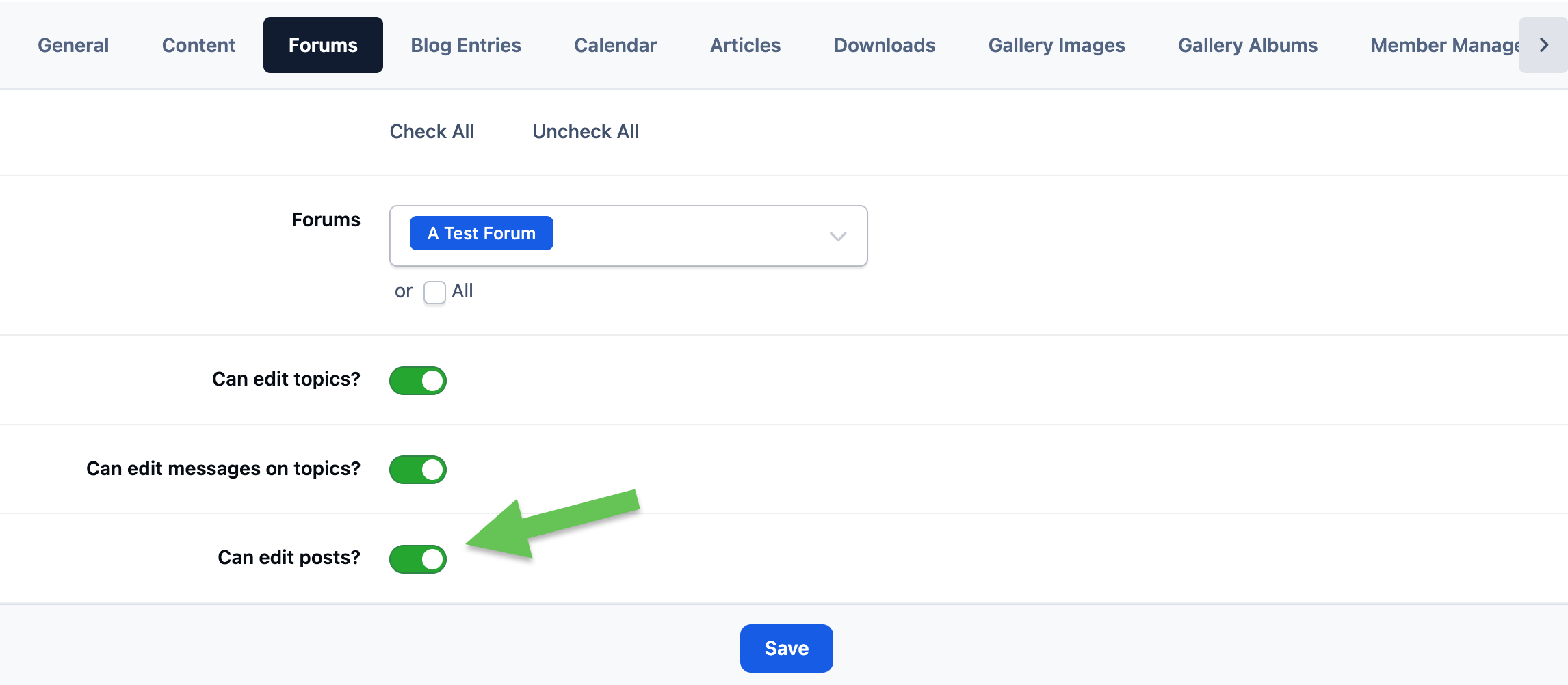
In some cases, you may want a moderator to have permissions only in specific areas of your site — for example, moderating a single forum. When you deselect a permission, additional tabs will appear for each relevant section. In the example below, the “Can edit all content” option has been disabled.
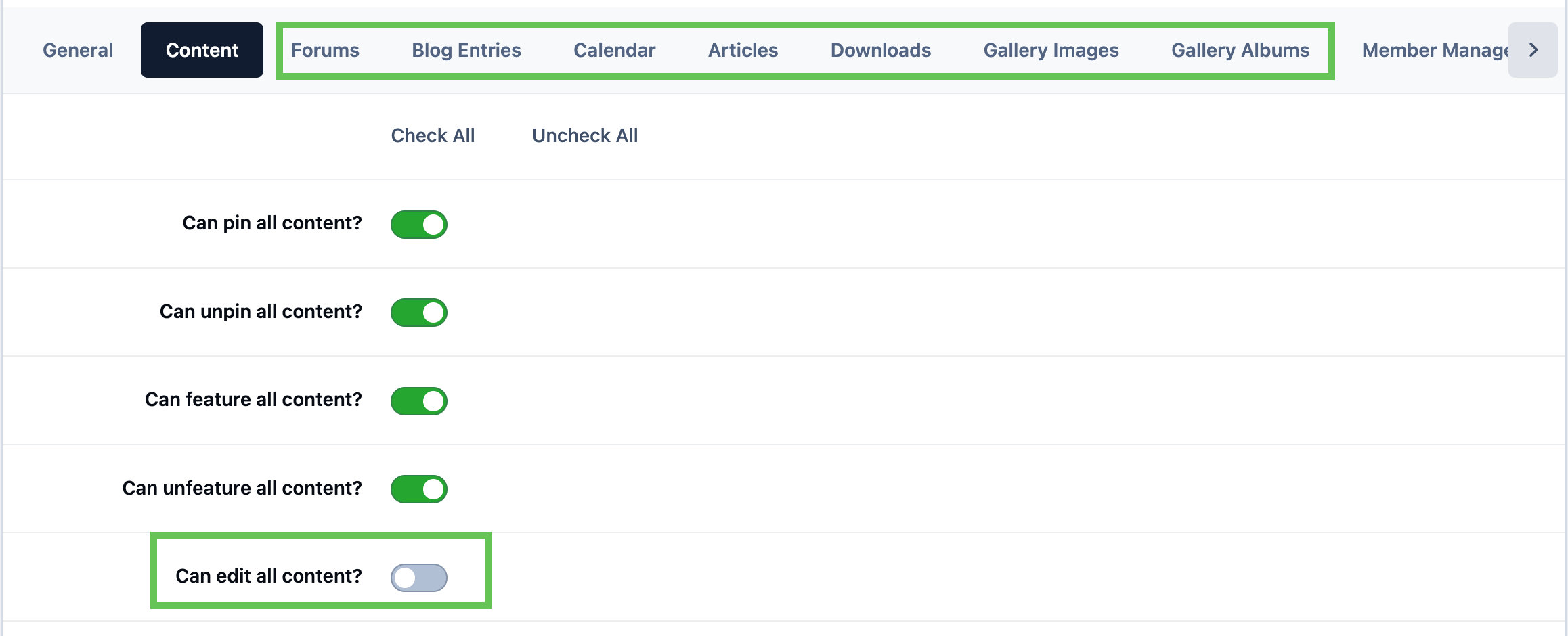
Any permissions you deselect will then appear under these item-specific tabs, allowing you to enable them only for selected areas. In this example, three permissions have been enabled for just two forums.




Recommended Comments