


When moderating content, it’s often helpful to add a note to a conversation for context or clarity. These 'staff notes' can be used to leave information for other staff members, or, if appropriate, to share a note that is visible to members.
Staff notes provide a useful way to explain moderation actions, leave internal reminders, or communicate decisions clearly without altering the original content.
Content Messages
Any member who has moderator status on the site can use staff notes, provided they have been granted permission to do so. For more information on configuring moderator permissions, please refer to the relevant moderation guide.
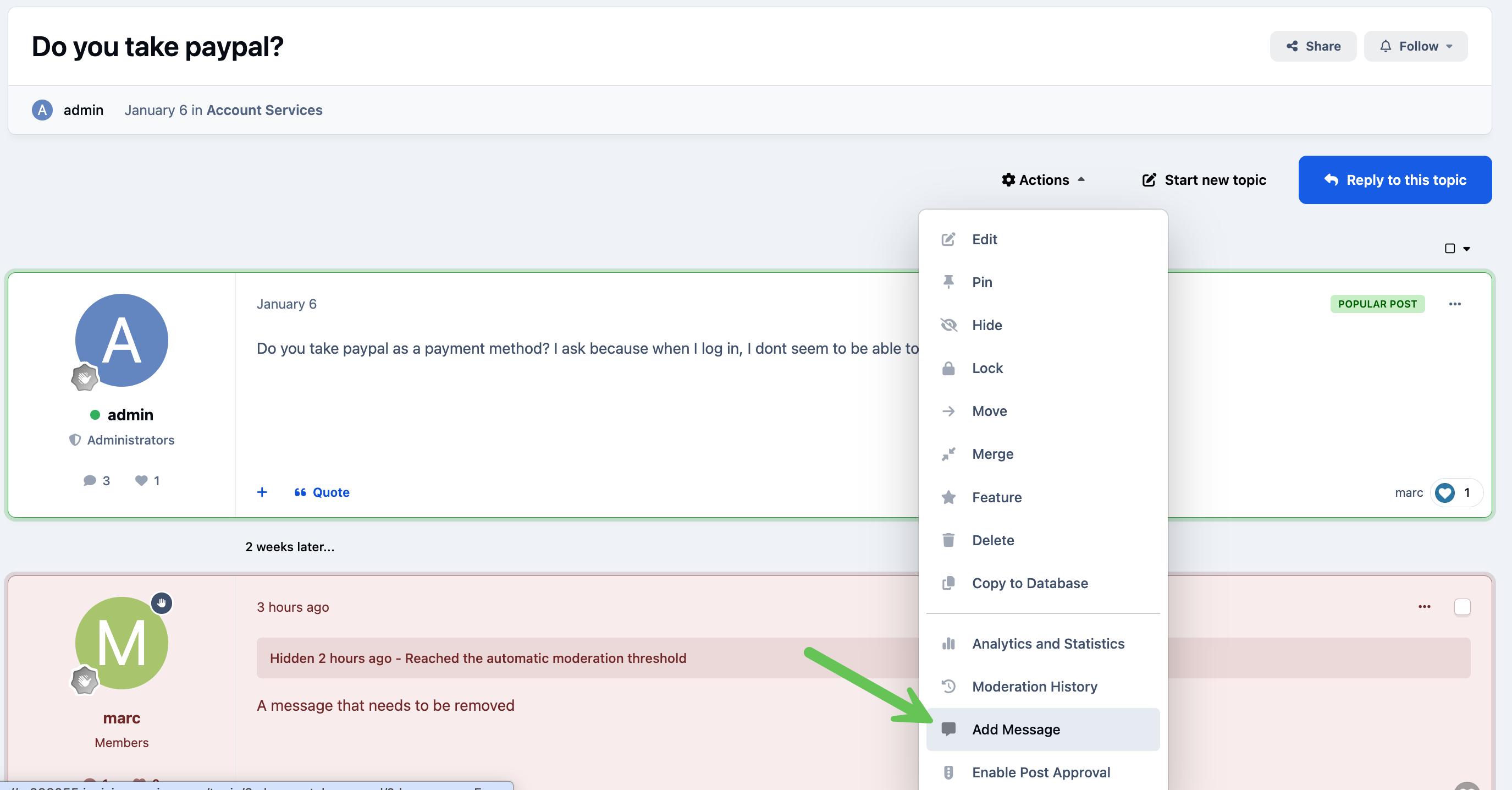
Staff notes can be added by selecting 'Add Message' from the Moderator Actions menu
Showing the 'Add Message' option
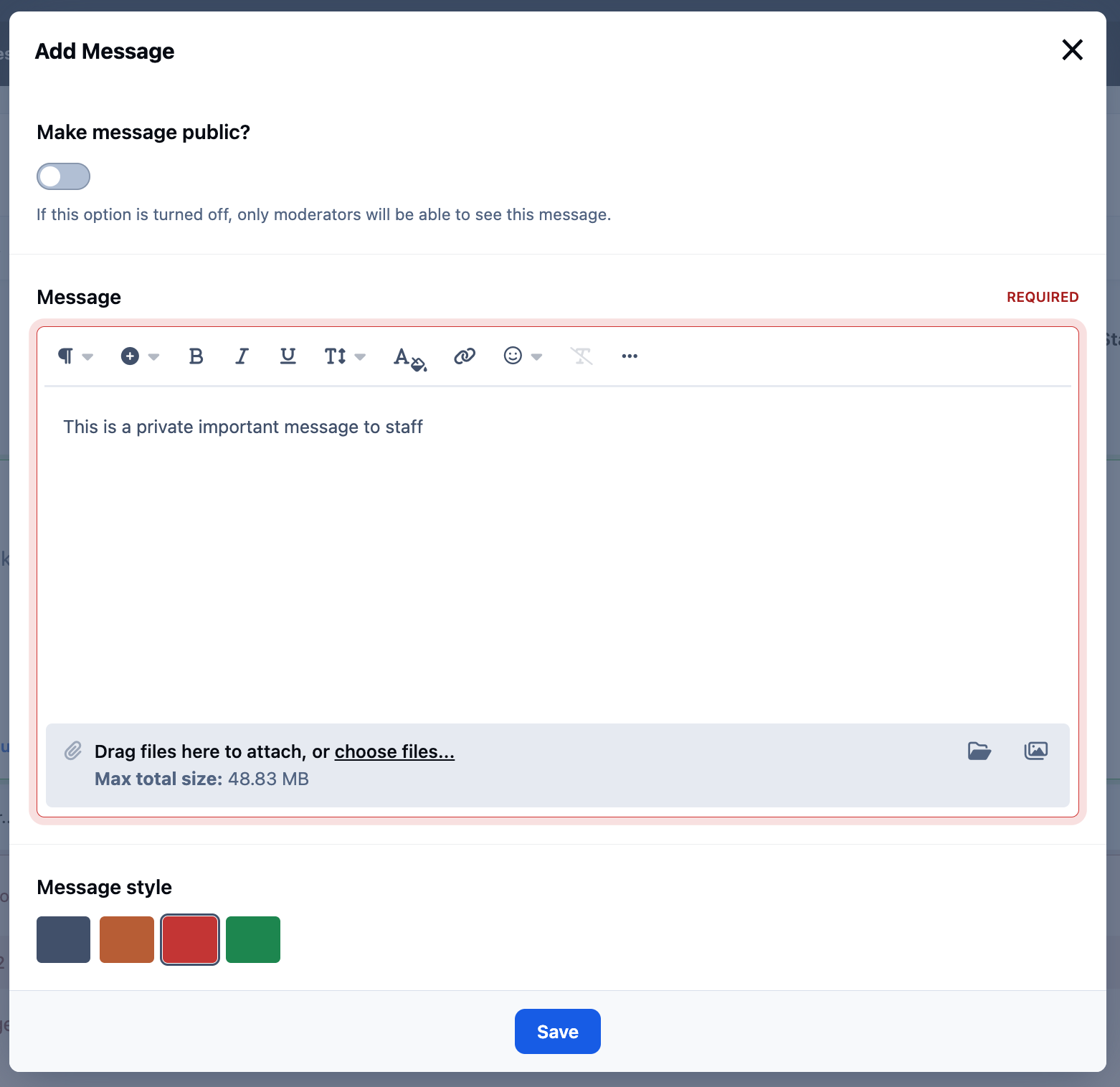
Once selected, you’ll be presented with a form similar to the one shown below. From here, you can choose whether the message should be visible to the public or restricted to moderators only, enter the message content, and select a color to help visually distinguish the note.
Add a New Message
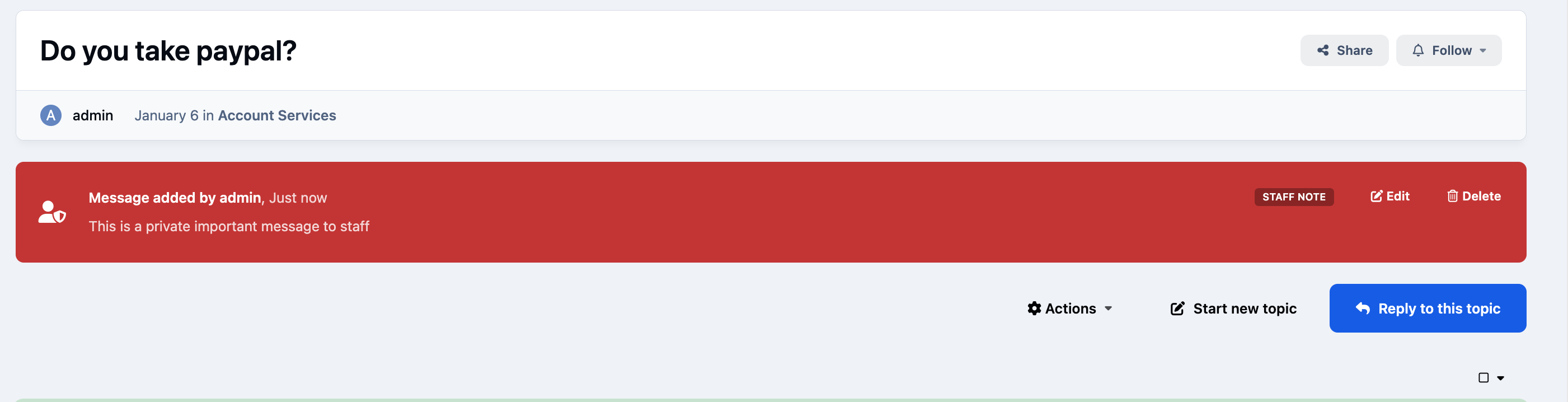
Below is an example showing a bright red staff note that has been added to draw the attention of moderators viewing the topic.
Important Note Added For Staff




Recommended Comments