


Social media sharing makes it easy for members to share content from your community with a wider audience. By allowing posts, topics, and other content to be shared to external platforms such as Facebook and Twitter, you can help increase visibility, encourage engagement, and attract new members to your site.
Share Icons
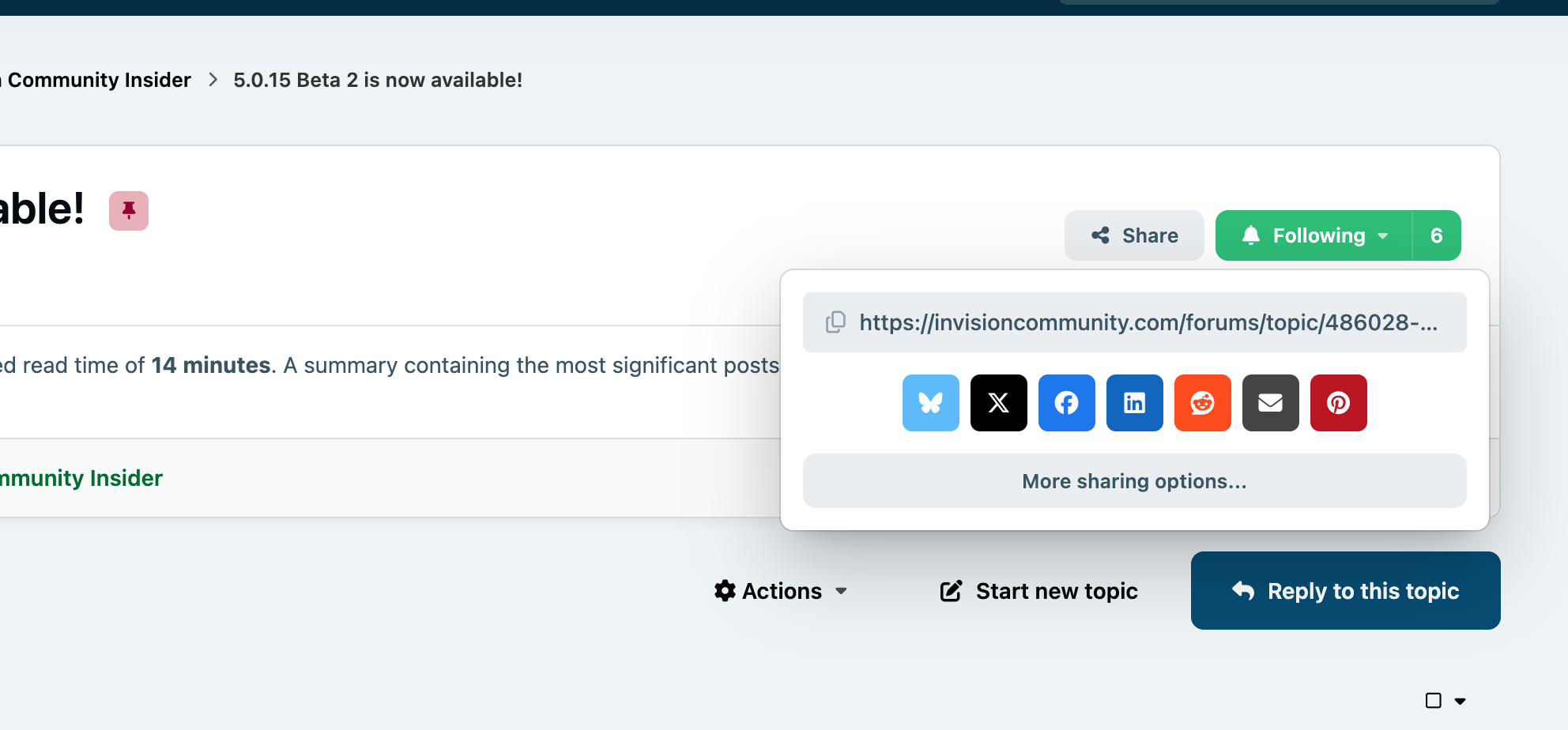
You can enable links that allow members to share content from your community to external social media platforms, such as Facebook and Twitter. These sharing links appear beneath content items across the site.
Below is an example showing the sharing options as they appear on a topic.
Sharing Options Within Topics
Sharing Permissions
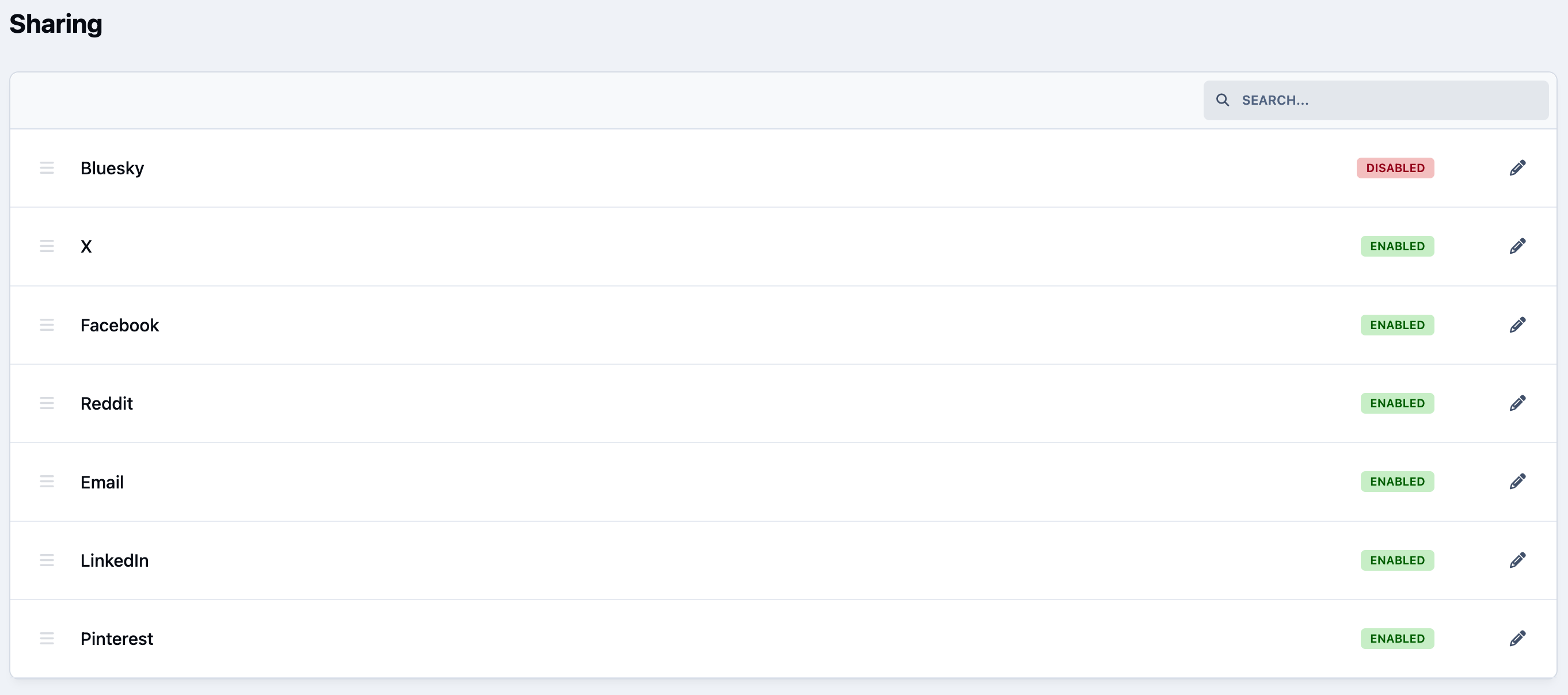
You can configure which social media platforms content can be shared to from the following location in the Admin CP
System → Site Promotion → Sharing
From here, you can enable or disable sharing to individual platforms at any time. Simply click the Enabled button next to a platform to toggle it off (or back on again as needed).
Sharing List
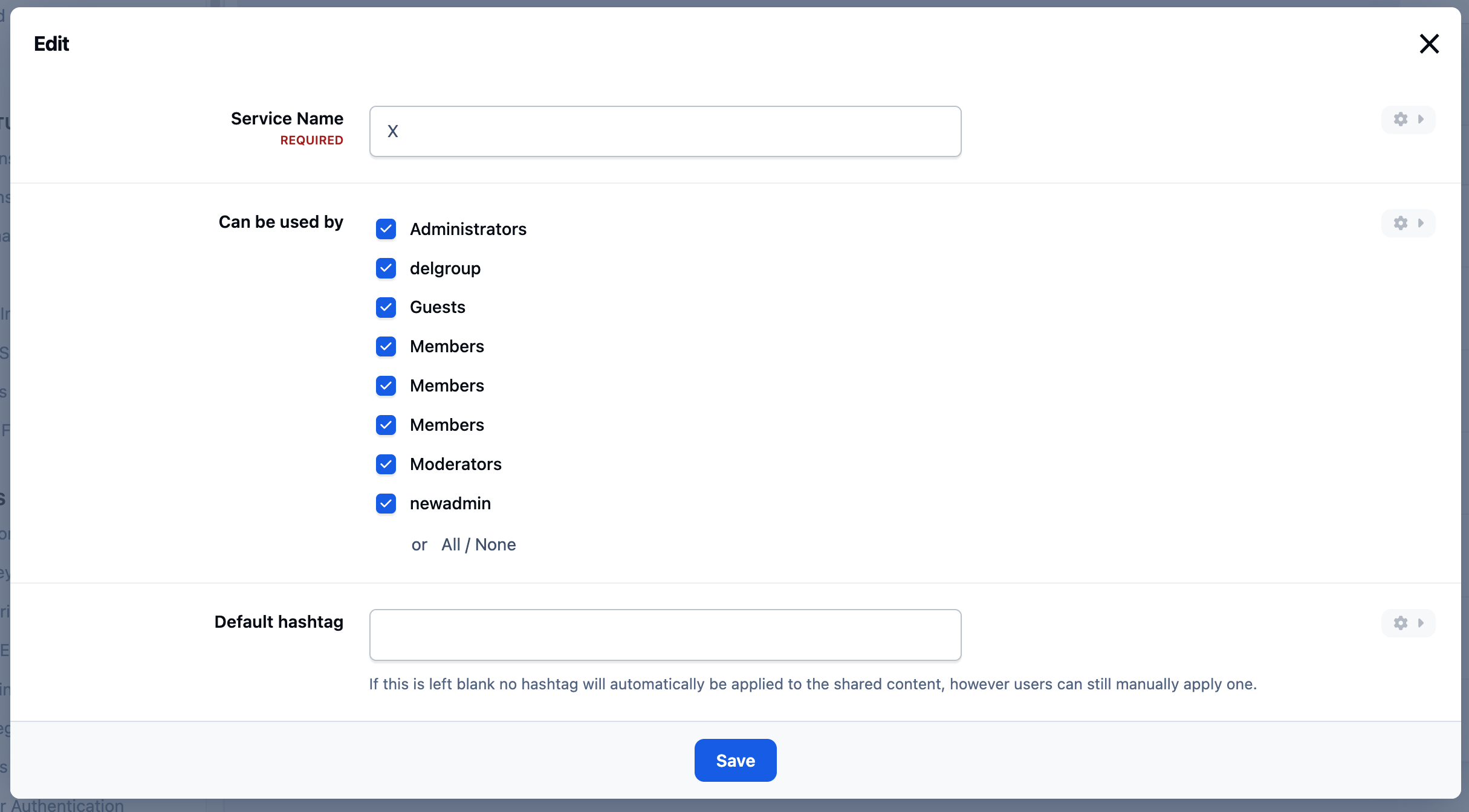
Selecting the pencil icon next to any sharing service will open its individual settings. From here, you can choose which member groups are allowed to use that specific share link, along with any additional options relevant to the platform.
Below is an example showing the available settings for X.
Sharing Edit




Recommended Comments