Jump to content
View in the app

A better way to browse. Learn more.

Invision Community

A full-screen app on your home screen with push notifications, badges and more.

To install this app on iOS and iPadOS
  1. Tap the Share icon in Safari
  2. Scroll the menu and tap Add to Home Screen.
  3. Tap Add in the top-right corner.
To install this app on Android
  1. Tap the 3-dot menu (⋮) in the top-right corner of the browser.
  2. Tap Add to Home screen or Install app.
  3. Confirm by tapping Install.
Documentation categories

Documentation

In this article..

In this article..

    Resources

    Often, you may have resources you wish to use within Pages, page templates, or theme templates, such as images, fonts, and more. While these could be uploaded via FTP to your server or hosted elsewhere, Invision Community provides a way to upload and manage these directly from your Admin CP.

    Media Manager

    The Media Manager can be found in the following location within your Admin CP:

    Pages → Page Management → Media

    Media Manager Screen
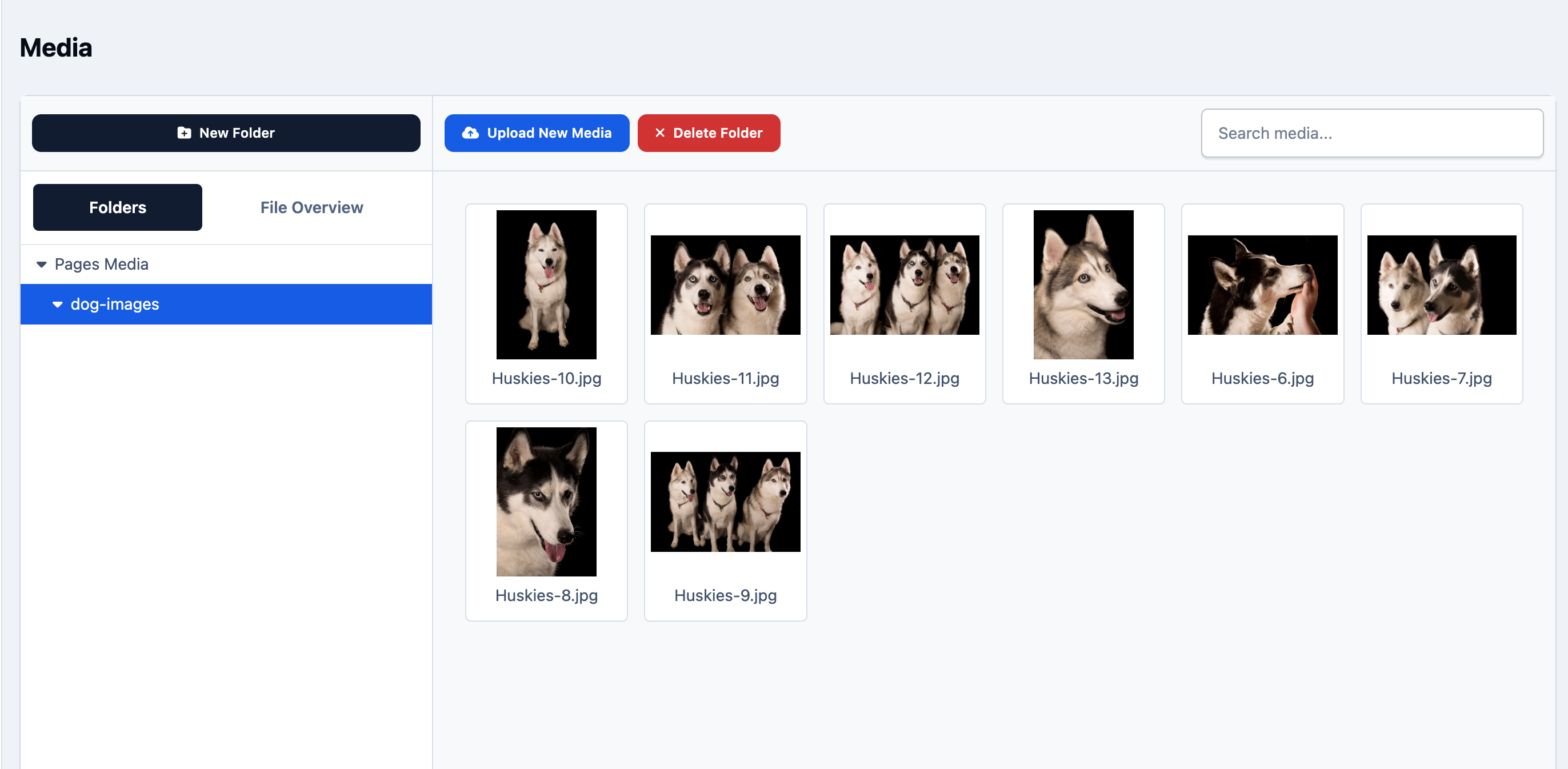
    media_mediamanager.png

    From here, you can upload new items using the provided button. These can be files of any type that you wish to use within your templates or pages. You can also create folders from the top left to organise your files as needed.

    Using Media Tags

    Once your media is uploaded, clicking on any resource will open an info panel on the left. This displays the media tag for that item, which you can use to reference it within your templates or pages.

    Media Tag Location
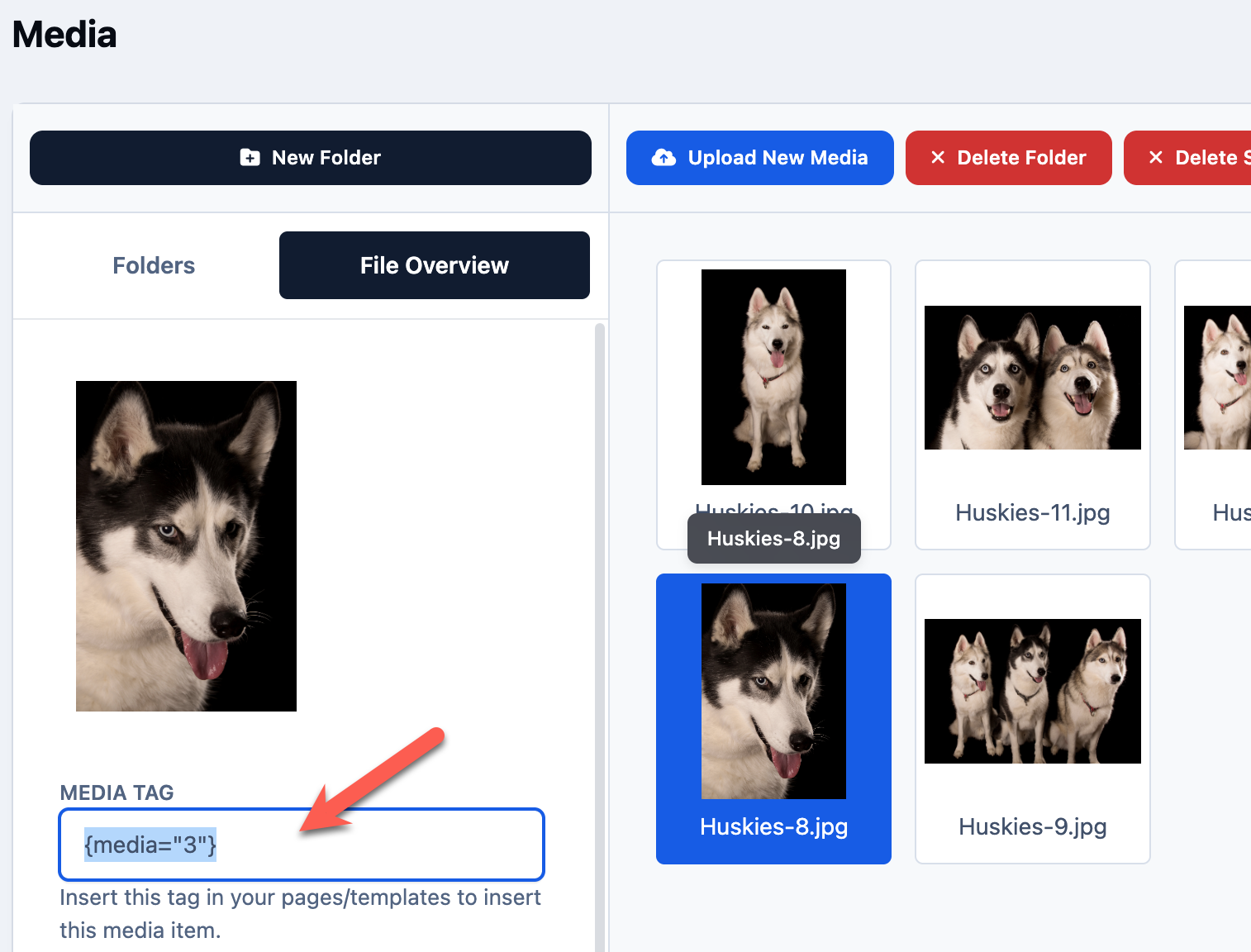
    media_mediatags.png

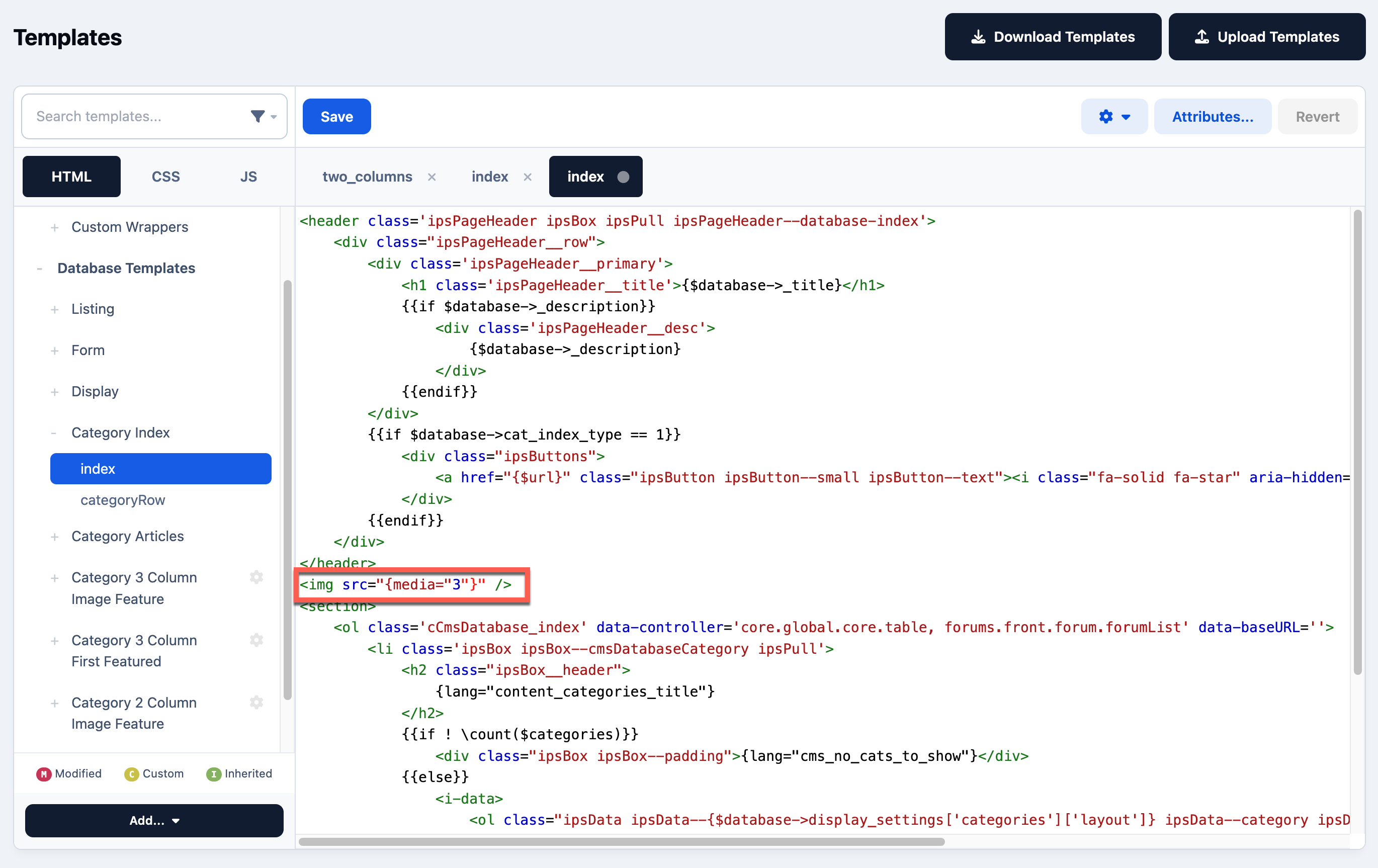
    You can use these resources wherever needed. For example, you could add an image to the top of the Category Index within the default database templates using the following:

    <img src="{media="3"}" />

    Example Added Tag

    media_templatetag.png

    User Feedback

    Recommended Comments

    There are no comments to display.

    Account

    Navigation

    Search

    Search

    Configure browser push notifications

    Chrome (Android)
    1. Tap the lock icon next to the address bar.
    2. Tap Permissions → Notifications.
    3. Adjust your preference.
    Chrome (Desktop)
    1. Click the padlock icon in the address bar.
    2. Select Site settings.
    3. Find Notifications and adjust your preference.