


What is a Page?
A page is a container for content. Depending on your needs, it can hold simple content such as text, images, and embeds, or more advanced elements like blocks and databases.
If you're comfortable with code, you can use our standard template logic to create highly customised layouts. The most common use however, would be our easy drag-and-drop page builder is available to assemble pages without any coding.
Each page has its own URL and can be automatically added to your site navigation if desired. You can also set custom permissions, allowing you to control who can access the page. Ideal for creating staff-only or premium areas.
Creating a Page
Pages are created within the following area of the Admin CP
Pages → Pages
Here a directory listing of your current pages is shown. Folders are supported, and the page URL will reflect this structure—for example, a page named index inside a folder called guides would have the URL <your community URL>/guides/index.
When selecting 'Add Page', you will be asked whether you want to use the Page Builder or Manual HTML.
Page Type Selection
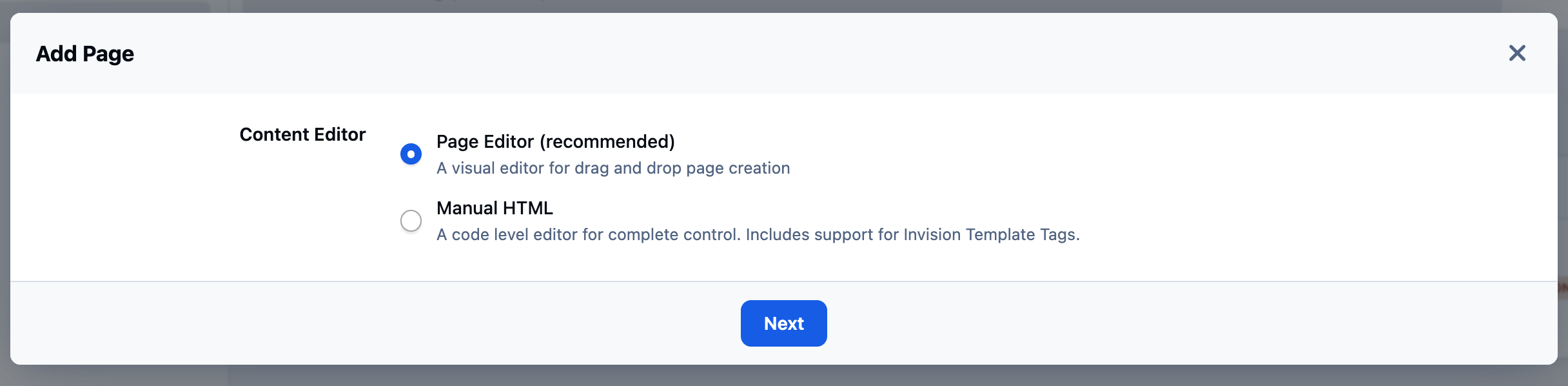
Page Builder
After creating the page in the AdminCP, you'll be able to go to the front-end to add content to your page, using drag and drop from the sidebar manager. This option is best for those not familiar with HTML.Manual HTML
When you choose this option, you'll be provided with a code editor to create your page. Within this code editor you're free to use HTML, as well as the full range of template logic supported by invision. With this method, you insert other items (blocks, databases etc.) into the page by using special tags. A sidebar on the editor show you the available tags.
Drag/Drop Page Building
If you create a page using the Page Builder, once you have saved the configuration in the Admin CP, you can visit the page on the front end to manage its content. You can easily access it by selecting the View Page option from the menu on the page listing screen.
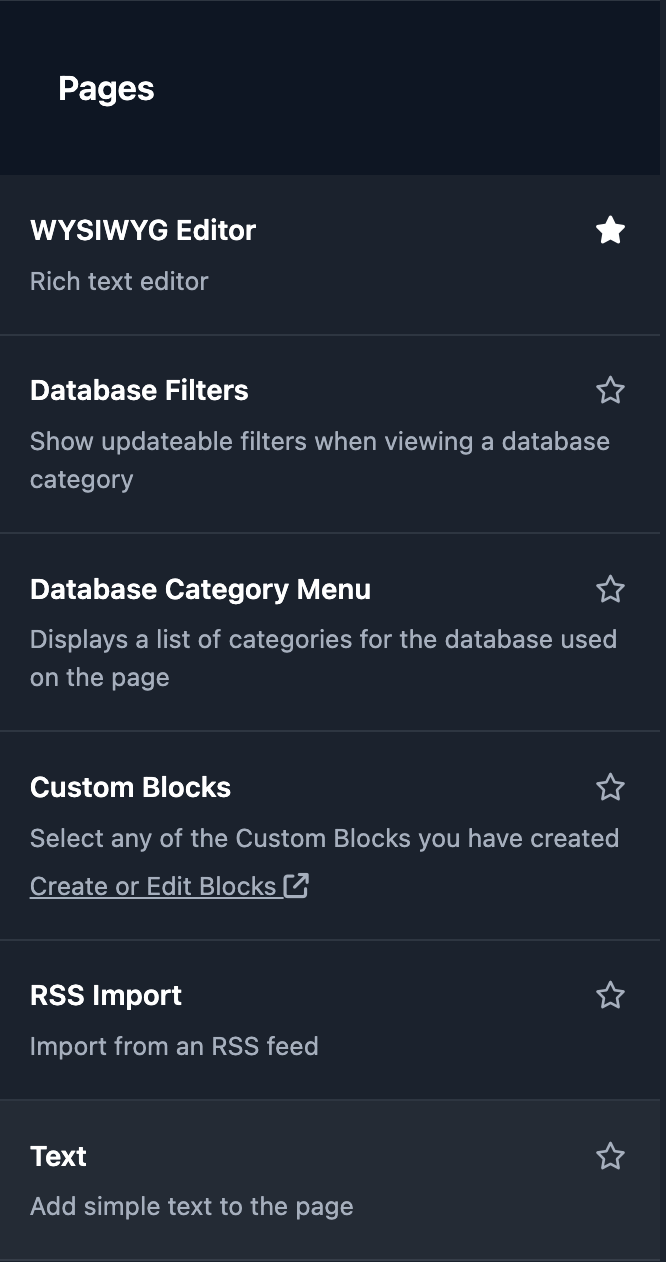
By default, the page will be empty. Click the sidebar toggle to open the sidebar and view the available widgets. All standard widgets from across the suite are available, along with a selection of special reusable widgets under the Pages category:
Example Pages Blocks
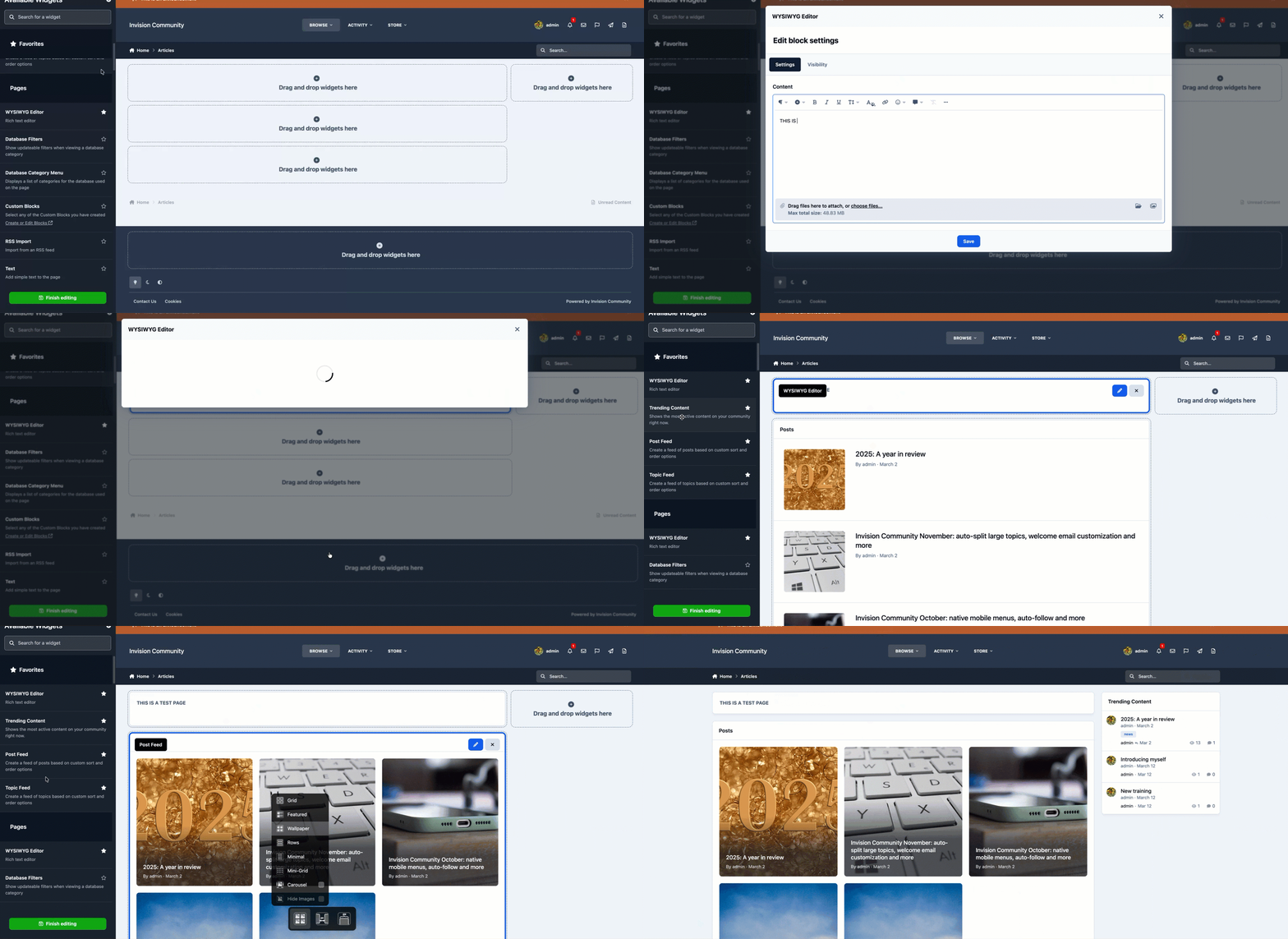
You can add content to the page using drag and drop, as shown below. This allows you to build a page that suits both your needs and those of your members.
Creating a Basic Page
Manual HTML Pages
When creating a page using Manual HTML, you can choose how much of the standard Invision wrapper to include. By default, the suite wrapper is enabled, which includes elements such as the header and navigation, placing your page content within it. If disabled, no wrapper is applied, meaning you are responsible for building the full page structure (though you can use a custom wrapper if preferred).
If you use the suite wrapper, you can also choose whether to include the standard sidebar. Your code will form the main page content, while the sidebar can still be managed using drag-and-drop on the front end.
Adding to Navigation
When creating a page, you can add it to your site's main navigation menu using the Menu tab on the page edit screen. Alternatively, you can add it manually through the standard menu management options.
Further Reading
You can read more about the menu manager, by visiting our menu guide in 'Getting Started → Setting Up Your Menu'
Setting as Default
Often, you may wish to set the Pages application as your default, allowing you to use a custom page as your homepage. For guidance on this, as well as creating a basic homepage, please refer to the following guide.
When things go wrong
There will be times where you are working on a page, and you want to reverse what you have done. This may be something you have done that day, or a few days ago. For this reason, we allow reverting to earlier versions of a page from the admin CP.
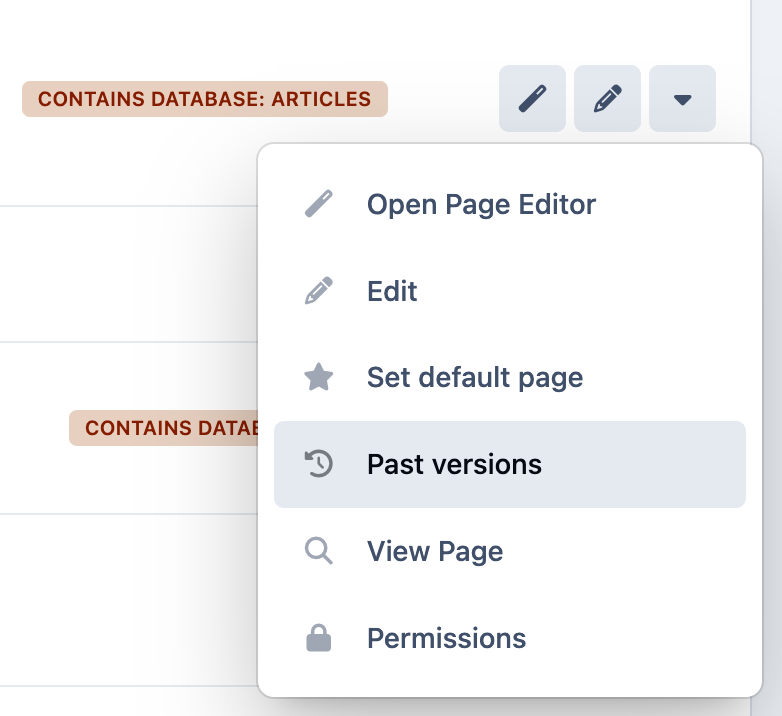
To view past versions of a page, select the dropdown menu at the side of that page, and select "Past versions"
Link to Past Versions
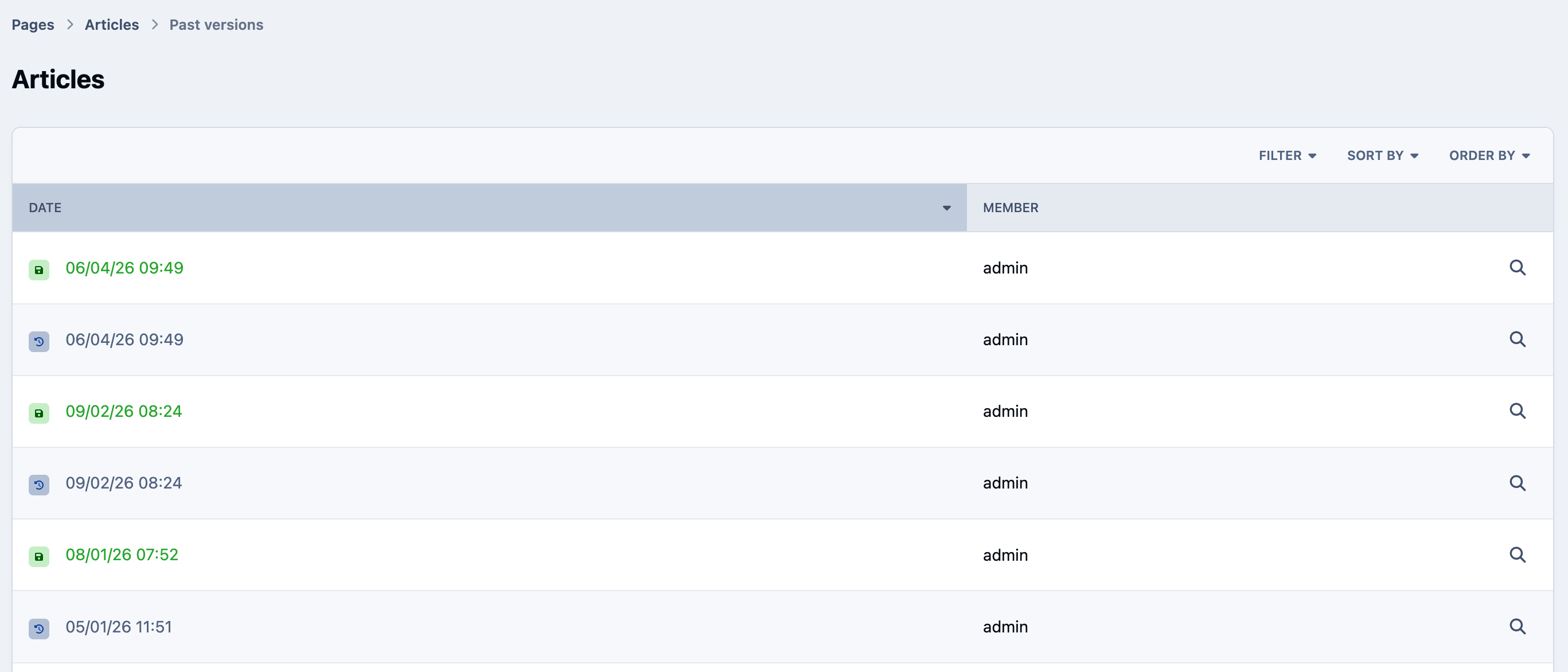
Once this is selected, you will see a list of each point in time that the page was saved. Clicking the view link at the side of any of these will show you that version of the page
Past Versions of Articles Page
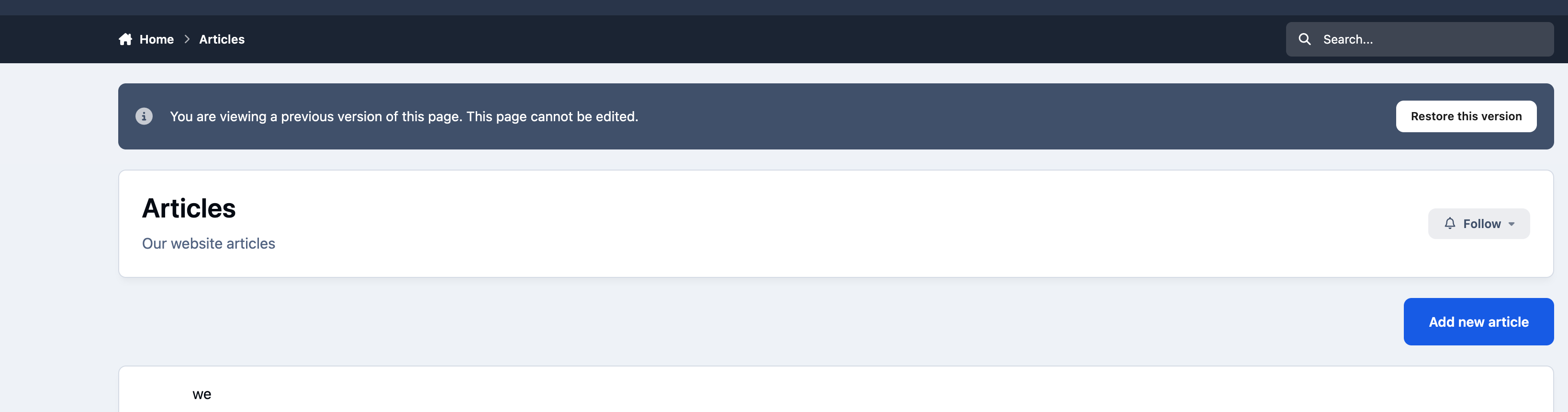
On viewing, you will see the ability to revert to this version
Restoring a Past Version
Recommended Comments