


There may be times where you want to show a different default page within the Pages application for specific groups on your site. For example, you might have an introduction page for guests, or a dedicated welcome page for newly registered members.
Invision Community allows you to do exactly this, letting you override the standard default page and present a tailored experience based on a member’s group. This means you can guide different audiences to the most relevant content as soon as they arrive, without affecting the main page seen by the rest of your community.
Setting up a Page
Before you begin, you’ll need to have the page created that you want to use as the default. If you haven’t set this up yet, please take a look at the relevant guide on creating pages within the Pages application for step-by-step instructions. Skip the section on setting it as default for everyone. We are going to be setting this only for guests in the next step
Default for Guests
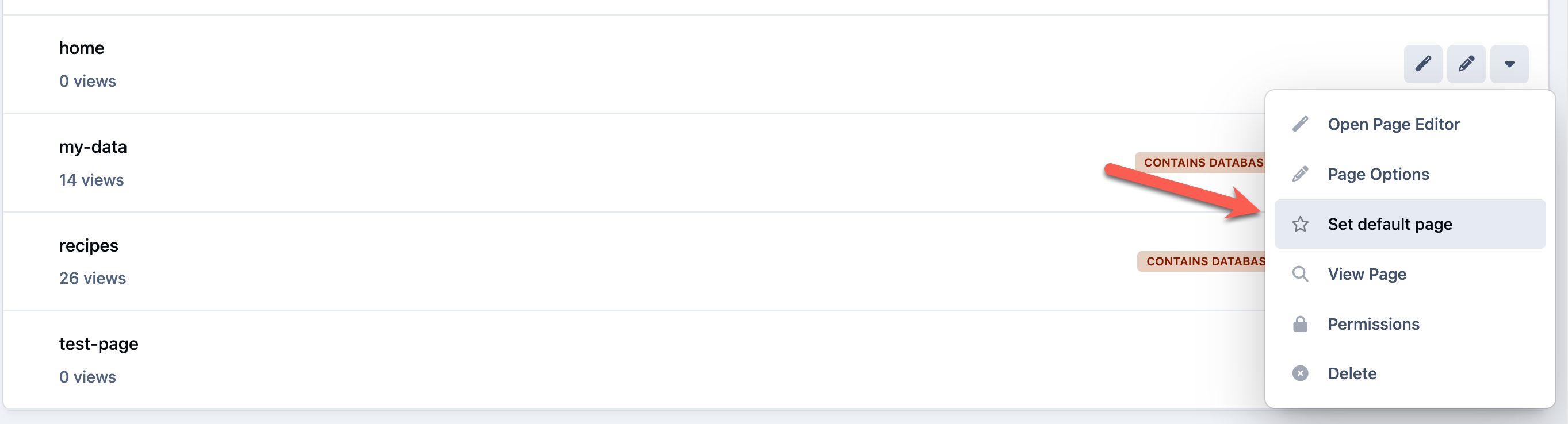
Once you have created your page, select set as default from the menu at the side of your new page
Selecting Default
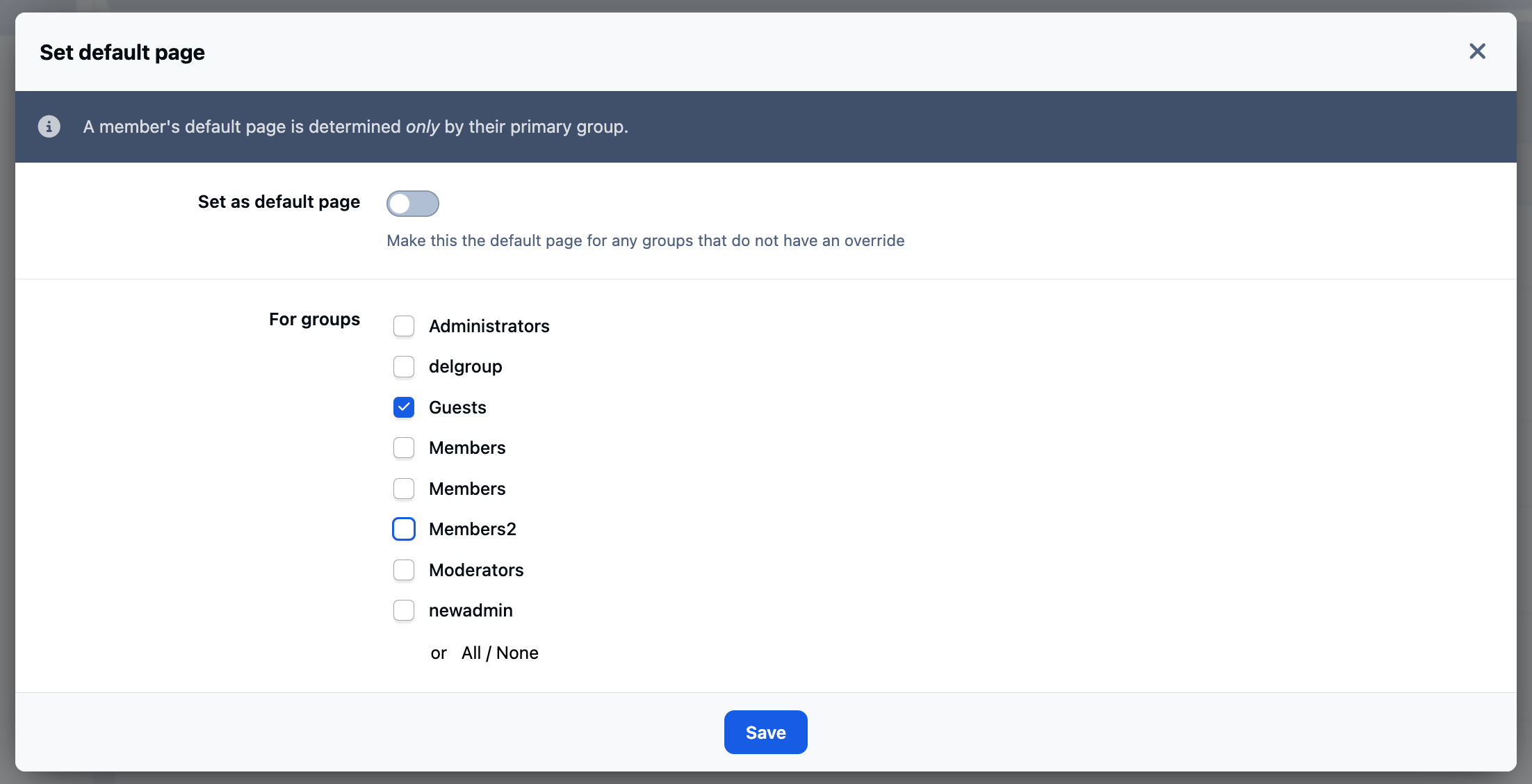
Once you have selected this option, you will want to deselect the checkbox. This will allow you to then select set groups to set it as a default for. Here we have set it as default for the Guests group, meaning that guests will first see this page when they log in.
Important
A members default page is determined only by their primary group.
Setting a Page as Default for a Specific Group
Recommended Comments