


What is a database?
Databases are one of the most powerful and flexible features available in the Pages application. With some configuration and customization, they enable you to add complex, data-driven areas to your community, using some of the basic underlying functionality that full IPS4 applications have.
Databases, as the name implies, are designed to hold data and display that to the user. This might be as simple as a table of records each containing a title and a body, from which you could make a very simple blog-like section, or it might be as complex as a completely custom interface backed by a large number of custom data fields specific to your needs - and the possibilities for this are endless.
Features
Searching
Databases are searchable by default (although you can turn this off if desired). Each database is treated as a distinct area of your community, so on the search form, each database is listed as a first-class area to search, much like the Forums app for example.
Core suite features
Pages provides a range of core application features to databases that make even the simplest database feature-rich and well-integrated with your community from the outset. Commenting and writing reviews for records is available (although this can be disabled per-database). Users can also follow categories and records to be notified of new content wherever they are in the community. Social features such as reputation and sharing to other social networks is also built-in and available for records. Tagging and full moderation of records is also supported by default, and integrated across the suite as you'd expect.
Wiki-style editing
In terms of adding/editing records, databases in Pages behave much like you'd expect from our other applications; that is, when a user with permission creates a record, they 'own' it. However, databases have an option for wiki-style editing, whereby any user can edit records after they are created. This approach is great for community-curated content.
Revisions
Databases also support revisions for records. This means each time a record changes, the previous version is saved as a revision that can be accessed again later - you can also revert to an earlier revision if desired.
Forum Integration
Finally, databases has special integration with our Forums app. When posting a new record to a Pages database, IPS4 can optionally cross-post the record as a forum topic, to a category of your choosing. But it goes further - you can even use the forum topic as the comments for the record, rather than the standard commenting interface that records have.
What does a database consist of?
There's a few key components in a database to be aware of when creating one:
The database itself
Naturally, you need to create the database itself. This is where you configure options that affect that database as a whole, such as sorting, permissions, and so on.Categories
If your databases uses categories (you can optionally choose not to), they add another level of structure and permissions.Fields
We'll cover fields in more depth shortly, but you can create custom fields for all kinds of data that you might need for your database. IPS4 supports a wide range of field types, from simple text boxes up to YouTube embeds, upload fields and intra-database relationships.Templates
Templates allow you to customize the output of the database. Default templates are supplied with IPS4, and if you aren't a coder, using these defaults allow you to get a database up and running quickly. For coders, however, customizing templates is the best way to build complex data-driven applications.
Database URL Structure
Databases exist inside a page you've created with Pages. Individual categories and records in the database are accessed via the URL of the page. For example, if you had a page with the URL <yourcommunity>/mypage and this page contained your database, you might have a record that's accessed via the URL <yourcommunity>/mypage/category/record, where category is the category name and record is the record name. Your URLs would dynamically update themselves if you renamed your page or moved the database to a different page.
To facilitate this approach, databases can only exist in one page at a time. They can't be duplicated on other pages (although you can create blocks showing data from the database and use them on other pages).
Fields
More advanced uses of databases require custom data to achieve their goals, and fields can be set up to gather this data. Fields are created in the AdminCP, and when a user adds a new record, the fields are shown on the form.
IPS4 supports a wide range of field types, allowing you to capture data of a specific type easily. Here's the supported types:
Address
Provides a special auto-completing address field, powered by GoogleCheckbox
A single on/off checkboxCheckbox set
A group of several on/off checkboxesCode
Provides a way to syntax-highlight codeDate
A date field, with a date pickerEditor
Provides a rich text editor for WYSIWYG editingDatabase relationship
An advanced field type that allows records from different databases to be associatedMember
Provides an auto-complete member search boxNumber
A number input box (on older browsers, reverts to a simple text box but with number validation)Password
A password input fieldRadio
A group of radio boxes (meaning only one of the options can be selected)Select box
A drop-down menu containing the provided options (can allow multiple selections if desired)Soundcloud
A Soundcloud embed fieldSpotify
A Spotify embed fieldTelephone
A telephone number input field (on older browsers, reverts to a simple text box)Text (default)
A one-line text input fieldText Area
A multiple-line text input fieldUpload
An IPS4 upload fieldURL
A URL input field (on older browsers, reverts to a simple text box with URL format validation)Yes/No
A toggle field that can accept yes or no valuesYouTube
A YouTube embed field
Many of these field types have additional options specific to them. For example, select boxes have an option to allow multiple values to be selected, whereas the upload has options to allow multiple files, and a way to restrict file types.
Field Formatting
Fields can have automatic formatting applied to them. For non-coders, a range of badge colors is available to choose from, and you have some control over the location that the field shows in the listing or record display. For coders, however, you have full control over the HTML output for each field, including having use of IPS4's template logic. This means you have the ability to use the data stored by IPS4 for each field in some very interesting ways - for example, you might take the value of an address field and use it to output an embedded Google Maps map, or even create some fields that you don't output, but instead use to control the layout of your record templates. There are a huge number of possibilities.
Permissions
There's multiple levels of permissions at play with databases:
Page-level
Since pages have their own permission settings, if the user doesn't have permission to see the page, they won't be able to see the database either.Database-level
Permissions can be set at a database-level, which forms the default permissions for categories in the database too.Category-level
A category can optionally override the database-level permissions and provide its own. This is useful for hidden categories - perhaps staff only, or a category only for premium members.
Managing Databases
Databases are managed by going to Pages -> Databases in the AdminCP. You'll also find that databases are listed in the Pages menu in the AdminCP for quicker access. From this screen, you'll see some simple information about each of your databases, as well as menu items to manage each part:
Managing Existing Databases
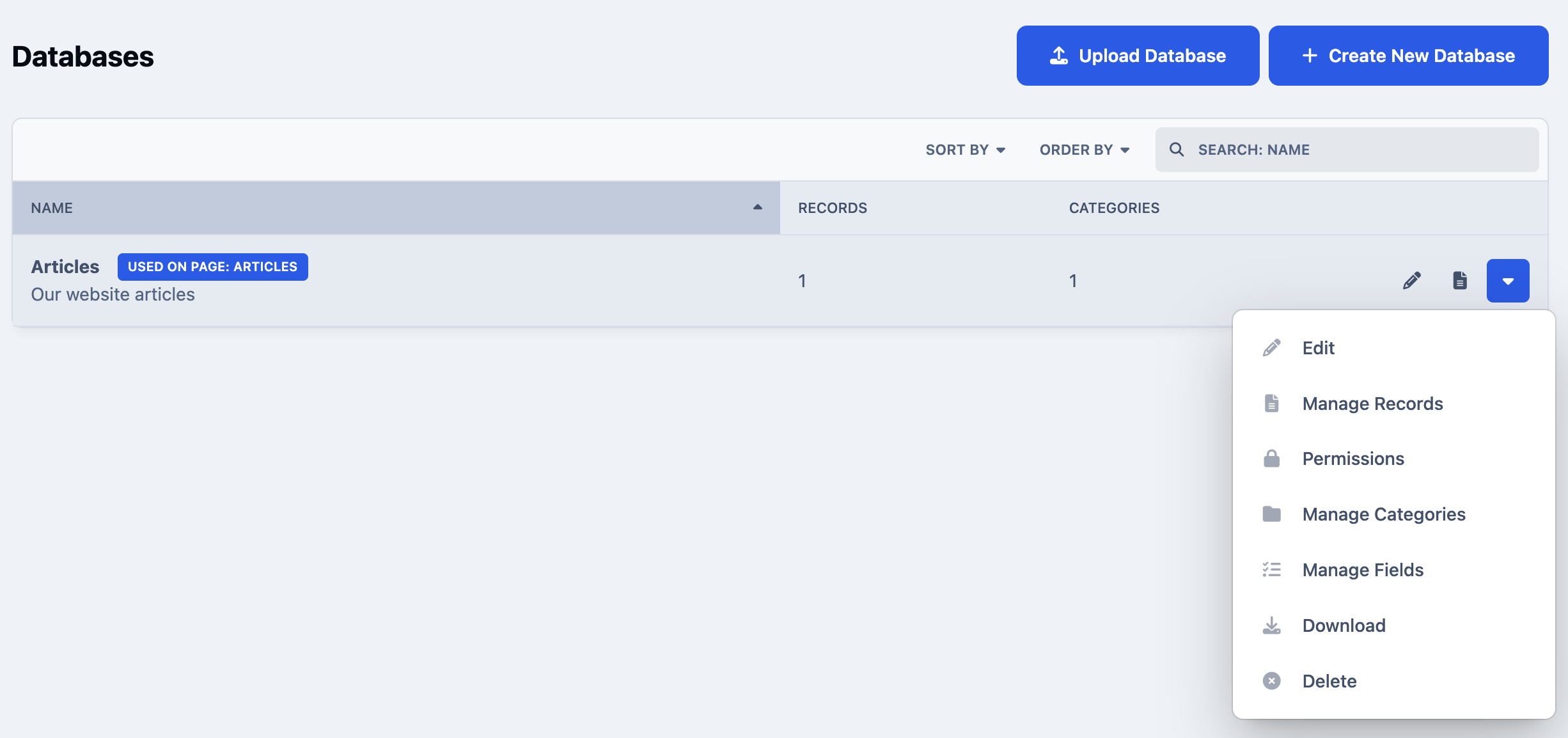
Records can be added either via the AdminCP (click the icon) or via the front-end page that displays the database. This means users don't need AdminCP access to add/edit records.
Creating Databases
To create a database, click the Create New button on the screen above. There's a number of configuration options available to you.
Details
The basic settings for this database. At the bottom of this tab, you can choose the templates you want to use for this database. If you haven't created them yet, you always do this later.
Language
On the Language tab, you set up the words that will be used to refer to records in this database (rather than the generic 'records' terminology). For example, if you are creating a database for guides, these language choices will mean IPS4 will refer to your database in context, such as "Search Guides", "There are 5 guides in this database" and "Create a new guide".
Options
This tab more finely controls how your database will work, including comments, reviews, tagging, and the 'wiki-style' editing we covered earlier. Sorting options are also available here, allowing you to choose the order of records, and more importantly, the field on which they are sorted. For example, if you had a database containing records about dinosaurs, you may want to sort the records by Era (a custom field you will have created). You can return to this tag after creating your fields later to configure it.
Forum
This tab configures the aforementioned Forums integration for the database (individual categories can override these settings too).
Page
Since a database requires a page in which it displays, this will be created automatically as part of the database creation process. Alternatively, you can add it to one of your existing pages later.
Recommended Comments