


Selling advertising space on your website is one of the longest-standing ways to generate revenue — and in many cases, it remains one of the most effective.
The Commerce application enables you to sell specific advertising placements across your site, giving you full control over where ads appear and how long they run.
Selling Advertising
You can easily sell advertising space to your visitors through the Commerce application by creating a new product within Products. For step-by-step guidance on setting up products, please refer to the Commerce Products guide.
When creating the advertisement product, you can define an expiration period and set maximum dimensions for any banner images uploaded at the time of purchase. This ensures you maintain full control over both how long the ad runs and the size of the banner displayed. Further details can be found in our Commerce guide.
Once an advertisement is purchased, it will appear in the Advertisements section as a pending ad. This allows you to review and approve the content before it goes live, ensuring it meets your site’s standards. If you would like immediate notification of new ad purchases, you can configure email alerts directly within the product settings.
When a customer purchases advertising space, they will be prompted to upload their banner image and provide the destination URL the ad should link to.
Front End Ad Sale
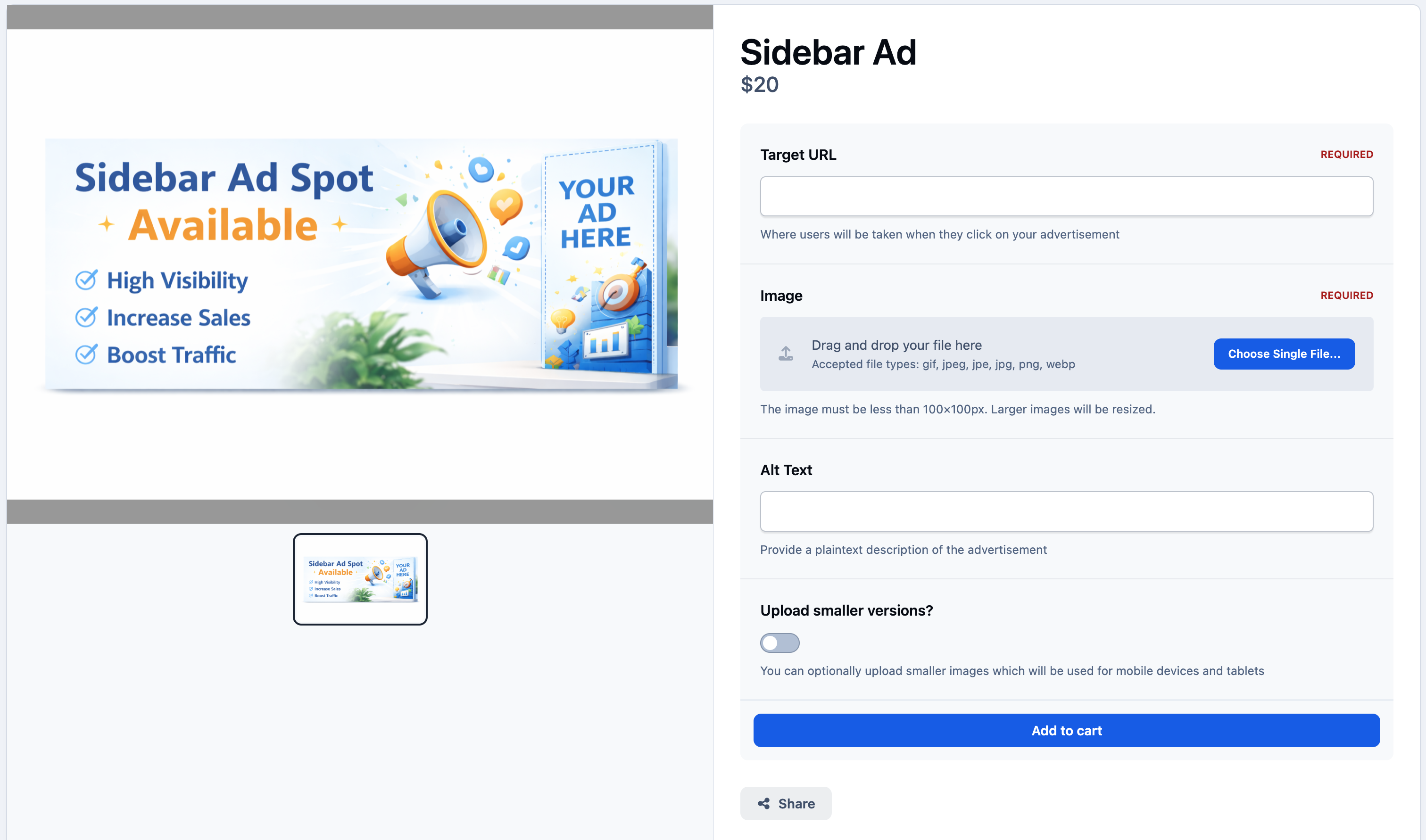
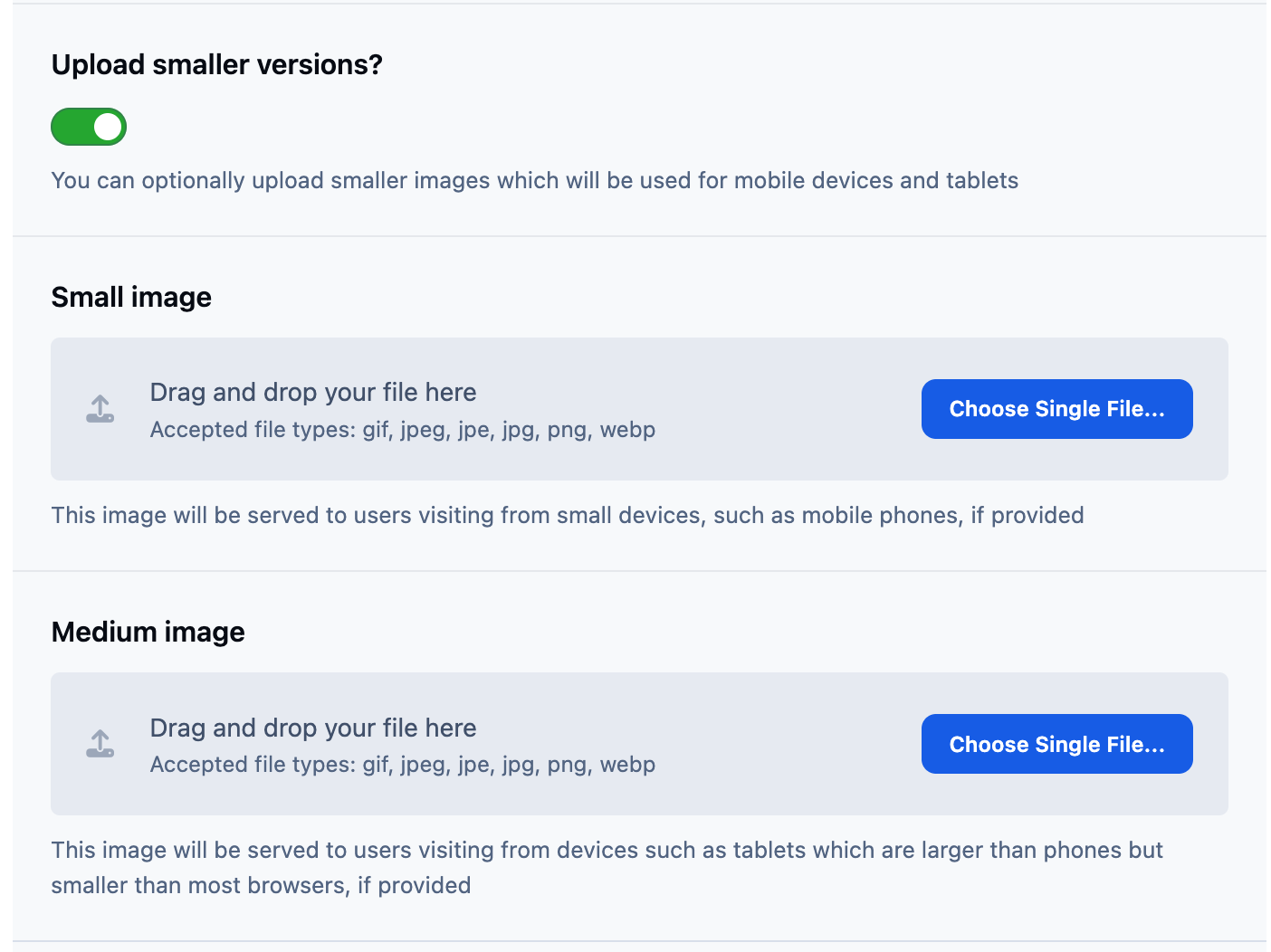
You can optionally allow customers to upload smaller versions of their advertisement image. These alternative sizes can then be displayed on tablets and mobile devices, ensuring the ad looks great across all screen sizes.
Uploading a Smaller Version




Recommended Comments