


Before you begin managing members, the first step is to decide how new members will register on your community. This can be found within the Admin CP at the following location
System → Settings → Login & Registration → Registration
From here, you’ll find a range of options that allow you to control how registration works on your site. We will cover the key points of each here
Standard Registration
When we talk about 'standard' registration, this refers to anyone who has registered with the standard built in registration form, rather than someone who may have logged in with an external login method being used, like google login or other SSO solution.
Standard Registration Options
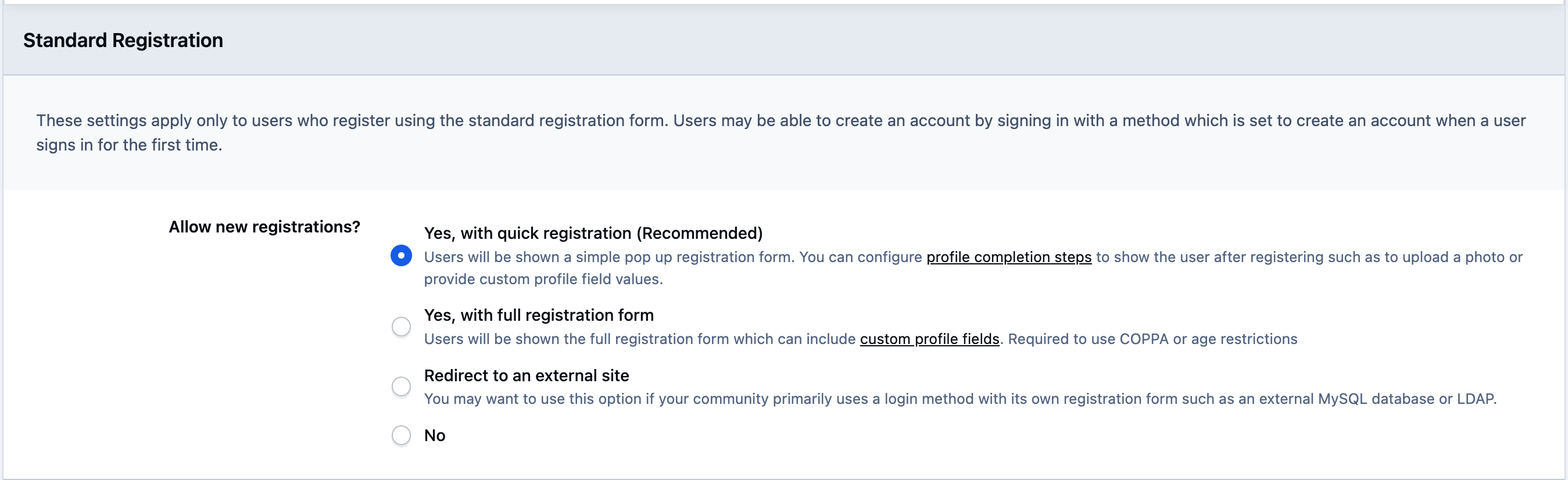
You may decide to disable standard registration for a number of reasons. For example, you might be using an external service for logins, or you may not want users to register on your site at all. To support this, you can choose to redirect users to an external site, or simply select the 'No' option to completely disable registration.
The main options, which would be suitable for most sites, are
Quick registration - When using quick registration, new members only need to provide a minimal set of details to create an account on your site. It’s important to note that this doesn’t automatically mean they’ll have full access straight away. If you’ve set additional required steps, such as custom profile fields or other mandatory information, members will still need to complete those when they log in, before they can fully use the site.
To help with this, you can use profile completion steps to either 'require' or 'suggest' specific information, depending on your preference. These steps ensure members provide everything you need, and they’re covered in more detail in another guide.
Full registration - With full registration enabled, new users are presented with all required registration fields upfront. This means they complete every necessary step during the sign-up process, rather than registering first and filling in additional details later. Full registration can be useful if you want to ensure all required information, such as custom profile field information, is collected before a member gains access to your community.
All New Accounts
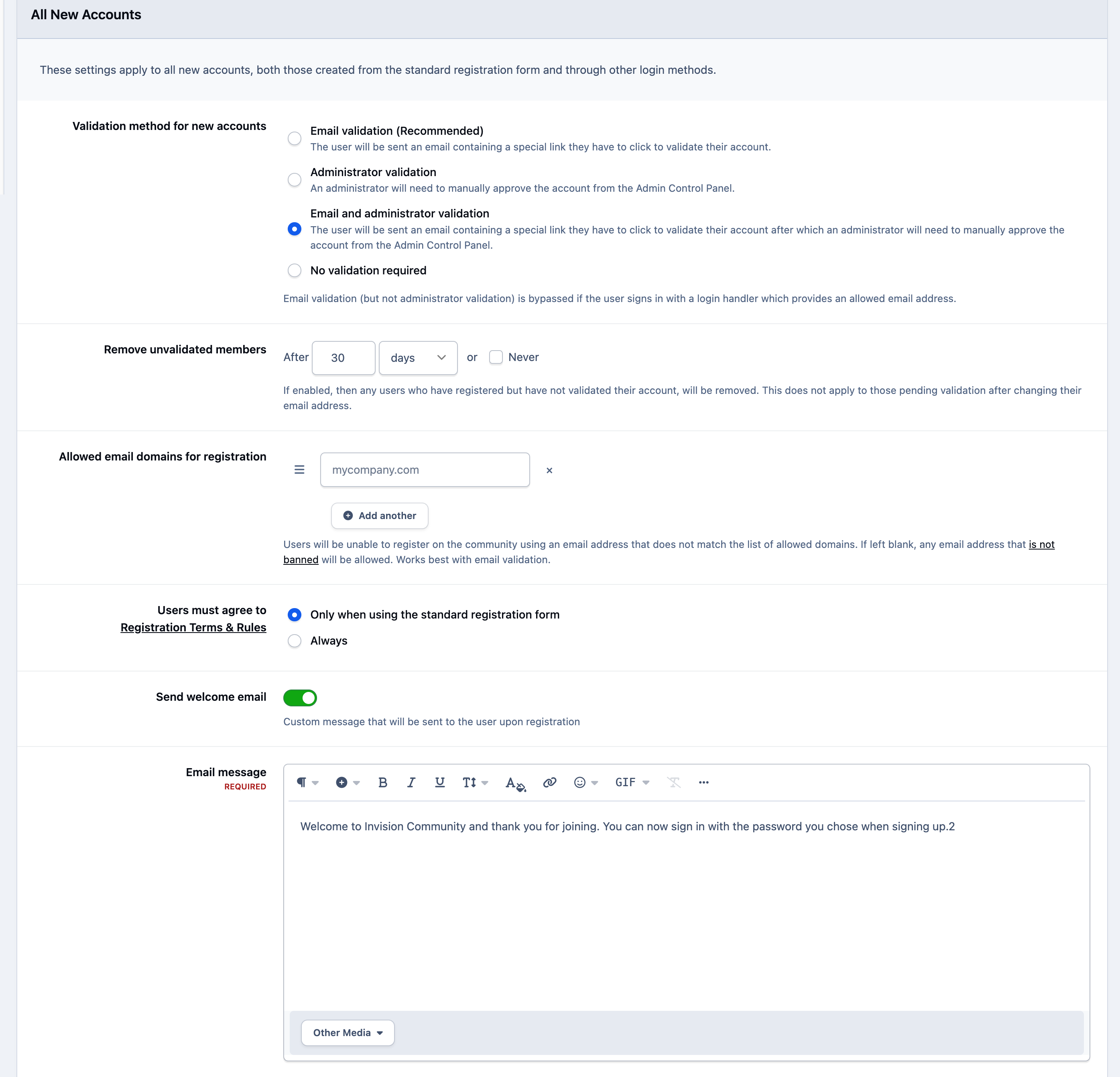
The settings in this group apply not only to standard registration above, but also to any account which is created outside of the standard login, such as 3rd party login methods.
Validation
Validation of members in an important measure in the prevention of spam on your community. While for most, email validation will be the most suitable option, some may find the need to validate every member, which is where administrator validation comes in.
Email Validation - When email validation is enabled, new users are sent an email containing a unique link that they must click to confirm their registration. This helps prevent automated sign-ups or repeated registrations using fake or randomly generated email addresses. You can also choose to automatically remove unvalidated accounts after a set period of time, reducing the amount of ongoing administration needed on your community.
Administrator Validation - There may be times when you want an administrator to manually approve new member registrations. This can be useful during periods of increased spam activity, or whenever you need to be more selective about who is allowed access to your community.
Allowed Email Domains - ome communities, such as internal company or private communities, may want to restrict registration to specific email domains. For example, an internal community might only allow registrations from email addresses ending in a particular domain, such as invisioncommunity.com. This adds an extra layer of security by ensuring that only approved users are able to register and access the site.
You can set for one of more of these items to be used, based on the needs of your community.




Recommended Comments