


Many communities use rules to promote members into different groups as they become more active or reach certain milestones. For example, you might choose to move a member into an Advanced Members group once they reach 1,000 posts.
In Invision Community, these promotions can be handled automatically by setting up rules within the system.
Group Promotion Rules
Group promotion rules are configured from the following area of the Admin CP:
Members → Members → Group Promotions
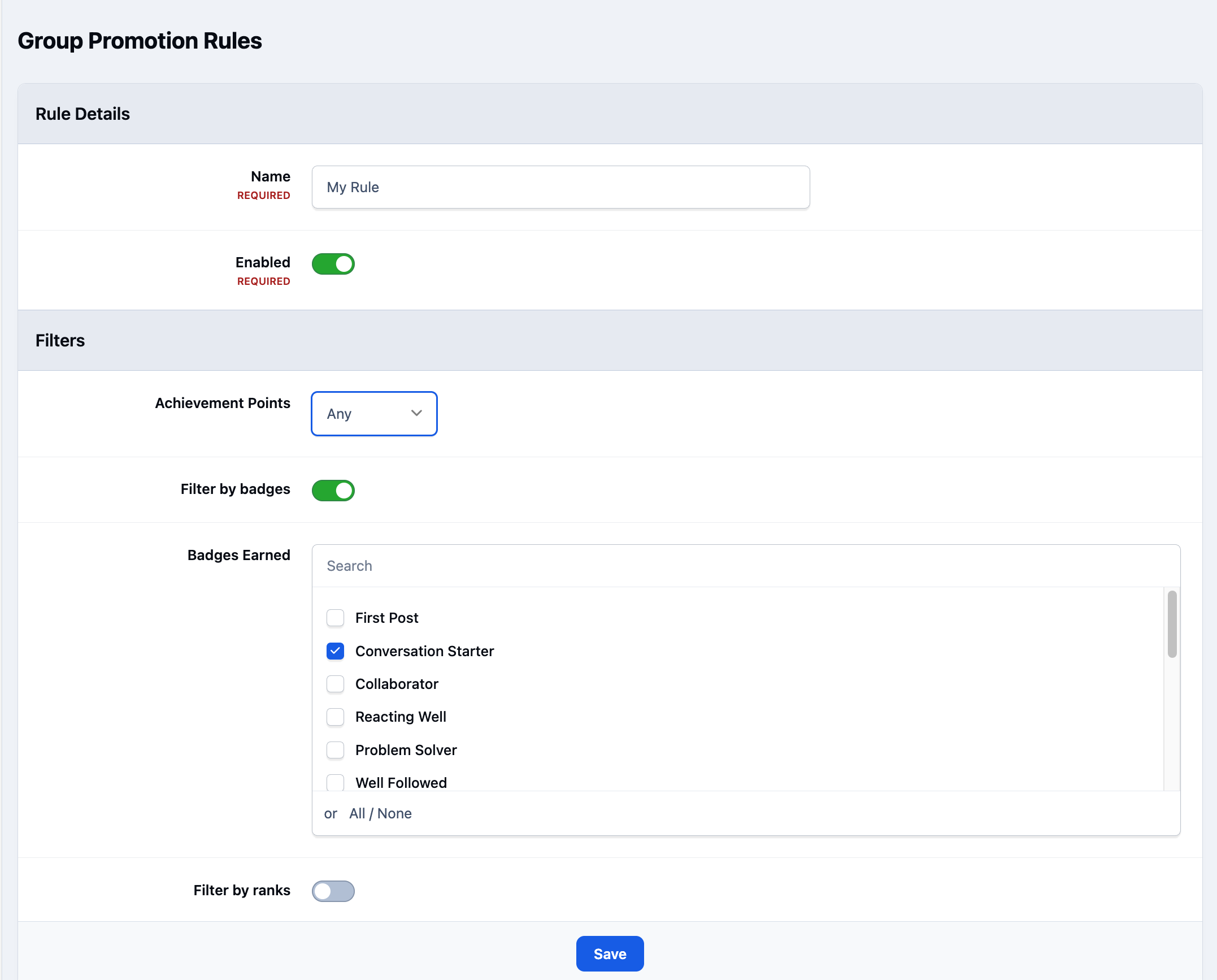
From here, you can define one or more criteria that determine when members should be promoted. A simple example might be promoting members after they reach 1,000 posts, but the available options allow you to create much more detailed and complex rules if needed. The below example simply filters based on a badge earned
Promotion Rules
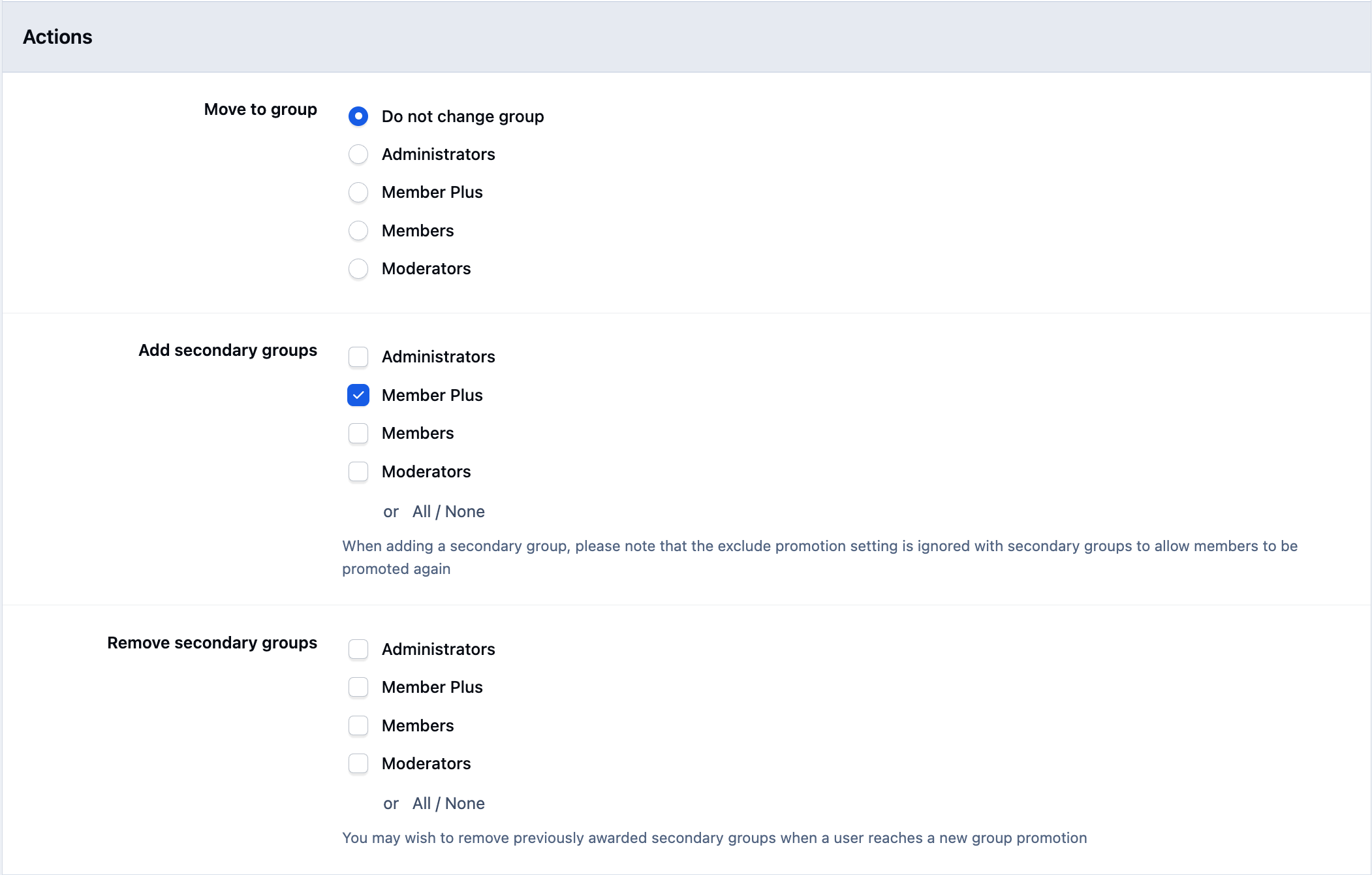
Once the criteria you’ve defined are met, the system can automatically change a member’s primary group or add and remove secondary groups as needed.
Promotion Actions
Restrictions On Promoting
The group promotion rules you configure apply to all members, with the following exceptions:
If a member meets the criteria for more than one promotion rule, the last rule in the list will be applied. For example, if you have one rule that promotes members after 10 posts and another after 100 posts, the 100-post rule should appear below the 10-post rule in the list.
Members who are moved into a group as a result of purchasing a product are not affected by group promotion rules.
Members who belong to a group that has been explicitly excluded from group promotions will not be automatically promoted by the system.
Recommended Comments