


There may be times within your community when you need to perform actions on a large number of members at once, such as moving members to another group or deleting multiple accounts.
Mass member actions allow you to efficiently manage larger groups of users without needing to update each account individually.
Mass Member Actions
Important
Before you begin, it is important to note that this is a one-way process. Ensure you are confident that the correct members have been selected before proceeding with any move or delete actions.
Mass actions on members follow a find, then action process. First, you search and filter for the members you want to target, then you choose the action you would like to perform on those results.
In this example, we will find all members whose email address contains invisionpower and move those members into another group.
First, we need to locate the members. To do this, navigate to your member list in the AdminCP:
Members → Members
From here, select the cog icon in the top-right of the member list to open the available filtering options.
Advanced Search

Once you have found the list of members you wish to perform an action on, new options for Prune and Move will appear at the top of the page, as shown in the image below.
Links for Mass Actions Shown
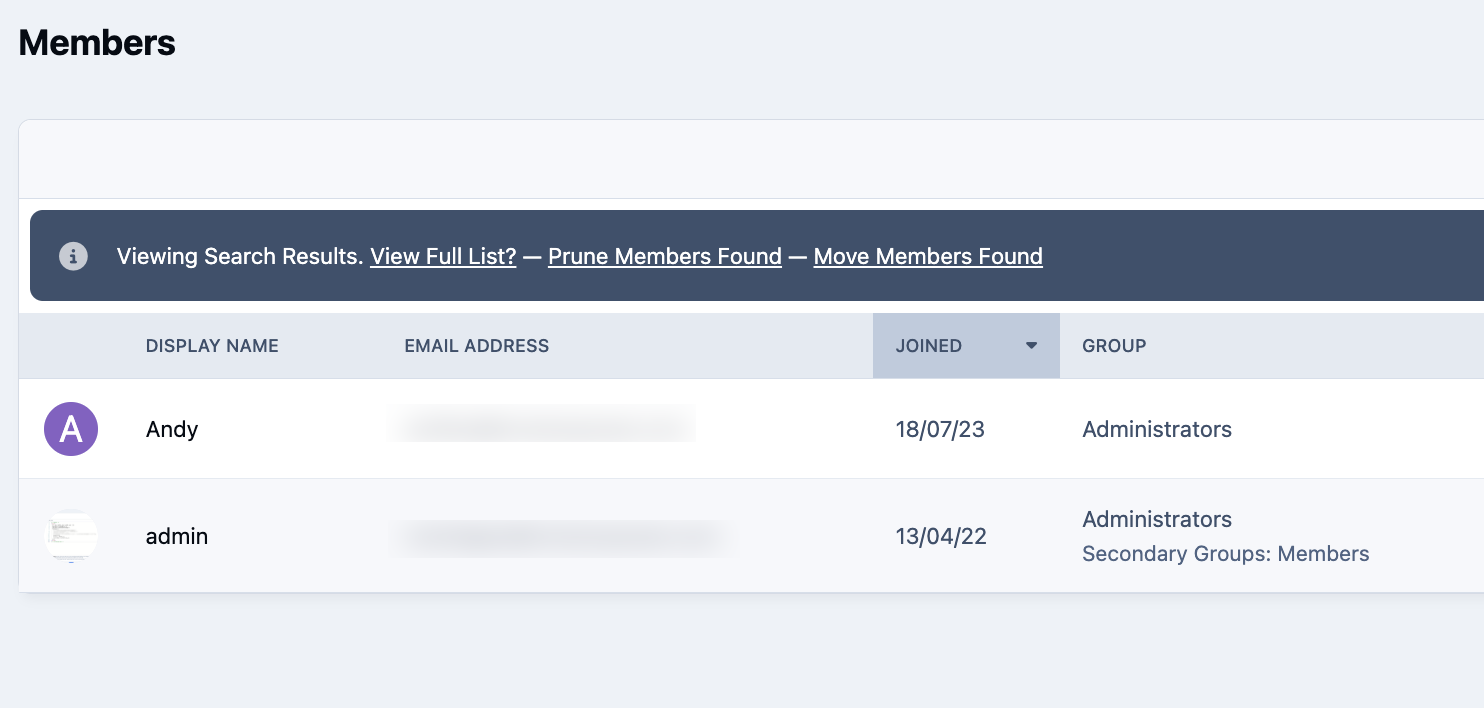
Selecting Prune will remove the members found in your search results. In this example, however, we want to move these members, so we will select the Move option instead.
You will then be shown a dialog where you can choose the group you would like to move the selected members into.
Select a Group

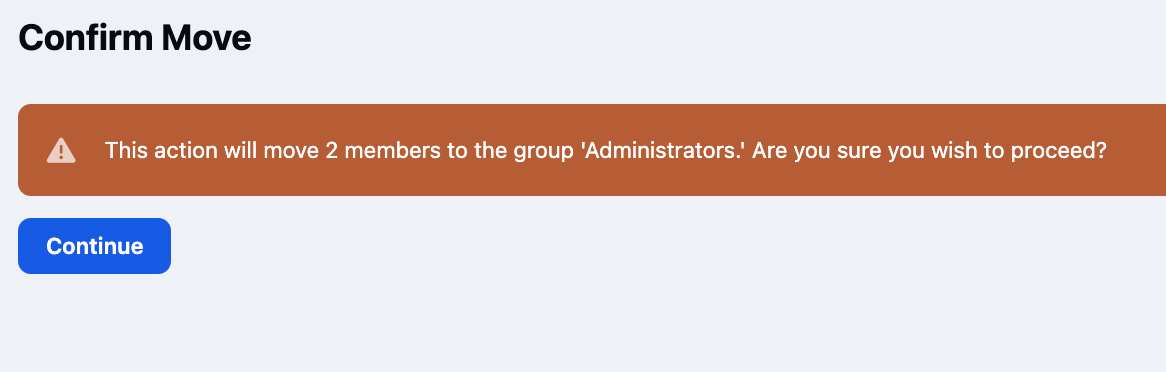
You will then be ask to confirm the move. Once selected, this will be completed by the system
Confirm the Member Move
Recommended Comments