


Sending messages between members in Invision Community provides a simple yet powerful way to communicate privately, either between members themselves or between staff and members, away from public areas of the community.
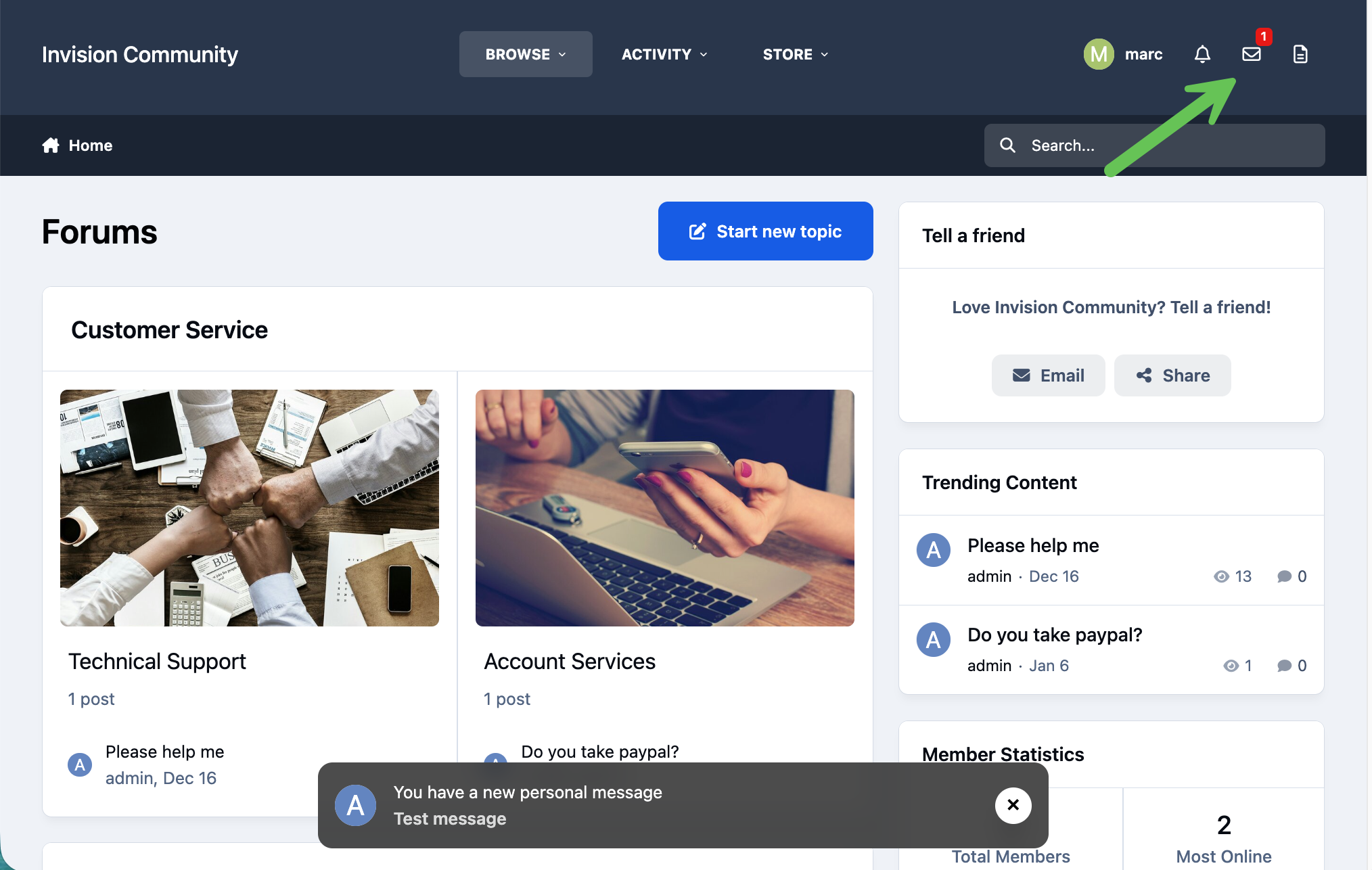
When you receive a new message, a number will appear next to the inbox icon, indicating how many unread messages you have. This is similar to what is shown in the image below.
Notification of New Messages
Sending/Receiving
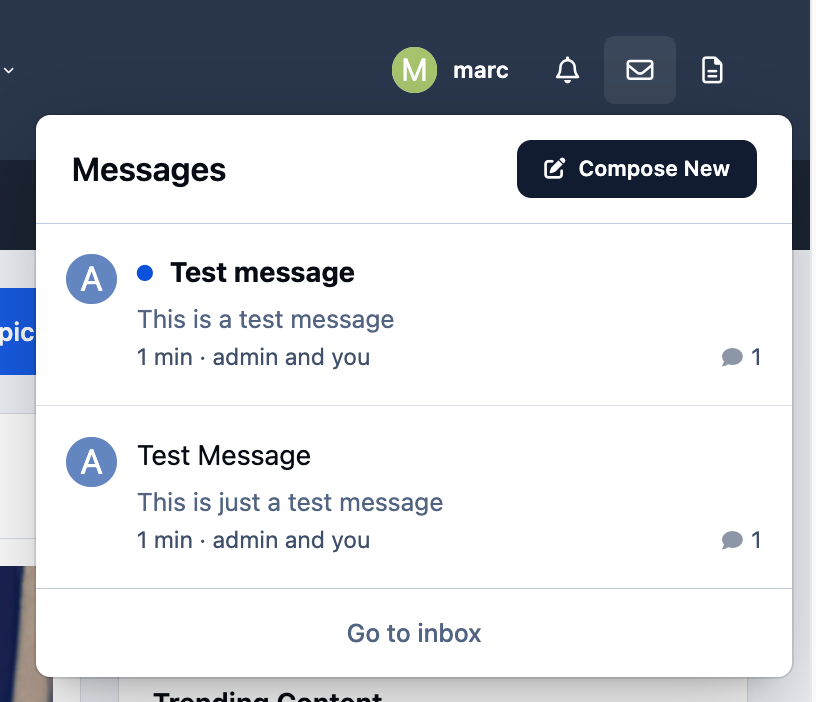
Selecting the messages icon will display a list of your recent messages. From here, you can click on any message to read it in full or choose to visit your inbox.
You’ll also see an option to compose a new message directly from this same dropdown menu, making it quick and easy to start a conversation.
Private Message Listing
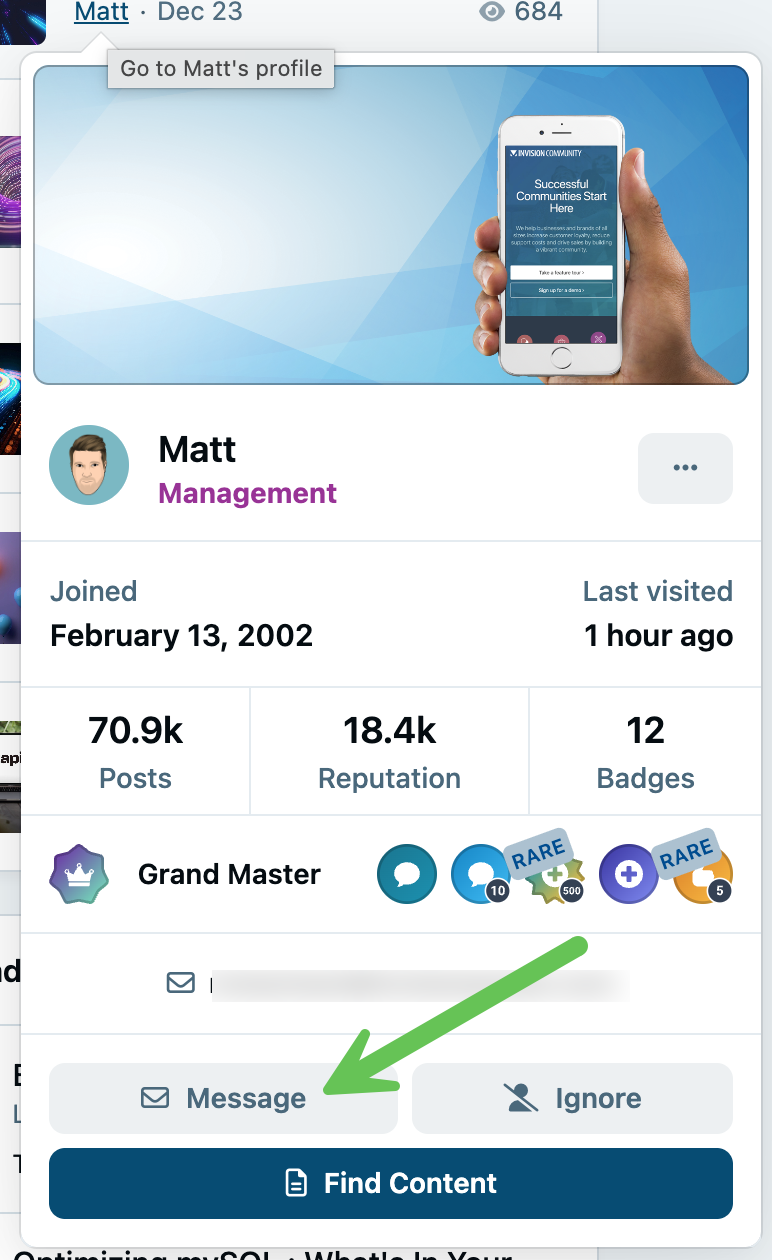
In addition to sending messages using the 'Compose New' button, you can also start a conversation with a member from almost anywhere on the site. Simply hover over the member’s username and select the 'Message' option to send them a private message directly.
Sending a Message Direct From Profiles
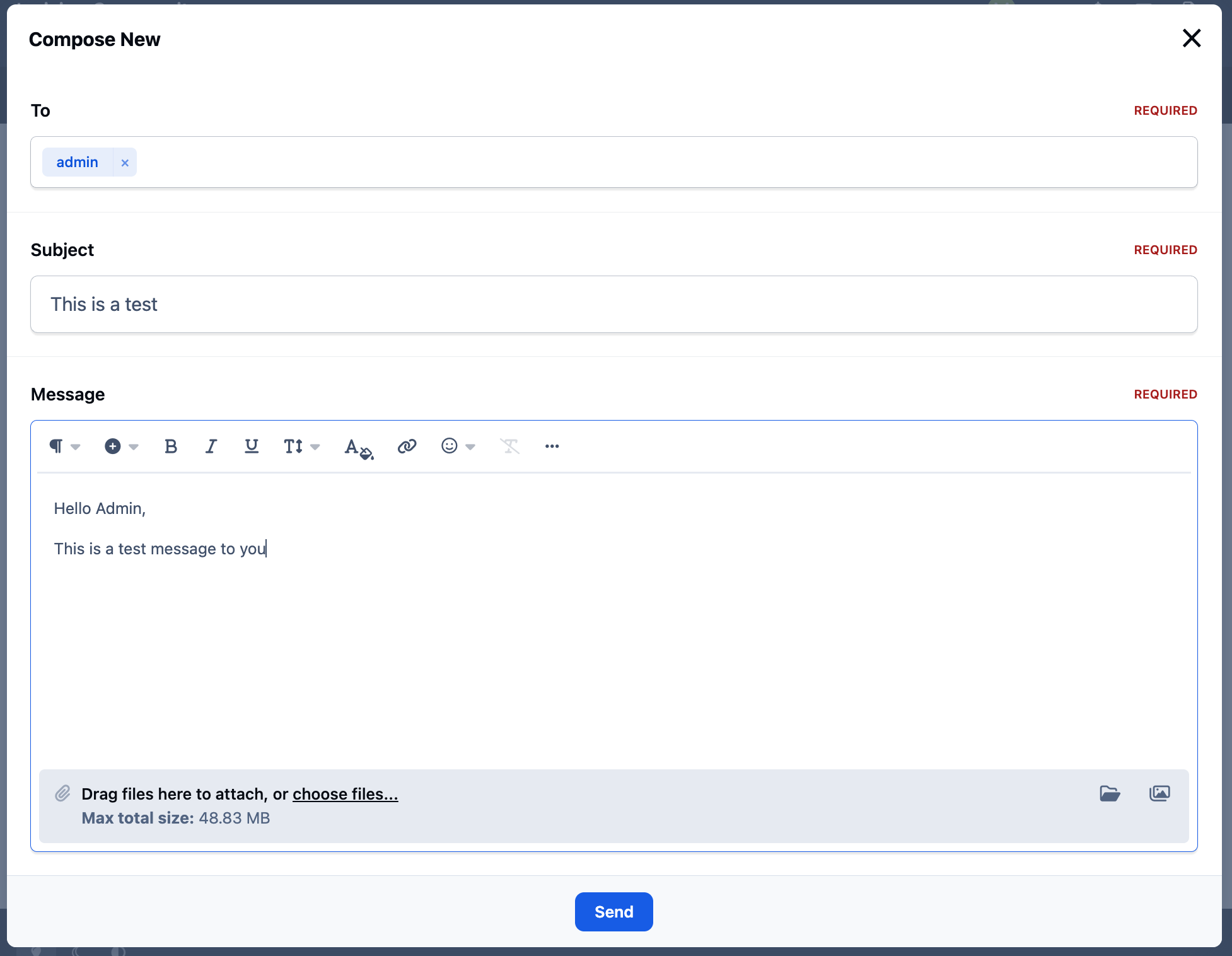
Composing a message works much like creating a topic on the site. You can send a message to multiple recipients by typing their names into the 'To' field.
As you type, the system will automatically suggest matching member names by filtering through the member list, making it easy to select the correct recipients.
Composing a New Message
Managing Messages
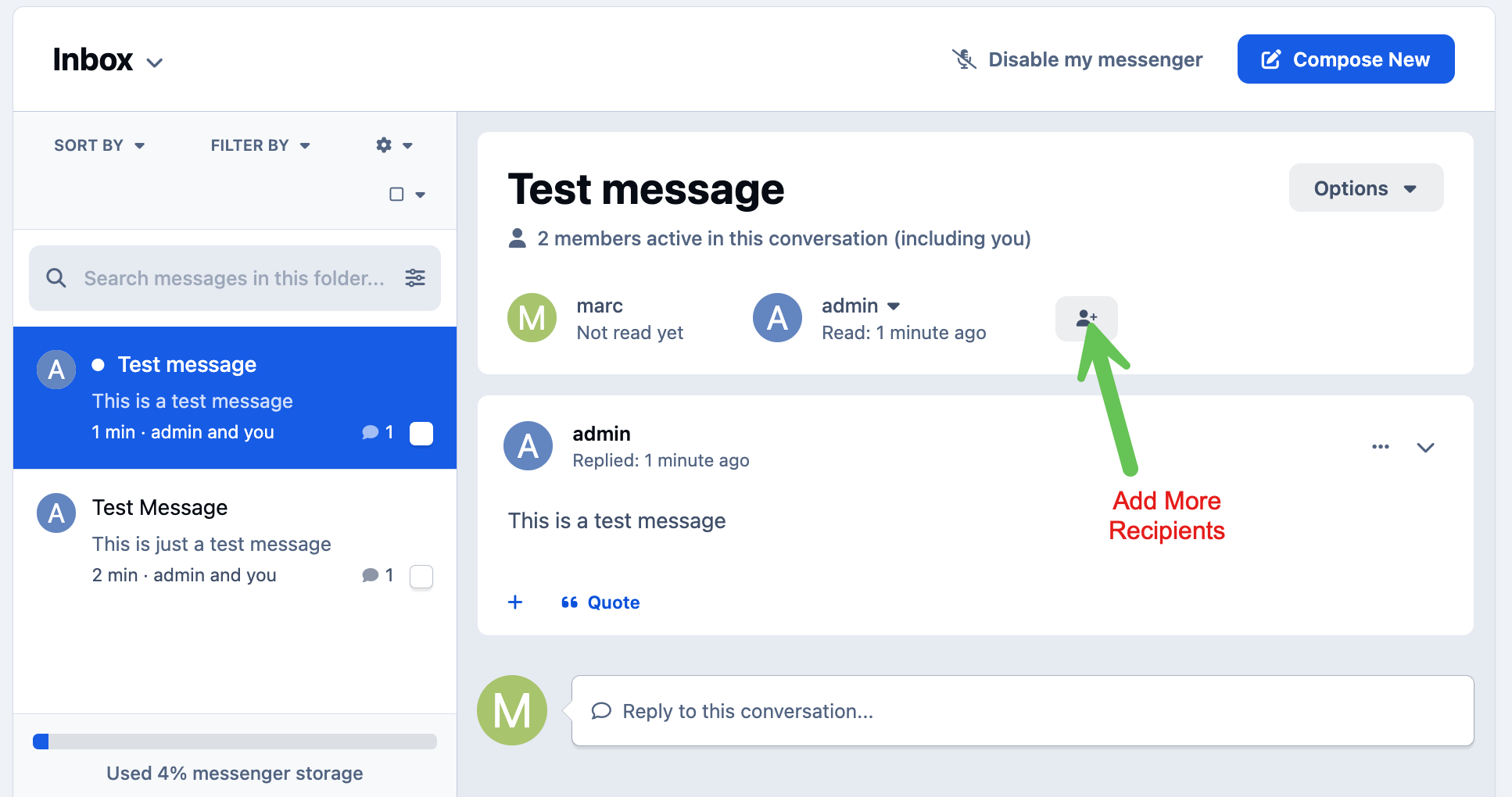
When you open your inbox, you’ll be presented with a screen similar to the one shown below. From here, you can search your messages, open conversations to read or reply to them, apply filters, and manage your messages in a number of ways.
Message Inbox View
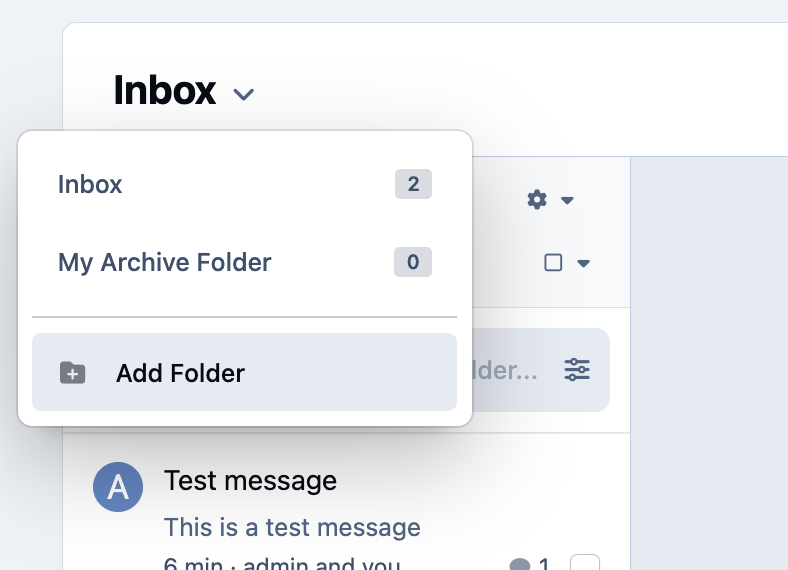
Selecting the dropdown will allow you to see and create new folders, making them even more manageable.
Creating and Viewing Folders
Recommended Comments