


There are a number of additional member profile settings available within the suite, which administrators can configure to better suit the needs of their site. These settings can be found in the following location within the Admin CP.
Members → Member Settings → Profiles → Profile Settings
Profile Settings
The Profile Settings section allows you to control how member profiles behave and are displayed across your community. From here, you can configure options such as profile photos, display name rules, signatures, status updates, birthdays, and member history retention.
Profile Settings Page
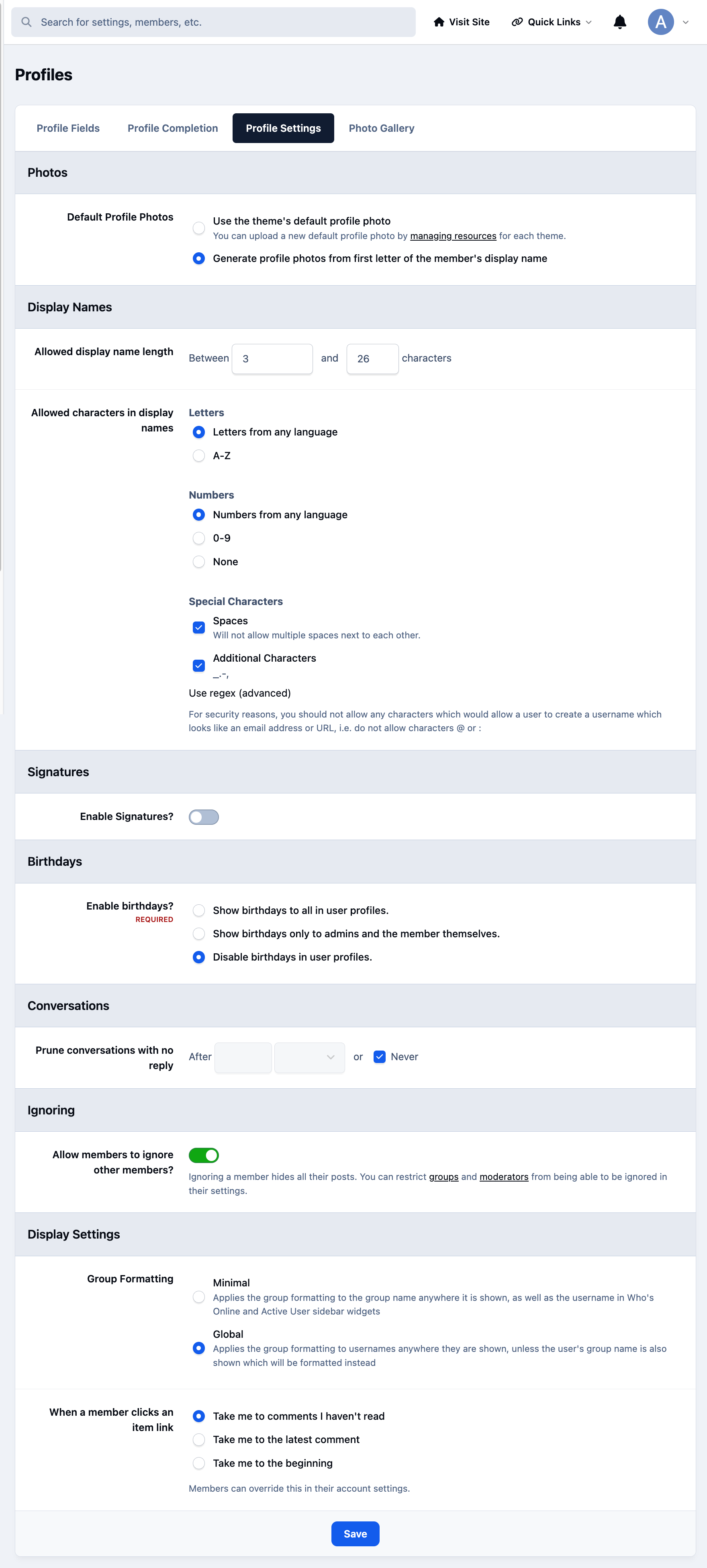
This area also includes privacy-related settings, such as whether members can ignore others, as well as display preferences that affect how names, groups, and content links appear throughout the site. These settings apply globally and help you shape both the appearance and behavior of member profiles to suit the needs of your community.
Photo Gallery
While for some, it is fine to upload their own profile photos, we work with many communities that place a strong emphasis on privacy, including those in the medical sector and communities that support young or vulnerable people.
In these environments, you may wish to disable external uploads to reduce the risk of exposing personal information, prevent potential harassment, and help protect members from being identified outside the community.
Directly to address this issue, we added the user photo gallery, allowing community teams to upload a curated selection of approved images that members can choose from. This can be done from within the admin CP at the following location, using the upload button provided
Members → Member Settings → Profiles → Photo Gallery
By using only community-approved photos, profile images remain safe, consistent, and non-identifying, while still giving members a sense of individuality and belonging within the community.
Adding Profile Photos
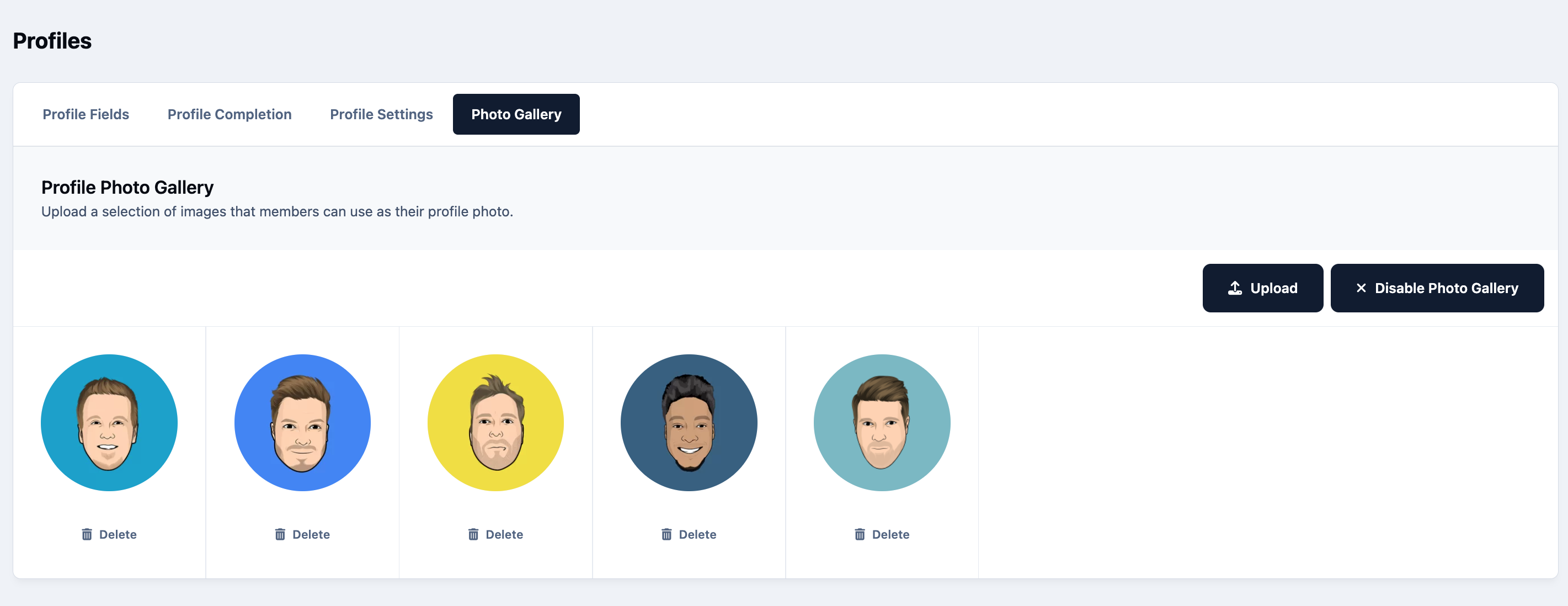
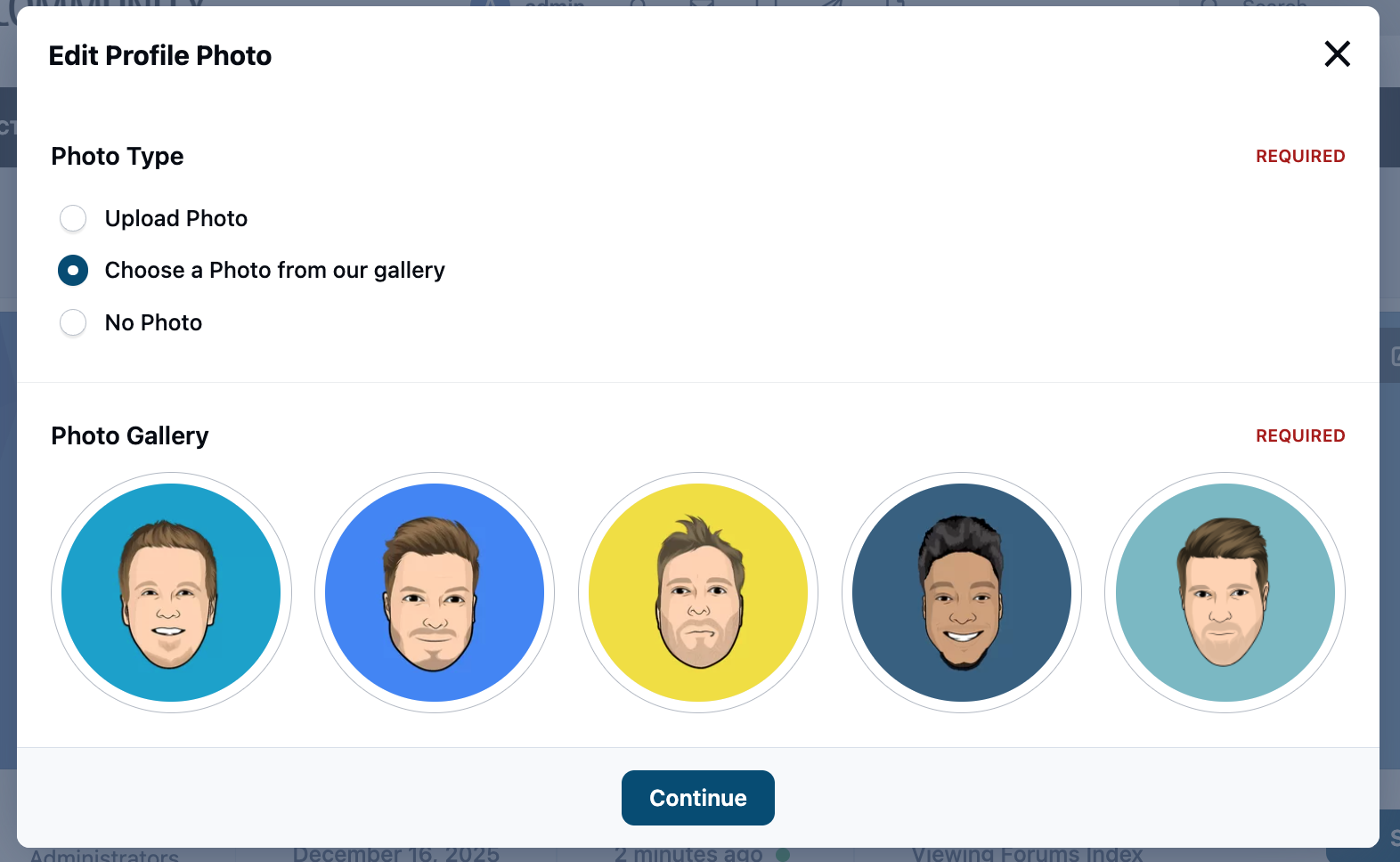
Once added, users on the front end can choose from this selection within their profile, by selecting Edit Profile → Edit Profile Photo
Using Profile Photos
Recommended Comments